
DMSS is Dahua Technology’s official software for viewing and managing your CCTV cameras, DVRs, and NVRs directly from a Windows or Mac computer. If you’re already using the DMSS mobile app and want the same access on a bigger screen, this is the tool you need — no emulator required.
Below, you’ll find free download links for both Windows and Mac, along with a step-by-step setup guide covering installation, login, and adding your first device. We’ve also added a troubleshooting section at the end for common issues like devices showing offline or login errors — based on real problems readers have run into. We also included a video guide of its installation
DMSS is the software by Dahua Technology, and you can get it for free. In this article, we are going to cover how to get this software and how you can install and configure it on your computer.
This software also works for the NVR and for the Dahua IP cameras. You need to follow the steps below to get your cameras on your computer screen.
Download DMSS for PC (Windows and Mac)
You can download DMSS for PC using the links provided below. We’ve included separate links for Windows and Mac, so make sure to select the file that matches your operating system. The download links are 100% official and secure, so you can download the installer without any security concerns. Once the download is complete, we’ll walk through the installation process.
If you’re using a newer NVR setup, make sure to download the latest UI version. Dahua has officially discontinued the legacy DMSS software, so downloading the updated interface is necessary to ensure full compatibility with your system.
DMSS Download for Mac Clients
DMSS for Mac: the file is available for Mac users to connect their cameras on Mac-based PCs. The company is providing its software for Mac clients. To get this, you need to click the link below.
What is DMSS for PC Software?

This is the software for connecting the CCTV cameras to the PC. This is mainly used for monitoring Dahua CCTV cameras on the PC. So, you have a Dahua CCTV camera system, and you want to run it on your PC. This software allows you to connect your CCTV Camera and PC together. This is also used for managing and maintaining the Dahua CCTV camera system by using your PC.
Features of the DMSS for PC
Here, you are going to learn about the features of this software, know more about the software functions, and get to know about the functions it provides. This is a free software employed on Microsoft Windows 7/ 8/ 10 PC. The features of DMSS for Windows are as follows:
- Maintain multiple channel monitoring and playback with a maximum of 16 windows.
- Assist real-time playback during preview.
- Playback supports quick, slow, and by-frame modes.
- Supports local snapshot and recording.
- Corresponding files are stored locally.
- Provides PTZ control by sliding on the touch screen.
- Supports memory of the previous channel viewed last time.
- Supports colour setting and streaming parameters adjustment.
- Supports alarm push.
- Supports alarm output control from a smartphone for the alarm push function.
- Supports bidirectional talk.
- “Smart Picture” function, which zooms in/out a picture to view different parts of the picture on different windows and at the same time.
- E-Map function, to show cameras on an electronic map of a household or area.
- Channel resolution and frame Config, and view of HDD info.
Use of DMSS for PC
As we explained previously, if you have a Dahua camera setup, which is manufactured by the Zhejiang Dahua Technology company, and those cameras are operating on your mobile device, and you desire to connect them on PC.
This is a video management software for PC and has so many options for managing them on your PC. In simple words, this is the software for controlling the CCTV cameras on your PC at your premises or at any remote location.
After downloading the software on your computer, let’s come to the next step. The downloaded file is in a compressed format, so we need to extract the setup. For Windows, click on the downloaded file, then extract the file to your desired location, and for Mac, just open the file. Now move to the first step, ‘the installation’.
Installation and configuration Video of DMSS
You can also see the video on how you can install and configure DMSS on your computer. In this video, we also explain all the operations of the software.
How to Install & Configure DMSS For Windows 7/8/10/11
Now download DMSS for Windows from the above link provided to you. Now the file will be downloaded to your system in a compressed format, and you have to extract the downloaded file using extraction software like WinRAR or some other software.
1. Step # 1 Installation
Now, after downloading and extracting the file, just double-click on the extracted file, and the setup will ask you for permission for the installation. Click on the “Yes” button, and the setup is about to install.
After showing the first screen, you have to click some options. The first one is for the language; choose a language for that. In my case, I chose English. The second one is for accepting the agreement; tick that, and the last one is the Next button to move to the next screen for the installation process.
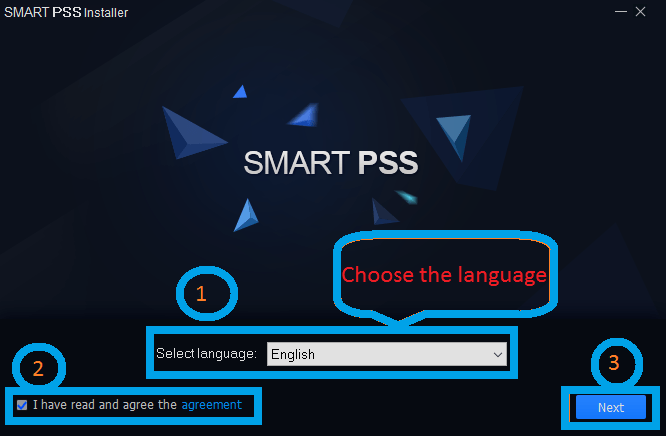
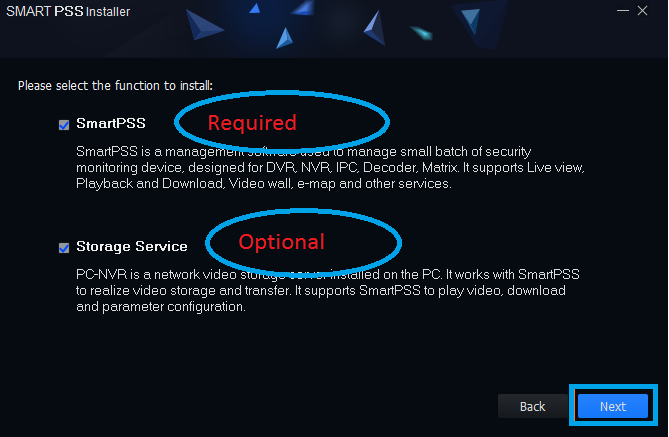
After clicking the “Next” button, you will get a screen like the one below. Here are the two options. The first one is for the actual setup, and the second one is for the storage server. This means if you want to make your PC a recording server, then you should choose that option; otherwise, tick that option.
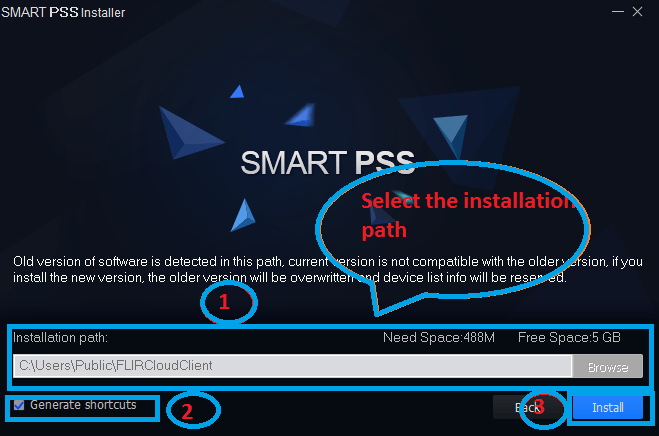
Now, come to the new screen asking for the installation directory path, which means in which folder you want to install this software on your computer. Just select a path for that if you want; otherwise, leave it as the default. The second option is for creating a shortcut of the software on your desktop screen. After that, click on the “Install” button.
This software for PC is about to be installed on your PC. Just wait for some moments, and you will get the shortcut icon on your desktop.
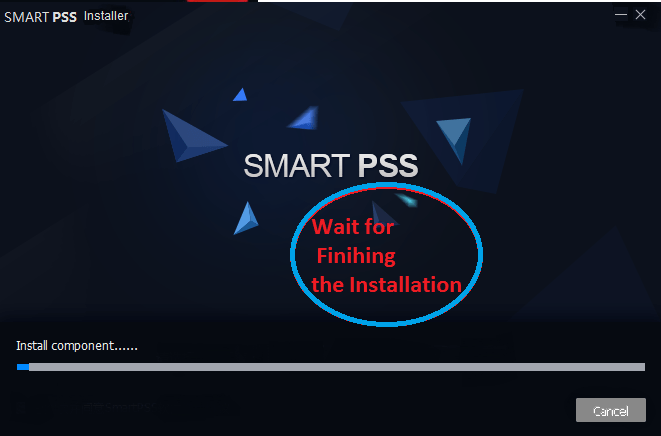
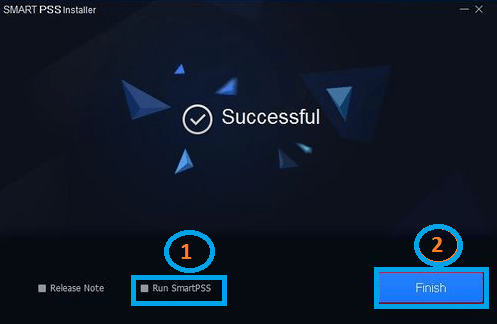
After completing the installation process, you need to finish the installation process. Click on ” Run SmartPSS” and click on the “Finish” button.
2. Step # Logging in on DMSS
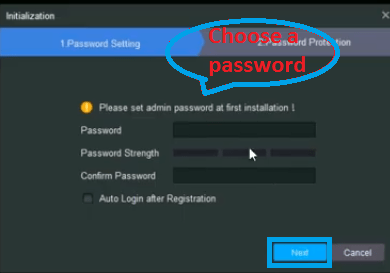
Now it’s time to enter a password on the screen. Note that the password must be strong enough. One more thing: please note down the password somewhere in case you forget it.
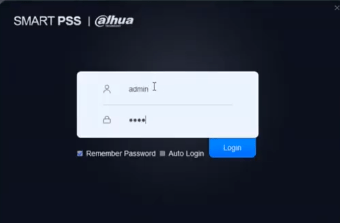
Then, the login screen will come up. Just use your password, which was created previously. In the username, fill in “admin”. Now click on the “Login” button.
3. Step # Add Device with the CMS
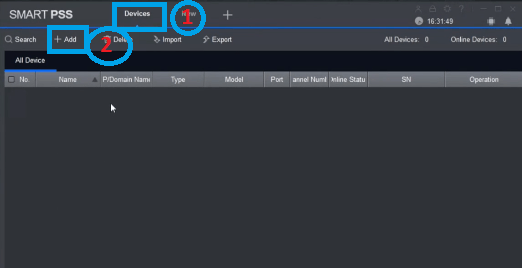
The screen will come up as below. Now, you need to connect your DVR to the installed software. Click on the “Devices” tab, then click on the “Add” button as shown on the screen.
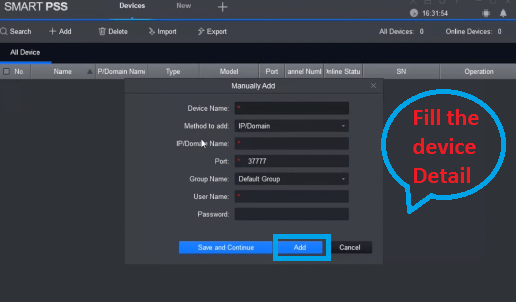
A new screen will open; now you need to fill in the details of the DVR/NVR or IP camera (Find IP address of Dahua Device) as you wish to watch on your PC. After filling in the information, click on the “Add” button as shown below.
4. Step # Device Status
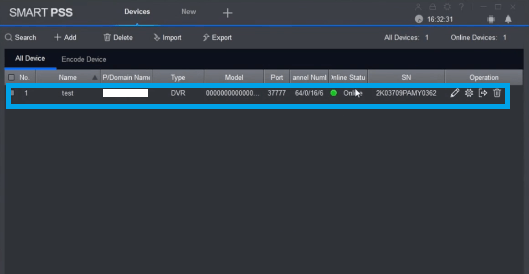
Now, we can see the status of our devices on the screen, as shown below. Now, the devices are connected. Check the status of the device; it should be green as shown in the picture below.
5. Step # Live view of the Cameras
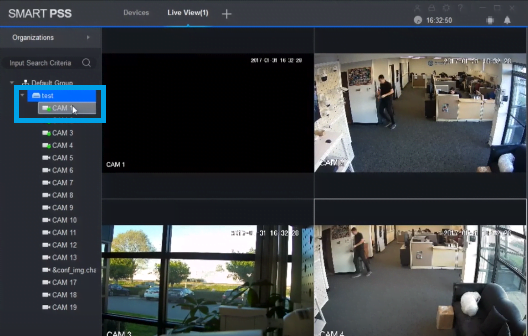
Here, you can see the live view of your connected cameras. Now click on the “New” button to go to the “Live View“.
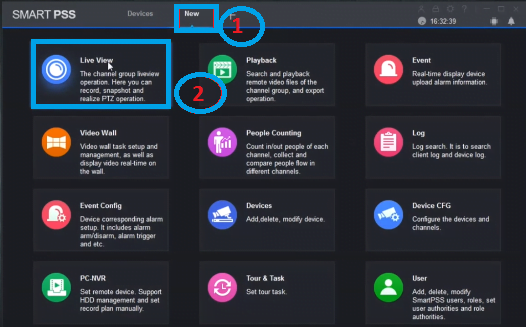
Here is the Live view of CCTV cameras as shown below.
Common DMSS for PC Problems & Fixes
While using DMSS on a Windows PC, you may occasionally run into connection, live-view, installation, or compatibility issues. Below are some of the most common problems and practical solutions. You can also read the full guide to DMSS errors and Fixes.
1. Device Shows Offline After Adding
If your DVR or NVR appears offline after adding it to DMSS, the problem is usually related to the device’s network connection or P2P settings.
Try these fixes:
- Recheck the device Serial Number (SN) and enter it exactly as shown on the recorder.
- Make sure P2P is enabled on your DVR/NVR.
- Check that the recorder has an active internet connection.
- Restart the DVR/NVR and your router, then check the P2P status again.
- Remove the device from DMSS and add it again if necessary.
2. Unable to Uninstall DMSS or Related Software
If Windows says that a Dahua application or related process is still running while you are trying to uninstall it, a background process may be preventing the uninstallation.
Try these steps:
- Close DMSS and any other Dahua-related applications.
- Restart your computer.
- Try uninstalling the software again.
- If Windows requests administrator permission, allow the uninstaller to continue.
If a separate Dahua application asks for an account password, use the credentials associated with that application rather than assuming it is your Windows password.
3. Live View Not Loading Even When the Device Is Online
Sometimes the device appears Online, but the camera feed does not load. This can happen because of limited bandwidth, an unstable connection, or high-resolution video streams.
Try these fixes:
- Switch from the Main Stream to the Sub Stream.
- Check your internet connection on both the PC and the CCTV recorder.
- Close unnecessary applications that are using network bandwidth.
- Restart DMSS and try Live View again.
- If the problem continues, remove the device and add it again.
4. DMSS Not Working Properly on Windows 11
If DMSS does not install or run correctly on Windows 11, first make sure you are using a compatible and up-to-date version of the software. We have a complete guide on how to add a Dahua device to DMSS.
Try these solutions:
- Download the latest available DMSS version from the official source.
- Run the installer as Administrator.
- Restart Windows after installation.
- If an older build is being used, try Compatibility Mode from Properties → Compatibility.
- Check whether Windows Security or another security application is blocking the installer.
5. DMSS on Older 32-bit Windows Systems
Modern CCTV software may not support older 32-bit versions of Windows. If you are trying to run DMSS on a 32-bit Windows 7 computer and the installer does not work, check the software’s system requirements before installation.
For older Dahua systems, a compatible legacy client such as SmartPSS Lite may be a more practical option. Users should avoid installing random third-party or modified versions of CCTV software because they may contain security risks.
6. DMSS Shows a Black Screen
If the camera connects but the live-view window remains black, try switching to the Sub Stream first. If that does not help, check the camera’s encoding settings and make sure the selected channel is actually producing video.
You can also restart the recorder and reconnect the device in DMSS.
Conclusion
This is a very good software to watch your Dahua CCTV cameras on your PC. It has many features like device settings, remote Playback, Live monitoring, PTZ control, changing the device addresses, and so on. This is the free software provided by Dahua Technology. Enjoy.
So this is all about. We hope this information is helpful to you. If you have any queries or suggestions regarding the CCTV on your PC, please feel free to write us in the comment box below. Thank you for visiting us. Have a great day.
What is the DMSS app?
DMSS App is a CCTV software mainly used for security surveillance of Dahua security devices on smartphones and tablets. It is available for Android and iOS devices.
Which operating systems are compatible with DMSS?
It is compatible with Android and iOS. It supports Android 5.0 & above and iOS 9.0 and above.
How do I add a device to the DMSS app?
Open the DMSS app, tap the “+” icon, and choose “SN/Scan” to scan the device’s QR code or manually enter the serial number. Follow the on-screen instructions to complete the setup.
What is the difference between adding a device to an account versus adding it locally?
When you add a device to an account, you get access to more features. You can use device sharing, cloud server recording, etc. When you add devices locally, you can only use limited features of the application.
How can I receive alarm notifications through the DMSS on my mobile device?
Ensure that your device supports alarm notifications and is connected to the network correctly. Verify that live view is available and that alarm notifications are subscribed to within the app.
What devices can I add to the DMSS app?
You can add Dahua security surveillance devices like IP cameras, HD cameras, DVRs, and NVRs with the app.
Is there cloud storage available in DMSS?
Yes, DMSS offers cloud services, including cloud storage, when devices are added to your account.
How do I reset my device using the DMSS app?
Follow the following steps, and your device will be reset. Go to the DMSS app and select the Tool Manager option. After that, select the password reset option. Then, select the scan QR code option, and the device resetting prompts will complete the process.

cAN YOU HLP ME SETTING ESP ON ‘FILL THE DEVICE DETAIL PART.’
TQ.
See the post everthing is mention, if You connect device localy, detail will automaticaly fetch.
My purpose of looking on this topic, is trying to find a DMSS tool, in order to access my home DVR (which is running DMSS as well) remotely, using my personal laptop.
It seems above mentioned procedures to install DMSS, is actually for the host, which controlling the cameras directly through DVR. It is not what I am looking for, right now… Unless, installing the emulator is the answer?
Please kindly help to clarify this for me. Thanks in advance.
Everything is wriiten on the post.hope you understand.
Arsh it is not the answer for Tangs question, I also want to have control from a different computer in a different Country, what is the procedure
Arsh it is not the answer for Tangs question, I also want to have control from a different computer in a different Country, what is the procedure, I understand it is a FREE service but at least answer the questions properly
How to unistall? PC-NVR is locked with preinstalled password. cannot installed.
thanks a lot! anyway, how do I download the footage? I can’t find the download button
There is no such option, you go on record tap, check the record, and download it.
I could’t log in on my device. Seems like a forget the PW and the username
First, uninstall the software, delete the related folder from the directory and then reinstall.
unable to uninstall it. It showing first SmartPSS or PC-NVR is running. Close and uninstall it. and its asking for the password and showing password is incorrect even after entering correct password.
Restart your System and then un-install.
Hi Arsh
I did everything is ok but at the “fill the detail of the DVR/NVR or IP camera”, I do not know where to get that detail, I mean I know in DMSS but not know where that is. Can you please show me each step to get that.
Thank you very very much Arsh
Best Regards
Hi kevin Ho
Detail you are asking is the detail of DVR/ NVR or IP camera. Go to the network option of the Device.
Thank you very much Arsh, I did but something wrong, it show account is offline. I am using by DMSS app on phone very good.
The Device name is the username of DMSS user or the Device with 15 number and letter: 6GBAA4………
The last 2 line “username and password”, it is from the DMSS account or the new register.
Sorry about this, I do not know anything but I really need to use on laptop.
Thanks very much Arsh
Best Regards
Hi kevin, nice to hear from you.
You can use anything in device name, for username and password user same as you use in mobile.
Hi Arsh,
The software recognize the DVR and it is online and green .
However , the live view is not show any camera, pls advice?
Logging in on DMSS for Windows i have dmss on my mobile phone its great ? when i log in to dmss on windows for first time . do i use same log in details of my phone dmss.
i have installed this to my pc but when adding device they will not go green . just offline. and auto select cant find them .
Yes, you should use the same login details from your mobile DMSS app when logging in to DMSS on Windows.
If the devices are appearing offline and not going green, check network connection, firewall settings, device compatibility, IP address and port settings, try manual adding, and update device firmware if needed.
Great post! I’ve been searching for a reliable way to download DMSS for my PC, and your guide made it super simple. Thanks for sharing the step-by-step instructions!
Nu fuctioneaza cu W11 … ce pot sa fac ?
I just downloaded DMSS for my PC, and it works flawlessly on Windows 10! The interface is user-friendly, and I love how easily I can access my security cameras now. Thanks for sharing this!
i could not add. can you help me ?
Thanks for sharing this guide on downloading DMSS for PC! I really appreciate the step-by-step instructions. It’s great to see support for both Windows and Mac users. Looking forward to trying it out!
Thanks for sharing this information! I’ve been looking for a reliable way to run DMSS on my PC, and your guide seems really helpful. Can’t wait to try it out on Windows 10!
Thanks for sharing this information! I’ve been looking for a reliable DMSS download for my PC, and your post provides clear instructions. Just what I needed!
Great post! Storage tank jacking systems are essential in modern construction.
Hi There!
my windows is 7 32bit and can’t install DMSS 64bit version. can you help me?