
One of the biggest headaches when setting up a Dahua NVR or DVR on a PC is getting DMSS Live View not working. It can be super frustrating when it won’t connect. We’ve tested pretty much every scenario to figure out why this keeps happening—and more importantly, how to fix it in every single case.
Whether you’re using the DMSS app on Windows, Mac, or Android, this guide has you covered. Let’s go step-by-step to figure out why your Live View isn’t loading and get it fixed.
Quick Diagnostic: Why Does DMSS Live View Fail?
Before jumping into technical fixes, identify which category your error falls into:
| Symptom in DMSS App | Primary Cause | Quickest Solution |
| “Connection Failed” on all cameras | Network/Internet issue on DVR or Phone | Verify DVR P2P status is Online |
| Black screen with audio working | Video stream resolution/bitrate too high | Switch stream from HD (Main) to SD (Sub) |
| “Failed to Connect” on cellular data only | Mobile data restriction or port block | Toggle Stream Encryption or test via Wi-Fi |
| Single camera showing black screen | Loose camera wire or power supply failure | Check physical BNC/PoE cable and power |
Step-by-Step Guide to Fix DMSS Live View
Let’s break it down step-by-step to see what’s causing the issue and how to get it fixed.
1. DMSS Connection Failed
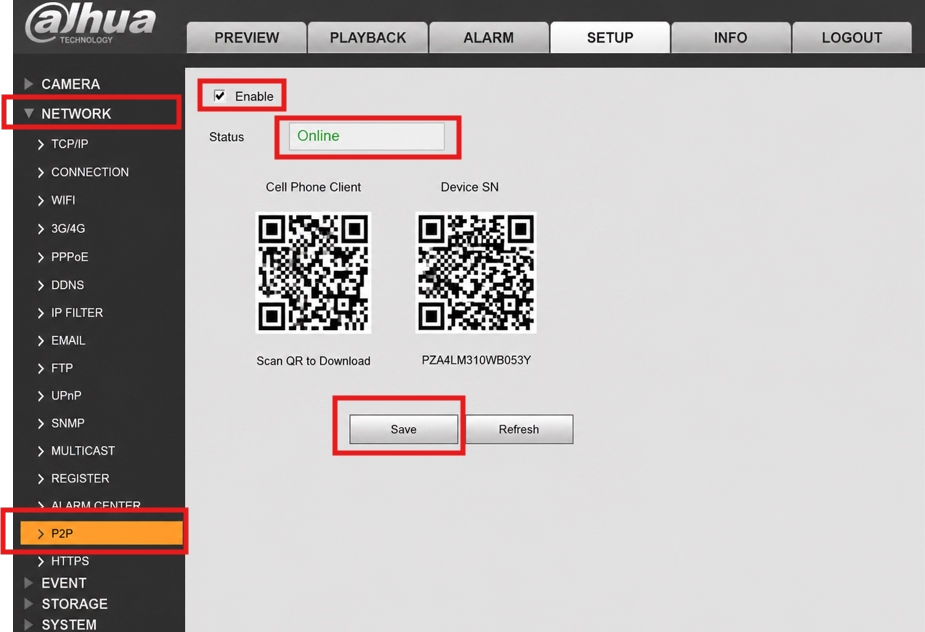
If you’ve fully set up DMSS but you’re still getting a black screen instead of your camera feed, the very first thing you need to check is P2P status. If it’s not connected via P2P, the live view simply won’t work—period. We’ve put together a full guide on setting up DMSS P2P that you can check out, but you can also start by following these steps:
- Connect the DVR/NVR to your router using a LAN cable.
- Verify that the device has internet access
- Go to: Main Menu → Network → P2P
- Enable the P2P Service
- Wait for Status = Online
2. Black screen with audio working
If your P2P connection is up and running, but you’re seeing flickering, getting audio with no video, or the feed keeps freezing—it all points to one main issue: your stream settings are set too high. Lowering the video bitrate will usually fix this right up.
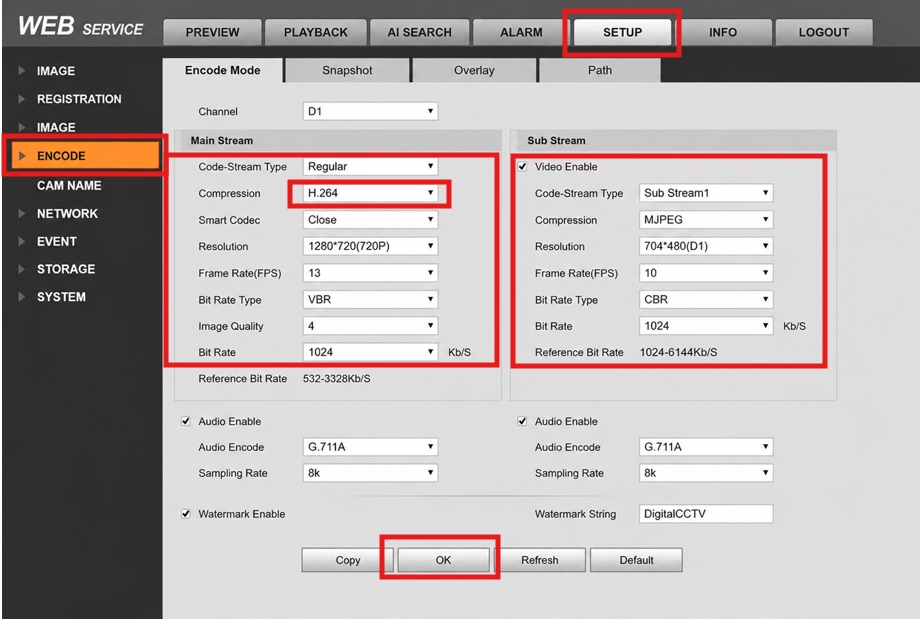
Video stream settings control your video quality, bandwidth usage, and storage consumption. You can adjust the Main Stream for recording quality and the Sub Stream for remote viewing.
Step 1: Log in to the DVR/NVR
- Open a web browser or use a monitor connected to the recorder.
- Log in with the administrator account.
Step 2: Open the Encoding Settings
Go to:
Main Menu → Camera → Encode
or on some firmware:
Setup → Camera → Video → Encode
The exact menu name may vary depending on the Dahua model and firmware.
Step 3: Select the Camera Channel
Choose the camera whose stream settings you want to modify.
Step 4: Select the Stream Type
Choose one of the following:
- Main Stream – Used for recording and high-quality live view.
- Sub Stream – Used for mobile viewing and slow internet connections.
- Third Stream (if available) – Used for additional low-bandwidth applications.
Step 5: Configure Video Stream Settings
Adjust the following settings as needed:
| Setting | Recommended Value |
|---|---|
| Encode Mode | H.265 (or H.264 if H.265 isn’t supported) |
| Resolution | Maximum supported by the camera |
| Frame Rate (FPS) | 15–25 FPS |
| Bit Rate Type | VBR for better quality, CBR for stable bandwidth |
| Bit Rate | According to the camera resolution |
| I-Frame Interval | Approximately 2 × FPS (for example, 30 for 15 FPS) |
Step 6: Save the Settings
Click Save or Apply.
The recorder will update the stream settings immediately or after a short refresh.
Recommended Settings
Main Stream (Recording)
- Resolution: 1920×1080 or higher
- FPS: 20–25
- Encode: H.265
- Bit Rate Type: VBR
- Bit Rate: 4096–8192 Kbps (depends on camera resolution)
Sub Stream (Mobile Viewing)
- Resolution: 640×360 or 704×576
- FPS: 10–15
- Encode: H.264 or H.265
- Bit Rate: 256–1024 Kbps
Using a lower-resolution sub-stream reduces bandwidth usage and generally provides smoother remote viewing over slower internet connections
3. “Failed to Connect” on cellular data only
Sometimes DMSS just refuses to connect on your phone. The most common cause is phone-level restrictions, which you can easily fix in your app permissions or background data settings. But if your settings look fine and it’s still failing, your cell provider might be blocking the specific ports DMSS needs. A simple way to troubleshoot this is to switch to Wi-Fi and test it again—if it works on Wi-Fi, your mobile carrier is likely the issue.
If it works fine over Wi-Fi, follow these steps to get your mobile data connection working:
- Uninstall the DMSS app from your phone.
- Restart your device.
- Download a fresh copy of DMSS from the Google Play Store or Apple App Store.
- Rescan the QR code to reconnect your system.
- Set the default video quality to Sub Stream.
4. Single camera showing black screen
If everything seems properly configured, but only one camera is showing a live feed while the rest fail to connect, try the troubleshooting steps below:
- Check the main monitor: Make sure all your cameras are showing up fine on the local TV or monitor connected to your NVR/DVR.
- Test over Wi-Fi: Switch your device to local Wi-Fi to see if cellular network speed is holding things back
- Switch to Sub-Stream: Lower the video bandwidth demand by changing the stream quality from Main Stream to Sub-Stream in the app.
- Switch to Sub-Stream: Lower the video bandwidth demand by changing the stream quality from Main Stream to Sub-Stream in the app.
- Restart the DMSS app: Force-close and reopen the app to refresh your connection.
- Check camera settings on the recorder: Log into your NVR/DVR menu and verify that all camera channels are properly configured and enabled.
Still Having Issues on PC?
Internal Link Note for your Blog:
If you are experiencing live view lag while running DMSS via an emulator on Windows or Mac, check out our guide on DMSS for PC Download & Installation to optimize emulator graphics rendering and network settings.
Faqs
Why does DMSS work on one phone but not on another?
Different phones may have different Android/iPhone versions, hardware performance, or app permissions. Make sure both devices are using the latest DMSS version and have the same device credentials configured.
Should I delete and add my DVR again if live view stops working?
Only do this if basic troubleshooting doesn’t help. In many cases, restarting the recorder, checking the P2P status, or updating the app resolves the issue without removing the device. Re-adding the DVR should be one of the last troubleshooting steps.
Why does the picture stay black for 10–20 seconds before loading?
This is commonly caused by slow internet or a high-resolution main stream. DMSS waits for enough video data before displaying the image, which can create a noticeable delay.
Why can I hear audio but can’t see any video in DMSS?
When audio works but video doesn’t, the connection is active but the video stream isn’t loading correctly. This is often caused by an unsupported encoding setting, excessive bitrate, or a temporary streaming problem.
Why do I only get a black screen when I’m away from home, but it works on my Wi-Fi?
This usually points to a network issue rather than a camera problem. Your home internet upload speed may be too low, or your mobile connection may not be stable enough to load the main stream. Try switching to SD mode and test the connection again.

