
Is your SuperLive Plus app not working properly? Maybe it keeps showing Device Offline, Connection Failed, Login Failed, or the live camera feed won’t load.
SuperLive Plus is a staple in the CCTV world, but it sometimes acts up and refuses to connect to your cameras. To fix that, just run through a few basic steps to pinpoint the real issue and get things back up and running.
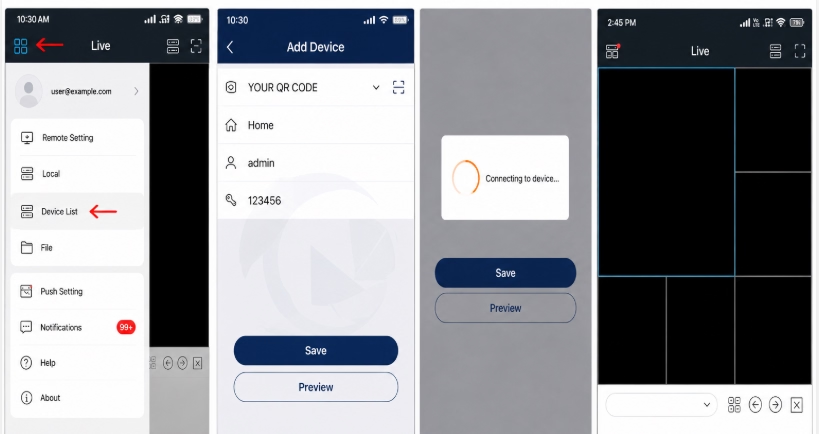
Quick Checklist: Why SuperLive Plus App Not Working
Here’s a quick checklist to track down why the SuperLive Plus app is not working. It’ll help you pinpoint where the breakdown is happening—getting to the root of the issue is key, so definitely run through every check listed here.
| Problem | Most Likely Cause | Quick Fix |
|---|---|---|
| Device Offline | Check your internet connection and verify the P2P status on your NVR. | Restart router/ Enable P2P on NVR |
| Login Failed | Wrong username/password | Double-check the username and password you entered in the app. |
| Connection Failed | Network blocked | Sometimes your internet provider blocks certain ports. |
| Black Screen | Stream loading issue | Lower the streaming quality in your NVR’s encoding settings. |
| Playback Not Working | Storage or firmware issue | Either the hard drive isn’t working, or it’s a firmware issue. |
| Cannot Add Device | Wrong serial number | Try scanning the QR code instead of typing in the serial number. |
| Keeps Disconnecting | Weak internet | Use stable Wi-Fi |
Tested Solutions
During troubleshooting, these four fixes resolve the majority of SuperLive Plus connection problems:
- Restart the DVR and router.
- Ensure the DVR’s P2P status is Online.
- Verify the device information (serial number, IP, username, and port).
- Test the app on a different internet connection (mobile data vs. Wi-Fi).
Step-by-Step Fixes for SuperLive Plus App Not Working
If you ran through the quick troubleshooting checklist above, you probably have a good idea of where the issue is. Let’s tackle it step-by-step and get it fixed. If you’re running SuperLive Plus on a PC, follow our step-by-step download and installation guide to make sure you get it set up and running the right way.
1. Fix: Device offline in Superlive Plus App
First off, let’s check if your internet is down completely or if it’s working fine and just isn’t making it to your NVR. Head over to an internet speed test site and run a quick check. After this, make sure to run through the steps listed below one by one.
1. Main Internet Check
- Connect your phone or laptop to the same Wi-Fi network and try loading a web page.
- If nothing loads, the problem is with your router or internet provider. Unplug your router, wait 30 seconds, and plug it back in.
2. Cable & Port Check
- Check the Port Lights: Look at the Ethernet ports on the back of your NVR and router. You should see tiny green or yellow lights flickering. If they’re totally off, the connection is loose, or the cable is dead.
- Test the Cable: Unplug the cable and click it back into place firmly, or swap it out with a spare Ethernet cable.
3. NVR Network Settings
- On your NVR screen, go to Menu > Network > TCP/IP.
- See if the Network Status says Online or Offline.
- Enable DHCP: If it says offline or the IP address shows ‘
0.0.0.0‘, check the box to turn on DHCP and hit Save. This lets your router automatically assign the right IP address to the NVR.
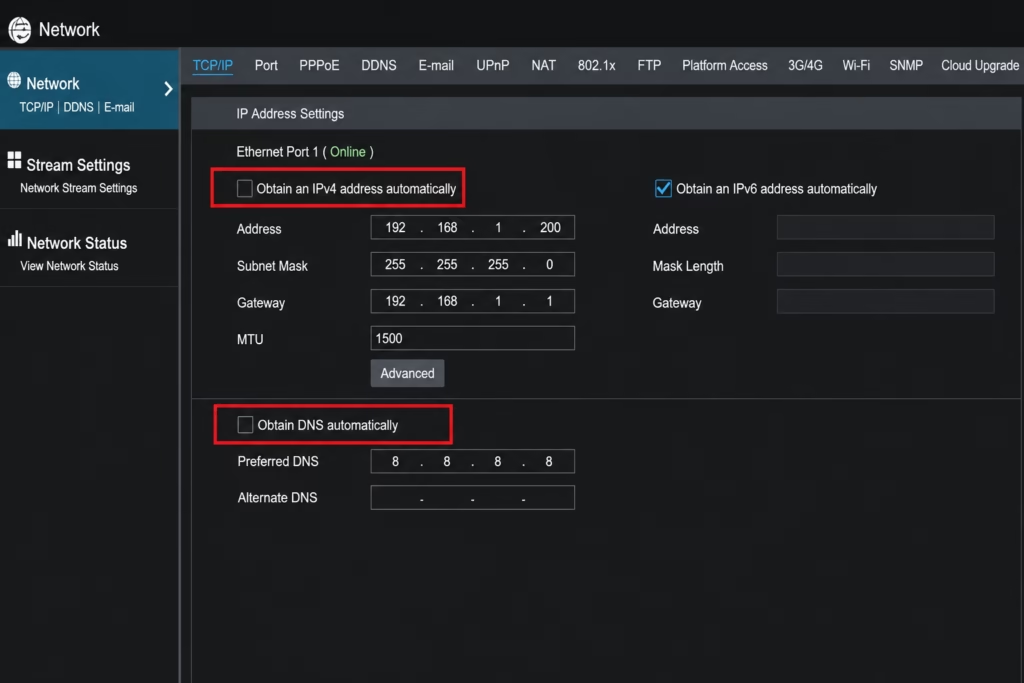
We’ve also created a full guide on how to get your SuperLive Plus DVR or NVR online. Be sure to check it out—it will walk you through the entire setup process step by step!
2. Fix: Login Failed in Superlive Plus App
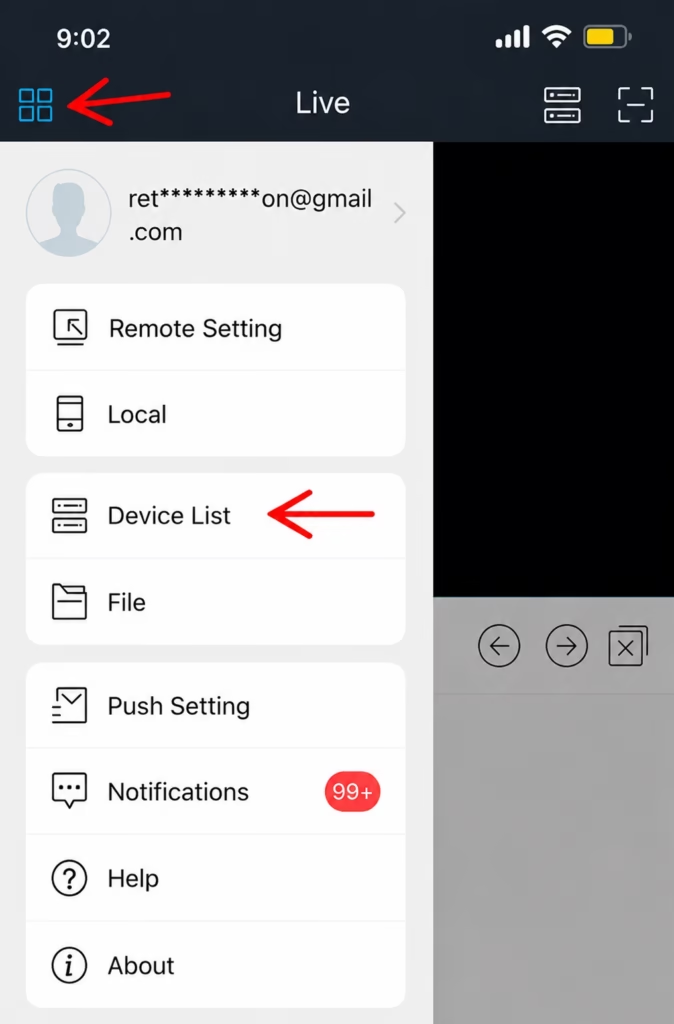
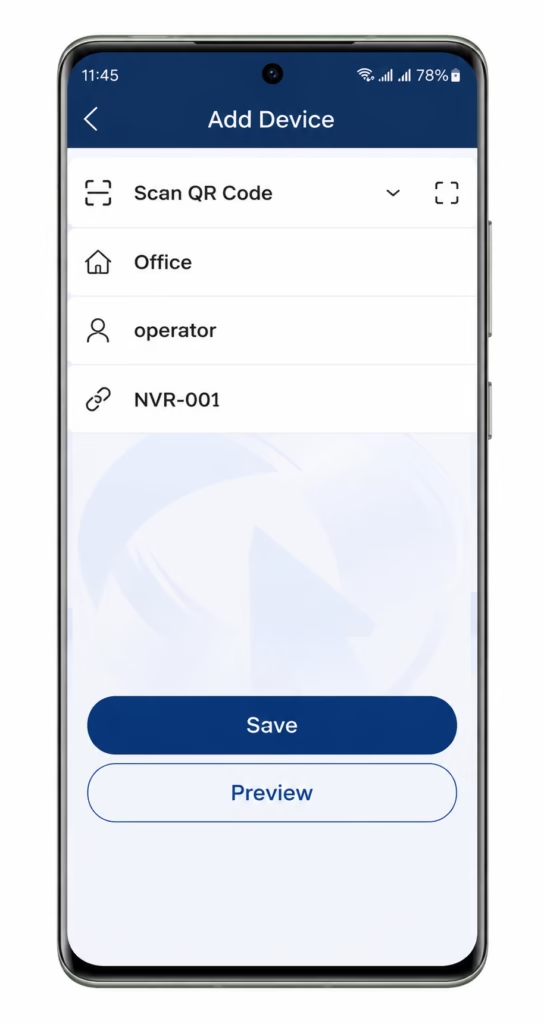
If you’re getting a “Login Failed” error, open the app and tap the menu icon in the top-left corner. Go to Device List, tap Edit Device, and make sure you enter the correct admin username and password for your NVR/DVR.
3. Fix: Connection Failed in Superlive Plus App
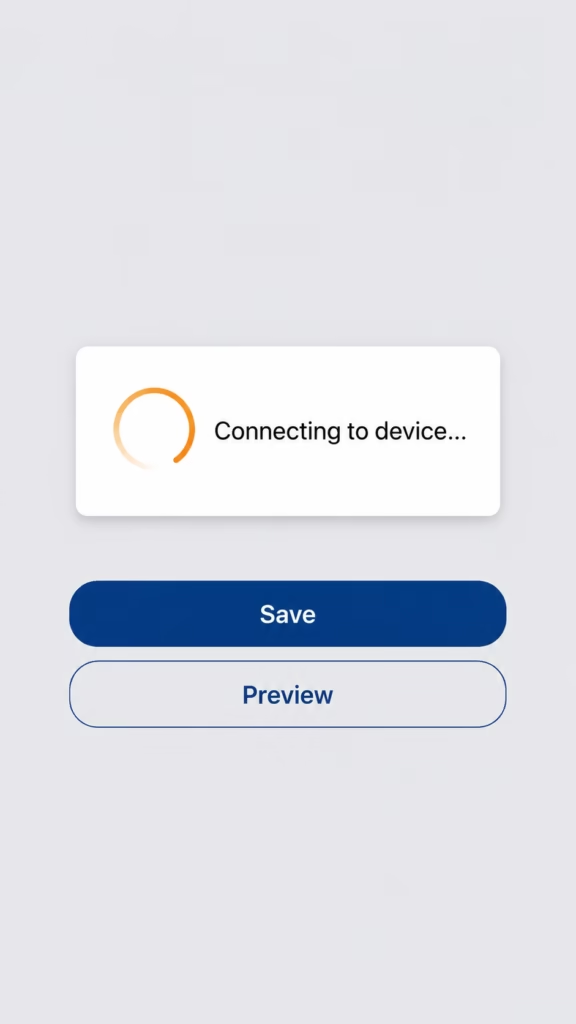
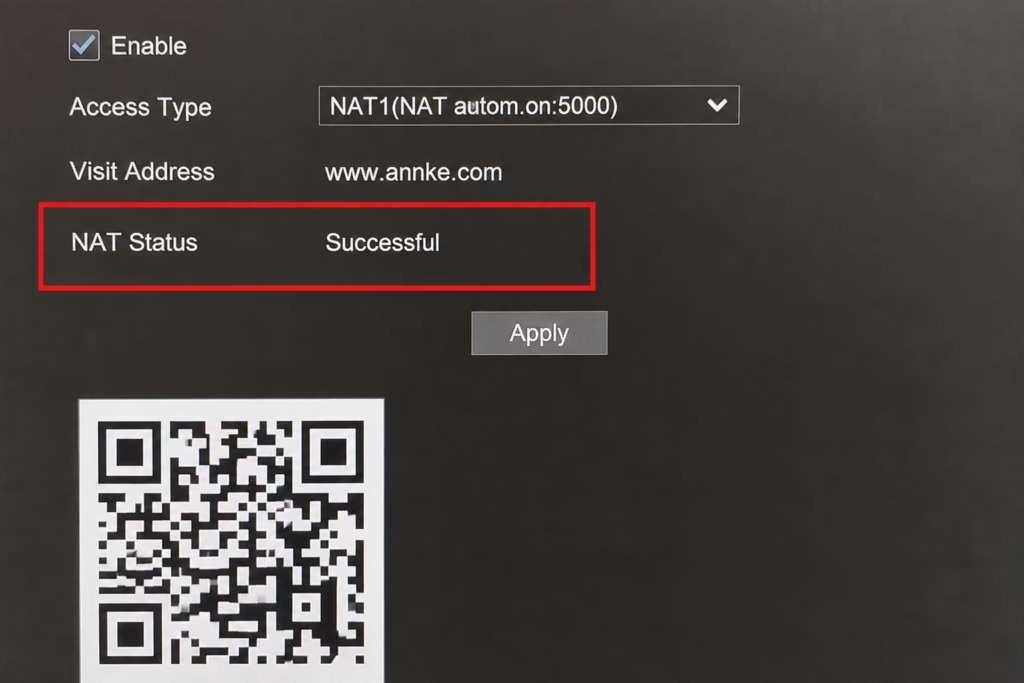
If the SuperLive Plus app shows “Connection Failed,” NAT (P2P) is likely disabled on your recorder.
To fix this, go to the Network page on your recorder and select the NAT option. In the window that pops up, check the box to enable it and hit Save. Wait a minute or two, then check the status page to make sure it switches to Online.
4. Fix: Black Screen Problem in Superlive Plus App
If you’re getting a black screen, it’s almost always a streaming issue—the app connects, but the video feeds stay blank or get stuck buffering.
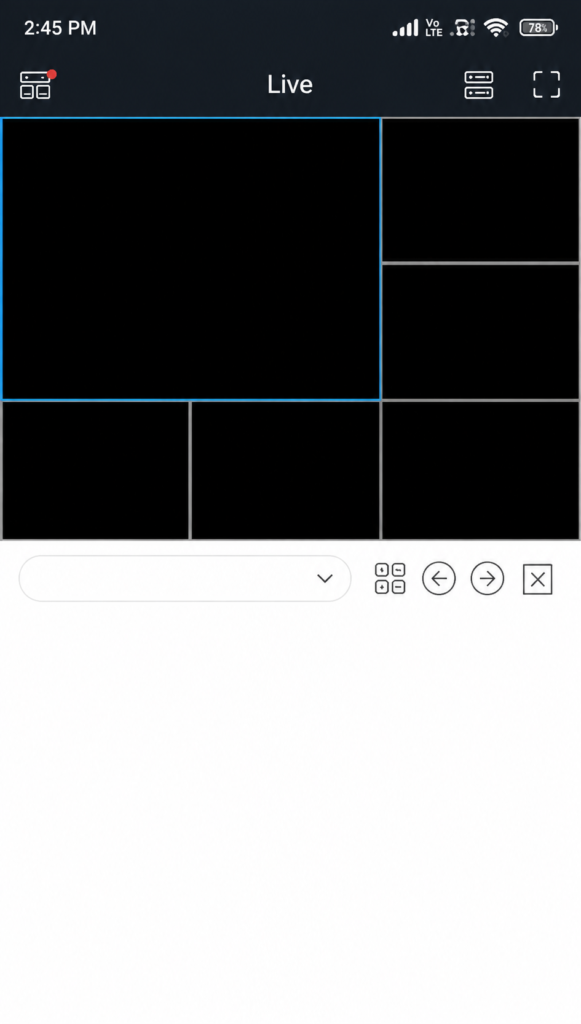
To fix this:
- Tap a single camera feed on the Live View screen.
- Tap the Stream Settings icon and switch from Mainstream to Sub-stream (or Fluency mode).
This uses less bandwidth so your live feed loads right away, even on a weak or slow internet connection.
If you’re still stuck, dial down the video encoding settings directly on your NVR:
- Go to the Encoding menu on your NVR.
- Drop the frame rate (FPS) down a bit.
- Switch the video format from H.264 to H.265.
- Set the video quality to Medium.
- Apply these exact settings across all your cameras and hit Save.
That usually gets the stream loading right up.
5. Fix: Cannot Add Device in Superlive Plus App
If you can’t add the device to the app at all, double-check these three things:
- Double-check the Serial Number: Make sure there are no typos in the serial number. Instead of typing it out manually, try scanning the QR code on the recorder or on the on-screen menu.
- Update the App: An outdated or wrong version of SuperLive Plus can block connections. Make sure you download and install the latest version from the App Store or Google Play.
- Update the Firmware: Outdated NVR/DVR firmware can cause compatibility issues. Update your recorder’s firmware to the latest version and try adding it again.
Conclusion
That covers all the major troubleshooting steps to resolve most SuperLive Plus connectivity and performance issues.
If you’re still having trouble getting your cameras to connect, you can try using a Superlive Plus compatible alternative app or leave a comment below describing your exact issue—we’ll do our best to help you solve it!
FAQs
Why is SuperLive Plus not working?
When SuperLive Plus stops working, it’s usually caused by a bad internet connection, wrong login info, an offline DVR/NVR, disabled P2P, outdated firmware, or a quick app glitch.
The best starting point is to reboot both your router and recorder, confirm the recorder shows an Online status, and make sure your app is updated to the latest version.
How do I fix the “Device Offline” error in SuperLive Plus?
To fix the Device Offline error:
Ensure your DVR/NVR is connected to the internet.
Restart the DVR and your router.
Check that P2P is enabled and shows Online status.
Verify the network settings (IP address, gateway, and DNS).
Re-add the device in the SuperLive Plus app if necessary.
Why does SuperLive Plus show “Connection Failed”?
A “Connection Failed” error simply means the app can’t reach your DVR. This usually comes down to:
A typo in your IP address or serial number
A brief network drop or unstable internet
Router settings or blocked ports cutting off the connection
To fix it, double-check your device details for any mistakes, then try connecting on a different network—like switching your phone from Wi-Fi to mobile data to see if it goes through.
How do I fix the Login Failed error in SuperLive Plus?
Double-check that you’re entering the exact username and password. If you know those are right, log directly into the DVR and make sure that specific user account actually has remote access permissions turned on.
If you’re still stuck, try deleting the device from the app and adding it back from scratch, or perform a password reset on the DVR.
