
Dahua has dedicated software for running your cameras on a PC, which most people look for as DMSS. Your cameras run super smoothly on it once everything is hooked up correctly. In this guide, we’ll walk you through exactly how to add Dahua DVR/NVR to DMSS on PC using P2P (Serial Number), IP Address, along with solutions to common connection problems. step-by-step.
Requirements to Add a Dahua DVR/NVR to DMSS on PC
Before you try adding your Dahua device to DMSS, there are a few quick things you’ll want to double-check first.
- P2P Status is Online: On your NVR/DVR local monitor, go to Main Menu > Network > P2P and make sure the status says Online.
- DMSS For PC: Installed on your computer.
- Serial Number (SN): Copy the 15-character Serial Number listed on that same P2P page.
- Admin Password: You will need the master password you set up when initializing the recorder.
If you’ve already got DMSS installed on your PC and your NVR/DVR shows a P2P status of “Online,” you’re already halfway there! From here, you’re just a few clicks away from getting your cameras hooked up.
We will be using two different methods to connect DMSS on your PC. While both work fine, we strongly recommend the P2P Method as it is much easier to configure and works from anywhere without extra network settings.
Method 1: Add Dahua DVR/NVR to DMSS Using P2P (Recommended)
First off, make sure your Ethernet cable is plugged into your DVR/NVR and the recorder is actually getting internet. Once that’s good to go, follow the steps below:
Step 1: Enable P2P on the Recorder(NVR/DVR)
Log in to your NVR or DVR using your admin password. Once you’re signed in, navigate to:
Main Menu → Network → P2P
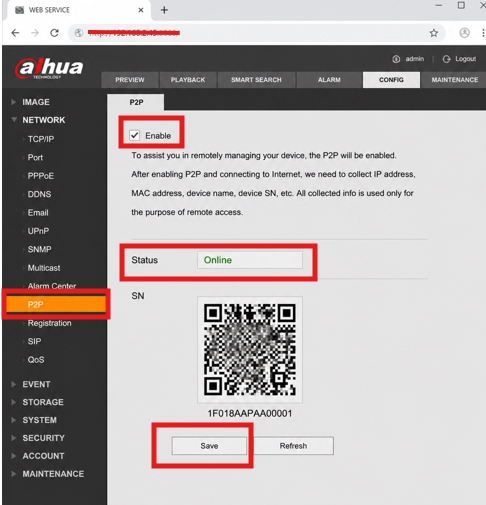
- Enable P2P Wait until the status changes to Online.
- Note the Serial Number or QR Code
Step 2: Open DMSS on Your PC
Now, head over to your PC where you already installed DMSS and open it up.
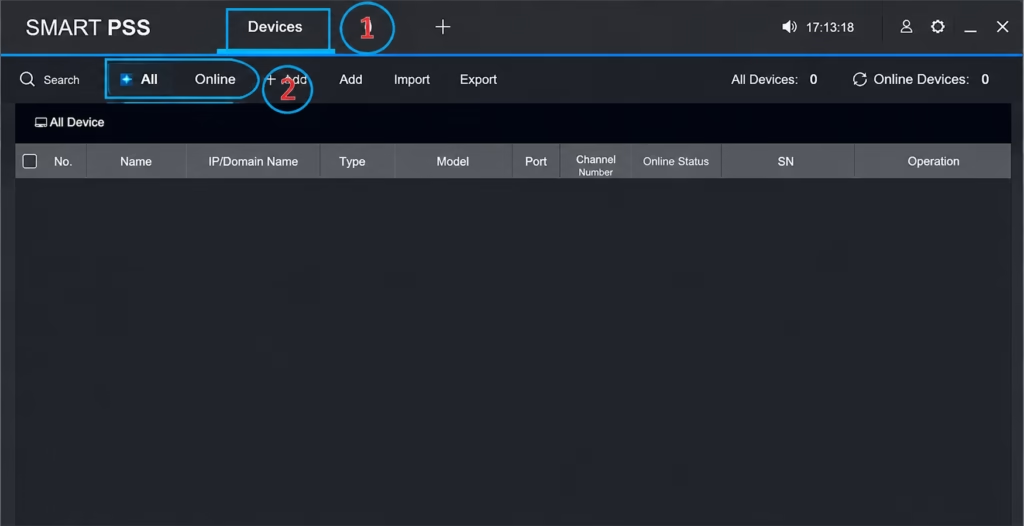
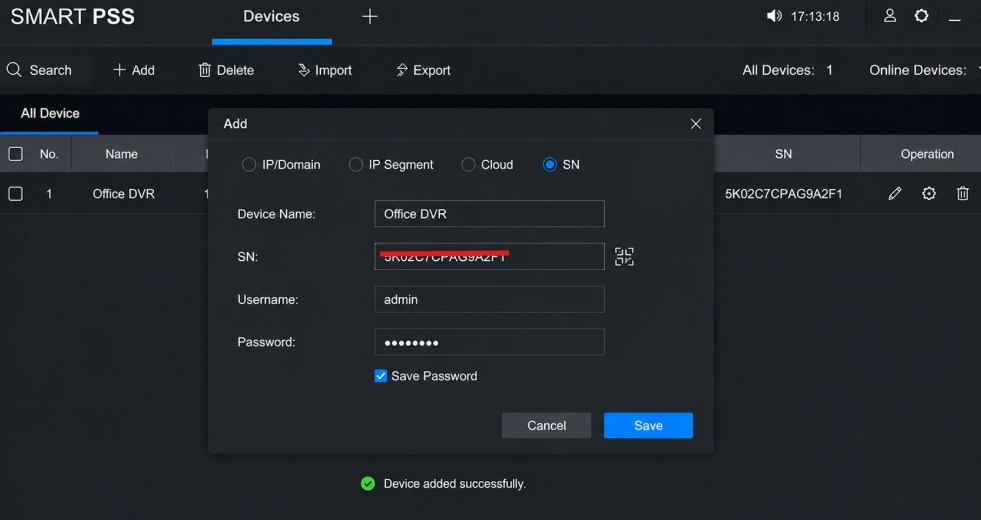
- Click on add Device
- Select Serial Number
- Fill Your Serial Number Into the textbox.
- Enter Username & Password
- Click on Save.
Method 2: Add Dahua DVR/NVR Using Local IP Address
If you don’t have an active internet connection and want local access to your Dahua recorder on your PC, you can connect directly using its local IP.
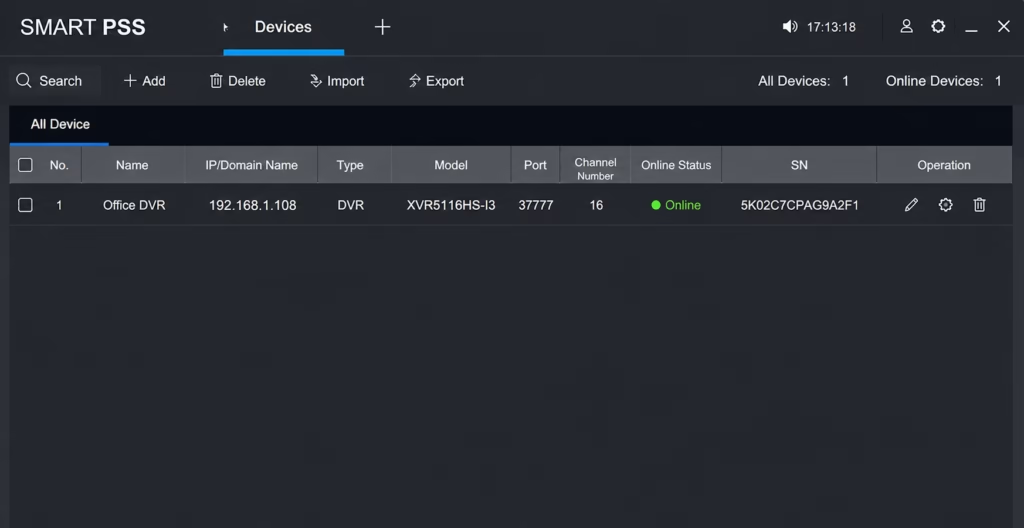
- Open DMSS on your PC and click Add Device.
- Select IP/Domain (or IP Address) as your add type. (You can find Dahua IP using Dahua config tool)
- Type your recorder’s local IP address into the box.
- Enter your username and password.
- Hit Save, and you’re good to go!
Must Enter the right port number. Dafault Port of dahua is: 37777
How to Check if Your Recorder Is Connected
After adding the device:
- Green Online icon
- Live View loads successfully
- Playback works
- Device Information is accessible
If the status shows Offline, verify the internet connection and login credentials.
Common Errors and How to Fix Them
Device Shows Offline After Adding It
If your DVR or NVR appears in DMSS but its status is Offline, the recorder isn’t communicating with Dahua’s servers. You can also reach Dahua support.
Things to check:
- Make sure P2P is enabled, and its status says Online.
- Verify that the recorder has a working internet connection.
- Restart both the router and the DVR/NVR, then wait a few minutes before checking again.
- If you’re using Wi-Fi, try connecting the recorder directly to the router with an Ethernet cable.
Invalid Username or Password
This error usually appears when the wrong login credentials are entered.
Remember that DMSS uses the administrator username and password of your DVR/NVR, not the password you use to sign in to your DMSS account.
If you’ve recently changed the recorder password, update the saved credentials in DMSS as well.
Connection Failed
A connection failure doesn’t always mean the recorder is offline. In many cases, it’s caused by incorrect network settings.
Before trying again, verify:
- The IP address or Serial Number is correct.
- The TCP port hasn’t been changed.
- The recorder is connected to the internet.
- Windows Firewall or antivirus isn’t blocking the connection.
- You’re using the correct connection method (P2P, IP Address, or DDNS).
Live View Doesn’t Load
If the device is online but the camera screen stays black or keeps loading, the problem is usually related to the video stream.
Try these quick fixes:
- Switch from Main Stream (HD) to Sub Stream (SD).
- Lower the camera’s bitrate if it’s set too high.
- Check your internet speed, especially if you’re connecting remotely.
- Restart the DMSS application and reconnect to the device.
Device Added Successfully but No Cameras Appear
If the recorder has been added but no channels are displayed, it’s usually a recorder or camera configuration issue.
Check that:
- All cameras are connected properly.
- Camera channels are enabled.
- The recorder detects every connected camera.
- Live video is working on the local monitor connected to the DVR/NVR.
Device Keeps Disconnecting
If the device goes online and offline repeatedly, the issue is often caused by an unstable network.
Try the following:
- Reboot your router and modem.
- Use a wired Ethernet connection instead of Wi-Fi whenever possible.
- Update the DVR/NVR firmware to the latest version.
- Make sure your internet connection isn’t dropping frequently.
FAQs
Can I add multiple Dahua DVRs to DMSS on one PC?
Yes. DMSS allows you to manage multiple DVRs, NVRs, and IP cameras from a single account.
Which connection method is the easiest?
P2P (Serial Number) is the simplest because it doesn’t require port forwarding or advanced network configuration.
Can I use DMSS without creating an account?
Some local features may work, but signing in is recommended for device synchronization and remote access.
Is it better to use IP Address or P2P?
IP Address is ideal for devices on the same local network.
P2P is better for accessing cameras remotely over the internet.

