
ContaCam for PC – Free Download for Windows Latest Version
Free CCTV Surveillance & Live Webcam Software
ContaCam is a fast, lightweight, and versatile video surveillance and live webcam software for Windows PC that offers motion detection, continuous recording, and web server integration.
What is ContaCam for PC?
ContaCam is an extremely lightweight, fast, and feature-packed CCTV video (Onvif supported) surveillance and live webcam application for Windows PC. It turns your webcams, WDM devices, and network IP cameras into a full surveillance setup complete with motion detection, 24/7 continuous recording, and an integrated password-protected web server.
Motion Detection
Configurable detection zones, sensitivity, and thresholding.
Built-in Web Server
Access live streams & recordings remotely via web browser.
24/7 Recording
Continuous DVR recording with automatic old file cleanup.
Low CPU Usage
Optimized software engine that runs smoothly on older PCs.
Wide Camera Support
Supports USB Webcams, RTSP streams, and IP cameras.
Private & Secure
All footage is stored locally on your PC without cloud dependency.
Download ContaCam for PC (Windows)
System Requirements
- Operating System: Windows 11 / 10 / 8.1 / 7
- Processor: Dual-Core Intel / AMD Processor or higher
- Memory (RAM): 2 GB RAM minimum (4 GB recommended for multi-cam setups)
- Storage: 50 MB free disk space for installation + HDD space for recordings
- Camera: USB Webcam, WDM Capture Device, or Network IP Camera (RTSP / HTTP)
Technical Specifications
| Feature | Specification Details |
|---|---|
| Supported Devices | USB Webcams, WDM Cards, Network IP Cameras (RTSP, HTTP MJPEG) |
| Recording Formats | MP4, AVI, WebM (H.264 / AAC Codec integration) |
| Web Server Engine | Integrated micro-webserver with SSL encryption & password protection |
| Detection Modes | Motion detection with customizable zones, history timeline & snapshot triggers |
| Notification Alerts | Email notifications, FTP upload, local sound alarms, or custom command execution |
Installation & Setup Guide
Download and execute the official ContaCam setup file on your Windows PC. Follow the standard installation wizard instructions.
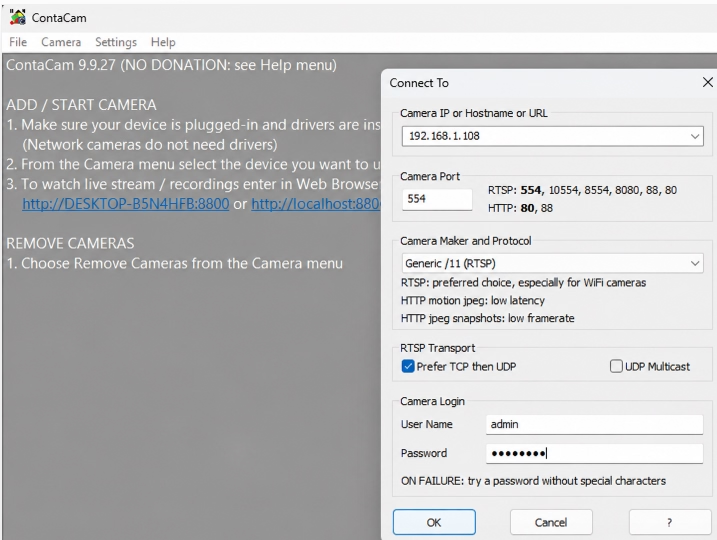
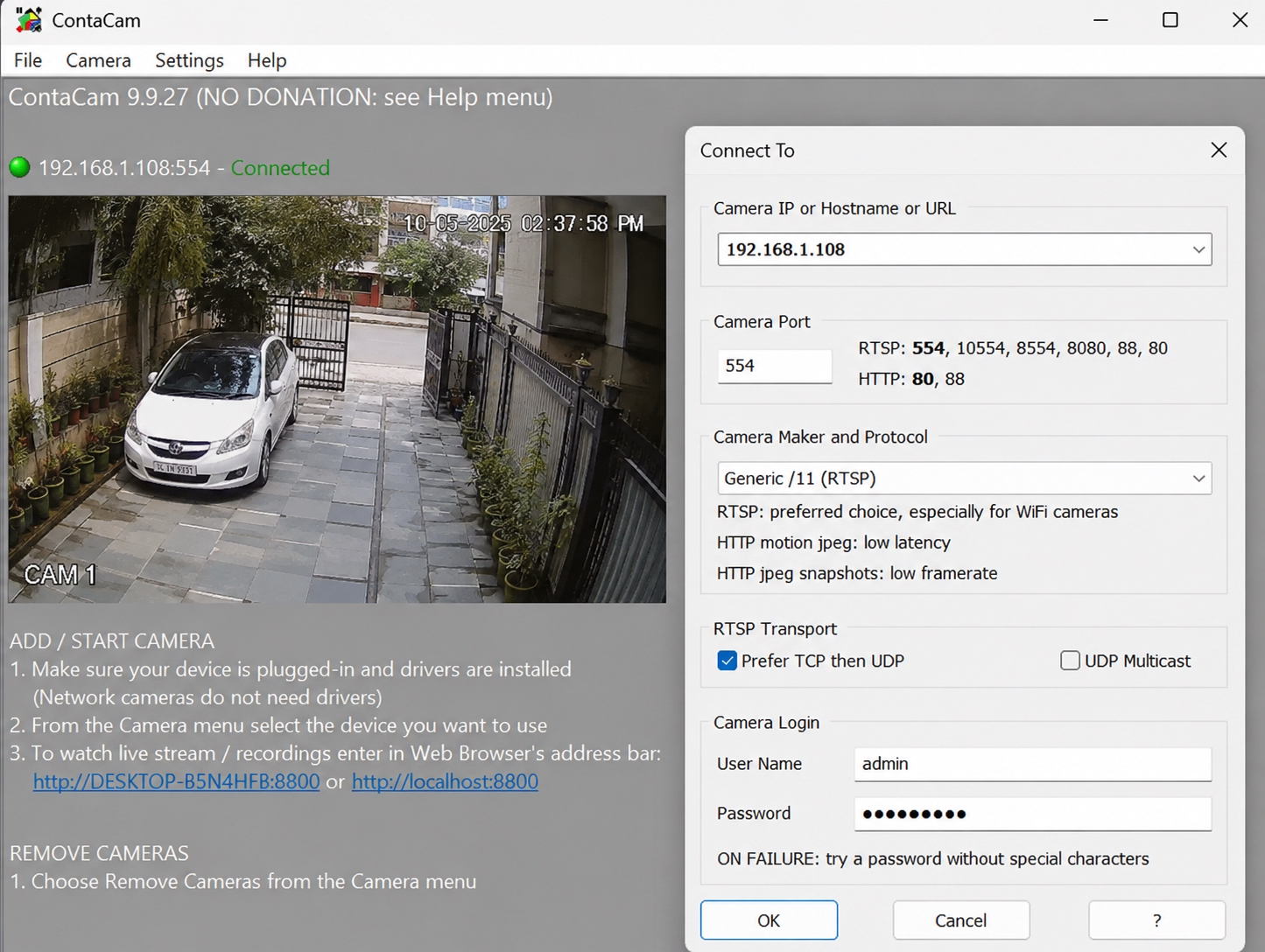
Open ContaCam, click on Capture in the main menu, and choose your connected USB Webcam or Network IP Camera (RTSP / HTTP stream).
Set up motion detection parameters such as sensitive zones, recording duration, and auto-cleanup rules for old video files.
Activate the built-in micro-webserver from settings to access live video streams and recorded clips remotely via any browser.
Interface Preview of Contacam
Troubleshooting & FAQs
Black Screen / “No Video Stream”
Stream ErrorCause: Dynamic IP address conflict or invalid RTSP stream path.
Fix: Assign a static IP to the camera in router settings. Re-verify the camera URL, RTSP port (default 554), and credentials inside ContaCam.
High CPU Usage / Frame Lag
PerformanceCause: Uncapped frame rates (30+ FPS) or multiple high-resolution video streams.
Fix: Cap the stream frame rate to 10–15 FPS in camera settings, enable hardware H.264 decoding, and disable unnecessary 24/7 continuous recording.
Web Server Remote Access Failed
Network ErrorCause: Windows Firewall blocking web server traffic over default ports (8080/80).
Fix: Allow ContaCam through Windows Defender Firewall. For remote access outside the local network, configure port forwarding on your router or use a VPN.
Recordings Not Saving / Storage Full
Storage IssueCause: Hard drive capacity exhausted due to missing retention rules.
Fix: Enable “Auto-Delete Old Files” in Storage Settings to automatically overwrite old footage when storage reaches 90% capacity or exceeds 30 days.
False Motion Detection Alerts
Detection IssueCause: High motion sensitivity or entire frame set as detection area.
Fix: Mask out non-essential movement areas (trees, busy roads, shadows) on the detection grid and lower the motion threshold to medium sensitivity.
No Audio Track in Video Files
Audio ErrorCause: Audio capture device disabled or OS privacy restrictions blocking microphone input.
Fix: Select the correct audio source under Device Properties, align audio codec formats (AAC/G.711), and grant microphone permissions in Windows Privacy Settings.
