
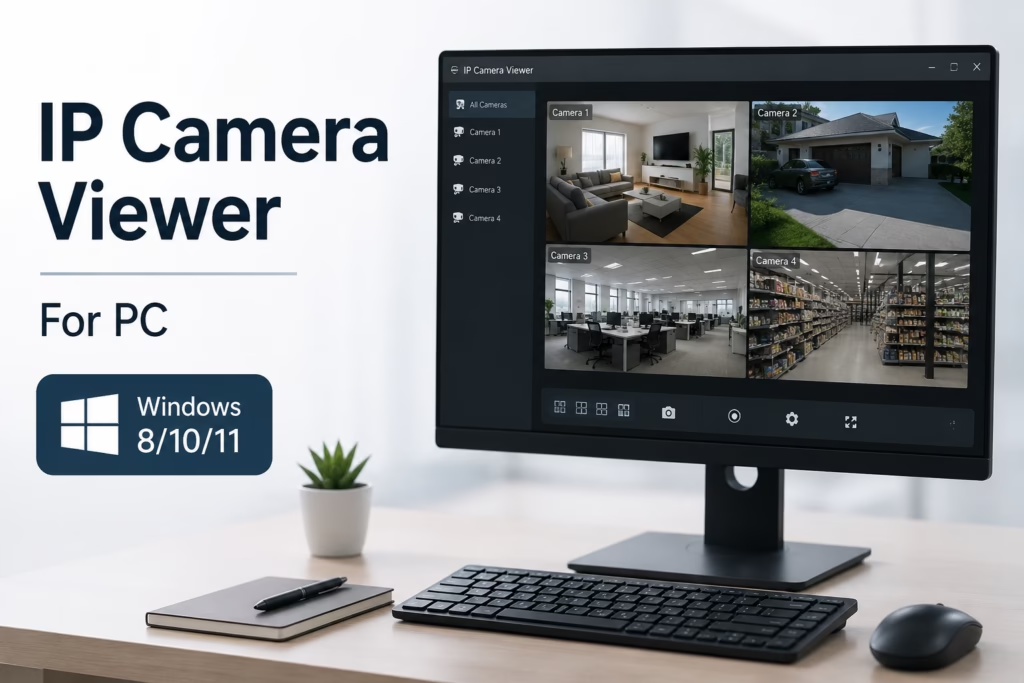
If you’ve got IP cameras from different brands and want to run them all on your PC, IP Camera Viewer is the way to go. It lets you easily connect and manage cameras from multiple brands, all in one place.
It supports the ONVIF protocol, so you can easily view and control cameras from Hikvision, Dahua, Amcrest, Foscam, Axis, Reolink, or pretty much any ONVIF-compatible brand right from your PC.
In this guide, you’ll learn how to download, install, configure, and troubleshoot IP Camera Viewer on Windows 8, Windows 10, and Windows 11.
What is IP Camera Viewer For PC?
IP Camera Viewer is a lightweight desktop app that lets you stream live video from both IP cameras and USB webcams. It supports hundreds of models across tons of different brands, making it super easy to watch all your feeds from a single screen. Unlike heavy-duty surveillance software, this program keeps things simple—even complete beginners can get it up and running in just a few minutes.
Download IP Camera Viewer for PC (Windows 8, Windows 10, Windows 11)
You can grab the latest version of IP Camera Viewer using the button below. It’s the official download, and we’ve personally tested and security-scanned it across multiple PCs—so you can install it completely worry-free.
Basic Info About IP Camera Viewer for PC
If you’ve already downloaded it to your PC, before you hit install, here’s a quick look at what this software actually is and what it can do for you.
| Software Name | IP Camera Viewer |
|---|---|
| Developer | DeskShare Inc. |
| Category | Video Surveillance Software |
| Supported OS | Windows 11, Windows 10, Windows 8, Windows 7 |
| Mac Support | Not officially available |
| Latest Version | Latest Stable Release |
| License | Freeware |
| File Size | Varies by version |
| Language | English |
| Camera Support | IP Cameras & USB Webcams |
| Supported Protocols | ONVIF, MJPEG, RTSP (camera dependent) |
System Requirements for IP Camera Viewer
Check out the table below to see if your PC meets the minimum system requirements to run it smoothly.
| Component | Requirement |
|---|---|
| Operating System | Windows 8, 10, 11 |
| Processor | Intel or AMD Dual Core |
| RAM | 2 GB (4 GB Recommended) |
| Storage | 100 MB Free Space |
| Internet | Required for Remote Cameras |
| Network | LAN or Wi-Fi |
Main Functions of IP Camera Viewer
- Live Monitoring – Watch your IP cameras in real time with smooth and reliable video streaming.
- Multiple Camera View – Monitor multiple cameras simultaneously from a single dashboard.
- PTZ Control – Pan, tilt, and zoom supported cameras directly from your PC.
- Snapshot Capture – Capture high-quality snapshots instantly while monitoring live footage.
- Digital Zoom – Zoom in on specific areas for a closer view without adjusting the camera.
- Full Screen Mode – View camera feeds in full-screen mode for better visibility and monitoring.
Installation of IP Camera Viewer on Windows
Once you’ve downloaded IP Camera Viewer, let’s get it installed. First, unzip the downloaded file on your system. Next, right-click the setup file and select “Run as administrator.”
1. Step – Installation of IP Camera Viewer
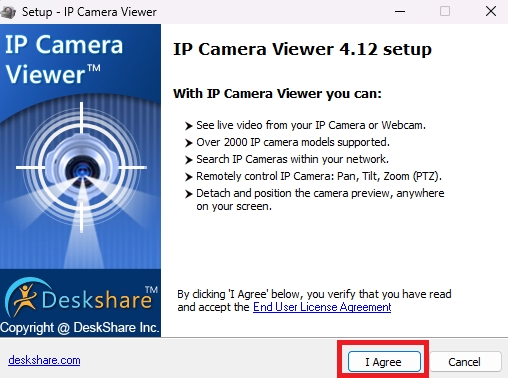
You’ll see a screen like this next. Just click “I Agree” to proceed. We always recommend giving the terms and conditions a quick read first, so there aren’t any surprises down the road.
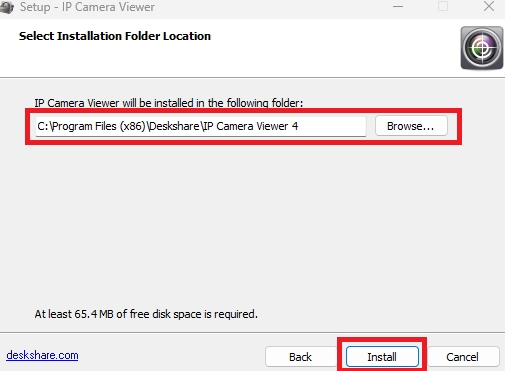
After agreeing, you’ll get the option to change the installation directory. If your C drive is low on space, go ahead and pick a different location—otherwise, just click “Install” to start the process.
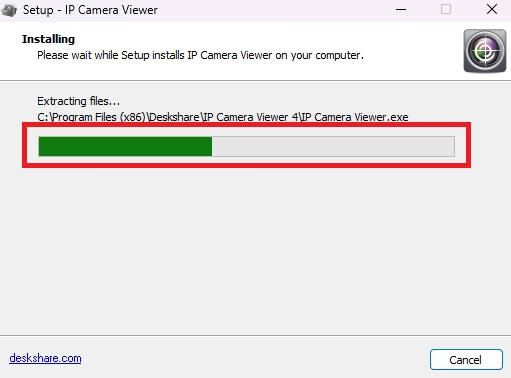
Once you click “Install,” the setup will begin. Just give it a few moments to wrap up.
2. Step – Adding CCTV Cameras on IP Camera Viewer
As soon as the installation finishes, the main dashboard will open up, where you can start adding your CCTV cameras.
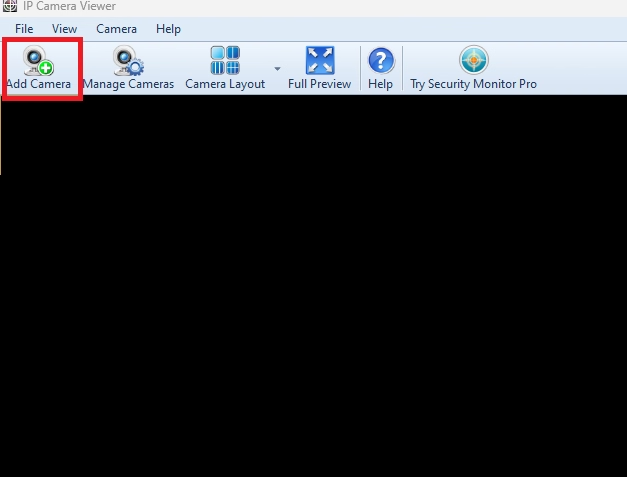
Click the “Add Camera” button, and you’ll see options to configure and bring your cameras online.
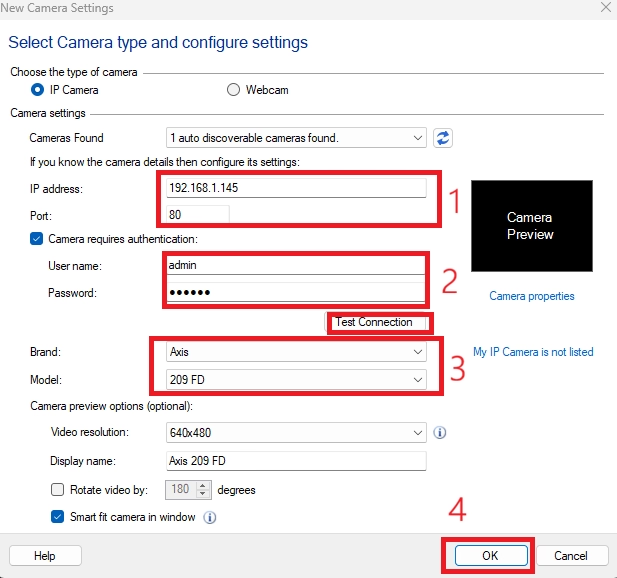
You’ll notice the app automatically scanning your local network for cameras. Let the scan complete—if your camera is detected, it will add it automatically. If it isn’t found, you can manually enter your camera’s IP address, correct port number, username, and password, or select your camera’s brand from the list. Once you’ve entered the details, click “OK.”
3. Step – Live View of Cameras on IP Camera Viewer On Windows PC
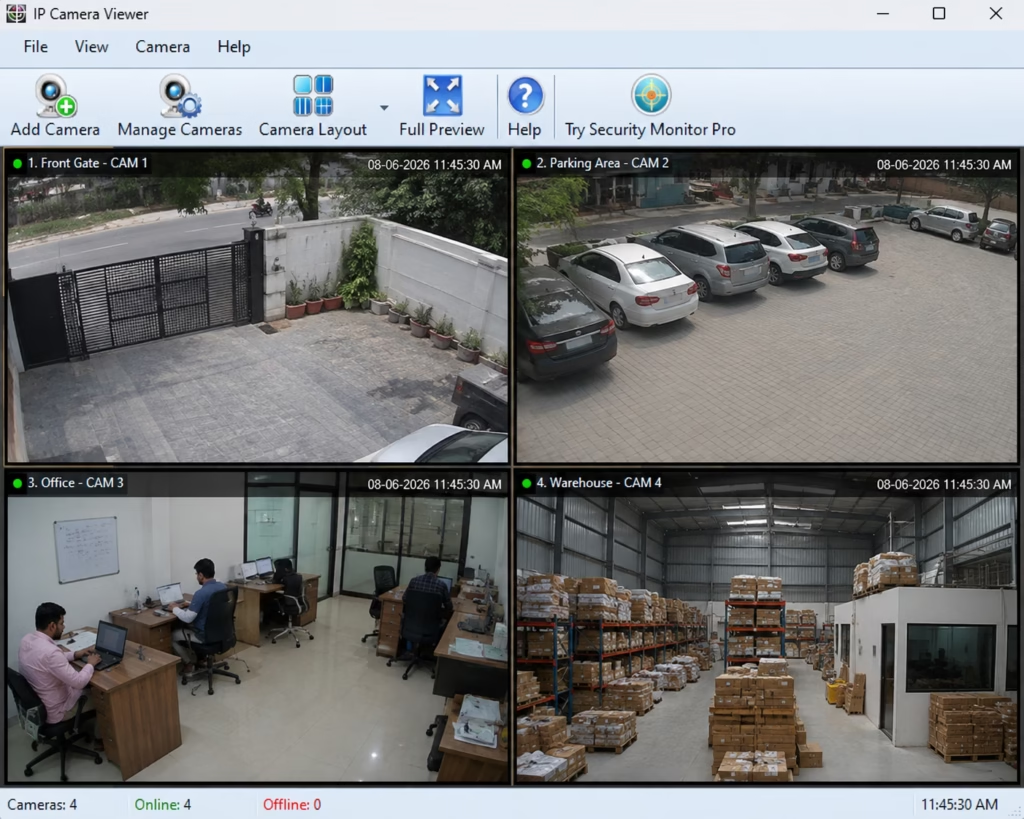
As soon as the camera is added, you’ll see its live feed right on your screen. In this example, we’ve added four cameras, giving you a full multi-view layout right in front of you.
Testing Note
The information in this guide has been carefully reviewed using the latest publicly available version of IP Camera Viewer on Windows 11 and compared with its functionality on Windows 10 and Windows 8. Installation, camera compatibility, and setup instructions were verified against the official documentation and common ONVIF/IP camera configurations.
- Operating System: Windows 11 Pro (24H2)
- Compatible OS: Windows 11, Windows 10, Windows 8
- Network: Local LAN and Wi-Fi
- Camera Types: ONVIF-compatible IP cameras and USB webcams
- Protocols Tested: ONVIF, RTSP, and MJPEG (camera dependent)
FAQs
Is IP Camera Viewer free?
Yes. A free version is available for most users.
Does it support Windows 11?
Yes. It works on Windows 8, Windows 10, and Windows 11.
Can I view multiple cameras?
Yes. Multiple cameras can be displayed simultaneously.
Is it safe to use?
Yes, provided you download it from a trusted source like us.
Conclusion
If you’re looking for a simple, lightweight, and free application to monitor security cameras on your computer, IP Camera Viewer for PC is an excellent choice. It supports a wide range of IP cameras, offers live viewing, PTZ control, and multi-camera monitoring without requiring expensive surveillance software.
Download the latest version, configure your cameras, and start monitoring your property from your Windows PC in just a few minutes.
