
If you need to change Lorex password settings or reset Lorex password because you forgot it, you can do it right through the Lorex App or directly from the recorder’s local interface.
There’s nothing more frustrating than getting locked out of your Lorex security camera system—especially when you urgently need to pull footage or tweak a setting. Whether you’re doing a routine security update or you completely forgot your admin credentials, this guide breaks down every quick, reliable way to reset or change your Lorex NVR/DVR password.
Reset Lorex Password: How to Reset Your Lorex Recorder Password
Resetting your Lorex recorder password isn’t difficult at all. You can do it in two simple ways: either change it directly through the Lorex app, or reset it right from the recorder (NVR) itself. Just keep in mind that you’ll need the Lorex app handy to complete the reset—it won’t work without it—along with your admin password.
Resetting a Lorex Forgotten Password via Lorex App (Lorex Classic/Lorex Home)
If you’ve forgotten your recorder’s password, you can easily request a temporary one through the Lorex App to set up a new password.
- 1
Navigate to Device Password
Open the Lorex App, tap the Settings (Gear Icon ⚙️) on your recorder’s thumbnail, tap the Three Dots (•••) in the top-right corner, then select Device Info > Device Password.
- 2
Request a Reset Link
Tap Forgot device password, enter the email address linked to your Lorex account, and tap Send Reset Instructions.
- 3
Retrieve Your Temporary Password
Check your email inbox for a message from Lorex containing your temporary password.
- 4
Enter Your New Password
Head back to the Device Password screen in the app. Type the temporary password into the Old Password field, then enter your new password in the New Password field.
- Password Rules: Must be 8–32 characters long and include at least two types of characters (uppercase, lowercase, numbers, or special symbols).
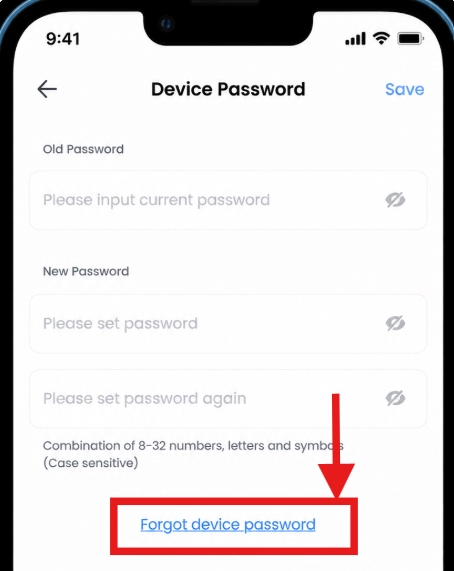
Forgot Password Link 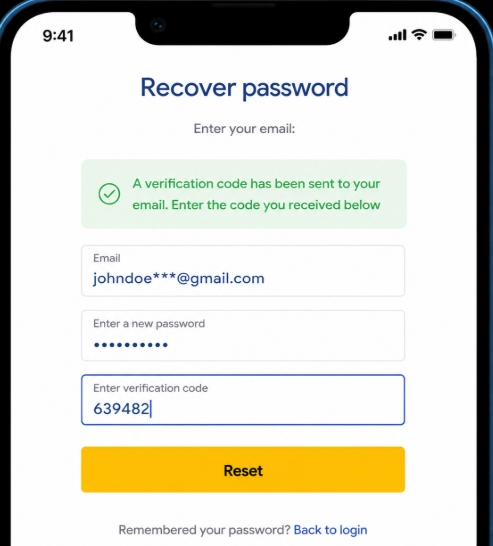
Reset Email Request 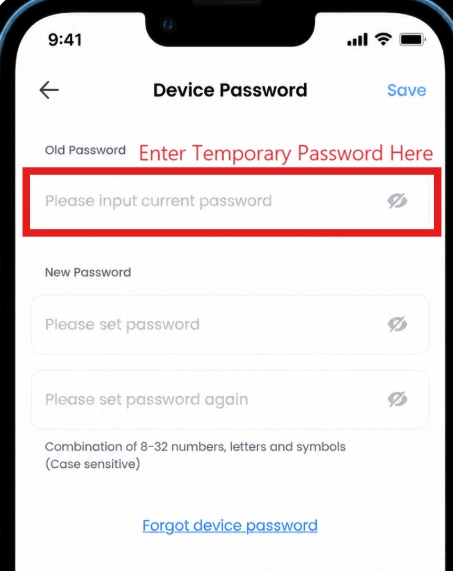
Temp & New Password - 5
Save Your Changes
Tap Save to finalize the reset. Your new password will take effect immediately, so you can start using it right away the next time you log in.
Resetting Lorex Forgotten Password via App & Local Recorder
If you do not know your active password, request a temporary password from the mobile app and use it on your local recorder interface to set a new password.
- 1
Request a Temporary Password
Open the Lorex App, tap the Settings (Gear Icon ⚙️) on your recorder’s thumbnail, and tap the Three Dots (•••) in the top-right corner. Navigate to Device Info > Device Password > Forgot device password, enter your registered email address, and tap Send Reset Instructions.
- 2
Retrieve Your Temporary Password
Check your email inbox for the message from Lorex containing your temporary password.
- 3
Access the Recorder’s Main Menu
Go to your recorder’s local monitor/interface and log in using
adminas the username and the temporary password. Right-click anywhere on the Live View screen, open the Quick Menu, and navigate to Main Menu > Users > User. - 4
Edit the Admin Profile
Find the admin account in the user list and click the Edit (Pencil) icon next to it.
- 5
Update and Save Your New Password
Fill out the fields as follows:
- Username: Set to
admin. - Modify Password: Toggle or check this option to enable editing.
- Old Password: Enter the temporary password received via email.
- New Password: Type in your new password (Must be 8–32 characters long and include at least two types: uppercase, lowercase, numbers, or special symbols).
- Confirm Password: Re-enter your new password.
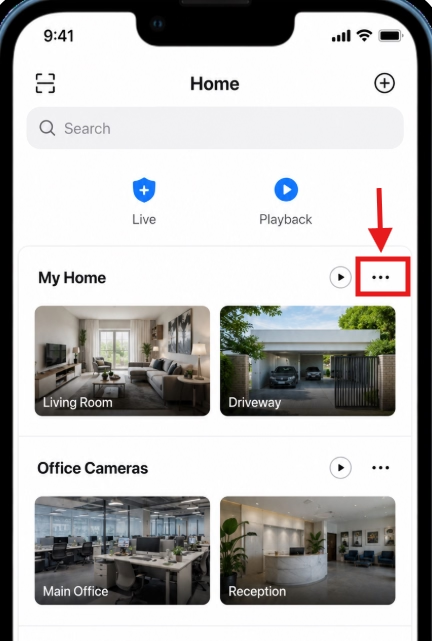
1. App Device Settings 2. Email Reset Request 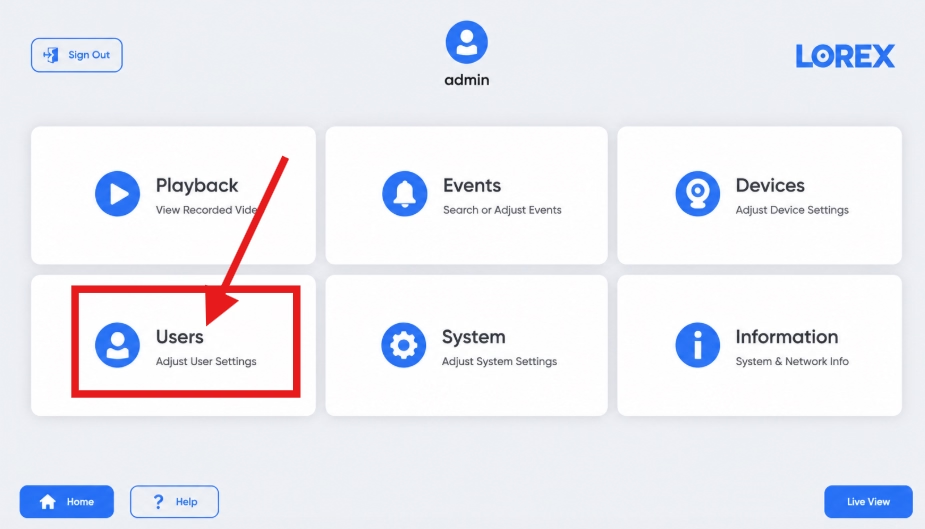
3. Local User Management 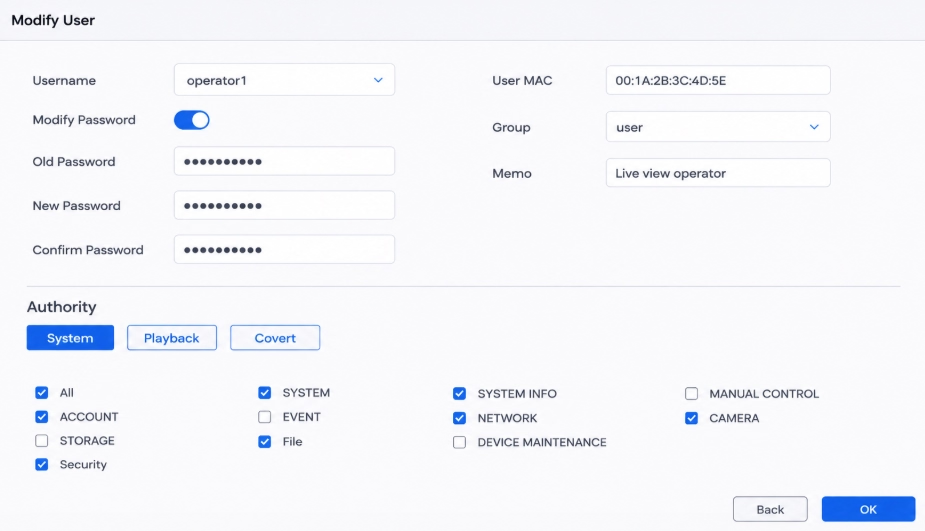
4. Modify Password Box Click OK to save. Your recorder is now updated and will require this new password for future logins.
- Username: Set to
Change Lorex Password: How to Change Your Lorex Recorder Password
This is by far the easiest way to change your Lorex password. Just open the Lorex app on your phone, and you can update it in a few quick taps. Just keep one thing in mind—you’ll need to know your current device admin password first.
Change Lorex Password via Lorex Mobile App
- 1
Open App & Sign In
Launch the Lorex app on your mobile device and log in using your primary account details.
- 2
Access Device Settings
Locate your NVR/DVR on the main dashboard and tap the Settings (Gear Icon ⚙️) on the thumbnail.
- 3
Navigate to Password Menu
Tap the Three Dots (•••) in the upper right corner, choose Device Info, then select Device Password.
- 4
Enter New Password Credentials
Provide your existing password and set a new password following these requirements:
- Old Password: Enter the active recorder password.
- New Password: Must be 8 to 32 characters long.
- Complexity: Must include at least 2 character types (uppercase, lowercase, numbers, or special symbols).
Device Settings 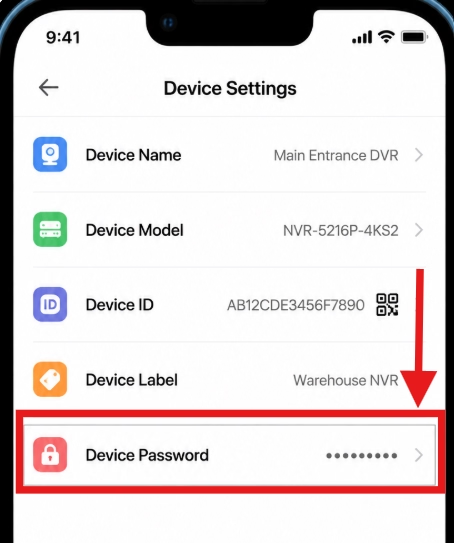
Device Info Menu 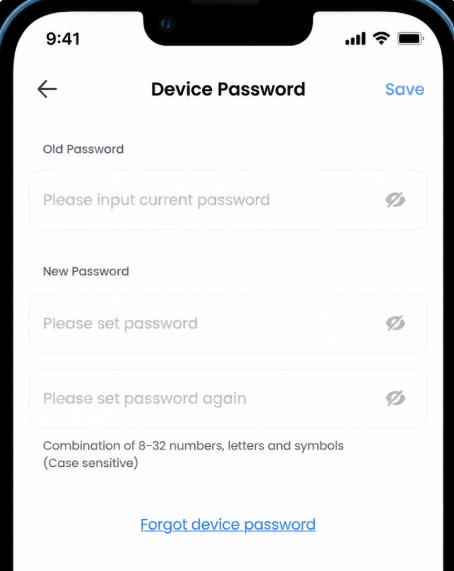
Password Fields - 5
Save Changes
Tap Save. The updated password applies immediately and must be used for future logins.
Change Lorex Password Directly on the Lorex Recorder
If you are accessing your system locally using a monitor and mouse, you can update your admin account credentials directly from the recorder’s main menu.
- 1
Log In to Your Recorder
Sign in to your system using your account username (
adminby default) and your active password. - 2
Access User Management
Right-click anywhere on the Live View screen to open the Quick Menu, then navigate to Main Menu > Users > User.
- 3
Edit the Admin Account
Find the admin account in the user list and click the Edit (Pencil) icon next to it.
- 4
Update Your Password Details
Fill out the password modification fields on the screen:
- Username: Set to
admin. - Modify Password: Toggle or check this option to enable password editing.
- Old Password: Enter your current recorder password.
- New Password: Type in your new password (8 to 32 characters long, containing at least 2 character types: uppercase, lowercase, numbers, or special symbols).
- Confirm Password: Re-enter your new password to verify it.
User Management Modify Password Box - Username: Set to
- 5
Save Your Changes
Click OK to save and apply the update. Your Lorex recorder will now require this new password the next time you log in locally or remotely.
New Local UI vs. Old Local UI
The main difference between the two recorder interfaces is the location of the user-management menu:
Pro Tip: UI & Interface Compatibility
Whether your Lorex recorder is running the new UI or an older interface, these password change and reset methods apply to both. There’s no completely different process for older models—the steps are essentially the same, though a few menu options or setting names might vary slightly.
| Recorder Interface | Password Menu |
|---|---|
| New Local UI | Main Menu → Users → User |
| Old Local UI | Main Menu → ACCOUNT → User |
If you do not see Users in the Main Menu, your recorder may be using the older interface. In that case, look under ACCOUNT > User.
FAQs
How do I perform a Lorex password reset?
Open the Lorex App, select your recorder, and go to Device Info > Device Password > Forgot device password. Enter the email address linked to your Lorex account and select Send Reset Instructions. You will receive a temporary password that can be used to create a new recorder password.
How do I perform a Lorex password change?
If you know your current password, open the Lorex App and go to Device Info > Device Password. Enter your old password and new password, then tap Save.
You can also change the password directly from the recorder through the user settings.
What is the default username for a Lorex recorder?
The default recorder username is generally admin. If the username has been changed, use the username configured on your recorder.
What should I do if I forgot my Lorex recorder password?
Use the Lorex App and select Device Info > Device Password > Forgot device password. Enter the email address associated with your account and request the reset instructions.
