
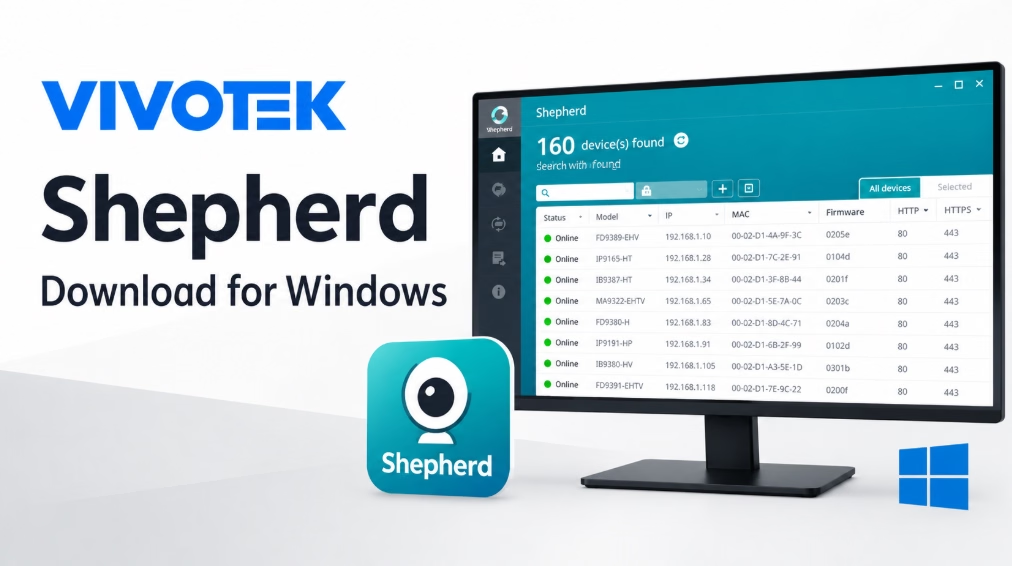
If you need to find a VIVOTEK IP camera on your local network, start with the official VIVOTEK Shepherd download. Shepherd is a Windows-based camera management utility that helps you discover compatible devices, assign IP addresses, configure camera settings, and manage firmware or other device updates. It is particularly useful when setting up cameras or managing several devices on the same network.
The latest version listed on VIVOTEK’s official VIVOTEK Shepherd Download page is Shepherd 3.6.1.1. Download it from the manufacturer’s website rather than relying on third-party software download sites. This guide explains where to get the software, which Windows versions are listed as supported, and how to get started with camera discovery.
Download VIVOTEK Shepherd for Windows
Currently listed version: 3.6.1.1
File name: Software_Shepherd_V3.6.1.1.zip
Official VIVOTEK Shepherd Download page: VIVOTEK Shepherd Download Software
Open the VIVOTEK Shepherd download page and locate the Shepherd software entry. Select the download for version 3.6.1.1. The manufacturer also lists version 2.4.0.201, but use the newer version unless you have a specific compatibility reason to use an older release.
The official page lists the latest version’s update date as June 5, 2026. Check the page again when downloading because the available version may change.
VIVOTEK Shepherd System Requirements
VIVOTEK’s published Shepherd specifications list the following operating systems:
| Requirement | Officially listed support |
|---|---|
| Windows 11 | Supported |
| Windows 10 | Supported |
| Windows 7 | Supported |
| Windows Server 2012 | Supported |
| Windows Server 2016 | Supported |
| Windows Server 2019 | Supported |
| Software version | 3.6.1.1 |
These are the operating systems listed in the manufacturer’s specifications. They do not establish compatibility with every Windows edition, hardware configuration, or future operating system release.
The specifications also list support for VIVOTEK cameras and NVRs, with functional limitations for cameras older than the 7000 series. Check the official documentation for your particular device before relying on every management feature.
If you have Foscam CCTV, use the Foscam Search Tool.
How to Install VIVOTEK Shepherd on Windows
Step 1: Download the ZIP file
Visit the official Shepherd download page and download it Software_Shepherd_V3.6.1.1.zip.
Save the file in a folder you can find easily, such as Downloads. Keep the original ZIP file until you have confirmed that the extracted software opens correctly.
Step 2: Extract the downloaded file
Open your Downloads folder, right-click the ZIP file, and select the Windows extraction option, such as Extract All.
Open the extracted folder and review the files provided by the manufacturer. Follow any installation or startup instructions included with that release.
Note: The official listing identifies the download as a ZIP archive. The exact executable name and installation prompts should be confirmed from the downloaded package rather than assumed.
Step 3: Open Shepherd
Launch the application using the executable or instructions supplied in the extracted folder. If Windows displays a security warning, verify that the file came from VIVOTEK before deciding whether to run it.
Do not disable Windows security protections simply to open the application.
Step 4: Connect your camera to the network
Connect the VIVOTEK camera and Windows PC to the appropriate local network. Make sure the camera has power and that the network connection is working.
For initial discovery, the PC and camera should normally be reachable on the same local network segment. Network isolation, VLANs, firewall rules, or incorrect network settings can prevent a camera from appearing in the discovery list.
Step 5: Search for available devices
Use Shepherd’s device-search function to look for cameras on the network. The software supports manual and automatic device search according to its published specifications.
If a compatible device appears, review its model and IP address before making changes. The exact interface and available controls may differ by software version and device model.
How to Find a VIVOTEK Camera’s IP Address
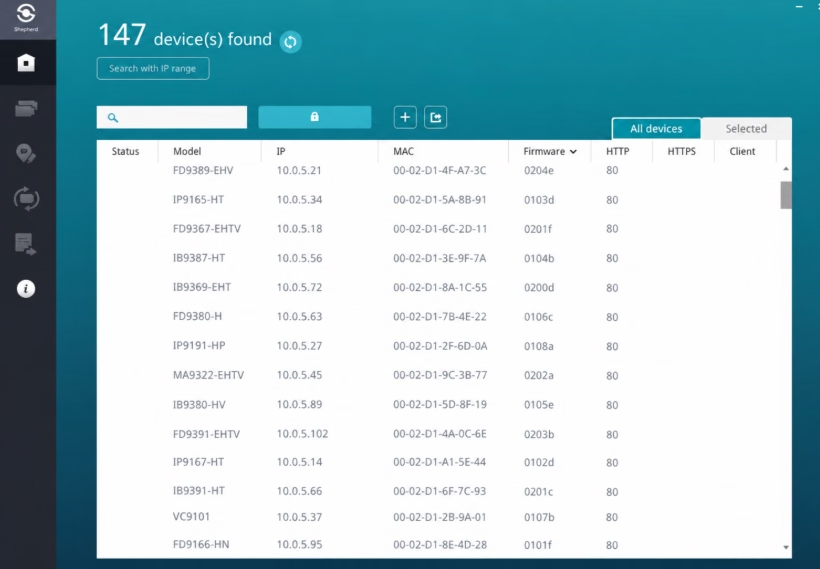
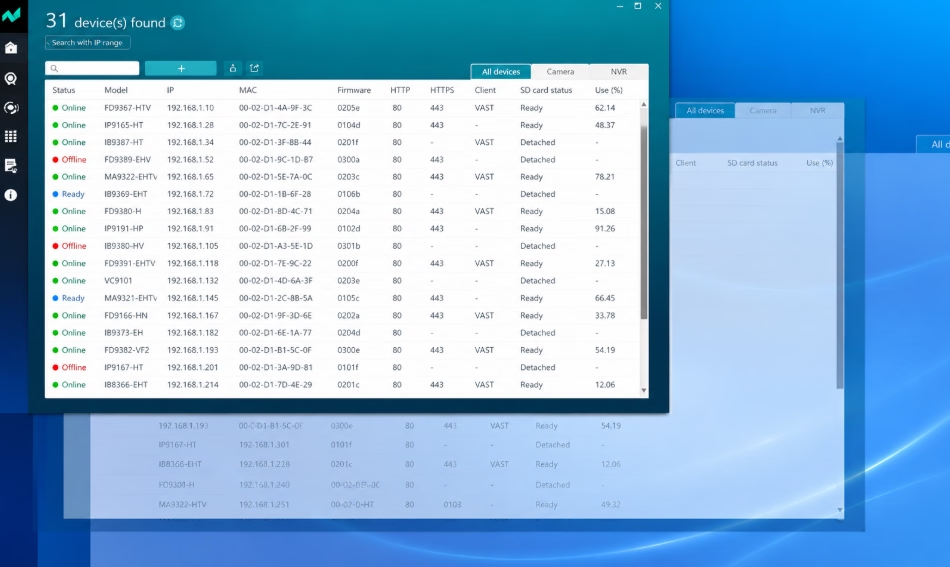
Shepherd can help locate VIVOTEK cameras and display device information, including IP addresses.
- Open Shepherd on the Windows computer connected to the camera network.
- Start the available automatic or manual device search.
- Review the discovered-device list.
- Identify the correct camera using its model and MAC address where available.
- Record the displayed IP address before changing any network settings.
If the camera does not appear, confirm that it has power, check its Ethernet connection, and verify that the PC is connected to the correct network. A camera on another VLAN or isolated subnet may require network changes before discovery works.
How to Change a VIVOTEK Camera’s IP Address
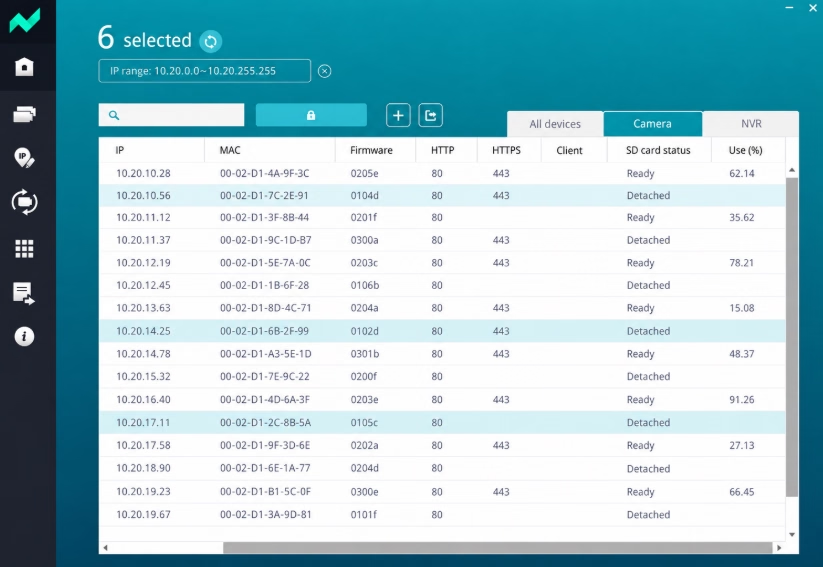
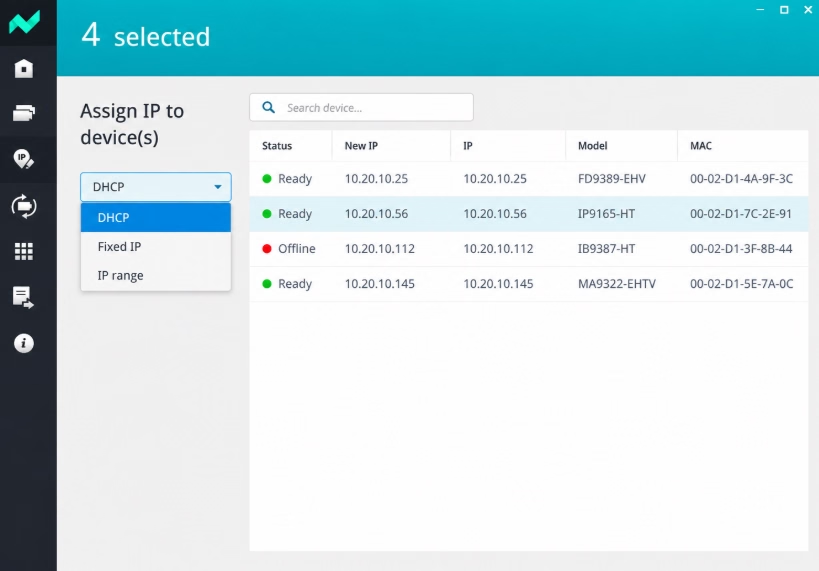
Shepherd’s published feature list includes IP address assignment and camera settings configuration. The precise controls available depend on the device and software version.
Before changing an address, record the current IP address and confirm the correct subnet, subnet mask, and gateway for your network. Choose an unused address appropriate for that network.
- Find the intended camera in Shepherd’s device list.
- Confirm its identity before editing its network configuration.
- Open the device’s available configuration controls.
- Enter the appropriate IP settings if the device and current permissions allow the change.
- Apply the change using the controls provided by the software.
- Check the new address and confirm that the camera remains reachable.
Changing a camera’s IP address can interrupt access to its previous address. If you are managing a camera remotely, plan the change carefully so you do not lose access to the device.
What Can VIVOTEK Shepherd Do?
Shepherd is designed for camera setup and device management rather than serving as a general-purpose replacement for a video monitoring client.
Its published features include:
- Camera discovery: Search the local network for compatible devices.
- IP address assignment: Configure device addressing where supported.
- Camera configuration: Apply settings to individual cameras or configure multiple cameras using supported templates.
- Device management: Review discovered devices and their available information.
- Firmware and package management: Manage supported firmware, configuration, and other listed device packages.
Feature availability can depend on the camera model, firmware, software version, and user permissions. Refer to VIVOTEK’s documentation for the functions available on your specific equipment.
VIVOTEK Shepherd Not Finding Cameras? Try These Checks
The camera does not appear in the device list
Check that the camera is powered on and connected to the network. Confirm that Shepherd is running on the correct PC and that the PC is connected to the expected network.
The camera is on a different subnet
A camera configured for a different subnet may not be discoverable through the expected search method. Review the PC’s network configuration and the camera’s existing address before making changes.
Windows Firewall or network security is blocking discovery
Firewall policies, VLAN separation, or network access controls may interfere with device discovery. Review the applicable network rules rather than disabling security protections indiscriminately.
You cannot access the camera after changing its IP address
Check the new address and make sure the PC can communicate with the camera on its updated network. If the address was changed to the wrong subnet, you may need to correct the network configuration before reconnecting.
A management option is missing
Not every feature is available on every camera. Check the official Shepherd specifications and the documentation for the exact camera model, especially if the camera belongs to an older product series.
Frequently Asked Questions
Is VIVOTEK Shepherd free to download?
VIVOTEK provides Shepherd through its official software download page. Review the manufacturer’s applicable license terms before using the software.
What is the latest version of VIVOTEK Shepherd?
The official download page lists version 3.6.1.1, with an update date of June 5, 2026. Check the manufacturer’s download page for any newer release.
Does VIVOTEK Shepherd work on Windows 11?
Yes. Windows 11 is included in VIVOTEK’s published operating-system support list for Shepherd.
Does Shepherd work with every VIVOTEK camera?
The official specifications list support for VIVOTEK cameras and NVRs, but note functional limitations for cameras older than the 7000 series. Verify the compatibility of your specific model.
Can Shepherd find a camera’s IP address?
Yes. Camera discovery and IP address information are among the functions associated with Shepherd. Successful discovery depends on network connectivity, device compatibility, and network configuration.
Is Shepherd the same as VIVOTEK iViewer?
No. Shepherd is a camera management and configuration utility. iViewer is a separate VIVOTEK application intended for video access and viewing. Choose the software that matches your task.
Official VIVOTEK Resources
For the safest download, use VIVOTEK’s official website and check the documentation for your camera model before applying configuration or firmware changes.
Conclusion
VIVOTEK Shepherd is a useful Windows utility for discovering compatible cameras, checking their network addresses, and managing supported camera settings. Version 3.6.1.1 is the latest release listed on the official download page reviewed for this guide. Download it from VIVOTEK, confirm that your camera is supported, and check the network settings before making changes.
