
If you want to find or change the IP address of a Panasonic IP camera, you can use the Panasonic IP Tool. This tool is mainly used by CCTV installers and technicians when setting up Panasonic cameras for the first time.
Sometimes, the camera’s IP address does not match your network, so the camera cannot be accessed in a web browser. In such cases, the Panasonic IP Tool helps you detect the camera on the local network and change its IP address easily.
Download Panasonic IP Tool (Official Utility)
The tool works only on the local network, so you can use it even in offline or secure environments. The version of this 1.0.8.19.20240823
The Panasonic IP Tool is an official utility used for configuring Panasonic IP cameras. It is available on the official Panasonic website and some other trusted sources.
Before downloading, make sure the source is reliable and provides the original, unmodified tool. Avoid downloading from unknown or suspicious websites.
What Is Panasonic IP Tool?
The Panasonic IP Tool is a small configuration software made for Panasonic IP cameras. It helps users find Panasonic cameras connected to the local network and check their basic details like IP address, model number, and MAC address.
When a Panasonic camera is connected to a network for the first time, its IP address may not match your computer’s network. Because of this, the camera may not open in a browser. The Panasonic IP Tool solves this problem by scanning the LAN and showing all available Panasonic IP cameras.
Using this tool, you can quickly change the camera’s IP address and then access the camera through a web browser without any difficulty.
System Requirements
Here are the basic system requirements:
The Panasonic IP Tool does not need a powerful computer. It runs smoothly on most Windows systems that are commonly used for CCTV setups.
- Operating System: Windows 7, 8, 10, or 11
- System Type: 32-bit or 64-bit
- RAM: Minimum 2 GB
- Network: Local LAN (camera and PC on the same network)
- Internet Connection: Not required
The Panasonic tool works through LAN locally. There is no requirement for any internet connection.
Key Features of Panasonic IP Tool

The Panasonic IP Tool is designed to make camera setup simple and quick. It automatically scans the local network and finds Panasonic IP cameras connected to it.
The tool shows important details such as the camera model, MAC address, and current IP address. This helps users identify the correct camera, especially when multiple cameras are connected.
You can easily change or assign a new IP address to the camera using this tool. It does not require any login, cloud account, or internet connection.
The software is lightweight, opens quickly, and is easy to use, even for beginners. Because of this, it is widely used by CCTV installers and technicians during installation and basic troubleshooting.
How to Use Panasonic IP Tool (Step-by-Step Guide)
The application is simple and user-friendly. The complete procedure is illustrated here in step-by-step.
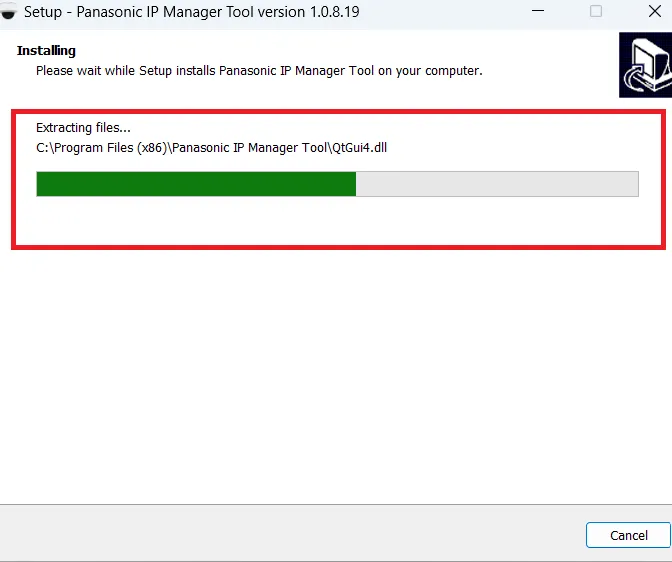
Step 1 – Download and install Panasonic IP Tool on your Windows PC
Step 2 -Connect the Panasonic IP camera to the same LAN using an Ethernet cable.
Step 3 -Ensure your computer and camera are on the same subnet.
Step 4 -Launch the tool and click Search or Scan.
Step 5 -The camera will appear with its model and IP address.
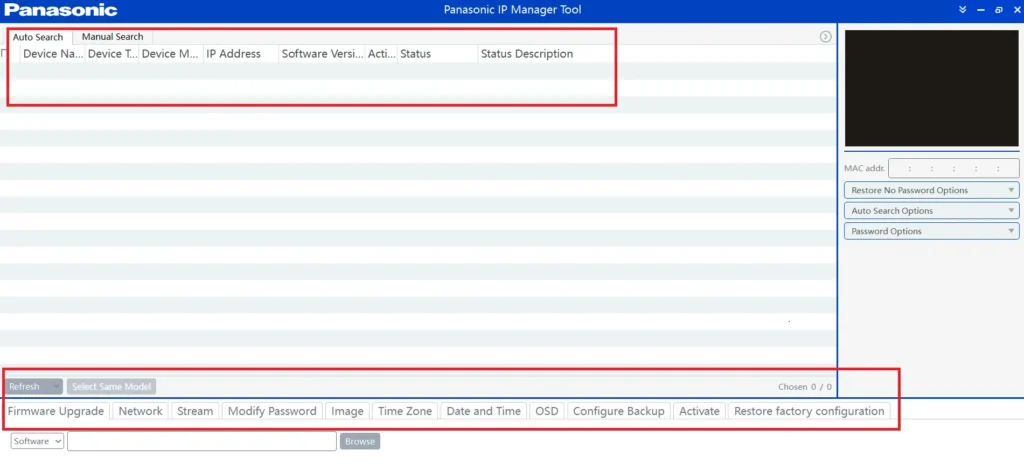
Step 6 -Assign or modify the IP address if required.
Step 7 -Save the settings and open the camera IP in a web browser.
Now, you can get the IP, MAC address, subnet, device model, etc.
Common Issues and Fixes
Some important tips for vendors and users.
Camera Not Detected
- Make sure that the camera and computer are on the same subnet.
- Disable firewall or antivirus software temporarily and then enable it again.
- Check the Ethernet cable and network switch ports.
IP Address Conflict – How to Resolve?
- You must avoid assigning duplicate IP addresses.
- Check and verify your router’s DHCP range.
- Use a static IP outside the DHCP pool.
Tool Opens but Shows No Cameras
Go for the following steps.
- Run the tool as Administrator.
- Disable unused network adapters. If required, disable the Wi-Fi or VPN.
- Restart the camera and rescan the device.
Most of the issues can be easily managed as they are network-based.
Is Panasonic IP Tool Safe to Use?
Yes, it is safe and trustworthy. There is no issue. It works on the local network.
Safety Highlights
Keep these factors in mind.
- There is no requirement for any internet connection.
- No background cloud communication.
- Widely used by professional CCTV installers across countries.
- Designed for controlled LAN environments.
Safety Points to Know
- No internet connection is required
- No cloud login or account needed
- No background data sharing
- Widely used by professional CCTV installers
As long as you download the tool from a trusted source, it is safe and reliable
Panasonic IP Tool vs Other IP Camera Tools – A Comparison
Below is a simple comparison between the Panasonic IP Tool and generic IP camera discovery tools.
| Feature | Panasonic IP Tool | Other IP Camera Tools |
|---|---|---|
| Brand Support | Panasonic cameras only | Multiple camera brands |
| Camera Configuration | Basic IP address setup | Mostly scan and detect only |
| Ease of Use | Very simple and beginner-friendly | More technical and complex |
| Best Use Case | Initial setup of Panasonic IP cameras | General network discovery |
The Panasonic IP Tool works best when you are specifically setting up or troubleshooting Panasonic IP cameras. For general network scanning, other tools may be used, but they usually do not offer direct IP configuration for Panasonic devices.
Testing Notes
The Panasonic IP Tool was tested in real installation scenarios to make sure the information shared in this guide is accurate and practical.
- Tested on: Windows 10 and Windows 11
- Camera models: Panasonic IP cameras (LAN-based models)
- Network setup: Local LAN environment (same subnet)
- Internet connection: Not required during testing
✔ Verification Details
- Camera discovery tested on a live local network
- IP address change tested successfully
- Access to the camera via web browser verified after IP change
These tests confirm that the Panasonic IP Tool works reliably for basic camera discovery and IP configuration in offline or secure network environments.
Conclusion
The download button for the tool is shared. The complete installation and operation methodology has been illustrated. The pluses and minuses are highlighted.
Hopefully, it will help users and vendors alike. Kindly share your suggestions and opinions. Also, share queries. You can write to us through the comment section.
We read all comments and respond to our users.
Thank You.

