
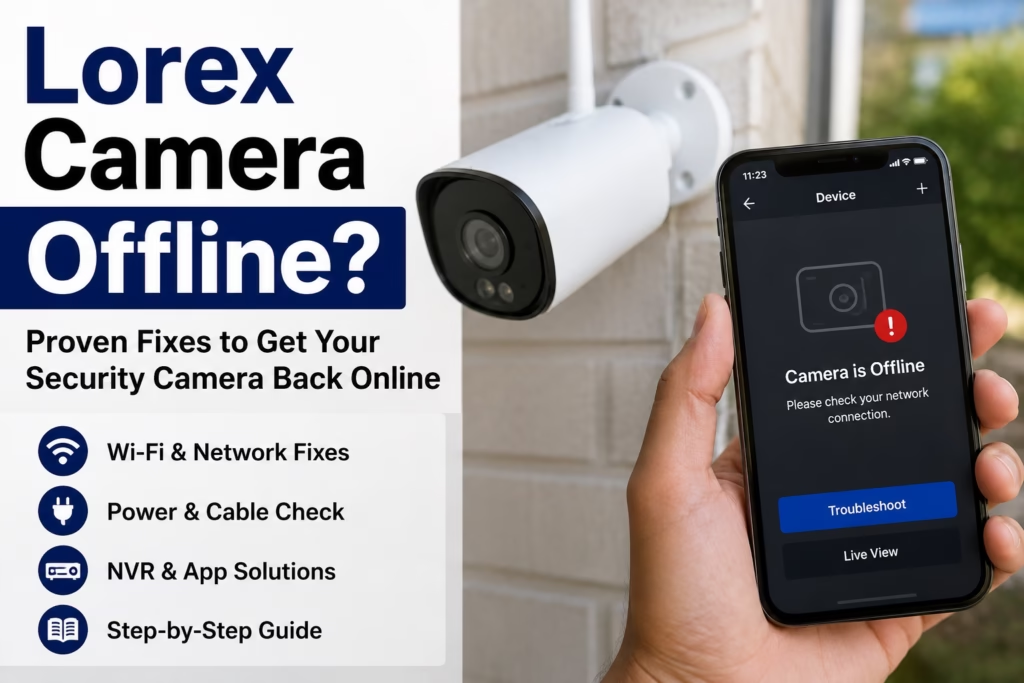
It’s super frustrating when your camera goes offline or throws a ‘connection failed’ error, especially if you rely on it 24/7 to keep an eye on things. If your Lorex camera is showing offline, something in the setup is tripping it up, but it’s usually something we can fix pretty quickly.
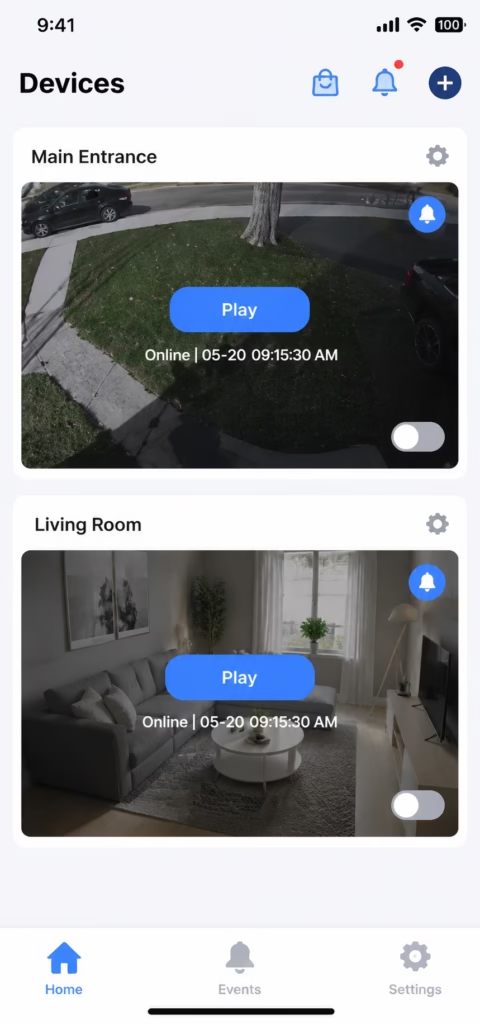
This can happen whether you’re using Lorex Cloud, Lorex Home, or any other Lorex app. Whichever one you’re on, here’s how you can fix it and get back online. In this guide, we will walk you through the most common causes and simple step-by-step solutions to get your Lorex system back online.
What Does “Lorex Camera Offline” Mean?
Lorex Camera Offline” (or “Device Offline”) means that the Lorex app, NVR/DVR recorder, or cloud server has lost communication with your camera.
When a camera is offline, live video streaming, motion push notifications, and remote viewing through the phone or desktop app are temporarily suspended
Quick Fix Lorex Camera Connection
So let’s break down what’s actually going on and how to fix it. First, though, keep an eye out for a few common signs—spotting these early makes it a lot easier to pinpoint the issue and get things back up and running fast.
| If You Notice This… | It’s Usually Caused By | Try This First |
|---|---|---|
| The Lorex app says Offline, but cameras still appear on the NVR monitor | Internet connection dropped, or the NVR lost its cloud (P2P) connection | Restart your router, then make sure the NVR’s Ethernet cable is securely connected. |
| Only one Wi-Fi camera is offline | Weak Wi-Fi signal, temporary network issue, or power interruption | Check the camera’s power, then move it closer to the router and reconnect it to Wi-Fi. |
| Only one PoE camera is offline | Loose or damaged Ethernet cable, or a faulty PoE port | Reseat the Ethernet cable, try a different PoE port, or replace the cable if needed. |
| Every camera goes offline at the same time | NVR/DVR has lost power or the entire network is down | Restart the NVR, confirm your router has internet access, and wait a few minutes for all cameras to reconnect. |
Step-by-Step Methods to Fix Lorex Camera Offline
First, verify whether the camera itself is getting power.
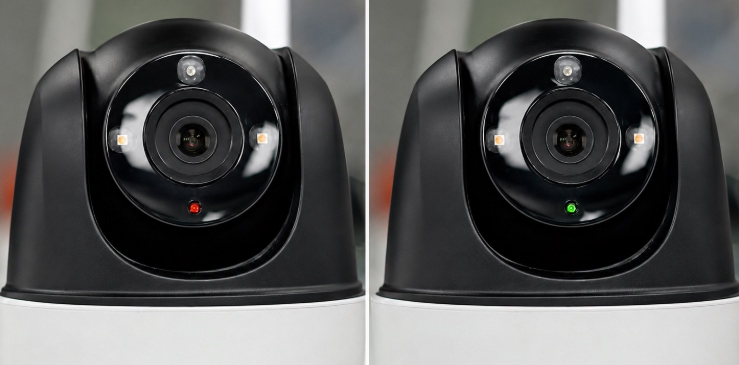
- Wi-Fi Cameras: Look at the status LED ring or light on the front/back of the camera.
- Solid Green: Camera is connected.
- Flashing Green: Ready for setup/reconnecting.
- Solid / Flashing Red: Disconnected from Wi-Fi or local network.
- No Light: Power adapter failure or loose cable.
- Battery Level: If you have a Wi-Fi camera, definitely check the battery level
- PoE / Wired Cameras: Check if the IR night vision LEDs glow in a dark room or if the port light on the PoE switch/NVR is blinking.
First off, make sure the camera is actually getting power. If it is, awesome—you’re good to move on. If not, getting power back to it is your number one priority. For a Wi-Fi camera, try swapping in a different power adapter to see if that fixes it. If it’s a PoE camera, check your PoE switch and inspect the network cable for any bends or damage.
Step 2: Reboot Your Devices (Power Cycle)
Try power cycling your gear. Shutting everything down for a minute or two clears out any potential IP address conflicts. You’d be surprised how often a simple reboot solves the problem, so definitely restart both your router and cameras before moving on to deeper fixes.
- Unplug the power cable from the Lorex Camera (or NVR/DVR).
- Unplug your Internet Router / Modem.
- Wait for 60 seconds.
- Plug the Router back in first and wait 2–3 minutes until the internet lights stabilize.
- Plug the Lorex Camera / NVR back in.
- Open your Lorex Home / Lorex Cloud App and refresh the device list.
Step 3: Check Wi-Fi Network Bandwidth (For Wireless Cameras)
Make sure your camera is actually getting a solid internet connection. Keep in mind that certain models—like Lorex 2K/4K Doorbells or Floodlight cameras—only work on a 2.4 GHz Wi-Fi network. Because of that, you’ll want to double-check the Wi-Fi settings on both your router and your phone.
- Ensure your smartphone is connected to the 2.4 GHz network during re-pairing.
- If your router uses a single network name (SSID) for both 2.4 GHz and 5 GHz (Band Steering), temporarily disable 5 GHz in router settings while reconnecting the camera.
Step 4: Check Ethernet Cables and Port Connections (PoE Systems)
If you’re running PoE cameras hooked up to an NVR, your PoE switches, network cables, and RJ45 connectors do all the heavy lifting. If only one or two cameras go offline, the issue is localized—just check power to those specific cameras, inspect the cables, and re-check the RJ45 connectors. But if every single camera drops offline at once, you’re almost certainly dealing with a PoE switch issue.
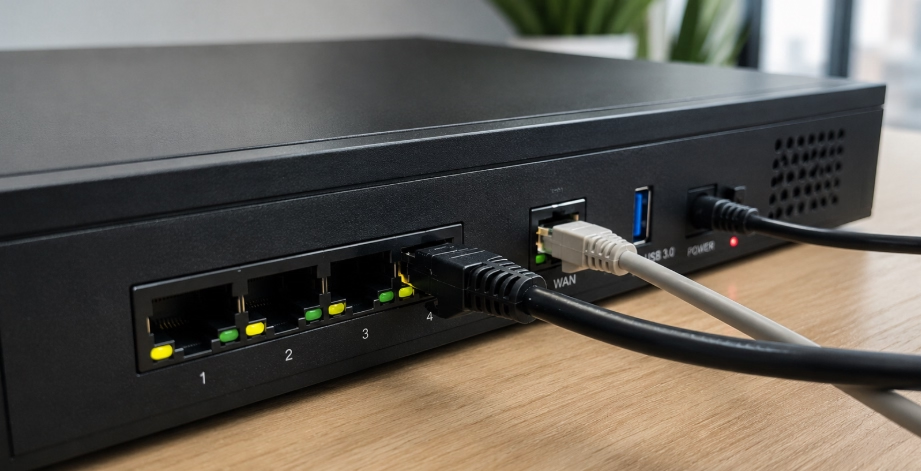
- Check the RJ45 network cable connection on both the camera end and the NVR port end.
- Unplug the Ethernet cable and inspect for moisture, corrosion, or bent pins.
- Try plugging the offline camera into a known working port on the back of the NVR. If it turns on, the original port may be damaged.
Step 5: Check Device Network Status on NVR/DVR
If your cameras work on the local TV/Monitor but show offline in the phone app:
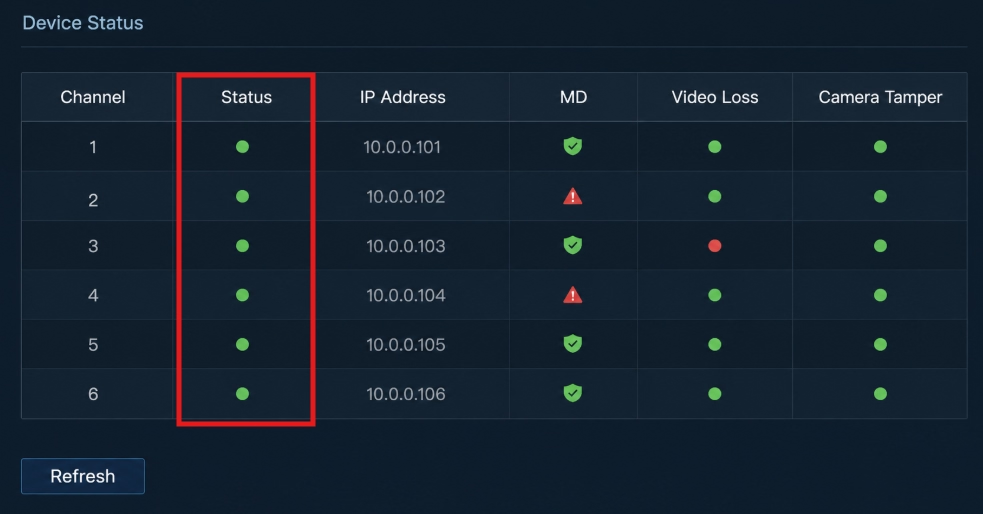
- Go to your NVR/DVR Main Menu.
- Navigate to Network > General / Device Info.
- Check the Status: It should say Connected or Online.
- Check P2P / Device ID Status: Ensure P2P status shows Online or Enabled. If it says offline, your NVR is not communicating with the Lorex cloud servers.
Step 6: Hard Reset and Re-add the Camera
If none of the above steps work, perform a factory reset:
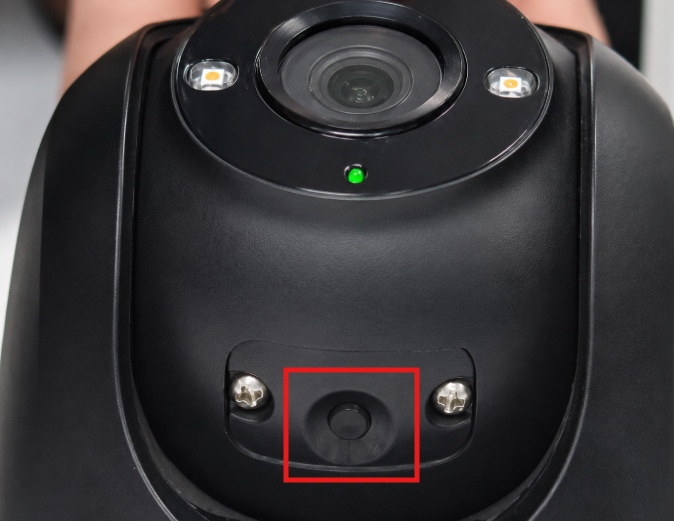
- Locate the Reset Button on your camera (usually under a rubber flap near the micro SD card slot or base).
- Press and hold the reset button for 10 to 15 seconds until you hear a chime or see the LED flash red.
- Remove the camera from your Lorex Home App.
- Tap “+” (Add Device) in the app and scan the QR code to set it up again as a new camera.
Step 6: Keep Your Firmware Up to Date
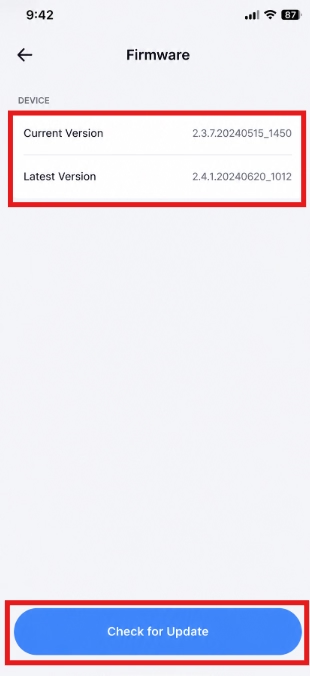
- Open the Lorex app and go to your camera’s Device Settings.
- Tap Firmware.
- Check your Current Version against the Latest Version.
- If an update is available, hit Update to download and install it.
FAQs
Why does my Lorex camera go offline at night?
Infrared (IR) night vision pulls a lot more power than daytime mode. If your power supply is weak or your cable run is too long, the camera might crash or drop offline the second night vision kicks in.
How do I reconnect my Lorex camera after changing Wi-Fi password?
You’ll need to press the physical reset button on the camera, delete it from the Lorex Home app, and set it back up from scratch using your new Wi-Fi details.

