
If you are looking for a reliable way to monitor your security cameras on a larger screen, then the EZVIZ App for PC is the perfect solution. With this software, you can easily view live footage, playback recordings, and manage multiple cameras directly from your Windows or Mac computer.
Whether you are using it for home security or business surveillance, the EZVIZ app offers a smooth, user-friendly experience with advanced features like motion alerts, remote access, and real-time monitoring. In this guide, you will learn how to download and install the EZVIZ App for PC free on Windows 7/8/10/11 and Mac..
Ezviz App for PC is the software provided by the Ezviz company, which is parently held by Hikvision. Hikvision is one of the best brands all over the world.
So the applications provided by Hikvision or its child company have very good features like Hik Connect for PC, IVMS 4200, and so on.
So let’s come to the App, It is called Ezviz Studio. This app can run on your Windows PC, which means Windows 7/8/ 10 and 11.
Download Ezviz App For PC (Windows 7, Windows 8, Windows 11 and Mac)
You can download the Ezviz app using the buttons below. Make sure to pick the right version for your computer, whether you’re on Windows or Mac. This download is 100% safe, virus-scanned, and personally tested by us on different systems. It’s official software straight from Ezviz, so go ahead and download it with total peace of mind!
About Ezviz App Software
| Feature | Details |
|---|---|
| Software Name | EZVIZ App for PC |
| Developer | EZVIZ Inc. |
| Category | CCTV Monitoring / Security Software |
| Supported OS | Windows 7/8/10/11, macOS |
| App Version | Latest Version (Updated Regularly) |
| File Size | 197.94 MB |
| License | Free |
| Installation Type | Windows Software |
| Main Functions | Live View, Playback, Device Management, Alerts |
| Camera Support | EZVIZ WiFi Cameras, NVR, DVR |
| Connectivity | Internet / WiFi / LAN |
| Language Support | Multiple Languages |
| Login Required | Yes (EZVIZ Account) |
| Best For | Home Security, Office Surveillance |
System Requirment for This Software
| Component | Minimum Requirements | Recommended Requirements |
|---|---|---|
| Operating System | Windows 7 / 8 / 10 / 11, macOS | Windows 10/11, Latest macOS |
| Processor | Intel / AMD Dual Core | Intel i3 or higher |
| RAM | 2 GB | 4 GB or more |
| Storage Space | 500 MB free space | 1 GB free space |
| Graphics | Basic integrated GPU | Intel HD Graphics or better |
| Internet | Required (for live view & sync) | High-speed broadband connection |
| Emulator | BlueStacks / Nox Player | Latest version of BlueStacks |
| Display Resolution | 1024 × 768 | 1366 × 768 or higher |
Is the EZVIZ App for PC an Official Desktop Software?
EZVIZ App is officially designed for Android and iOS devices. At the moment, EZVIZ is also provide a native Windows or macOS desktop app for end users.
However, PC users can still:
- Access EZVIZ cameras using official EZVIZ CMS software
- Or run the EZVIZ mobile app on PC using trusted Android emulators
This guide explains all safe and working methods, so you can choose the best option for your setup.
Why This EZVIZ PC Guide Is Not Duplicate Content
This article is EZVIZ-specific and different from other Hikvision-related guides on CCTVDESK because:
- EZVIZ uses cloud-based user accounts, not DVR/NVR local login
- Device pairing works via QR code & EZVIZ serial, not IP scan
- EZVIZ cameras are mainly consumer & smart-home-focused
- Software behavior, permissions, and cloud playback differ from:
- Hik-Connect
- iVMS-4500
- iVMS-4200
Each platform has a different architecture, so setup steps and troubleshooting are not interchangeable.
Important Note for USA & International Users
- EZVIZ cloud servers may differ by region
- Some cameras are region-locked
- Cloud features depend on account country
- Always register devices using the same country where the camera was purchased
This helps avoid login issues, offline devices, or missing playback.
Windows SmartScreen Warning – Is It Safe?
While installing EZVIZ Studio or emulator software, Windows may show a SmartScreen warning.
This happens because:
- The app is not downloaded from the Microsoft Store
- The publisher is not widely recognized by SmartScreen
✅ As long as you download software from official EZVIZ or trusted sources, it is safe to install.
Testing Notes
✔ Tested on: Windows 10, Windows 11
✔ Devices tested: EZVIZ C6N, C3X
✔ Connection: Home broadband + mobile hotspot
✔ Verified for: Live View, Playback, Notifications
Features of the Ezviz CMS Software
- Live Preview.
- Remote Playback.
- Network Configuration.
- Camera Group management.
- Camera Image Configuration.
- User management.
- User profile management.
- Add or modify devices.
- Multilanguage Support.
- User Access Management.
Configuration of Ezviz Windows 7/8/10/11 APP
In order to configure the Ezviz (Windows), first, you have to download the Ezviz studio from the above-given link. After downloading the setup, you need to install the Ezviz app for PC on your computer or laptop.
To do this, just double-click on the downloaded file on your PC. The setup will ask you for administrative permission to install it. Just click on “Yes”. After that, the setup process will start. Now follow the given steps.
You may also read IVMS 4200 CMS here.
STEP 1 # Installation Ezviz CMS App
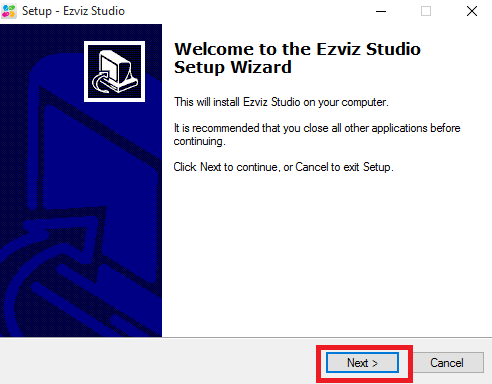
Now, the first screen of installing the software is shown below. Just click on the “Next” button as shown in the picture.
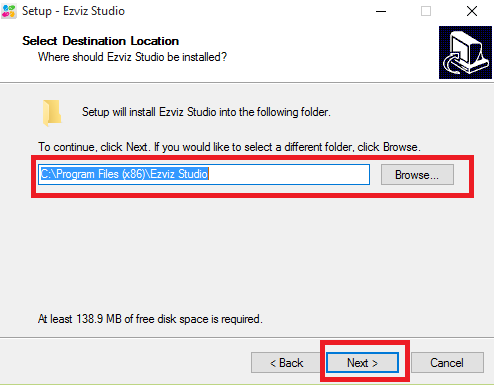
After clicking on the button, the next screen asks for the path of the installation. If you want to change the installation location, then choose the location by clicking on the “Browse” button. After that, click on the “Next” button.
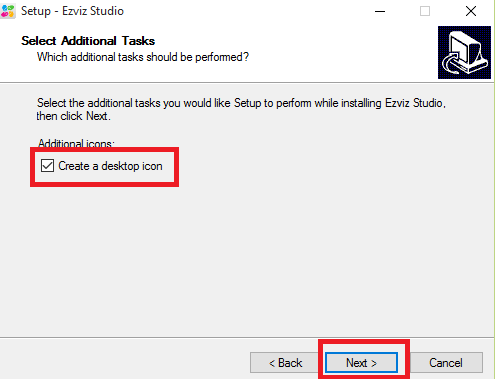
Now the screen will ask the create a desktop icon or not. Select as per your needs and click on the “Next” button.
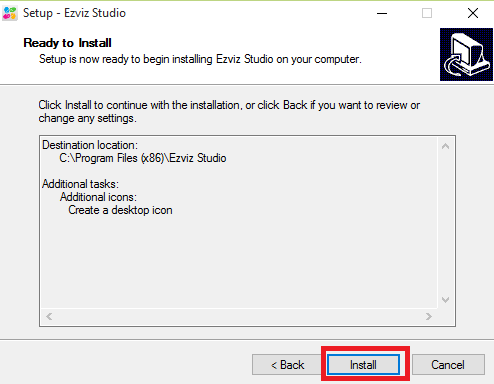
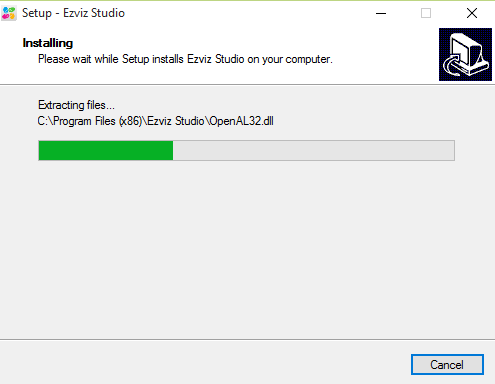
Now, on the next screen, click on the “Install” button and set up the Ezviz Application.
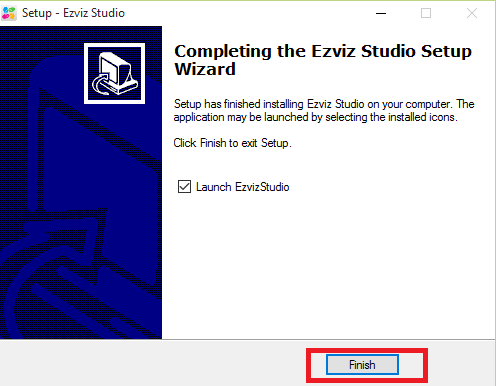
Now just click on the “Finish” button, and then the installation process will finish, and the Ezviz CMS Application will now be ready for your computer.
STEP 2 # Register in the Ezviz App
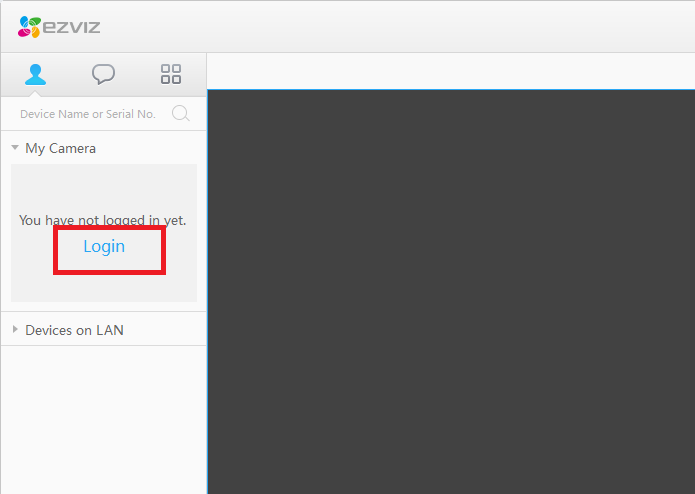
After finishing the installation process, the very first screen in front of you is shown below. Here, you have to log in to the app. To do this, you have to make an account on Ezviz or log in with your existing account. Click on the “Login” button as shown in the picture below.
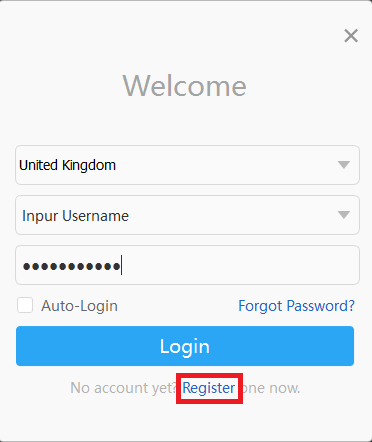
Now the app asks you for your login details. If you have one, then put it otherwise, register in the Ezviz app.
You may also read the Best CCTV camera brand.
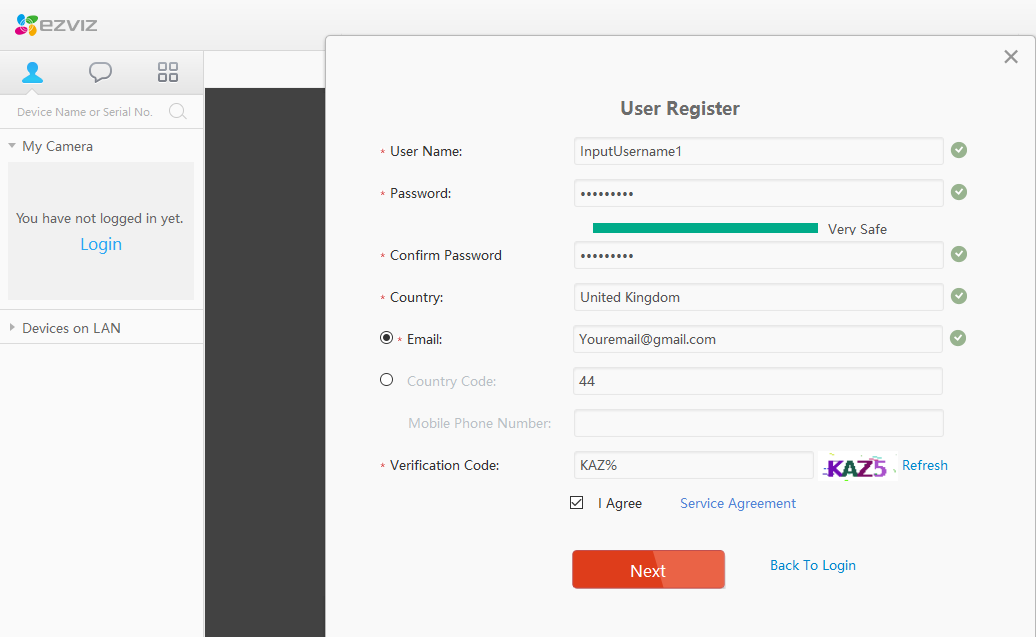
Put all the required information into the registration form and then click on the “Next” button. After completing the registration, log in to the Ezviz CMS.
STEP 3 # Adding a device to the Ezviz app
After logging into the Ezviz app, you need to add your device to the app. To do this, click on the “Add” button on the bottom left and then click on the “Manually Add” button. The app asks you for the serial number of your device.
The serial number is written on the device sticker. Just put the serial number into the app and click on the “Add” button. The next screen will ask you for the verification code. The verification code is also written on the sticker on the device.
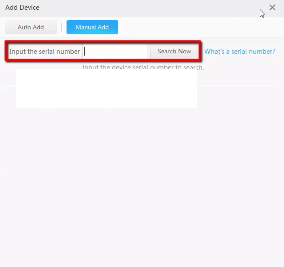
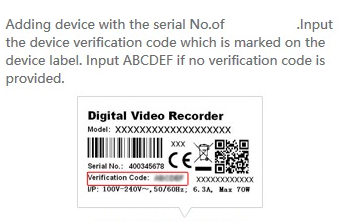
Now your device is ready to show to CCTV cameras on your PC.
STEP 4# Watch your CCTV cameras
After successfully adding the device, it is now time to watch your CCTV camera. All the cameras are shown on the left side pane. Click on that camera, and the camera is just on your screen.
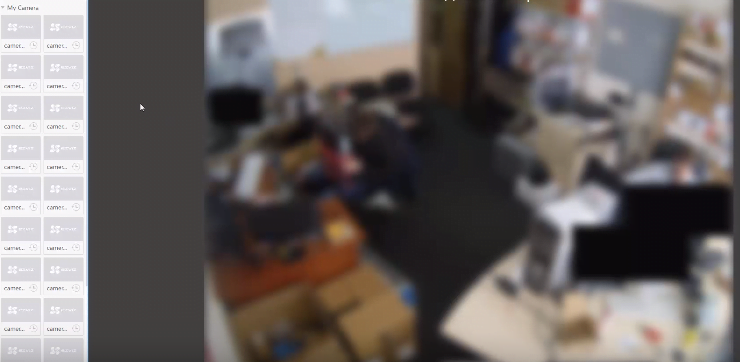
You may also read the Best CCTV camera for Home.
Find the Ezviz App (MAC)
Download the plugin on your MAC computer as the link is given below. After downloading the setup file, just install it on your Mac or PC.
After installing Ezviz on Macintosh PCs, you have to follow the steps below.
Steps For Using Ezviz (Macintosh PC)
- Open your MAC browser.
- Go to the Ezviz login.
- Log in with your existing account or register a new account.
- Find the serial number and the verification code on your device, which is written on the device.
- Now, add your device to your account as described for Windows using your serial number and verification code.
- Now you are able to watch your CCTV camera on your MAC PC.
Conclusion
So this is the process of the Ezviz CMS. This app is very useful for those who are using a cloud p2p service for remote viewing. The app is running smoothly on the average kind of PC.
The RAM consumption of the app is low, which is why it is running smoothly. The app has a very low fault rate. The device management of the app is good. Overall, it is a very nice app to watch your CCTV camera on your PC.
So this is all about the Ezviz Application. We hope this information will be helpful to you.
If you have any kind of query or suggestion, please feel free to write us in the comment box below. Thank you for visiting us. Have a nice day.
How do I add a new camera to the EZVIZ App?
Open the EZVIZ App and log in, then tap the “+” icon to add a device. Go to scan the QR code on the camera or enter the device serial number manually. Follow the on-screen instructions to connect the camera to your Wi-Fi.
How can I reset my EZVIZ camera to factory settings?
Press and hold the reset button on the camera for 10-15 seconds until the indicator light blinks. The camera will reboot and restore factory settings.
Can I share my EZVIZ camera with family members?
Yes. Go to the camera’s settings in the app and select “Share Device”. Enter the EZVIZ account or email of the person you want to share with. Set permissions and confirm the share.
What should I do if I forget my EZVIZ password?
You have to go to the login screen and then tap “Forgot Password.” A new window will open. Enter your registered email and follow the instructions sent to reset your password.


I have four remote wifi EZVIZ cameras on two different locations and routers; within a quarter mile of each location. All four utilize a SD card. Two, that are at one location, where there are also four wired and using a DVR have failed to be available (down service)twice last year. EZVIZ recommended re-initializing the cameras. But you have to be on site to accomplish that. That site is 12 hours away. I only visit there 4 times a year. This is why I have the cameras. The most recent two month camera outage fixed itself after a three day power outage. The SD cards retained some memory of prior to the power outage. This is NOT reliable for a wifi camera. I cannot understand nor can EZVIZ explain why wifi cameras at one router went out of service for months. Not good.
t sounds like you’re experiencing significant reliability issues with your EZVIZ WiFi cameras, particularly those located at one of the two different locations. Despite EZVIZ’s recommendation to re-initialize the cameras, this solution is impractical for you since you’re only able to visit the site four times a year, and it’s 12 hours away.
The fact that the most recent outage was fixed after a three-day power outage suggests there might be some issues with the cameras’ ability to recover from disruptions or perhaps inconsistencies in their firmware or software.
Given the importance of reliable surveillance, especially in remote locations, it’s understandable that you’re concerned about these recurring issues. Here are a few steps you could consider:
1. make schedule setting of power on/off in a month.
2. Consider Alternative Camera Solutions
3. Check Network Stability
4. Investigate Power Solutions: Given that the most recent outage seemed to resolve the issue temporarily, consider implementing backup power solutions such as uninterruptible power supplies (UPS) to keep the cameras running during power interruption
Thanks for sharing this guide! I’ve been looking for a way to use the EZVIZ app on my PC, and your instructions were super helpful. Can’t wait to try it out on my Windows 10!