
CCTV Systems have become a part and parcel of our lives. It is present in our homes, businesses, and transportation systems. It keeps us protected, secure, and connected. We access our locations through CCTV Apps from remote locations. SeeEasy Software is one such application.
Here in this post, we will discuss the SeeEasy for PC CMS. We will come to know about this app and its setups.
The download button for the SeeEasy App for Windows and Mac is shared. Click the button and get the file. The app is shared separately for Windows and Mac. When you click the button, you get the compressed file. Decompress it to install on PCs.
The complete illustration of the installation process is represented in the section below. The full procedure is demonstrated in three clear-cut steps.
The first step is about the installation. The second step teaches us how the sign in to the app. The third step is for the device addition and monitoring. We will discuss the CMS App now.
What is SeeEasy for PC Software?
The SeeEasy App for PC is a CCTV Application. Through this software, we monitor our sites and locations from remote areas on our mobile phones or PCs. It is designed and offered by the seeeasy.technical.
This CMS connects CCTVs from different OEM companies. The application is ONVIF and RTSP compliant. It supports CCTV cameras and NVRs/DVRs.
It easily scans the QR of the IP camera or recorder and add them smoothly. Users can manually add CCTV devices through IP addresses or Device IDs. The SeeEasy software supports motion detection and two-way audio. It is of great help to monitor our homes and businneses from anywhere. Whether you are near or far, you are always connected to your locations.
Best Features of the SeeEasy App for PC
This CMS has many key features. These functions make it highly useful.
- The app adds cameras and recorders and gives users access to their sites and locations from remote areas.
- It adds CCTV devices automatically and manually.
- You can add devices by scanning the QR code. You can also add them through their IP addresses and Device IDs.
- It gives live video footage. Users can access them from anywhere. There is no time lag.
- You can watch playbacks and take snaps from your places.
- You can operate devices from remote areas.
- This App supports all PTZ features.
- The application detects motion and audio.
- It sends alert notifications sensing threats and suspicious objects. Owners receive alarm signals and messages on their smartphones.
- It can track objects and assess their behaviours.
- It supports 2-way audio. You can communicate to and fro.
- Users can alert or pass messages through the two-way audio feature.
- Supports Cloud recording and features.
These are some key features.
Download SeeEasy for Windows Software to Monitor on Windows OS
The download button for the SeeEasy for Windows software is shared. Click the button and get the .exe file. It is in a compressed format. Decompress it to get on your Windows PC.
The complete installation process is illustrated in the section below. It is given in three distinct steps. They guide you about the installation, sign in, and the device addition part.
Get the download button here.
Download SeeEasy for Mac App and Monitor on Macintosh PCs
The SeeEasy for Mac OS Application is shared here. The download button is mentioned. When you click it, you get the application file in a compressed file format for the Mac OS. Decompress it, and you get it ready to run on Mac PCs.
The installation and configuration process is ditto same as for Windows. Get the hint from there and do it on the Macintosh PC.
Install SeeEasy CMS, Sign in, and Add Devices on a Windows OS
The process is detailed here. Get the three steps for remote surveillance.
Step 1 – Install SeeEasy for PC Software on Windows OS
Step 2 – Sign in to the Software
Step 3 – Device Addition & Monitoring
We will give a complete tutorial of all these steps here.
Step 1 – Install SeeEasy for PC Software on Windows OS
To install the SeeEasy App for PC, we have to get its download button and press it to open. We get the compressed file. Decompress it to install on a Windows PC.
When we open the application, we get this page on the screen.
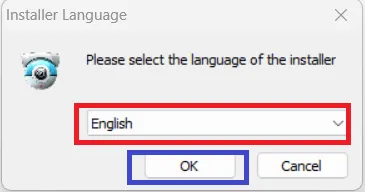
Select the language of the app. After that, press the OK button.
The app begins to set up. It takes only a few minutes.
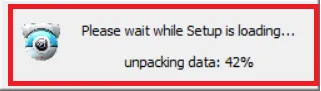
When it is set up, we get the following page on the screen.
It is the welcome page of the software.
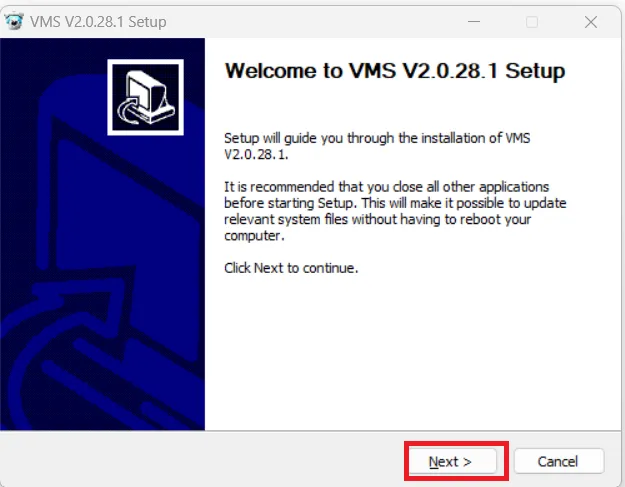
A few recommendations are given on this page. Follow them to install the application. Press the Next button.
We get the License Agreement Page.
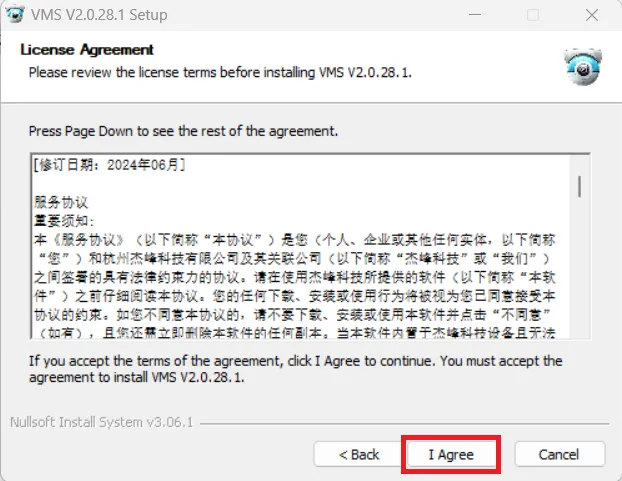
If you agree, press the I Agree button and you get this page.
Here, we have to select the path and folder for the installation.
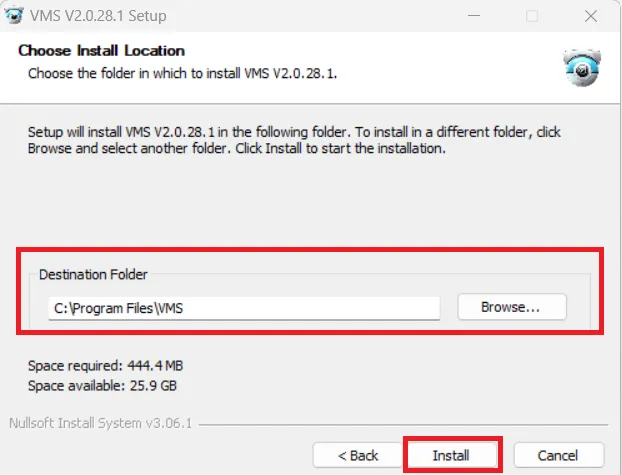
Give the folder and location. After that, press the Install button.
The software begins to install.
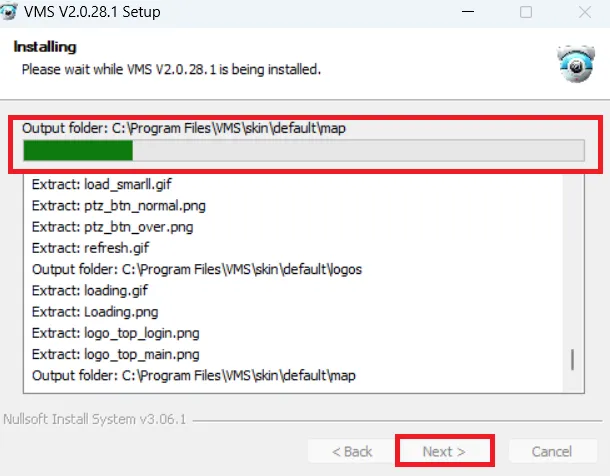
When the installation process is completed, we get the next page.
This page announces that the installation process is over.
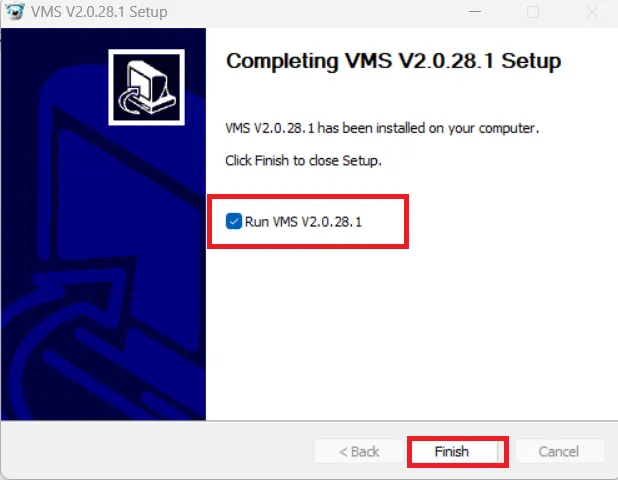
This way first step is completed. Press the finish button.
We move to the second step. It is for the login.
Step 2 – Sign in to the Software
When we open the installed app, we get this page.
It is the Sign in Page.
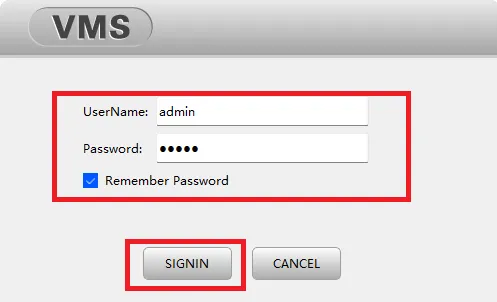
Its default ID and password are “admin” and “admin.”
After the login, we get here.
Step 3 – Device Addition & Monitoring
This page surfaces on the screen. We can add CCTV devices automatically and manually.
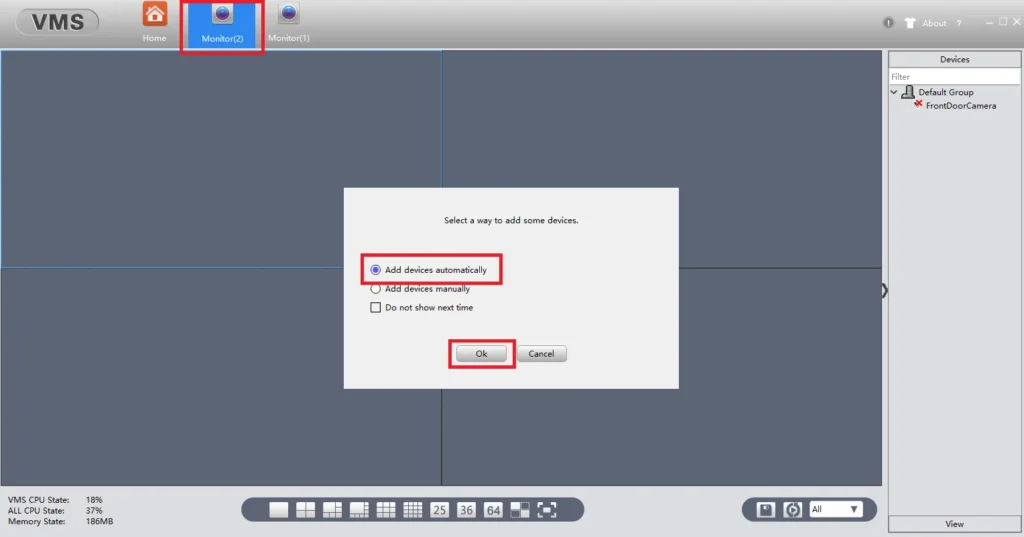
If you want to automatically add devices, press the OK button.
If you want to manually add devices, go to the Manually Add option.
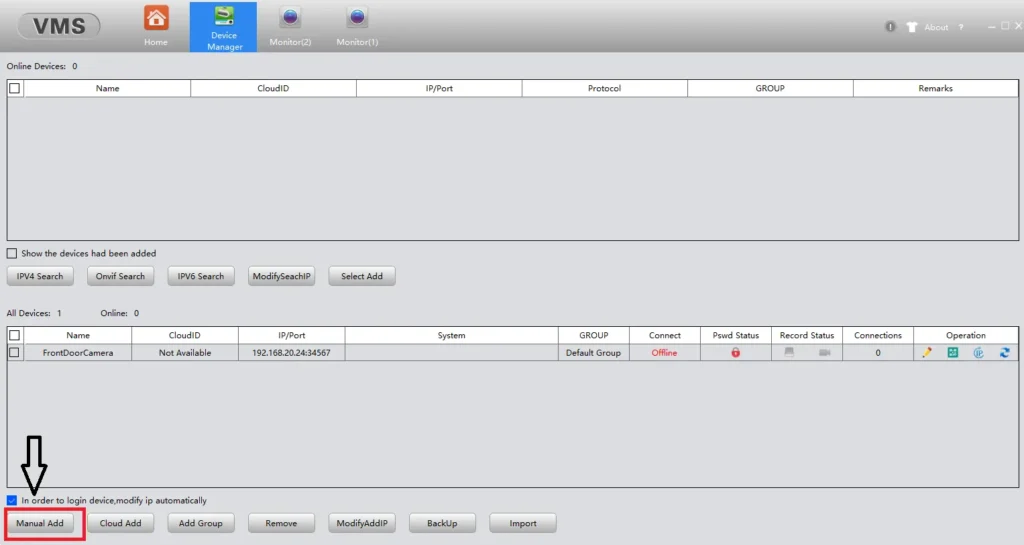
Press the Manually Add option.
This page appears.
It is the device addition page.
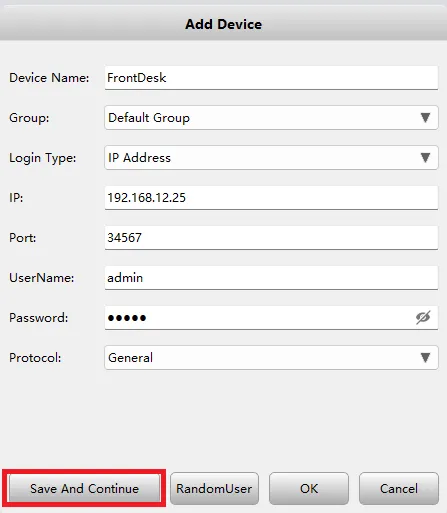
Give device details like device name, IP address, port, device username, and its password.
After that, press the Save and Continue button.
The device is added. You can add as many cameras as required.
Now, go to the homepage for a live feed.
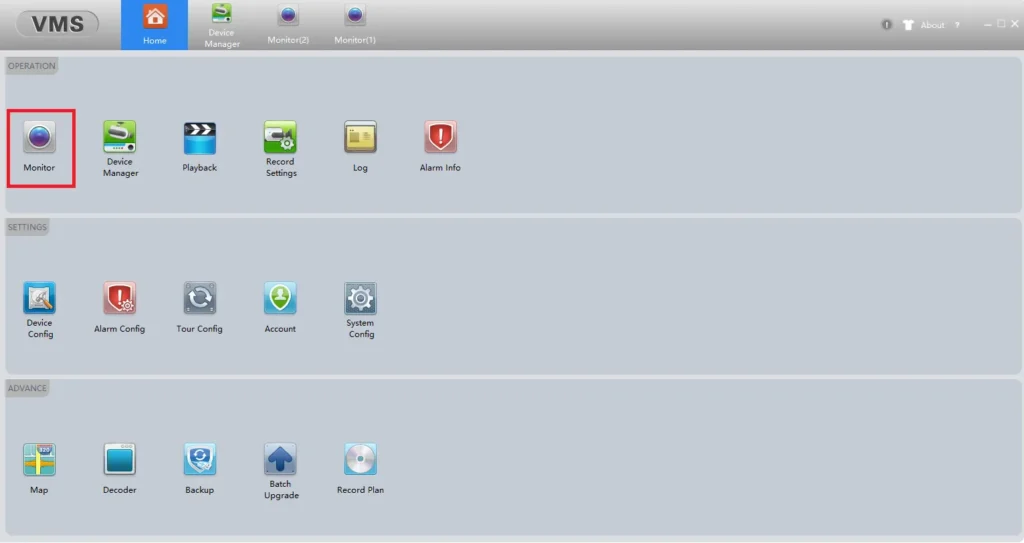
Press the Monitor option. We get the following page on the screen.
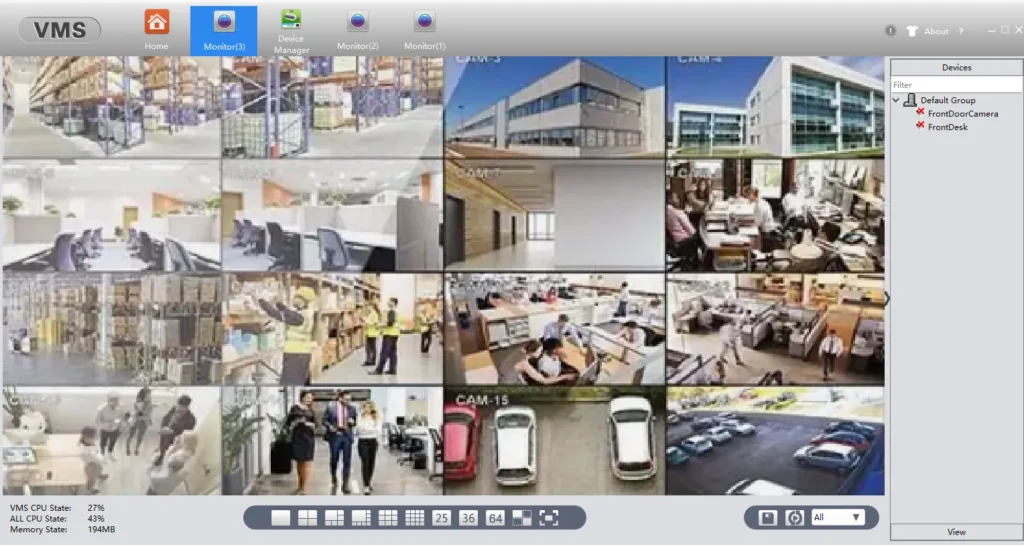
Watch your locations and sites from anywhere. Watch them on your Windows or Mac PCs.
Conclusion
We have shared the download button for Windows and Mac. The download button is shared. Get the CMS. The complete installation process is illustrated. The device addition is highlighted.
All the steps are suggested with images and descriptions. Find them here.
Please suggest your opinions and queries regarding the topic. We read all the comments and respond to queries. You can send your suggestions in the comment box.
Thank you.
What is the SeeEasy App used for?
The SeeEasy App is used to view live CCTV camera footage, playback recordings, receive alarm notifications, and manage IP cameras and NVRs remotely from a mobile phone.
Where can I download the SeeEasy App?
You can download the SeeEasy App from the Google Play Store or Apple App Store by searching for “SeeEasy”.
Is the SeeEasy App free to install?
Yes, the SeeEasy App is completely free to download and use. No subscription is required for basic live view and playback.
Which devices are compatible with the SeeEasy App?
SeeEasy App works with OEM, generic IP cameras, and NVRs. These cameras and recorders support P2P, ONVIF, or RTSP protocols and are designed for SeeEasy connectivity.
How do I add a device using QR code?
Open the app. Then tap the + Add Device option. Select the QR Code Scan. The QR code is printed on the camera or NVR. After that, enter the user name and password, then press the save button.
Why does device status show “Offline”?
This usually means the device is not connected to the internet, the network cable is loose, Wi-Fi is incorrect, or the device has no power.
Can I view cameras from multiple locations in one app?
Yes, SeeEasy allows you to add and manage multiple cameras or NVRs from different locations in a single app.
Can multiple phones access the same device?
Yes, the same device can be added to multiple phones using the same Device ID and login credentials.
How do I enable mobile data viewing?
Ensure mobile data is ON, the device is online, and P2P status shows “Online” in the device network settings.
Does SeeEasy support playback from SD card and NVR HDD?
Yes, SeeEasy supports playback from SD cards (IP cameras) and hard disks (NVRs) if recording is enabled.
How do I receive alarm notifications in SeeEasy?
Enable motion detection on the camera/NVR and turn ON push notifications in both the app settings and phone notification settings.
How do I reset a camera or NVR if I forget the password?
Use the reset button by pressing it for 10 to 30 seconds. If you still face issues, contact the device seller or installer for firmware-based reset support. Your problem will be resolved.

