
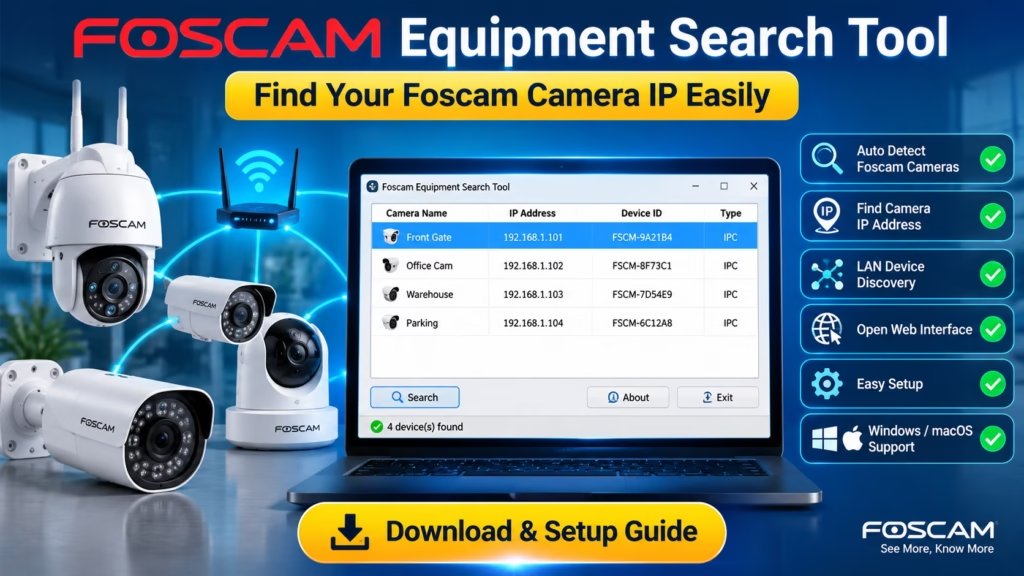
The Foscam Equipment Search Tool is software that finds the IP address of your Foscam camera. Basically, if you have a Foscam security device and don’t know its IP address, this tool will scan your local network and pull up the IP addresses of all your connected CCTV devices.
Not only does this tool scan and display IP addresses, but it also lets you change them. This makes the whole process so much easier—you don’t have to track down and change each camera’s IP one by one. You just run the tool, and you can instantly find or update the IP of whichever device you need.
In this post, we’ve put together all the information you need about this tool—how it works, how to find IPs, and how to change them. We’ve also walked through the entire installation process to make things as easy as possible for you. First, download it using the button below. It’s completely safe and pre-scanned, so you don’t have to worry about any security issues.
About Foscam Equipment Search Tool
We’ve put together some key information about this tool below to help you fully understand it and get the most out of it.
| Feature | Details |
|---|---|
| Software Name | Foscam Equipment Search Tool |
| Latest Version | Latest Available |
| Developer | Foscam |
| Category | IP Camera Discovery Tool |
| Supported Devices | Foscam IP Cameras |
| Compatible OS | Windows 11, Windows 10, Windows 8, Windows 7, macOS |
| License | Freeware |
| File Size | Varies by Version |
| Primary Function | Detect Foscam cameras on the local network |
| Network Requirement | PC and camera must be connected to the same LAN |
System Requirements
Check here to see the system requirements and what resources your PC needs to run this tool.
| Requirement | Details |
|---|---|
| Operating System | Windows 11, Windows 10, Windows 8, Windows 7 |
| RAM | 2 GB or higher |
| Processor | Intel/AMD Dual-Core |
| Network | Same LAN as camera |
| Internet | Not required for LAN discovery |
Also see this: Foscam App For PC
Features of Foscam IP Search Tool
Let’s take a quick look at the features available so you can get the most out of it. While the Foscam Equipment Search Tool has pretty much every feature you’d expect from a solid IP scanner, it’s still a good idea to quickly go over them.
- Detect Foscam IP cameras
- View camera IP address
- View MAC address
- Open camera web interface
- Verify LAN connectivity
- Find newly installed cameras
- Automatic LAN scanning
- Fast camera discovery
- Displays IP address instantly
- Shows device information
- Supports multiple cameras
Other Brands IP Tools: Hikvision IP tool, Dahua IP tool, TVT IP tool, Wisenet IP Search Tool
How to Install Foscam Equipment Search Tool
Here’s some good news: you don’t even have to install it! Because this tool is so lightweight, it runs the moment you click on it. There’s absolutely no installation required.
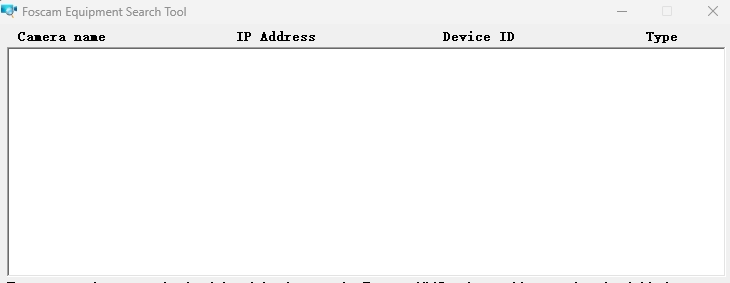
How to Find Your Camera On Foscam IP Search Tool
Now, let’s look at how to find your cameras. We’ve broken the process down into a few simple steps—just follow along, and you’ll be able to find your camera’s IP address in no time.
- Connect the camera to your router.
- Power on the camera.
- Connect your PC to the same network.
- Open Foscam Equipment Search Tool.
- Wait a few seconds.
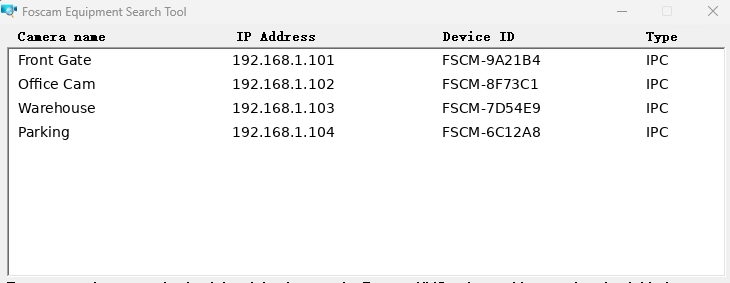
- Your camera should appear automatically.
- Double-click the detected device to open its web interface.
Testing Notes
We’ve personally tested this tool on our own system, and we’re sharing the results right here.
Test Environment
- Windows 11 Pro 24H2
- Windows 10 Pro 22H2
- Intel Core i5
- Gigabit Ethernet Network
- Local Router (DHCP Enabled)
Verified
- Device detection
- IP address discovery
- Multiple camera scanning
- Camera web interface launch
- Local network compatibility
Conclusion
Foscam Equipment Search Tool is the quickest way to locate your Foscam camera on a local network. If your camera’s IP address is unknown or the device isn’t showing in the mobile app, this utility can automatically discover it in seconds. For users who also need live view, recording, and camera management, Foscam VMS is the better choice because it includes device discovery along with full monitoring features.
FAQs
Is Foscam Equipment Search Tool free?
Yes. Foscam provides it as a free utility for supported devices.
Does it work on Windows 11?
Yes, It works on Windows 8, Windows 10, Windows 11 and Mac as well.
Can I change the camera IP?
The tool is mainly used for device discovery. Advanced network settings are managed through the camera’s web interface or Foscam VMS.

