
We need to manage and configure CCTV devices, set their IPs, update their software, upgrade their firmware, reset passwords, batch-configure devices, and display device details. All these things are possible through a Device Utility Tool. These configurations help to improve device performance.
The Eastern CCTV IP Search Tool is one such tool that performs all these tasks splendidly well and manages IP cameras, NVRs, and DVRs. It is a specialised utility software designed to detect, manage, and configure IP cameras and network video devices within a local network (LAN).
This tool is extensively used by CCTV integrators, technicians, owners, and professionals. Through it, they can easily identify the IP address of their cameras without complex networking knowledge.
In this post, we will discuss the Eastern CCTV IP Search Tool. We will know about this App, its best features & functions, system setup, tips, tricks, and troubleshooting. The complete Guide will illustrate its latest version for a comprehensive comprehension.
Eastern CCTV IP Search Tool – Quick Download Information
The basic information is as follows.
| Software Name | Eastern CCTV IP Search Tool |
| Software Category | CCTV Software for Device Management |
| File Size | Apprx. 50 MB. File size differs with every software update. |
| Platform | For PCs. Windows 11/10/8/7 |
| License | It is free software. |
| File Type | Zipped File. EXE File Type. |
What is the Eastern CCTV IP Search Tool?
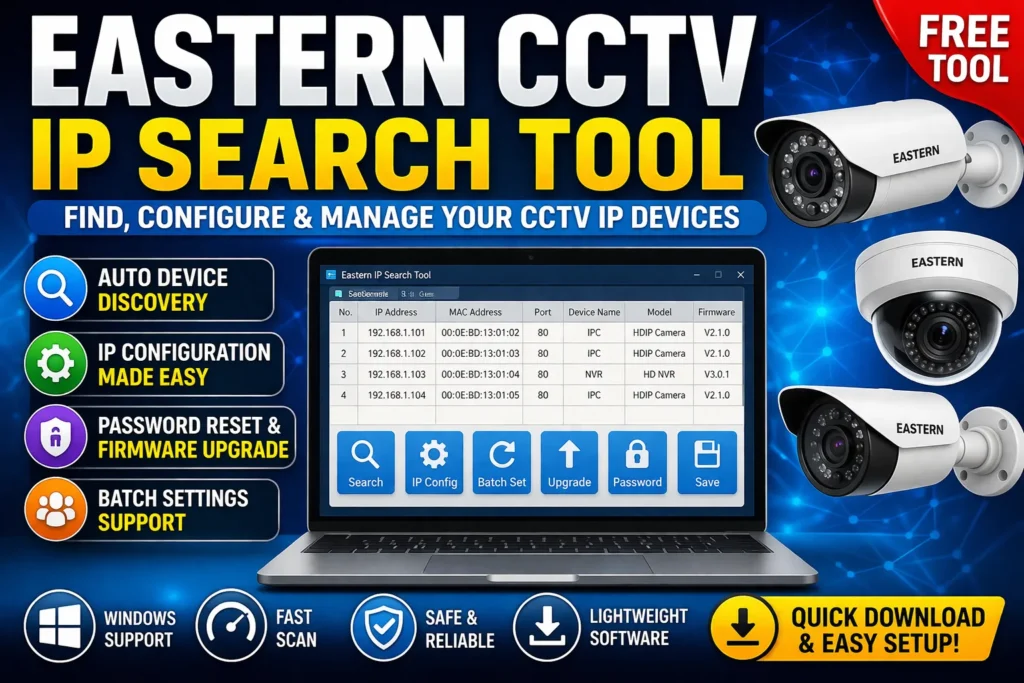
This Eastern IP Search Tool is designed and developed by EasternCCTV for their CCTV Devices. This Configure Tool also supports ONVIF-compliant security surveillance devices.
When any IP Camera is added to any network, it often finds problems in locating its IP address manually. Through the Tool, the issue is resolved as it automatically scans the network and displays all connected CCTV devices, including their IP address, MAC address, port, and device information.
This Software also helps in modifying the device network settings. It discovers and modifies the CCTV Device IP address, subnet mask, gateway, updates firmware, and even resets passwords. These features make this Device Tool highly useful for initial device management, configuration, and troubleshooting.
The Eastern IP Tool makes the installation process simple. It saves integrators’ and owners’ time and makes sure that the communication between the monitoring systems and devices remains smooth.
Eastern IP Search Tool Best Features & Functions
This tool is useful for device management. Its key features include the following functions.
- It discovers CCTV devices automatically. IT scans the LAN, and all the devices are instantly discovered and highlighted through it.
- It is a useful tool. It manages Eastern CCTVs and other Onvif-compliant devices.
- The Device Network configuration is possible through it. It changes IP address, subnet mask, and gateway easily.
- It highlights complete device information display. Information like the MAC address, Subnet mask, port, firmware, etc., is easy to know.
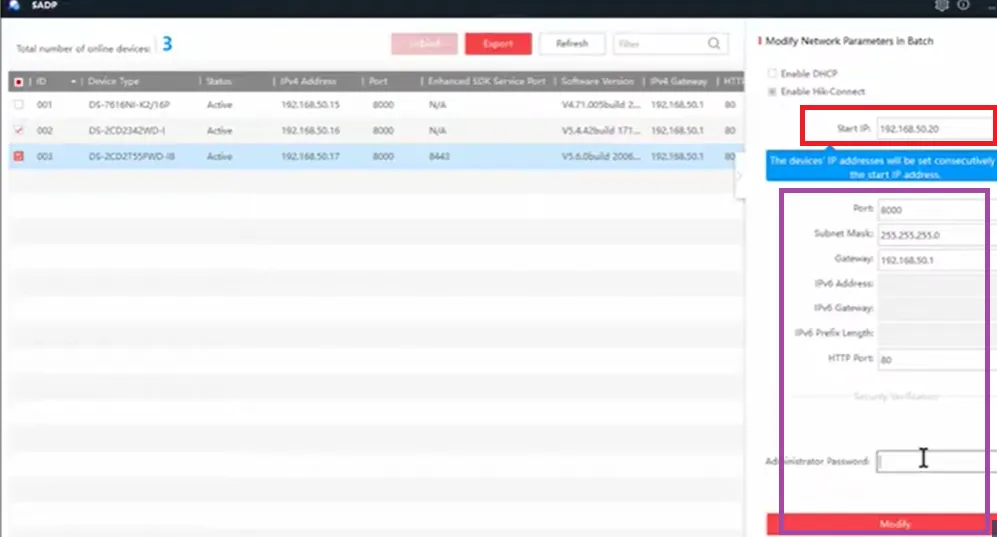
- The tool supports batch configuration. It can manage multiple CCTV devices at a time. It saves a lot of time and gives accuracy. For a large-scale setup, this feature is extremely handy.
- It resets the device password easily. It initialises or resets device credentials.
- Users can update camera firmware through it.
- Its simple and user-friendly user interface is handled aptly by professionals and beginners.
These are some of its key functions.
System Requirements for the Eastern Search Tool
This system requirement is required.
| Operating System | Windows 11/10/8/7 |
| Random Access Memory | 1 GB. 2GB+ RAM is recommended for smoother functioning. |
| Processor | Dual-Core Processor |
| Storage Capacity | 50–100 MB |
| Remote Surveillance | No, it is for local network configuration for devices |
How to Download, Install, and Configure the Eastern CCTV IP Search Tool
The complete guidance for its download, installation, and configuration is illustrated here.
Step 1 -Download the Eastern Tool
The first step is to download the file. A download button is shared. Get the file by clicking on it. It is given in a zipped file format.
Click the button. The software is given in a zipped file.
Step 2 – Extract the Zipped File
To use this application, users have to unzip it. Extract the file.
It takes only a few seconds to extract it.
Step 3 – Install the Application
The complete installation process is demonstrated for a proper understanding.
The installation process is simple.
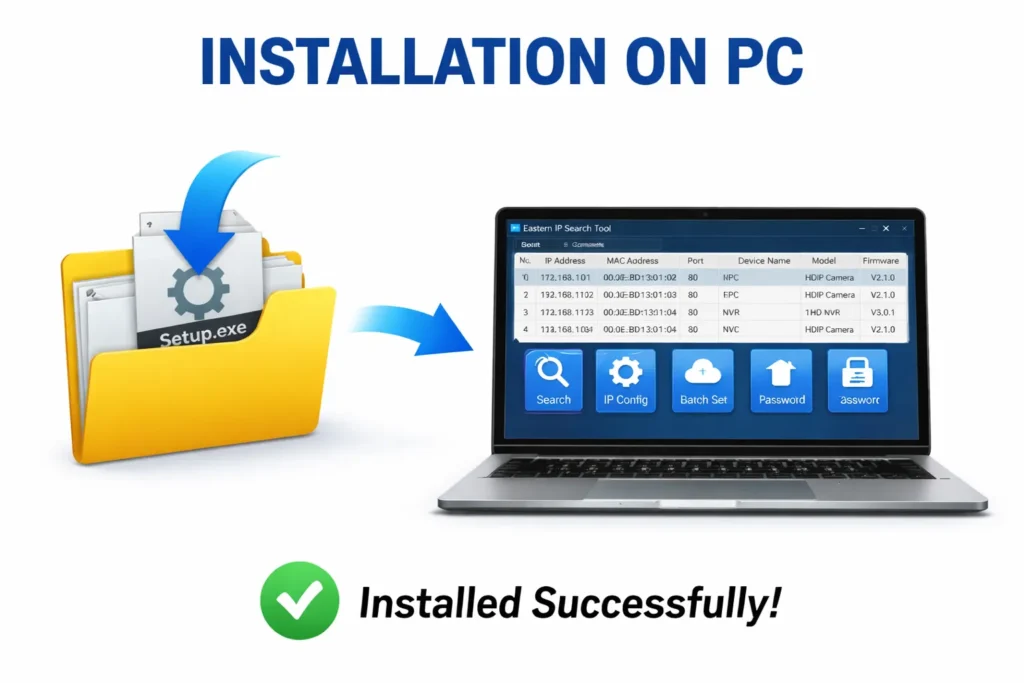
When the Eastern CCTV IP Tool is installed, we get this user interface.
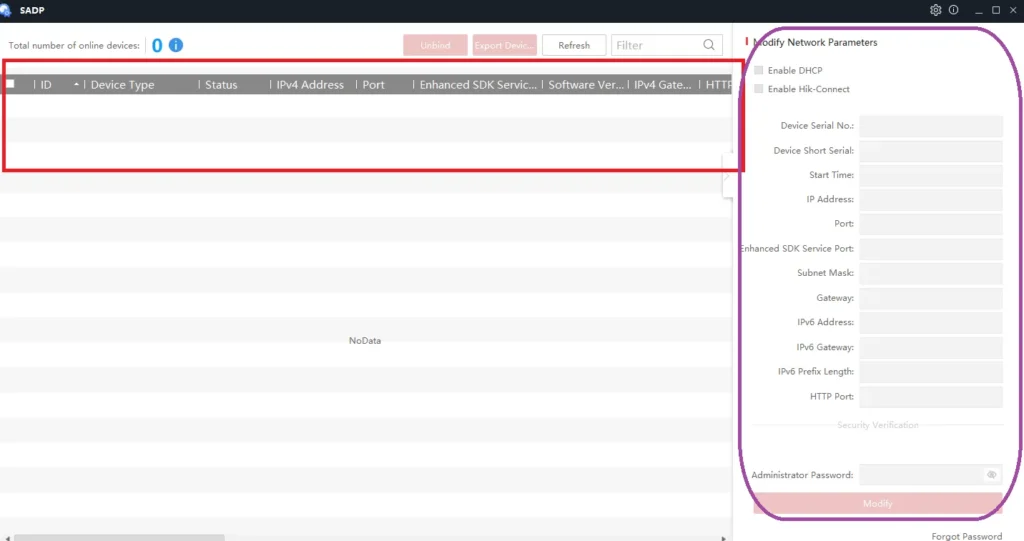
There are features and functions like IP discovery and modification, port, subnet mask, device activation, and configuration is all possible through this tool.
Step 4 – Configure Devices
These features and functions help users manage their CCTV devices.
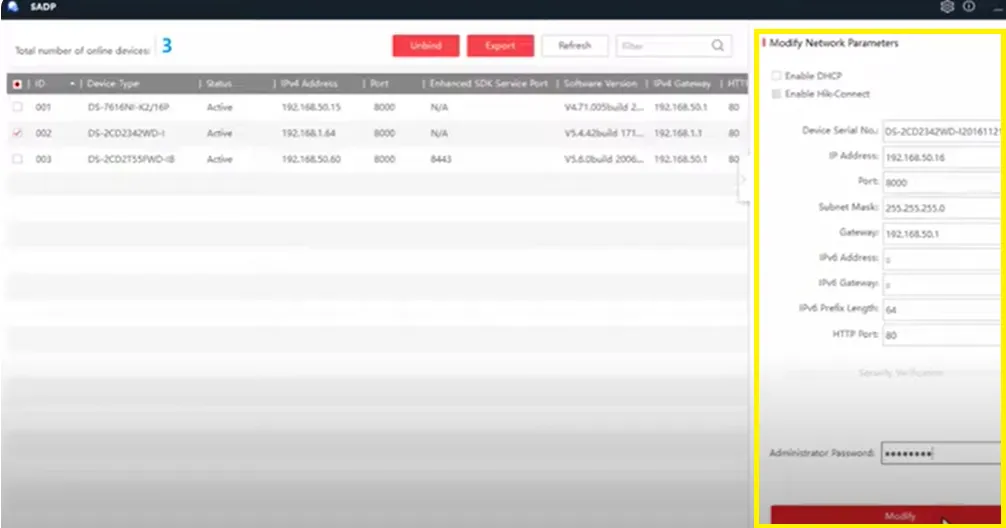
Device management is possible through the tool. It can be easily handled by beginners, integrators, and owners.
Step 5- Activate Devices
Activate the device by giving its device details.
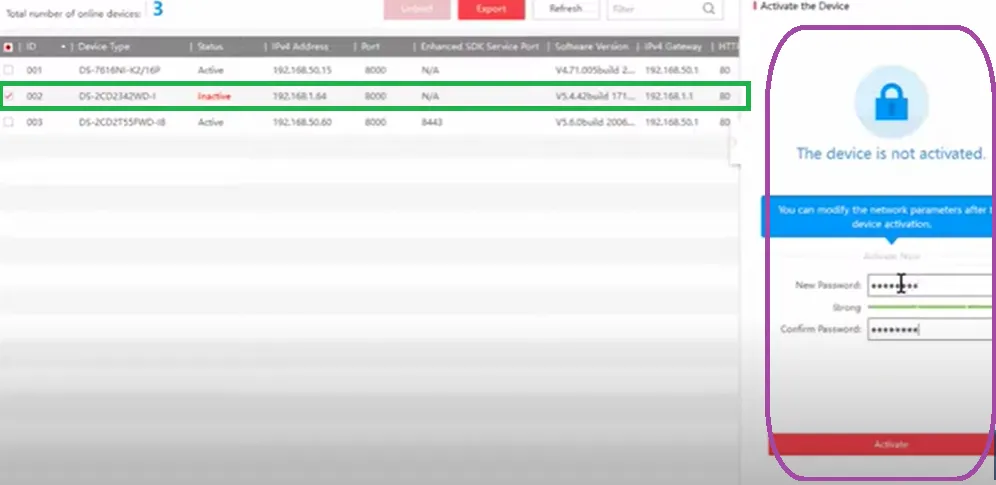
Step 6 – Modify Device Ports and other Features
Whatever CCTV Device Feature you want to manage or modify, do it easily.
Tips & Tricks
- To use this tool properly, always use the device through LAN on the same network.
- If you use a static IP address, it will run the device smoothly.
- If the device discovery is facing difficulty, disable the firewall temporarily.
- Always give names to cameras for easy identification.
- For large setups, always use the Batch Configure feature.
- Always keep the firmware updated for a smoother device performance.
Troubleshooting
- If the camera is not detected, check the LAN cable, power supply, same subnet, and enable the DHCP.
- If the device is facing the wrong IP, reset the device, reassign an IP, and avoid an IP conflict.
- If the login fails, check the username and password. Reset the password or use the default credentials.
- If the software is not opening, run it as an administrator, reinstall it, and also check the antivirus. Maybe the antivirus is blocking.
Conclusion
The Eastern CCTV IP Search Tool is extensively detailed and discussed here a complete and comprehensive guidance. The full tutorial is useful for beginners, owners, integrators, and professionals alike.
Its features & functions, key tricks, and troubleshooting are also mentioned. Get the software through the app and install it easily as taught here.
Kindly share your suggestions and queries. You can connect to us through the comment section. We respond to our visitors and readers.
Thank You.
What is Eastern CCTV IP Search Tool?
It is a software utility used to scan, detect, and configure IP cameras and CCTV devices connected to a local network.
Is this Eastern CCTV tool free to use?
Yes, it is usually provided free by the manufacturer or distributors for easy device setup and management.
Which devices does the Eastern CCTV IP Search Tool support?
It supports Eastern CCTV cameras, NVRs, and most ONVIF-compatible IP cameras.
Can I use Eastern Tool on Windows?
Yes, it is primarily designed for Windows systems such as Windows 7, 8, 10, and 11.
Does the Eastern CCTV Tool work on Mac or Linux?
Generally, no. It is mostly Windows-based. You may need a virtual machine for Mac/Linux.
How does the Eastern CCTV tool find IP cameras?
It scans your local network (LAN) and detects devices based on IP and MAC addresses.
Can I change the IP address of my camera using the Eastern IP Tool?
Yes, you can easily assign a new static IP address using the tool.
What is a static IP, and why should I use it?
A static IP is a fixed address for your camera, preventing it from changing after the restart. It ensures stable connectivity.
Can I configure multiple cameras at once via this Eastern IP tool?
Yes, the tool supports batch configuration for multiple devices.
Can I upgrade firmware using the Eastern CCTV tool?
Yes, firmware updates can often be done directly through the tool interface.
Do I need internet to use this Eastern CCTV tool?
No, it works on a local network (LAN) without internet access.
Why do I see duplicate IP addresses?
This happens due to IP conflicts. You should assign unique IPs to each device.
Can I access cameras remotely with this Eastern IP tool?
No, it is mainly for local network configuration, not remote viewing.
