
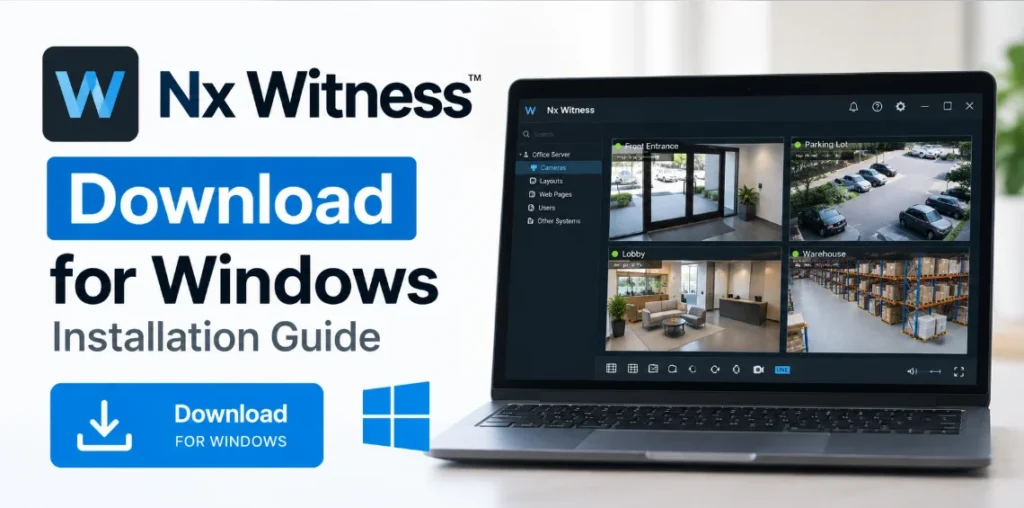
If you manage IP cameras for a business, office, warehouse, or multi-camera security installation, Nx Witness is a video management system worth considering. It provides a platform for managing video surveillance devices through a desktop interface, with the available functions depending on your system configuration and installed components.
You can start with the official Nx Witness download page from Network Optix. Before installing anything, make sure you select the appropriate Windows software and understand whether you need the desktop client, the server component, or both. These components serve different purposes, so choosing the right installation is important.
Nx Witness Download for Windows
Official download: Download Nx Witness for Windows
Use the official Network Optix website to locate the available Windows release. The download page may require JavaScript or account authorization, depending on the current website workflow.
Before downloading, review the release information displayed on the official website. Confirm the version, operating-system compatibility, and installation package details there rather than relying on an old installer hosted elsewhere.
Nx Witness software information
| Detail | Information |
|---|---|
| Software | Nx Witness |
| Developer | Network Optix |
| Software category | Video management system (VMS) |
| Intended platform for this guide | Windows PC |
| Official download | Network Optix Windows releases |
| Camera compatibility reference | IP Video Device Directory |
| Latest version | Check the official download page |
| Installer size | Check the selected release |
| License and access requirements | Confirm with the official release and product documentation |
The latest release number, installer size, and current licensing requirements should be checked before publication because these details can change.
If you have Wisenet cameras, then use Wisenet WAVE for PC
What Is Nx Witness?
Nx Witness is a video management system developed by Network Optix. It is intended for organizing and managing video surveillance systems rather than acting as a universal viewer for every camera brand.
A typical deployment can include a server that handles video-system functions and a desktop client used by an operator to access and manage the system. Depending on your setup, the server and client may be installed on the same computer or on separate computers.
This distinction matters when downloading the software. Installing a desktop client alone does not automatically create a complete recording system; you also need access to a properly configured Nx Witness server and compatible cameras or video sources.
How to Download Nx Witness on Windows
Follow these steps to obtain the installer from the official source.
Step 1: Open the official download page
Visit the Nx Witness Windows download page.
If the page asks you to sign in or authorize access, follow the official website’s instructions. Do not use unofficial download mirrors simply because the original page does not load in your browser.
Step 2: Select the appropriate Windows release
Review the Windows releases available on the official page. Choose the package that matches the component you want to install and the requirements of your existing Nx Witness system.
If you are joining an existing surveillance installation, check which release is compatible with its server before updating or installing another client.
Step 3: Download the installer
Select the appropriate download option and save the file to a location you can find easily, such as your Downloads folder.
Wait until the download completes. If the browser reports an incomplete download or the file cannot be opened, return to the official page and check whether the download needs to be restarted.
Step 4: Verify the downloaded file
Before running the installer, check its file name and publisher information where available. If Network Optix provides a digital signature or file verification information for the selected release, use it to confirm the file’s authenticity.
Avoid installers from third-party download sites that bundle additional applications or do not identify the original publisher.
How to Install Nx Witness on Windows
The exact screens and component choices may differ by release. Use the prompts in the installer you downloaded from Network Optix.
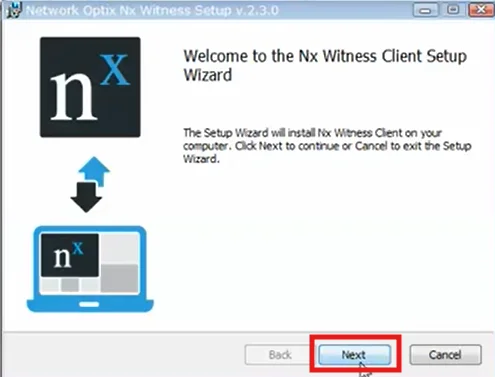
Step 1: Start the installer
Open your Downloads folder and locate the Nx Witness installation file. Run it and approve the Windows permission prompt if you trust the file and its publisher has been verified.
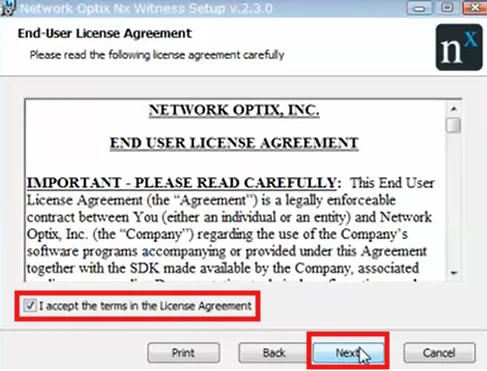
Step 2: Review the installation options
Read the installer prompts carefully. If the package offers a choice of components, select the components appropriate for your role.
- Desktop client: Intended for users who need to access and operate an Nx Witness system.
- Server component: Intended for the computer responsible for the server-side functions of the surveillance system.
Do not assume that every download package contains both components. Check the selected release and installer description.
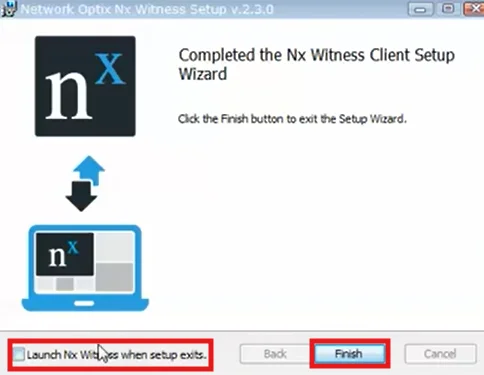
Step 3: Complete the installation
Follow the on-screen instructions and wait for the installer to finish. If Windows displays an error, record the exact message before attempting another installation.
Step 4: Open Nx Witness
Launch the installed application from the Windows Start menu or the shortcut created during installation, if available.
The next step depends on your setup. A desktop client may need to connect to an existing server, while a new deployment requires the appropriate server-side configuration.
How to Connect Cameras to Nx Witness
Installing the application is only one part of setting up a surveillance system. You also need to confirm that the cameras or video sources can be used with your particular Nx Witness release.
Step 1: Check camera compatibility
Open the official Network Optix IP Video Device Directory. Use the directory to research supported devices and the compatibility information available for your camera model.
Do not assume that every IP camera will expose all its functions in Nx Witness. Compatibility can vary by model, firmware, integration method, and supported video features.
Step 2: Confirm network connectivity
For a locally installed system, check that the camera and the relevant Nx Witness server can communicate over the network. Verify the camera’s IP address, network configuration, and credentials.
If the camera is on a different subnet or separated by network rules, discovery may not work until the required connectivity is configured.
Step 3: Add the camera through the available interface
Open the appropriate Nx Witness interface and use its device-management options to add or discover a compatible camera. The exact controls depend on the installed release and your permissions.
Enter the required device details when prompted. Use the camera’s correct credentials and avoid sharing them publicly.
Step 4: Check the video stream
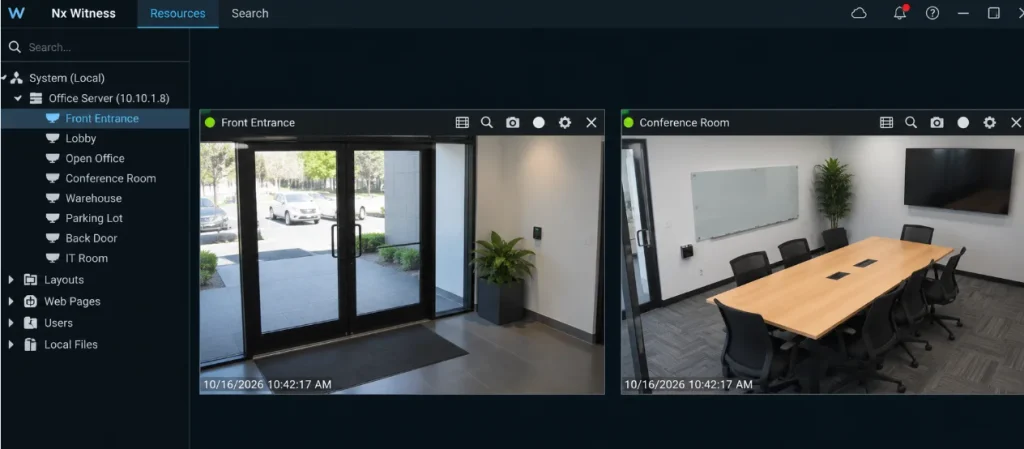
After adding the device, confirm whether the camera appears in the system and whether its live stream is available. If recording is part of your setup, separately review the server’s recording configuration and storage settings.
A camera appearing in the device list does not, by itself, prove that recording has been configured correctly.
Common Nx Witness Download and Installation Problems
The official download page will not open
The official release page may depend on JavaScript or an authorization flow. Try a current browser, enable JavaScript for the site, and follow any sign-in prompt shown by Network Optix.
If the page still fails, use the official Network Optix website to locate the current download route rather than downloading an unknown executable from another source.
The installer will not run
Check whether the download completed successfully and whether Windows identifies the expected publisher. Review the displayed error and the release’s operating-system requirements before trying again.
If Windows blocks the file, do not disable security protections indiscriminately. First establish whether the file is authentic and whether the warning is legitimate.
The desktop client cannot find a server
A desktop client needs a server to connect to. Confirm that the server component is installed and running on the intended computer, or obtain the correct connection details from the system administrator.
Also check network reachability, firewall rules, and the compatibility of the client and server releases.
A camera does not appear
Check the camera’s IP address, network connection, credentials, and compatibility with the selected Nx Witness release. Consult the IP Video Device Directory and the camera manufacturer’s documentation where necessary.
If automatic discovery fails, consult the official instructions for adding devices manually.
Live video works, but recording does not
Live viewing and recording are separate functions. Review the server’s recording configuration, camera recording settings, storage availability, and the permissions of your user account.
Do not conclude that recording is working until you have confirmed that footage is actually being saved and can be retrieved.
Is Nx Witness the Right Choice for Your CCTV System?
Nx Witness is worth evaluating when you need a dedicated video management platform and your cameras, server hardware, and operational requirements are compatible with it.
Before deploying it, consider the number of cameras, recording and retention needs, available storage, remote-access requirements, and the licensing terms that apply to your installation. A desktop client is not a substitute for planning the server and recording infrastructure.
If you are comparing surveillance platforms, you can also read our Wisenet WAVE for PC guide for information about another video management system.
Frequently Asked Questions
Where can I download Nx Witness for Windows?
Use the official Network Optix Windows download page. Check the available release and its installation requirements before downloading.
Is Nx Witness a desktop client or a complete VMS?
Nx Witness is a video management system with separate client and server roles. The component you need depends on whether you are accessing an existing system or building a new deployment.
Can I connect any IP camera to Nx Witness?
Not necessarily. Check the camera model and available compatibility information in the official IP Video Device Directory. Features can vary across devices and integrations.
Why does the desktop client need a server?
The client is used to access and operate the system, while the server performs server-side functions. A client that has not been connected to a configured server may not provide access to cameras or recordings.
Which Nx Witness version should I download?
Choose a release that matches your Windows environment and deployment requirements. If you are connecting to an existing system, verify compatibility with its server version before installing or upgrading the client.
Is Nx Witness free?
Do not assume that the entire VMS deployment is free because a client or installer is downloadable. Check the current Network Optix licensing terms and the requirements for your intended deployment.
Final Note
Download Nx Witness from the official Network Optix website, verify the selected Windows package, and choose the components appropriate for your surveillance system. Before connecting cameras or relying on recordings, confirm device compatibility and check the configuration of the server, network, and storage.
