
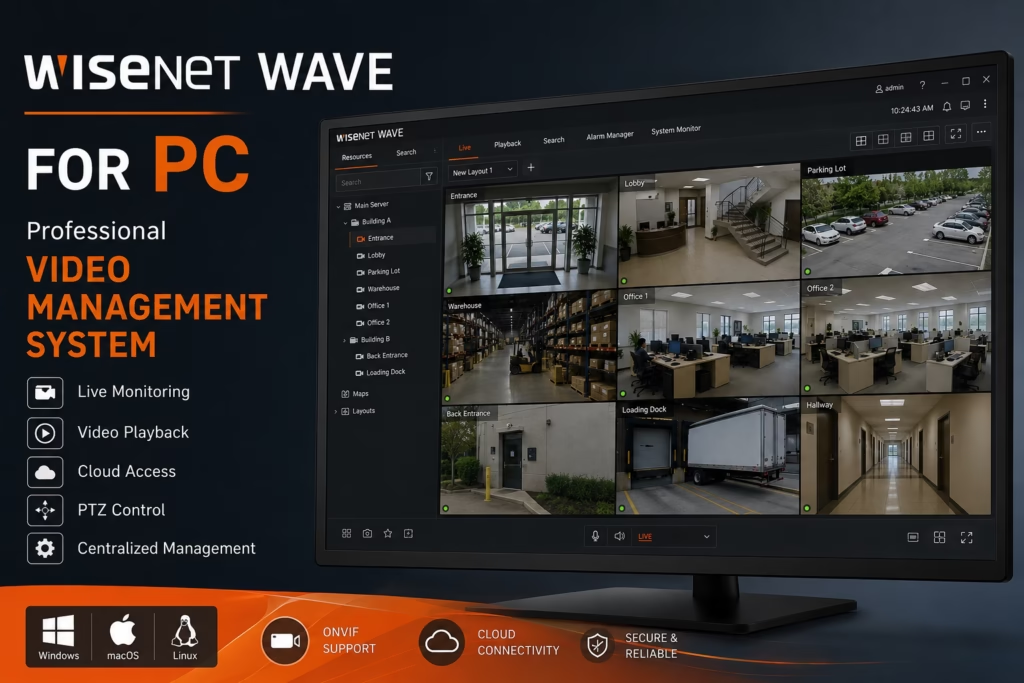
If you’re looking for an easy way to manage your security cameras from your computer, Wisenet WAVE for PC is an excellent choice. It lets you watch live video, review recorded footage, control PTZ cameras, and manage all your compatible cameras from a single, user-friendly dashboard.
Whether you’re monitoring a small business, a large facility, or multiple locations, Wisenet WAVE makes it simple to keep everything organized and accessible. Best of all, it’s available for Windows, macOS, and Linux, giving you the flexibility to manage your surveillance system from the platform you prefer.
You can download it using the button below. This is official software developed by Hanwha Security, and the download is completely safe and fully tested.
In this post, we’ve put together a step-by-step installation and configuration guide. The steps are incredibly straightforward, so you’ll be able to breeze right through them.
Wisenet WAVE Software Information
Before we move forward, let’s break down what this software is all about and how to use it effectively. Check out the quick reference table below to get the full picture.
| Software | Wisenet WAVE |
|---|---|
| Category | Video Management System (VMS) |
| Developer | Hanwha Techwin |
| Supported OS | Windows, macOS, Ubuntu Linux |
| Camera Support | Wisenet, ONVIF, RTSP Compatible Cameras |
| License | Free Client Software |
| Platform | Desktop, Server, Mobile & Cloud |
| Best For | Professional Video Surveillance |
| IP Search Tool | Wisenet Device Manager |
Minimum System Requirements
To ensure a smooth setup, please make sure your computer meets the basic system requirements for Wisenet Wave before moving forward.
| Component | Requirement |
|---|---|
| OS | Windows 10/11, Windows Server, macOS, Ubuntu Linux |
| Processor | Intel CPU with OpenGL 2.1 Support |
| RAM | 4 GB or higher |
| Graphics | Intel HD Graphics 3000 or newer |
| Storage | 1 GB Free Space |
| Internet | Required for Cloud Features |
Key Features of Wisenet WAVE for PC
- Live Camera Viewing – Monitor live video from connected IP cameras with smooth, high-quality streaming.
- Multi-Camera Monitoring – View and manage multiple cameras simultaneously using customizable layouts.
- Video Recording & Playback – Record surveillance footage and review archived recordings using an interactive timeline.
- Smart Motion Search – Quickly search recorded footage by selecting an area where motion occurred.
- Cloud Connectivity – Access and manage connected surveillance systems remotely through the Wisenet Cloud platform.
- PTZ Camera Control – Control Pan, Tilt, Zoom, presets, and PTZ tours for supported cameras.
- Video Wall Mode – Display multiple live camera feeds on large monitoring screens.
- Digital Maps – Create custom maps with camera locations for easier monitoring.
- Bookmarks & Event Search – Save important incidents with bookmarks and quickly search system events.
- Adaptive Streaming – Automatically switches between high and low resolution streams to optimize bandwidth and CPU usage.
- Two-Way Audio – Communicate with supported cameras directly from the desktop application.
- Camera Discovery – Automatically discover compatible cameras available on the local network.
- ONVIF & RTSP Support – Connect ONVIF Profile S cameras and manually add RTSP, HTTP, or UDP streams.
- Storage Analytics – Monitor storage usage and estimate recording capacity.
- System Health Monitoring – View CPU, RAM, HDD, and network usage in real time.
- Video Export – Export recordings in AVI, MP4, or MKV formats for sharing or evidence.
- Role-Based User Management – Create unlimited custom user roles and permissions.
- Automatic System Updates – Update servers across the entire system with a single click.
Installation & Configuration of Wisenet Wave on Windows
Step 1. Installation
First, extract the file you downloaded above. Next, right-click on it and choose ‘Run as administrator.’ Your system prompt will pop up asking for permission—just click ‘Yes’ to move forward with the installation.
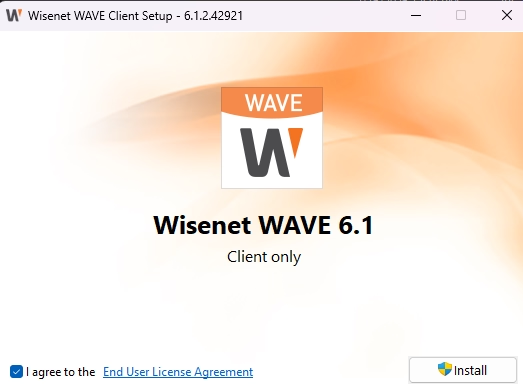
You’ll see a screen like the one below. Here, you’ll need to accept the license agreement and then click the ‘Install’ button to start the process. It’s always a good idea to quickly review the terms before checking the box.
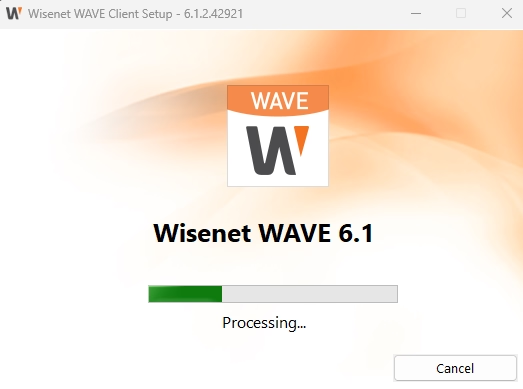
The installation is now underway. Just sit back and wait for the process to complete.
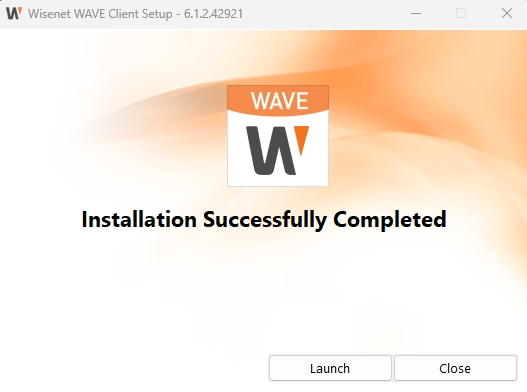
Congratulations! The installation is complete. Now, just click the launch button, and the software will be up and running on your system.
Step 2. Log in to Wisenet Wave
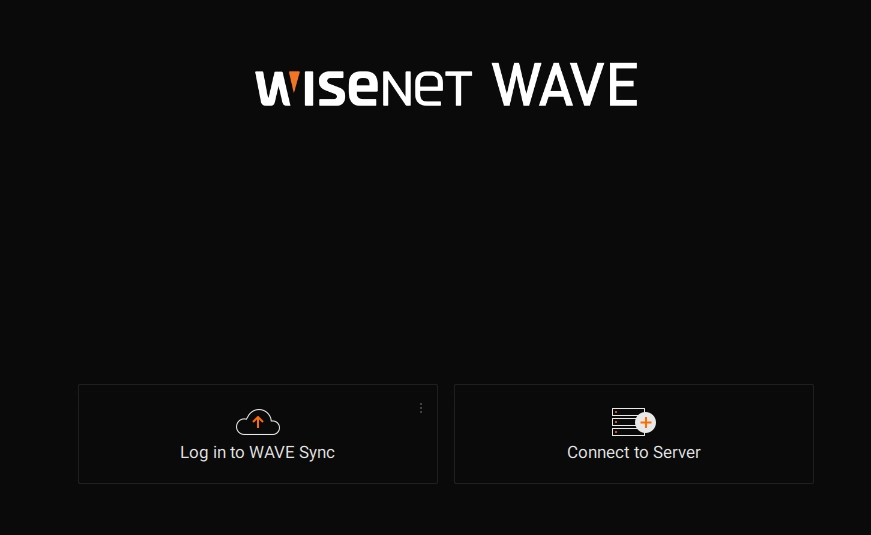
As soon as the software opens, you’ll be greeted with two options. If you already have a Wisenet account, simply click on the ‘Login’ option.
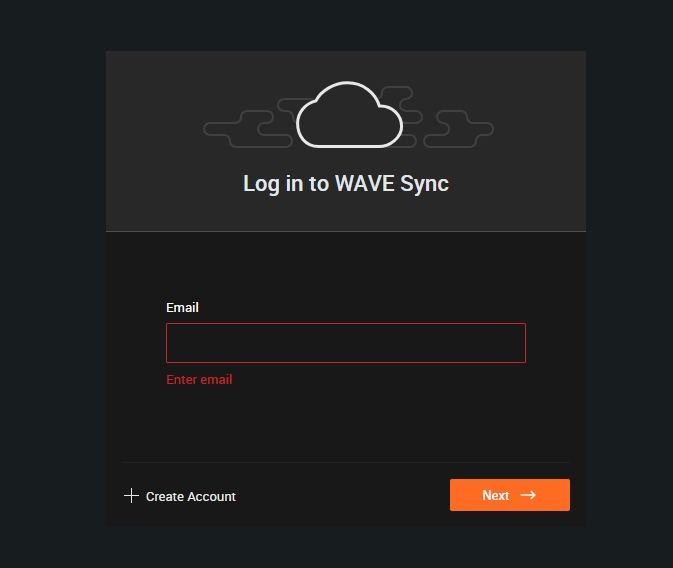
Just enter your email and password to log in, and all your cameras will be added automatically. If you don’t have an account yet, you can easily sign up right here.
Step 3. Live View of Camera on Wisenet View
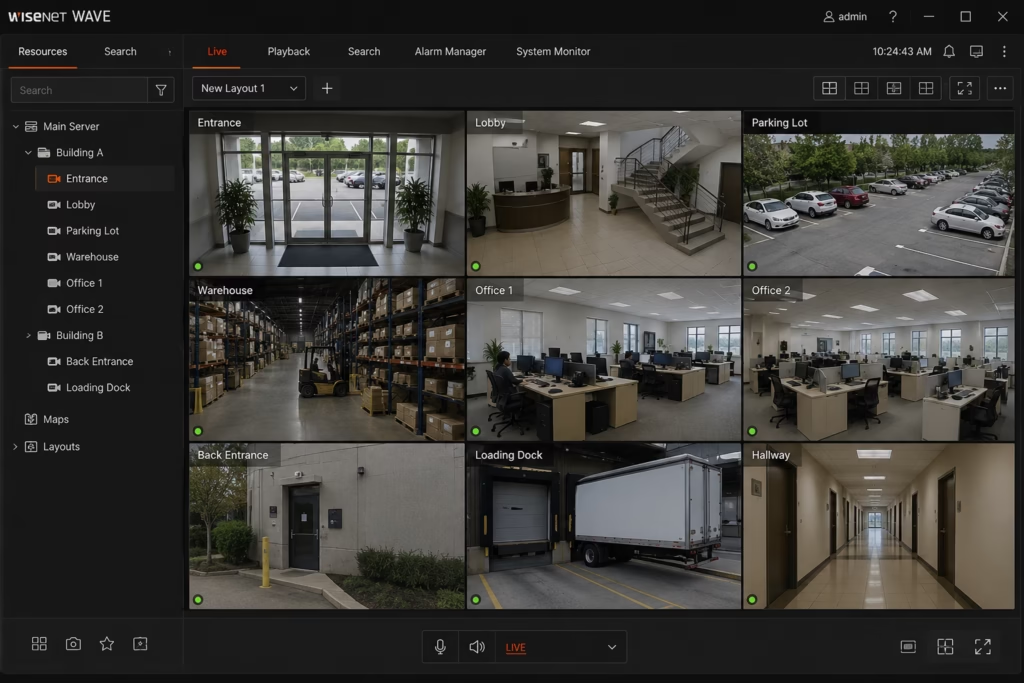
Just click the ‘Live View’ button at the top, and your camera feeds will appear right on your screen.
Testing Notes
- Tested on Windows 11 (64-bit) and Windows 10 (64-bit) using the latest available Wisenet WAVE Desktop Client.
- Verified successful installation and launch without requiring additional third-party software.
- Confirmed live camera viewing, multi-camera layouts, video playback, and timeline navigation with supported IP cameras.
- Tested ONVIF camera discovery, RTSP stream support, PTZ controls, and two-way audio on compatible devices.
- Verified cloud connectivity, camera management, and system health monitoring features.
- Performance may vary depending on your hardware configuration, network bandwidth, camera model, and Wisenet WAVE server setup.
- Some advanced features, including cloud services, analytics, and enterprise management tools, may require compatible devices, proper licensing, or additional server configuration.
Conclusion
Wisenet WAVE for PC is a powerful enterprise-grade Video Management System designed for professional surveillance environments. It combines live monitoring, intelligent search, cloud access, advanced playback, ONVIF compatibility, PTZ control, and centralized management into a single platform. Whether you manage a few cameras or a large multi-site installation, Wisenet WAVE provides a scalable and feature-rich solution for Windows, macOS, and Linux users.
FAQs
Is Wisenet WAVE free?
The desktop client is available as a free download, while camera licensing depends on the deployment and connected devices.
Does Wisenet WAVE support Windows?
Yes. The desktop application supports Microsoft Windows. It also supports macOS and Ubuntu Linux.
Does it support ONVIF cameras?
Yes. Wisenet WAVE supports ONVIF Profile S cameras and also supports RTSP streams.
Can I access cameras remotely?
Yes. Wisenet WAVE includes cloud connectivity for remote viewing and management.
