
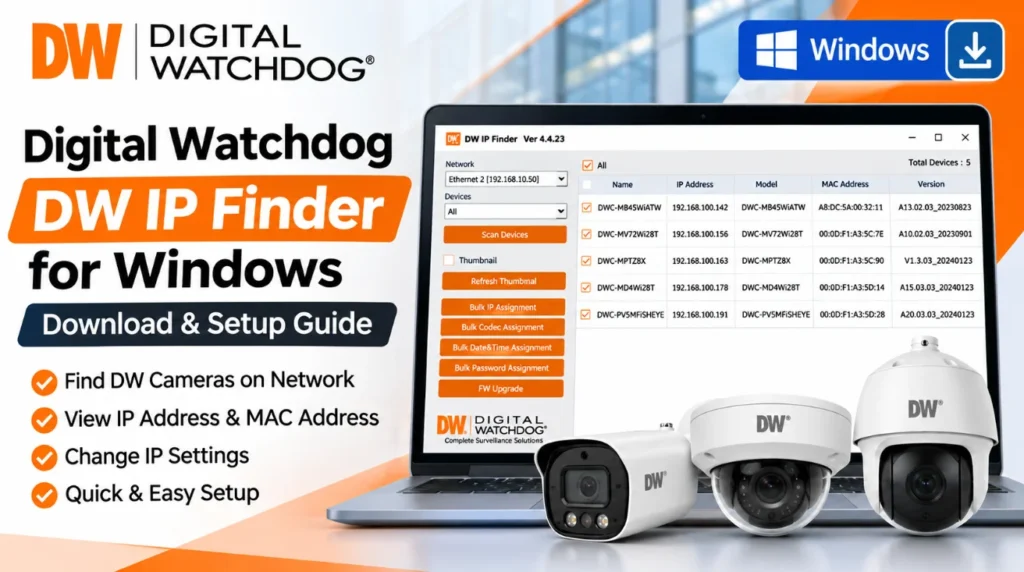
Digital Watchdog DW IP Finder is a free Windows utility designed to discover Digital Watchdog cameras and compatible network devices connected to a local network. It helps installers and security technicians identify camera IP addresses, check network information, open camera settings, and configure multiple supported devices from one interface.
If you have installed a new Digital Watchdog IP camera and cannot find its IP address, DW IP Finder can simplify the discovery process. Instead of checking each device manually, you can scan a selected network and view the detected devices in a single table.
In this guide, you will learn how to download DW IP Finder for Windows, install the utility, discover connected cameras, change an IP address, configure DHCP or static networking, and use its bulk configuration features. This tool also helps you to configure Digital Watchdog cameras on windows pc.
Digital Watchdog DW IP Finder Download for Windows
DW IP Finder is available as a free Windows application from the official Digital Watchdog website. The official software listing identifies version 4.4.23 for Windows.
Software information:
| Specification | Details |
|---|---|
| Software | DW IP Finder |
| Developer | Digital Watchdog |
| Version | 4.4.23 |
| Operating System | Windows |
| File Format | EXE |
| File Size | 27.80 MB |
| License | Free |
| Release Date | July 1, 2024 |
Download DW IP Finder:
Download from the Official Digital Watchdog Website
You can also visit the official DW IP Finder product page to check the available software versions and documentation.
Important: Download the Windows installer from Digital Watchdog rather than third-party software websites. The manufacturer may update its download listing, so check the displayed version before installing.
What Is Digital Watchdog DW IP Finder?
DW IP Finder is a network discovery and configuration utility developed by Digital Watchdog. It helps users locate supported DW cameras and identify their network information.
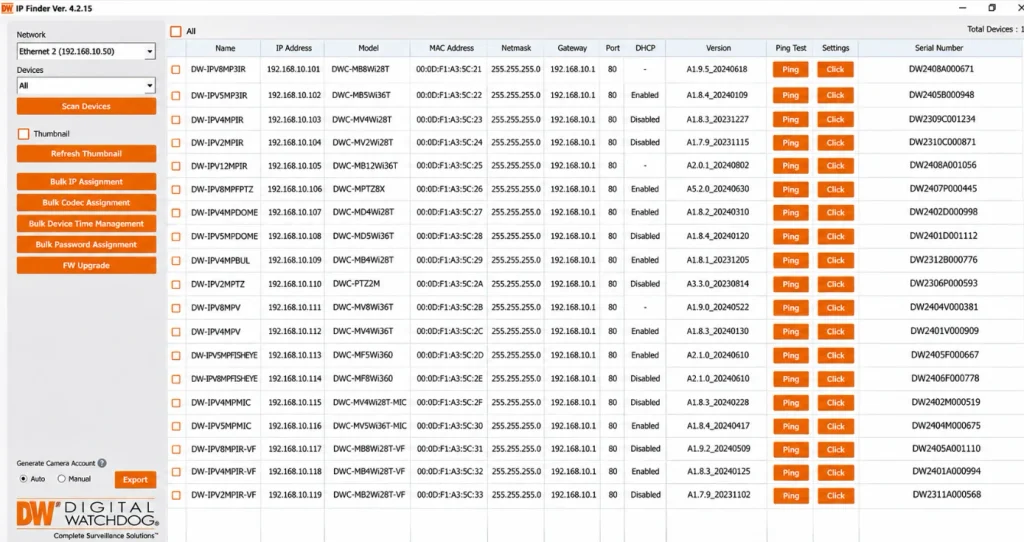
The application scans a selected network and displays discovered devices in a table. Depending on the camera model and firmware, it can show information such as the device name, IP address, MAC address, subnet mask, gateway, web port, DHCP status, and firmware version.
It also includes remote configuration options. Administrators can open a camera’s settings, change its network configuration, access its web interface, reboot the device, and perform supported bulk operations.
The software is particularly useful when:
- Installing a new Digital Watchdog IP camera.
- Finding a camera’s current IP address.
- Checking the network details of connected cameras.
- Changing a camera from DHCP to a static IP address.
- Configuring multiple supported cameras.
- Accessing the camera’s web interface.
- Checking camera connectivity with the built-in ping test.
DW IP Finder also advertises ONVIF device discovery. However, discovering a device does not mean every configuration feature will be available for every third-party camera.
Key Features of DW IP Finder
The utility offers several network discovery and camera management features.
1. Network Device Discovery
Scan a selected network to identify supported Digital Watchdog devices. The detected cameras appear in a device list with their available information.
2. IP Address Management
View and modify camera IP addresses through the settings interface. Supported models also allow administrators to assign IP addresses to multiple cameras in one operation.
3. Camera Information
Depending on the device, the software can display:
- Camera name
- IP address
- Model number
- MAC address
- Netmask
- Gateway
- Web port
- DHCP status
- Firmware version
- Serial number on supported models
4. Thumbnail Preview
Supported camera models can display a still thumbnail from the camera’s view. You can enable or disable thumbnails and refresh the preview when needed.
5. Bulk IP Assignment
Select multiple supported cameras and assign an IP address range, subnet mask, and gateway. Administrator credentials are required to apply the configuration.
6. Bulk Codec Assignment
Change the codec used by the primary or secondary camera stream on supported models. Available codecs depend on the individual camera.
7. Bulk Date and Time Assignment
Configure the time zone, date, time, daylight saving time settings, and display format for multiple supported cameras.
8. Bulk Password Assignment
Administrators can change passwords for multiple supported devices through the bulk password assignment feature.
9. Ping Test
Use the built-in Ping Test button to check whether the selected camera responds over the network.
10. Remote Camera Settings
Open the camera settings window to modify supported network and account settings, reboot the camera, or access its web interface.
How to Install DW IP Finder on Windows
Follow these steps to install the Digital Watchdog IP Finder utility on your Windows computer.
Step 1: Download the setup file
Visit the official Digital Watchdog download page and download the Windows version of DW IP Finder.
The Windows installer is provided in EXE format.
Step 2: Run the installer
Locate the downloaded EXE file in your Downloads folder. Double-click it to launch the installation process.
If Windows displays a security confirmation, verify that the installer came from the official Digital Watchdog website before proceeding.
Step 3: Complete the installation
Follow the installation prompts displayed by the setup program. Complete the process and launch DW IP Finder.
Step 4: Open the application
Once installation is complete, open DW IP Finder from the Windows Start menu or its installed shortcut.
The main application window will display the network selection and device discovery controls.
How to Find Digital Watchdog Camera IP Address
After installing the utility, you can scan your local network to find connected cameras.
Step 1: Connect your camera to the network
Connect the Digital Watchdog IP camera and your Windows computer to the appropriate local network. Make sure the camera is powered on and connected through the network switch or router.
Step 2: Select the network interface
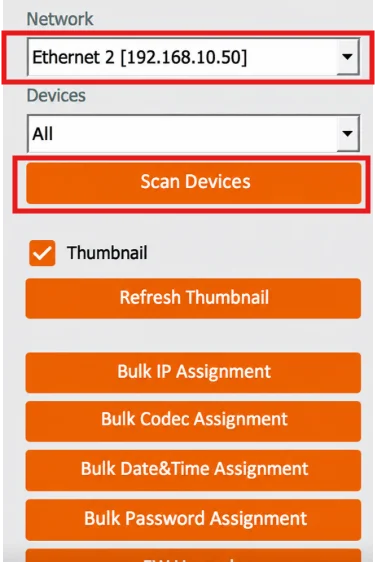
Open DW IP Finder and locate the Network dropdown menu on the left side.
Select the network interface you want to scan. If your computer has multiple network connections, make sure you select the correct one.
Step 3: Select the devices
Use the Devices dropdown menu to choose the devices you want the application to search for. You can use the available selection options to narrow the discovery process.
Step 4: Click Scan Devices
Click the Scan Devices button.
The application will scan the selected network for supported devices. Detected cameras will appear in the main results table.
During the scanning process, the DW logo changes to gray, indicating that the scan is in progress.
Step 5: Identify your camera
Check the information displayed in the results table. Depending on the model, you can identify a camera using its name, model, IP address, or MAC address.
The camera’s IP address is displayed in the IP Address column.
Step 6: Check the camera connection
Select the Ping Test button beside the camera to perform a quick connectivity check.
You can also use the Settings button to open the remote configuration window.
How to Change the Digital Watchdog Camera IP Address
DW IP Finder allows administrators to change the network configuration of supported cameras. You can configure an individual camera or use Bulk IP Assignment when multiple supported cameras need new addresses.
Before changing an IP address, check the network range used by your router or switch. Make sure the new address does not conflict with another device.
Method 1: Change the IP Address of One Camera
Step 1: Open DW IP Finder and scan the network.
Step 2: Locate the camera whose IP address you want to change.
Step 3: Double-click the camera name or click its Settings button to open the camera settings window.
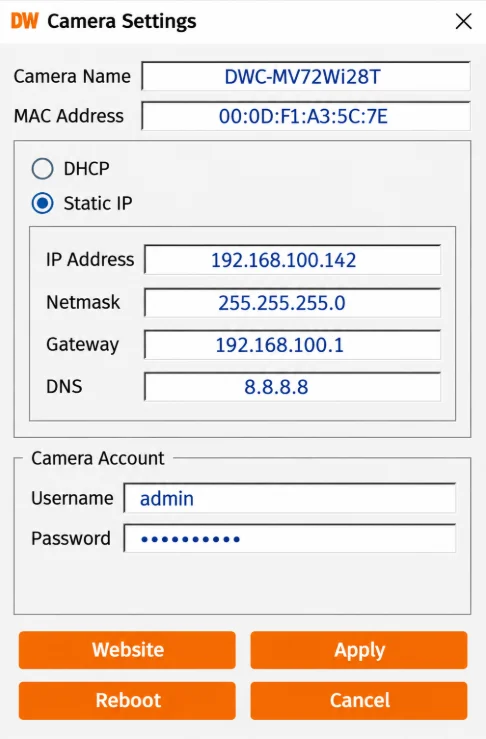
Step 4: Find the DHCP/Static IP options.
Step 5: Select Static IP if you want to configure the network information manually.
Step 6: Enter the required network details:
- IP Address
- Netmask
- Gateway
- DNS, when available
The DNS field is not available on V-Class and DWC-Mx9xx series IP cameras, according to the supplied manual.
Step 7: Enter the camera administrator username and password.
Step 8: Click Apply to save the changes.
After applying the new configuration, the camera may become temporarily unavailable at its previous IP address. Access it using the new address.
DHCP vs. Static IP: Which Should You Use?
DW IP Finder provides two network configuration options.
DHCP: When DHCP is enabled, the router or DHCP server automatically assigns the camera’s IP address, netmask, and gateway.
Static IP: When Static IP is selected, the administrator manually enters the network information.
For a fixed CCTV installation, a planned static IP address or a DHCP reservation can help keep the camera’s address consistent. Before assigning a static address, verify that it belongs to the correct subnet and is not already in use.
How to Assign IP Addresses to Multiple DW Cameras
If you are installing several Digital Watchdog cameras, changing their network settings individually can take additional time.
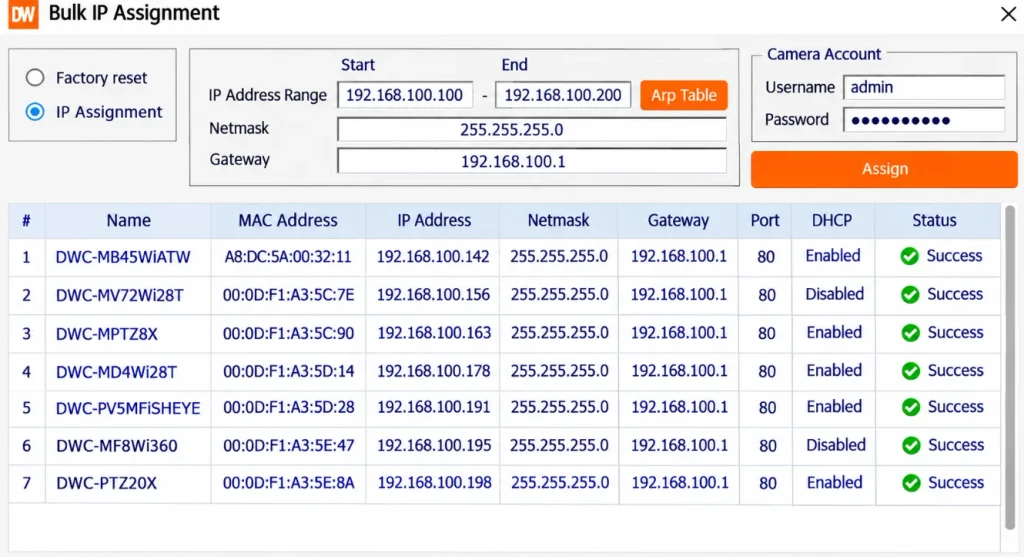
The Bulk IP Assignment feature allows you to configure multiple supported cameras together.
Step 1: Scan the network using DW IP Finder.
Step 2: Select the checkboxes beside the cameras you want to configure.
Step 3: Click Bulk IP Assignment in the left navigation panel.
Step 4: Choose IP Assignment in the configuration window.
Step 5: Enter the starting and ending IP address range, netmask, and gateway.
Step 6: Enter the administrator username and password for the selected cameras.
Step 7: Click Assign to apply the new network configuration.
The application also provides a Factory Reset option within the bulk assignment window. This can reset selected cameras’ network information to factory settings on supported models.
Be careful when using this option because resetting network information may interrupt access to the cameras.
Other Bulk Configuration Features
Apart from network address management, DW IP Finder provides additional bulk configuration tools.
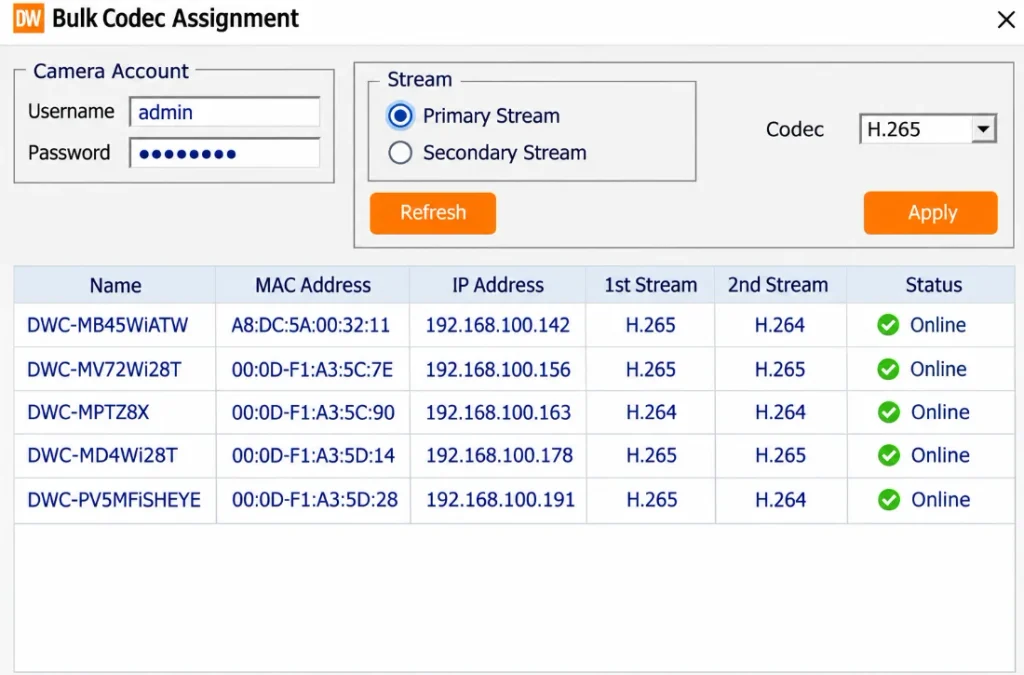
Bulk Codec Assignment
This option lets administrators change the codec of selected cameras’ primary or secondary streams.
- Select the cameras you want to configure.
- Click Bulk Codec Assignment.
- Enter the camera administrator credentials.
- Choose Primary Stream or Secondary Stream.
- Select an available codec.
- Click Apply to save the configuration.
- Use Refresh to reload the stream status.
Not every camera supports every available codec. Check the camera’s documentation before changing stream settings.
Bulk Date and Time Assignment
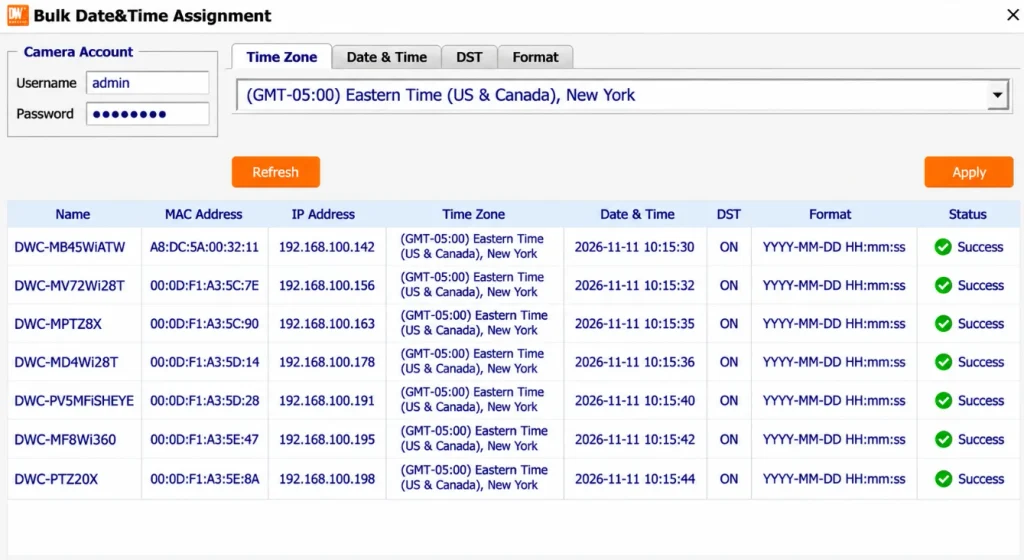
Use this feature to synchronize the date and time settings of multiple supported cameras.
- Select the required cameras.
- Open Bulk Date & Time Assignment.
- Enter the administrator credentials.
- Choose the appropriate time zone.
- Configure the date, time, and daylight saving time settings if required.
- Select the preferred date and time format.
- Click Apply to save the changes.
Use Refresh to reload the cameras’ date and time status.
Bulk Password Assignment
DW IP Finder also provides a bulk password configuration feature for supported cameras.
Select the cameras, open Bulk Password Assignment, and follow the credential prompts to update their administrator passwords.
The supplied manual specifies a minimum password length of eight characters and requires at least four combinations of uppercase letters, lowercase letters, numbers, and special characters. The password must not contain the user ID.
Always use unique, strong administrator credentials and avoid retaining any factory or temporary credentials.
How to Access a Digital Watchdog Camera Web Interface
You can use DW IP Finder to open the camera’s web interface directly.
- Launch DW IP Finder.
- Scan the selected network.
- Locate the required camera in the results table.
- Open its Settings window.
- Click Website.
The camera’s web interface will open in your default browser. You may need to sign in using the camera’s administrator credentials.
This is useful when you need to access additional camera settings that are not available in the IP Finder application.
DW IP Finder Compatibility and Supported Features
DW IP Finder supports Windows and Linux Ubuntu platforms. The official product page also advertises ONVIF device discovery.
However, available configuration features vary by camera family, model, and firmware.
The Windows functionality comparison in the supplied manual identifies support differences across:
- V-Class and Mx9xx cameras
- Discontinued cameras with older firmware
- Cameras running newer firmware
- DWC-XPZA models
- VMAX Plus Series
- SiteWatch Series
- DW-ENC4K16
For example, the manual’s Windows comparison shows that some features, such as thumbnails, bulk codec assignment, bulk password assignment, and firmware upgrades, are not available across every listed device family.
Therefore, do not assume that every camera discovered by the application supports all configuration options.
For exact compatibility information, consult the official DW IP Finder product page and the manufacturer’s user manual.
Common DW IP Finder Problems and Solutions
Sometimes the application may not discover a camera or may display limited information. Check the following points before changing the camera configuration.
1. DW IP Finder Cannot Find the Camera
Check the following:
- Make sure the camera is powered on.
- Verify the Ethernet cable and network switch connection.
- Confirm that the Windows computer is connected to the intended network.
- Select the correct network interface in the Network dropdown.
- Check that you have selected the appropriate device search option.
- Run Scan Devices again.
Also check whether the camera belongs to a supported device family.
2. Camera Appears but Some Information Is Missing
Not all information is available for every camera model.
Some fields depend on the camera firmware and whether the application has successfully authenticated with the camera.
Check the device’s firmware and administrator login status. Consult the official functionality comparison for model-specific limitations.
3. Cannot Change the Camera IP Address
If the camera’s IP address cannot be changed:
- Confirm that you have administrator access.
- Check the username and password.
- Verify the IP address, netmask, and gateway values.
- Make sure the new IP address does not conflict with another device.
- Confirm that the camera supports the requested configuration feature.
4. Ping Test Does Not Confirm Connectivity
Use the Ping Test button to check connectivity to the selected camera.
If the camera does not respond, verify the physical network connection and IP configuration. Also check whether the computer and camera can communicate across their network segments.
A failed ping alone does not establish that the camera is faulty.
5. Camera Shows as Not Supported
The application may discover a device but display limited functionality or a Not Supported status.
This can happen when the camera model or firmware does not meet the requirements for a particular IP Finder feature.
The DW IP Finder 4.4.23 Windows release notes also document changes related to ONVIF login credential synchronization and supported firmware requirements for certain camera families.
Check the camera’s model and firmware against the manufacturer’s release notes before troubleshooting further.
DW IP Finder vs. Other IP Camera Discovery Tools
DW IP Finder is primarily intended for Digital Watchdog devices and compatible network discovery tasks.
Other manufacturers provide their own utilities for their camera ecosystems.
For example:
- Hikvision provides SADP Tool for discovering and configuring compatible Hikvision devices.
- Uniview provides EZTools for managing compatible Uniview network devices.
- Digital Watchdog provides DW IP Finder for its camera and surveillance product ecosystem.
Use the utility recommended by the manufacturer of your camera whenever possible. Features and compatibility are not interchangeable between these tools.
Frequently Asked Questions
Is Digital Watchdog DW IP Finder free?
Yes. Digital Watchdog lists DW IP Finder as a free utility available with its MEGApix IP camera products.
What is the latest DW IP Finder version for Windows?
The official product and download listings show DW IP Finder version 4.4.23 for Windows, dated July 1, 2024.
Can DW IP Finder change a camera’s IP address?
Yes. It can change network settings on supported cameras. Administrators can also use Bulk IP Assignment to configure multiple supported cameras.
Can I use DW IP Finder to find ONVIF cameras?
Digital Watchdog advertises ONVIF device discovery. However, discovering an ONVIF device does not guarantee that all DW IP Finder configuration options will be supported for that device.
Can I manage multiple Digital Watchdog cameras?
Yes. Supported models can be selected together for bulk IP assignment, codec assignment, date and time configuration, and password assignment.
Does DW IP Finder support static IP addresses?
Yes. Supported cameras can be configured to use DHCP or a manually assigned static IP address.
Can I open a camera’s web interface through DW IP Finder?
Yes. Open the camera settings and select Website to launch its web interface in your default browser.
Does every Digital Watchdog camera support all DW IP Finder features?
No. The available features depend on the camera model and firmware. Consult the official Windows functionality comparison before using advanced configuration options.
Final Verdict
Digital Watchdog DW IP Finder is a useful free utility for discovering and configuring supported Digital Watchdog cameras on a local network.
Its main advantages include camera discovery, IP address management, network configuration, ping testing, web interface access, and several bulk administration features.
For technicians managing multiple DW cameras, the bulk configuration options can make initial network setup more convenient. However, not every feature works with every camera model, so checking compatibility before making changes is important.
If you use Digital Watchdog IP cameras and need a dedicated Windows utility to find their IP addresses and manage supported network settings, DW IP Finder is a practical tool to keep available.
Official resources:
