
This post will guide you regarding the iUMS+ CMS Application. You will find complete information and usage details for this app here. The iUMS+ is a CCTV software. Through it, you can view your locations and businesses from remote locations on PCs.
The iUMS+ for PC App is highly helpful for surveillance on PCs, Android devices, and iOS devices. It is designed in such a way that it can connect you from anywhere. You are away but still connected with your properties, people, and work.
You will get the complete download and installation information here. The download button is shared. Click the button and get the iUMS+ App for PC. The step-by-step installation process and its key features are illustrated.
The CMS Application is safe & secure and is used worldwide extensively.
iUMS+ for PC- Quick Download Information
The iUMS+ Software quick download information is shared in this table.
| Software Name | iUMS+ App |
| Software Category | CCTV App for Video Surveillance |
| Version | Latest Version for 2026 |
| File Size | Around 45 MBs. Size varies with versions. |
| Platform | Windows PCs |
| License | It is a free app. |
| File Type | Zipped File Folder |
What is the iUMS+ App for PC
The iUMS+ for PC App is a CCTV App. It is designed and developed by the Network Team. The iUMS+is the acronym of the Intelligent Universal Management Software Plus. Through it, users monitor their locations, businesses, and people from remote areas.
This application can easily add DVRs, NVRs, and IP cameras. It mainly connects OEM-based CCTV devices. You can get live footage of your sites. You can check playback and take snaps of events from your places. It is a secure app and is verified. It is also available on the Google Play Store for the Android version.
iUMS+ for Windows – Key Features and Functions
This CCTV Application has special features and functions. We are sharing here its key features, which are mostly used.
- This CCTV app gives live footage. Users can receive their sites, areas, businesses, locations, people, pets and works in real time. There is no time lag.
- The app adds CCTV devices through their QR codes, Device IDs, or IP addresses. The device addition process is simple and smooth.
- It allows users to operate CCTV devices through this app from anywhere.
- You can access devices, change settings, pan, tilt, or zoom their features. This software supports PTZ cameras.
- It gives users complete safety and security. Through it, you get alert notifications.
- It sends signals, rings alarms, and sends messages to the registered numbers, sensing threats.
- It supports two-way audio. You can communicate two-way and exchange messages, provided the CCTV Device supports the microphone and audio feature.
- It detects motion. It tracks objects and follows them. You can adjust the motion detection sensitivity as per requirements.
- The app suggests multi-channel viewing. It gives owners mental peace as they are away but still connected with their places and people.
These are its main features.
System Requirements for the iUMS+ CMS
If we need to use this application, we must follow this system information for a smoother functioning.
| Operating System | Windows 7 or above ( Recommended Windows 11/10) |
| Random Access Memory (RAM) | Around 2 to 4 GB |
| Processor | Intel/AMD Processor |
| Storage Capacity | Approx 5 to 10 GB |
| Remote Surveillance | Through the internet or LAN |
How to Download, Install, and Configure the iUMS+ for PC App on Windows OS
The complete installation and configuration procedures are illustrated here. The step-by-step procedure is supported with descriptions for a clear understanding.
Step 1 – Download iUMS+ Software
The download button for the app is shared below. Click it to get the application file.
When you click it, you get the file in a zipped format.
Step 2 – Extract the Zipped File
Our first step is to unzip the file. For that, extract the zipped file.
When you extract, you get the .exe file.
To install the CMS, open this application.
Step 3 – Install the Application
When we open it, we get the following page on the screen.
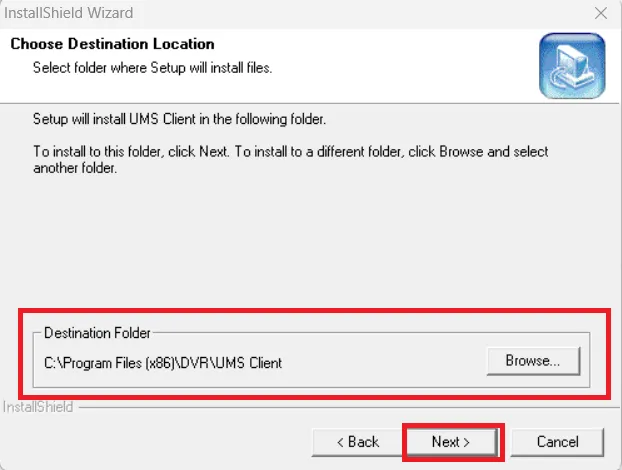
It is the first page of the software. We have to decide the folder location and its path.
Give the path and folder location, then press the Next button.
We get the following page on the screen.
Here, we have to select the features to install.
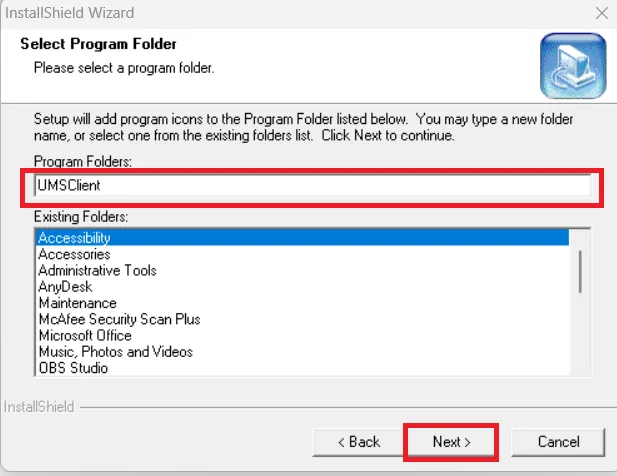
Select the features as per the need. After that, press the Next button to get the new window.
The moment we press the Next button, the app begins its installation procedure.
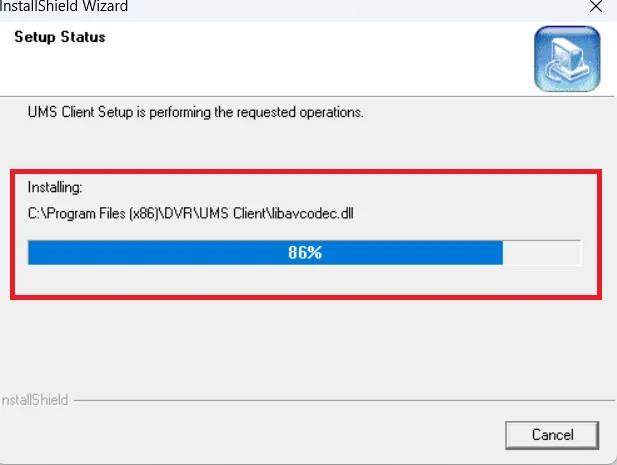
The installation process is simple and smooth. It takes hardly 2 minutes to finish the procedure.
When the installation is completed, we get this software on our desktops.
To add CCTV Cameras or Recorders, we need to open the installed application.
Step 4 – Add Devices for Remote Monitoring
When we open it, we get this page.
It is the interface of the software.
To add devices, press the ‘Connect’ tab given on the screen.
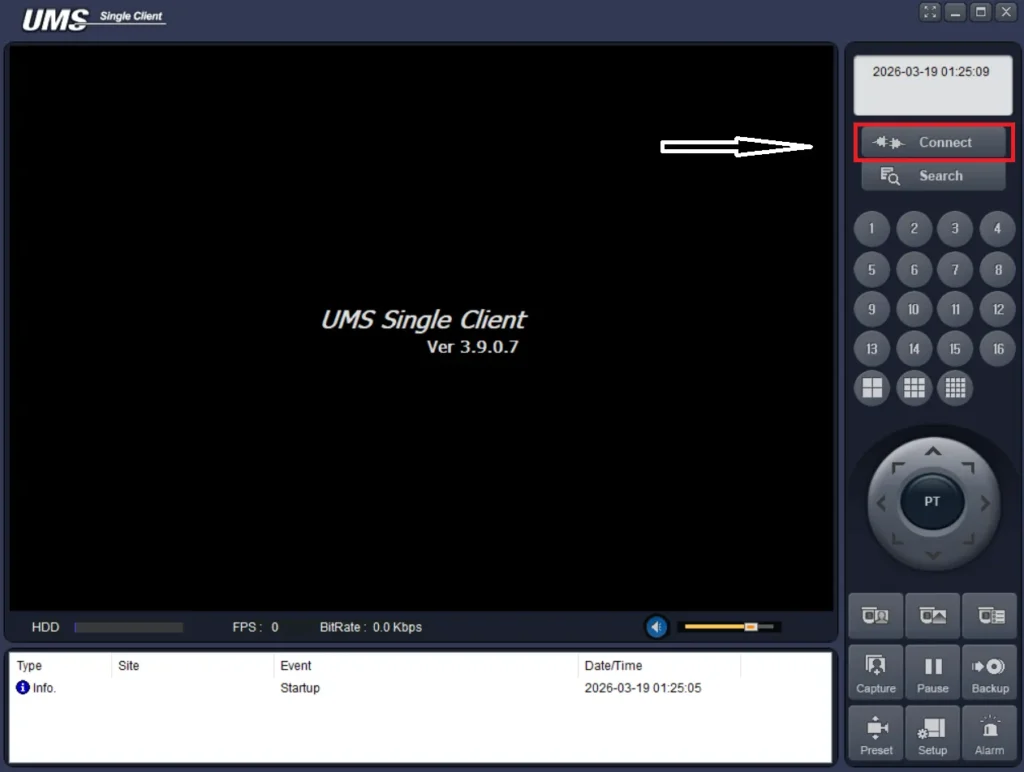
When we press the Connect tab, we get the following page
Here, the device addition page opens.
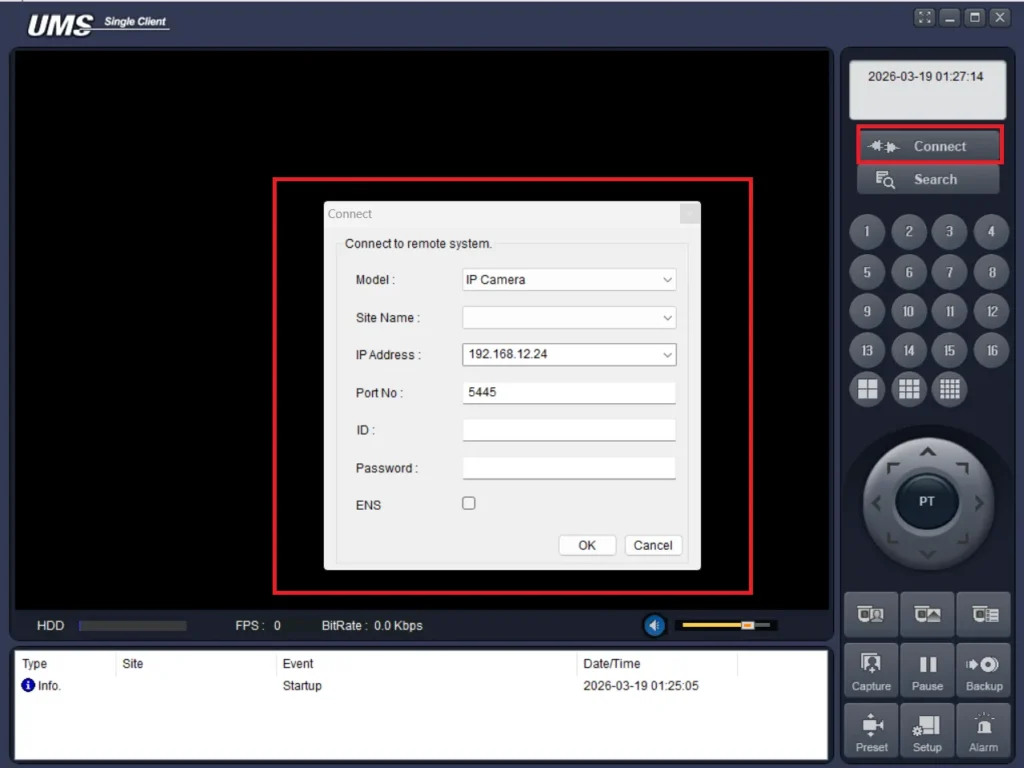
Mention device details to add.
Give the device’s IP address, device ID, username, password, etc., to add it.
You can add multiple devices. After that, press the live channel option to view your cameras from remote locations.
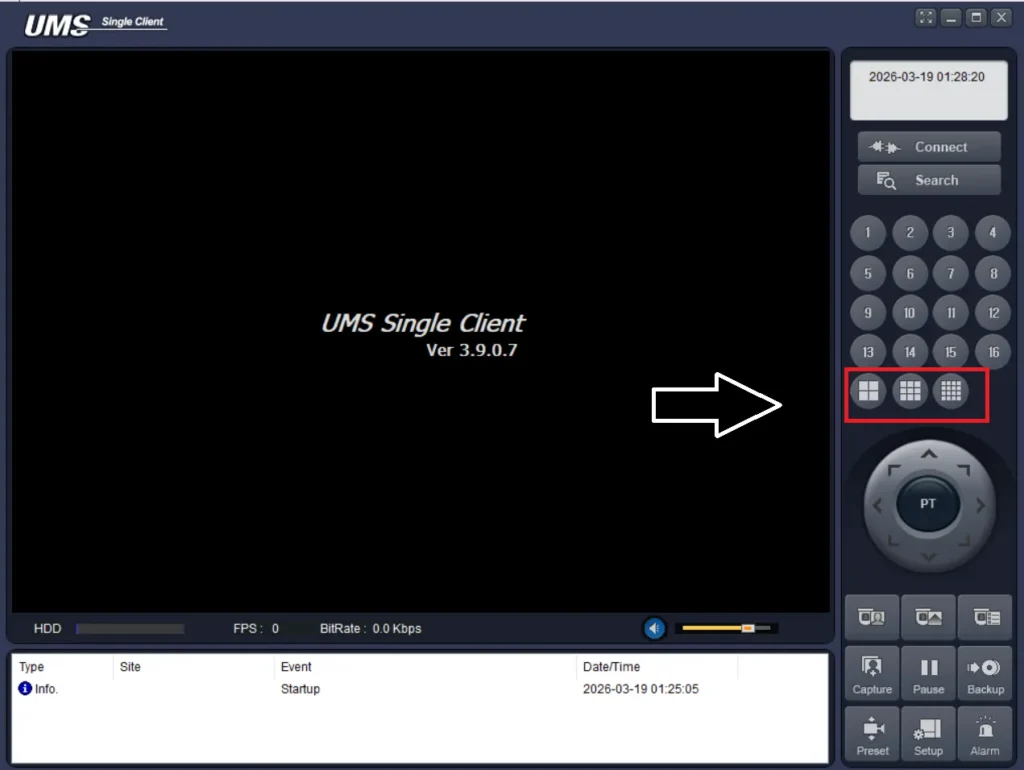
When we go for live feed, we get the following page on the Windows screen.
All the added devices appear here.
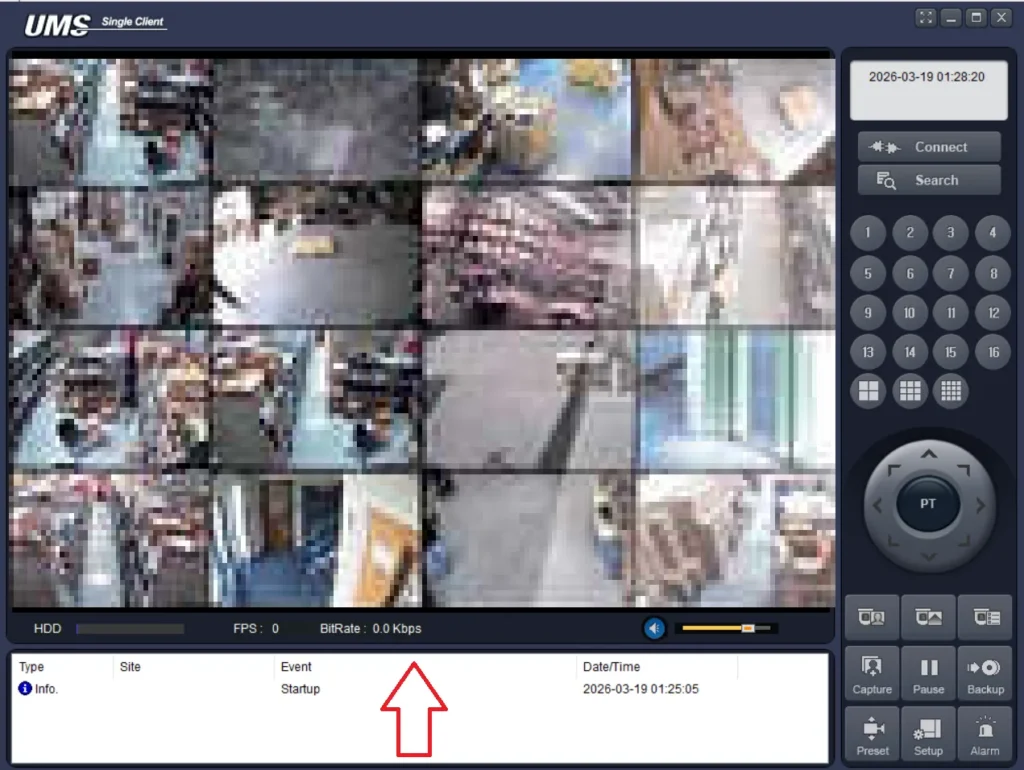
We can monitor them from remote areas on our PCs.
Common Issues and Their Fixes
There are a few issues arise at times. We mention them here. They are easy to solve.
Why is No Video and a Blank Screen for Live Feeds?
If you face this issue, then you need to check a few things to fix the problem. Check if the Monitor resolution and the DVR/NVR resolution are compatible. Check the camera resolution also. VGA or HDMI cables should also be checked. Fix these issues, and your problem will be resolved.
The iUMS+ App is not connecting to DVRs/NVRs
It is a common problem and can be easily fixed. Check the internet connection and the IP address. Primarily, the issue arises because of these two reasons.
Why the Repeated Login Attempt is Failed While Signing in to the iUMS+ App?
To fix the issue, the first and foremost thing is to check if the system is online. After that, enter the correct credentials. Sometimes a wrong username or password creates this problem.
Conclusion
The iUMS+ CMS app is shared here. Find the download button for that. Press it to get the zipped file folder. Unzip it to install. The complete process is demonstrated for a comprehensive understanding.
The key features are shared. Troubleshooting issues are mentioned along with the required system possibilities. Hopefully, it will help users and owners alike.
Kindly share your suggestions and queries through the comment box. We respond to your queries and analyse suggestions.
Thank You.
What is iUMS+ App?
iUMS+ is a mobile surveillance app used to monitor CCTV cameras, DVRs, and NVRs remotely from your smartphone. It can be used on PCs as well through Emulators. Its UMS version is dedicated for Windows OS.
Which devices are compatible with iUMS+?
It supports DVR, NVR, and IP cameras, especially those based on CP Plus and Dahua systems.
How do I add a device in iUMS+?
You can add CCTV devices through IP address, serial number, or QR codes.
What is P2P in iUMS+?
P2P allows easy remote access without port forwarding by connecting via a unique device ID.
How many cameras can I view at once?
You can view multiple cameras, usually up to 16 channels depend on your device. Different versions can support different numbers of cameras.
Can I playback recordings in iUMS+?
Yes, this feature is available. You can access and playback recorded footage anytime.
Does iUMS+ support motion alerts?
Yes, it provides motion detection alerts and push notifications.
Can I talk through cameras using iUMS+?
Yes, if your camera supports audio, you can use two-way communication.
Is iUMS+ safe to use?
Yes, it is safe when used with secure passwords and updated firmware.
Can I add multiple DVRs through the iUMS+ App?
Yes, iUMS+ supports multiple device management.

