
The Safire IP Manager tool is a handy Windows tool for finding your new cameras’ IP addresses. The best part about it is that even if you have no idea what a camera’s IP is, you can use this tool to track it down and change it right on the spot.
With this tool, you can scan for multiple cameras at once and batch-change their IP addresses. We’ve broken down everything right here—from how to use it to exactly how you can change multiple IPs in one go. If you’re new to this, it’s a great place to learn the ropes of Safire camera IP configuration. We’ve covered all the details, so just follow the steps and you’ll have your cameras set up in no time.
First, go ahead and download it using the button below. Don’t worry—the download is completely safe. We’ve personally tested it ourselves, and you can check out our test report right below.
Safire IP Manager Tool Overview
Before jumping in, it’s a good idea to understand a few basics about the software—like what kind of tool it actually is and what it supports.
| Feature | Details |
|---|---|
| Software Name | Safire IP Manager Tool |
| Category | IP Camera Management Software |
| Developer | Safire |
| Latest Version | v1.0.7.14 |
| Operating System | Windows 11, Windows 10, Windows 8, Windows 7 |
| License | Free |
| Device Discovery | Yes |
| Camera Activation | Yes |
| IP Address Configuration | Yes |
| DHCP Support | Yes |
| Static IP Assignment | Yes |
| Batch Device Management | Supported |
| Safire Camera Monitor Software | Safire for PC |
Key Features of Safire IP Manager Tool
It packs a handful of key features that can really make your job easier, so let’s break them down real quick.
- Automatic Device Discovery: First off, it’s going to automatically scan and show you every single camera that’s active on your network.
- Camera Activation: If your camera is brand new, you’ll need to activate it first—which you can easily handle right inside this tool.
- IP Address Configuration: Its main selling point is that it lets you easily update and modify your cameras’ IP addresses.
- DHCP and Static IP Support: It lets you configure both DHCP and static IPs—it just depends on what your setup needs.
- Device Information: This tool also gives you a quick overview of all the CCTV devices on your network, letting you see details like their IDs, user accounts, device types, and more.
- Batch Configuration: If you’re dealing with a large-scale IP camera deployment, this tool lets you configure the IPs for hundreds of cameras simultaneously with just a single click.
- Finding MAC Addresses: The tool also displays the MAC address for each device. This comes in really handy if you ever run into a MAC address conflict on your network, as it helps you diagnose and troubleshoot the issue quickly.
System Requirements
Before installing the software, make sure your computer meets the following requirements.
| Component | Requirement |
| Operating System | Windows 11, 10, 8, 7 |
| Processor | Intel Core i3 or higher |
| RAM | 4 GB Minimum |
| Storage | 200 MB Free Space |
| Network | Ethernet or Wi-Fi |
| Display | 1366 × 768 or higher |
Other CCTV IP tool
To make things easier for you, we’ve also included download links for IP tools from other brands below, just in case you ever need them.
How to Install Safire IP Manager Tool
The installation process is super straightforward, but for those who want a complete walkthrough, let’s take a quick look at how to get it set up.
First, unzip the downloaded file and double-click it. Grant the installer permission to run, and the very first setup screen will pop up.
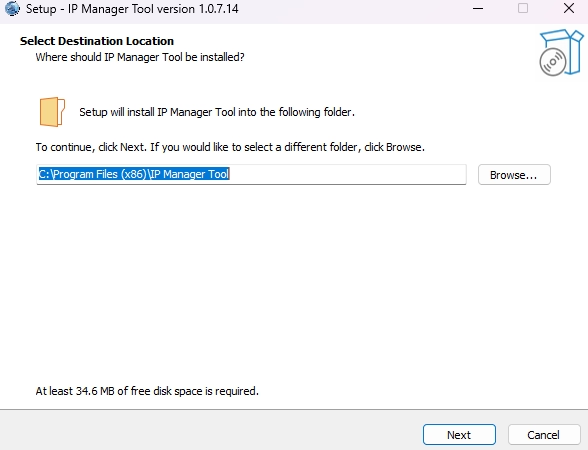
From here, you can change the installation folder if you want to save it to a different location.
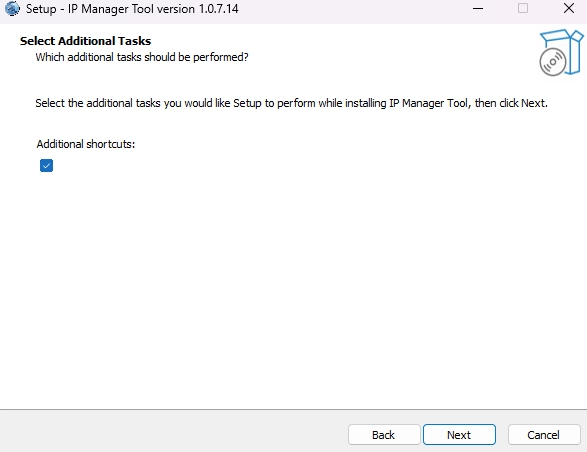
Just choose whether you want to create a desktop shortcut or not, then click Next, and the installation will get underway.
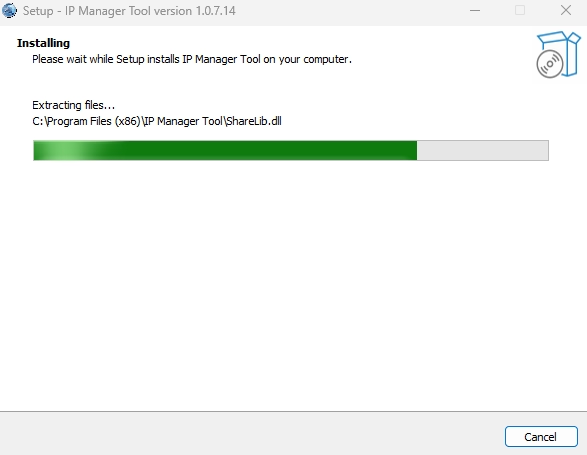
Now that the installation has started, all you have to do is sit back and wait for it to finish up.
How to Discover Safire Cameras
As soon as you run the Safire IP Manager on your system, it’ll pull up a complete list of all the CCTV devices connected to your network. You’ll be able to see their IP addresses, MAC addresses, device types, model numbers, and plenty of other details. If you need to change a device’s IP address, just follow these steps:
- Select the device.
- Open the Network Settings panel.
- Enter the desired IP address.
- Specify the subnet mask.
- Configure the default gateway.
- Save the changes.
- Allow the camera to restart if required.
How to Activate a New Camera
Most new Safire cameras require activation before use. To activate a device:
- Select the inactive camera.
- Click Activate.
- Create a strong administrator password.
- Confirm the password.
- Complete the activation process.
Once activated, the camera becomes available for configuration and recording.
Testing Notes
- Tested on Windows 11 24H2 and Windows 10 22H2.
- Successfully detected Safire IP cameras on a Gigabit PoE network.
- Verified device discovery, camera activation, DHCP configuration, and static IP assignment.
- Compatible with modern Intel and AMD systems.
- Network scanning performance depends on firewall settings and local network configuration.
Final Verdict
The Safire IP Manager Tool is an essential utility for anyone deploying or maintaining Safire IP cameras. It simplifies device discovery, activation, and network configuration, reducing installation time while minimizing common setup issues.
FAQs
Is the Safire IP Manager Tool free?
Yes. It is provided free for configuring supported Safire network devices.
Does it support batch IP configuration?
Yes. Compatible devices can be configured in batches, making large installations easier to manage.
Can I activate multiple cameras?
Yes. The software supports activating multiple compatible cameras during installation.
Does it work over the internet?
No. Devices generally need to be connected to the same local network for discovery and configuration.
Safire IP Manager Tool for Windows (Download Latest Version)
Download the latest Safire IP Manager Tool for Windows. Learn how to install, activate, discover, and configure Safire IP cameras full setup guide.
Price Currency: USD
Operating System: Windows 7, Windows 8, Windows 10, Windows 11
Application Category: CCTV
4.3

