
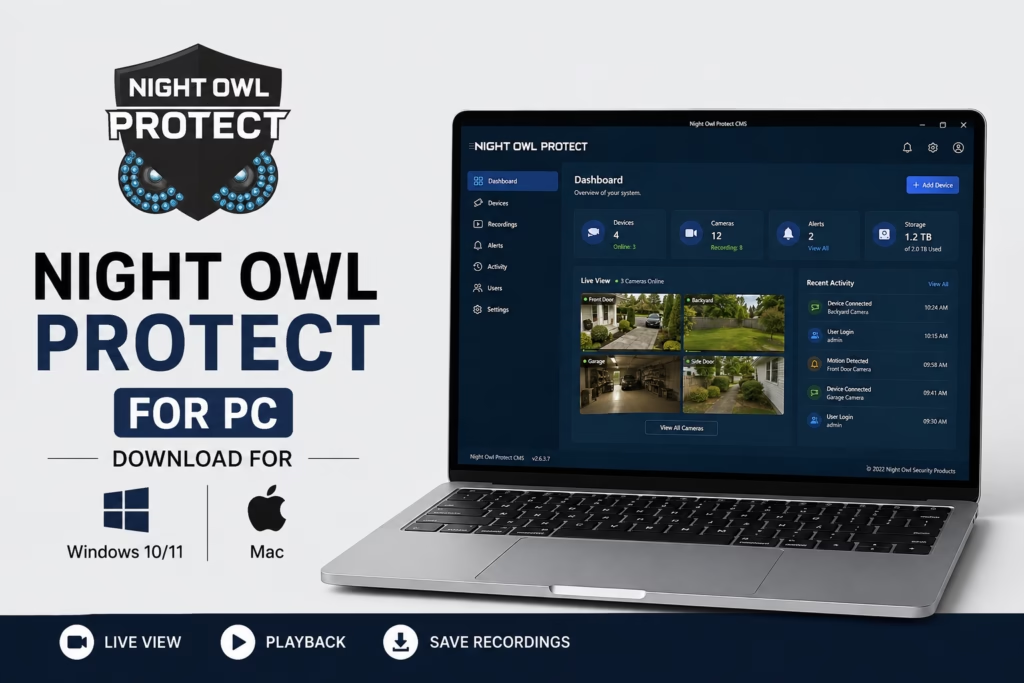
If you’re currently using Night Owl security cameras and would like to watch your live feeds on a computer, you’ll need to install the official Night Owl Protect for PC. It allows you to monitor your camera feeds in real time and manage your security setup directly from your desktop. You can easily download the software by clicking the link provided below.
Once the download is complete, run the setup file to install the application on your computer, then log in using your Night Owl credentials. Your live camera feeds will immediately appear on your screen. We’ve covered the complete setup and configuration process in detail in this post—just follow the simple steps below, and you’ll be all set!.
Download Night Owl Protect for PC (Windows & Mac)
First, download the file using the link below based on your operating system—there are separate links for Windows and Mac. You don’t need to worry about safety either; this is an official download, so it’s 100% safe and secure to install on your computer.
Quick Download Information of Night Owl Protect Software
| Information | Details |
|---|---|
| Software | Night Owl Protect CMS |
| Purpose | Access Night Owl Protect devices from a computer |
| Windows | Supported |
| Mac | Supported |
| Windows version | v1.0.36 |
| Mac Version | v1.0.30 |
| Live View | Yes |
| Playback | Yes |
| Save Recordings | Yes |
| Account Login | Yes |
Download All Night Owl Softwares
What Is Night Owl Protect CMS?
Night Owl Protect CMS stands for Control Management Software. It is the desktop application that lets you use your Night Owl Protect system from a computer instead of relying only on the mobile app.
After signing in, devices that have been added to your Night Owl Protect account can appear in the CMS. You can then access features such as live camera viewing and playback.
This is particularly useful if you want to monitor your security cameras on a larger computer screen or save important CCTV recordings directly to your PC.
Night Owl Protect Features on PC
Night Owl Protect CMS provides several useful options for managing and viewing your security system.
Live Camera View
After logging in, you can select your connected device and view the available cameras through the CMS. You can select camera channels from the Live View section.
This makes the PC version useful for people who want to keep their CCTV system visible on a desktop or laptop.
Playback Recorded Videos
The Playback feature lets you search and watch recordings stored on your connected Night Owl device.
You can filter recordings using options such as:
- Camera
- Event type
- Date
- Recorded footage
Once you find the required recording, you can select it from the playback list and start viewing it.
Save CCTV Recordings to PC
One of the useful reasons to install Night Owl Protect CMS on a computer is the ability to save recordings for long-term storage.
From the Playback screen, you can use the download option next to a recording and select where you want to save the file on your computer.
This can be useful when you need to keep an important CCTV clip separately from the recorder.
Night Owl Protect for PC Installation and Configuration (Windows)
Once you’ve downloaded Night Owl Protect for PC using the link above, let’s move on to the installation. The downloaded file will be in a ZIP format, so make sure to unzip/extract it first. After that, simply follow the steps outlined below:
1. Step – Installation of Night Owl Protect for PC
After unzipping, right-click on the installer file and select “Run as administrator.” This will launch the setup wizard, and you’ll see the first installation screen, which should look like this:
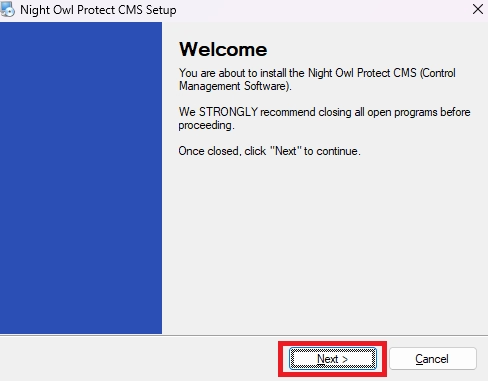
This is just a standard welcome screen. Simply click Next to move to the next step.
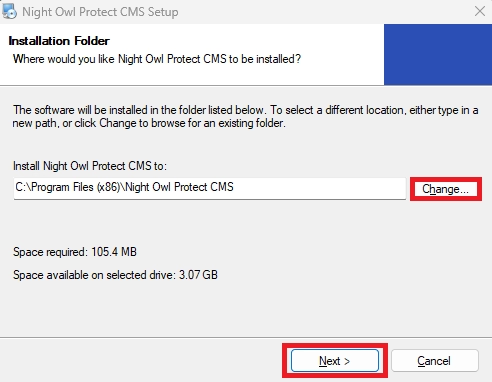
Here, you can change the installation directory if you’d like. If you prefer to stick with the default path, simply leave it as is and click Next.
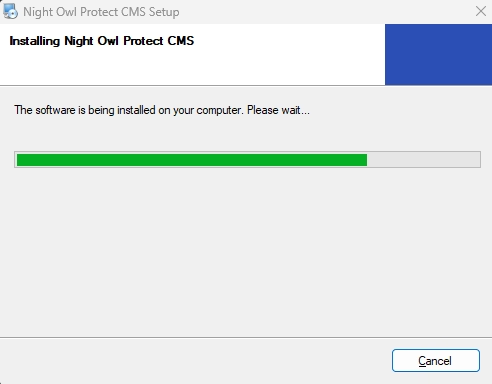
The installation process has now started. Simply wait a few moments for it to finish.
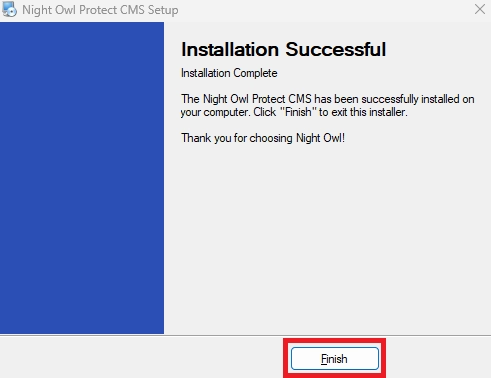
The installation is now complete. Simply click Finish to wrap up the setup and move on to the next step.
2. Step – Log in to Night Owl Protect for PC
Now, all you need to do is log in. You can sign in using two methods: either with your phone number or your username and password. Just make sure to use the same Night Owl account credentials that you use on your other devices (like your phone app).
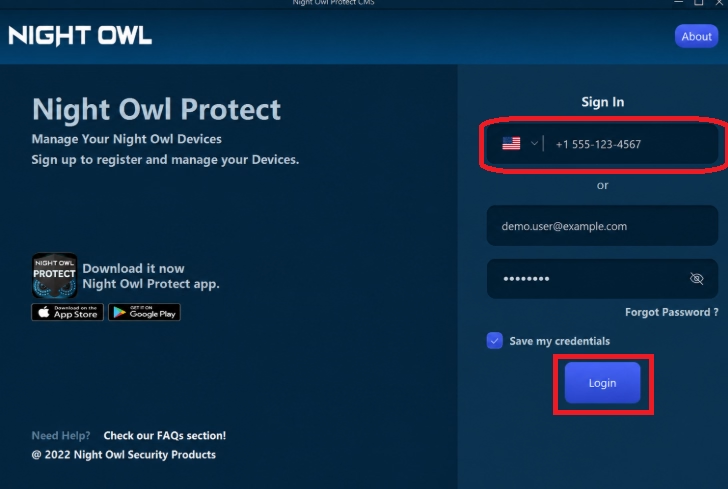
3. Step – Live View of Night Owl Cameras On Windows
Once you’ve successfully logged in, the live feed from all your cameras will display on your screen. This means you’ve successfully connected your Night Owl cameras to your PC! You can now monitor your live video feeds remotely from anywhere, anytime.
How to Playback Night Owl Recordings on PC
To watch previously recorded CCTV footage:
- Open Night Owl Protect CMS.
- Select your Night Owl device.
- Click Recording.
- Choose the camera.
- Select the event type if required.
- Select the date.
- Find the required recording.
- Select the recording to start playback.
Common Issues of Night Owl Protect for PC
If you’re running into any issues while installing Night Owl Protect for PC, try running through these basic troubleshooting steps first:
Check Your Internet Connection
Make sure your computer and Night Owl device have a working network connection.
Check the Recorder
Your recorder should be powered on and connected to the internet. Night Owl’s documentation specifically recommends checking the power and internet connection when the device shows as offline.
Check Your Login Details
Make sure you are using the correct Night Owl Protect account credentials.
Check Device Status
The CMS can show different device states, including Online, Offline, and Local Access Only. A device listed as Local Access Only may be accessible locally from a TV/monitor but not remotely through the PC or Mac.
Reinstall the CMS
If the application itself is not opening correctly, uninstalling and reinstalling the latest CMS package can help resolve installation-related problems.
Night Owl Protect vs Night Owl Connect
It is important to download the correct software for your Night Owl system.
Night Owl Protect and Night Owl Connect are not interchangeable applications for every Night Owl device. Night Owl maintains separate software and setup guides for Protect, Connect, X/X HD, and HD product families.
Therefore, if your recorder is designed for Night Owl Protect, use the Protect CMS rather than downloading an older CMS intended for another product series.
Final Words
Night Owl Protect for PC is useful for anyone who wants to access a compatible Night Owl security system from a Windows computer or Mac. The Protect CMS provides access to your devices after login and includes features such as Live View, Playback and recording downloads.
