
Keeping your home or shop safe is very important. With the Anran CCTV App for PC, you can see your cameras live on your computer. You can also watch old recordings and control your security settings easily. Even if you are at work or far away, you can still check what is happening and make sure everything is safe.
The Anran CCTV App for PC is one such software. It adds CCTV cameras and gives users and owners access to them from any place with the help of the internet. We are connected with our people and work in no time.
We can watch their functioning, share ideas, and watch playbacks at will through the Anran CCTV App.
The post guides you about the download, installation, and monitoring in complete detail on a Windows PC. The Anran App is shared here in the download button form. Click the button, and decompress it to get the CCTV App.
Know More About the Anran CCTV App for PC
The Anran CCTV App for PC is designed and developed by Shenzhen Anran Security Technology Co., Ltd. It is a Chinese CCTV company offering a comprehensive range of CCTV products. It has surveillance cameras, recorders, and access control systems.
The Anran Software adds CCTV cameras and recorders smoothly. You can access your locations through the application from different areas. It can add more than 256 cameras at a time. You can communicate through it, watch recordings, sense threats, and receive alert notifications. depicted fr
It is available for Windows, Android, and iOS. The illustration for the installation, sign-in, and monitoring has been depicted. It is shown for the Windows OS.
Anran CCTV App Features and Functions
The application has the following key features.
- The Anran app broadcasts in real time. There is no time lag between events and live relaying.
- Owners can view their homes and businesses from anywhere.
- It gives mental peace and round the clock connection from your locations.
- The app adds CCTV cameras via QR codes, IP addresses, or Device IDs.
- It supports 2-way audio. You can easily communicate through it. You can pass messages and instructions. This feature is also used to alert people to threats.
- It detects motion. Any suspicious movement is tracked and traced. It issues warning signals and messages on registered numbers and emails.
- It supports internal and external storage. You can keep data on cloud servers.
- Owners can operate these CCTV devices from remote places. It is a big advantage. Through the app, you can pan, tilt, or zoom devices and images.
- It supports PTZ cameras.
Download the Anran CCTV App for Windows to Monitor on Windows PC
The Anran app is shared here in the download button below. Click the app to get the file. It is given in a compressed file format. Decompress it to get the application.
The complete installation, login, and device addition procedure is illustrated for Windows. Go through it in the next section.
Click the button here to get the Anran CCTV app for Windows.
Download the Anran CCTV App for Mac to Monitor on Macintosh PCs
The Anron CCTV App for Mac is not designed by the company. If you want to view Anran recorders and cameras on a Macintosh PC, you have to use the emualtor app.
Install the BlueStacks Emulator Appand then get this application. Through BlueStacks, you can easily download and install the Anran app to remotely view CCTV cameras on Mac PCs.
Install the Anran CMS App, Log in, and Add Devices to Monitor on Windows OS
The complete process is illustrated here in three distinct steps.
Step 1 – Install the Anran CCTV App
Step 2 – Sign in to the Anran CMS App
Step 3 – Device Addition for Remote Surveillance
Let’s get these points in full detail.
Step 1 – Install the Anran CCTV App
Click the download button and get the .exe file. It is in a compressed mode. Decompress it to get the application.
When you open the application, you get the following page on the screen.
It is the first page of the Anran Software.
Here select the language for the application.
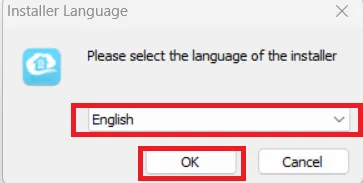
As we have selected the language as “English.”
After that, press the OK button. We get the next page on the screen.
We get the Agreement page.
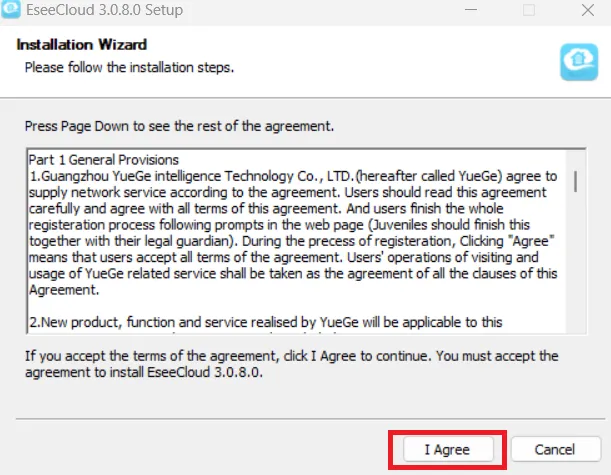
Read the agreement to understand the terms and conditions. If you are satisfied and have no issues, press the Agree button.
The moment you press the Agreement button, you get the next page.
It is for the selection of the path and folder location.
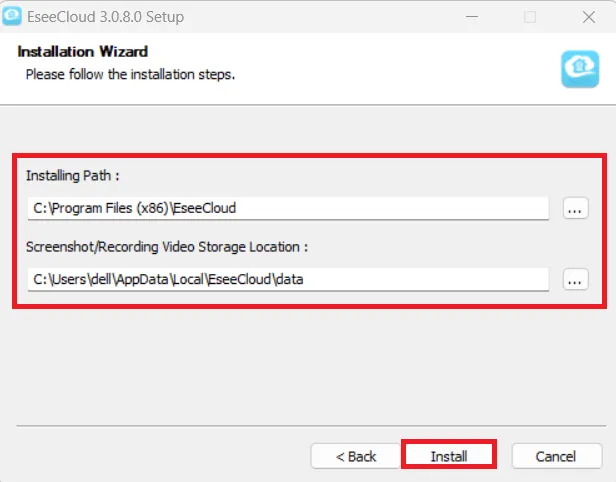
Select the folder and its location. Make sure the folder is empty and doesn’t contain any other items.
Once you are fully satisfied, press the Install button.
The files will begin to transfer.
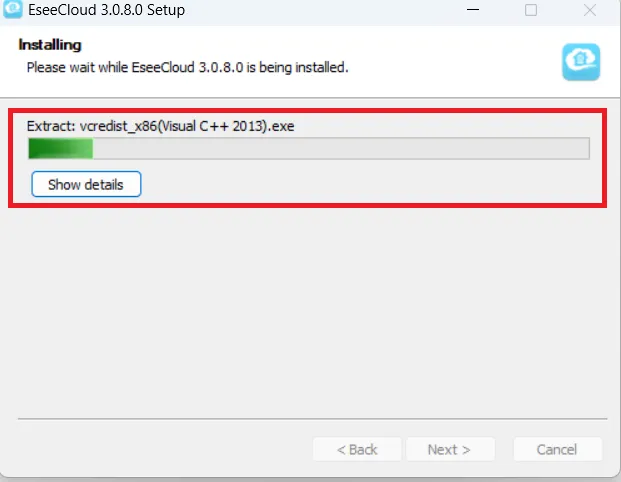
The entire content is emptied in the given folder. It takes only a few minutes.
When the installation process is completed, we get a new page on the screen.
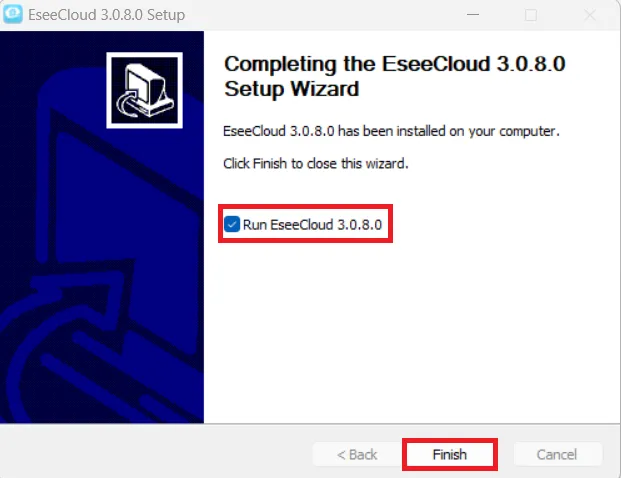
The page tells that the content is fully loaded and the app is installed successfully.
Press the Finish button. The CMS Software is installed on the Windows Desktop.
To proceed further to add devices and monitor your locations, open the installed Anran App.
We get this page. We have to sign in to the software.
Step 2 – Sign in to the Anran CMS App
It is the login page for the Anran CMS.
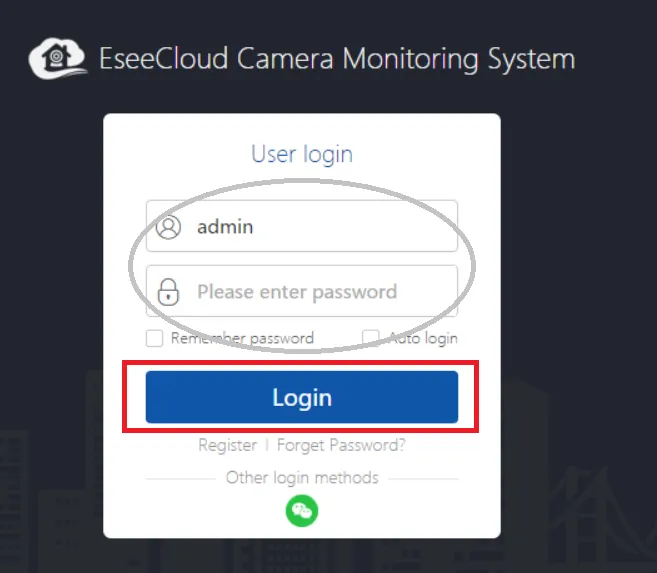
This is the default login page. After the login, you can create your own credentials.
By default, the company has shared the User ID and Password for easy sign-in.
The User ID is ‘admin’ and the password column is blank (there is no password).
Press the login tab, and you are through.
Now, we will add the devices.
Step 3 – Device Addition for Remote Surveillance
When we log in, we get this page. It is the Interface of the software.
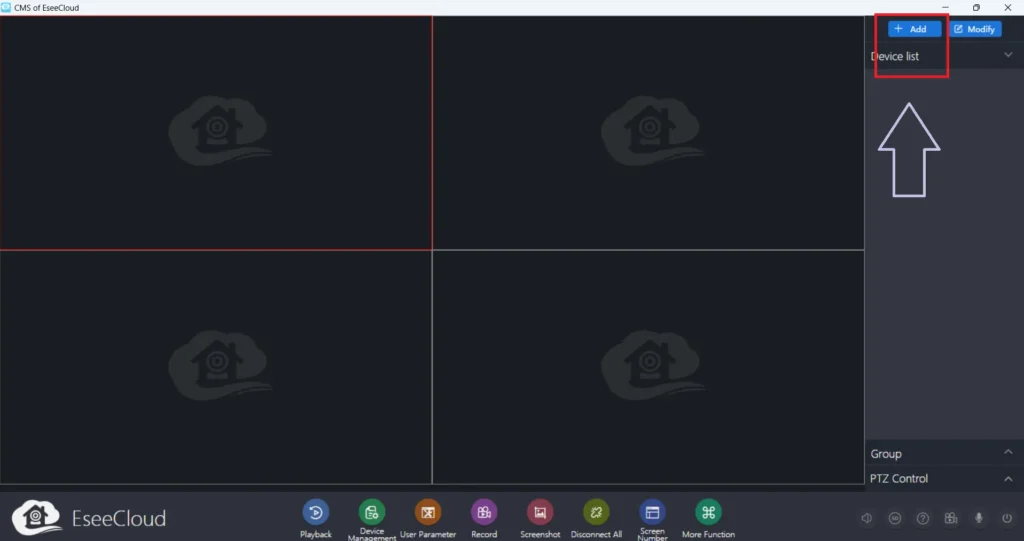
Our first interest is to add devices. We can add devices through the QR code scan, IP address, and device ID additions.
The “Add” option is given on the screen. Press the Add button, and this page surfaces on the screen.
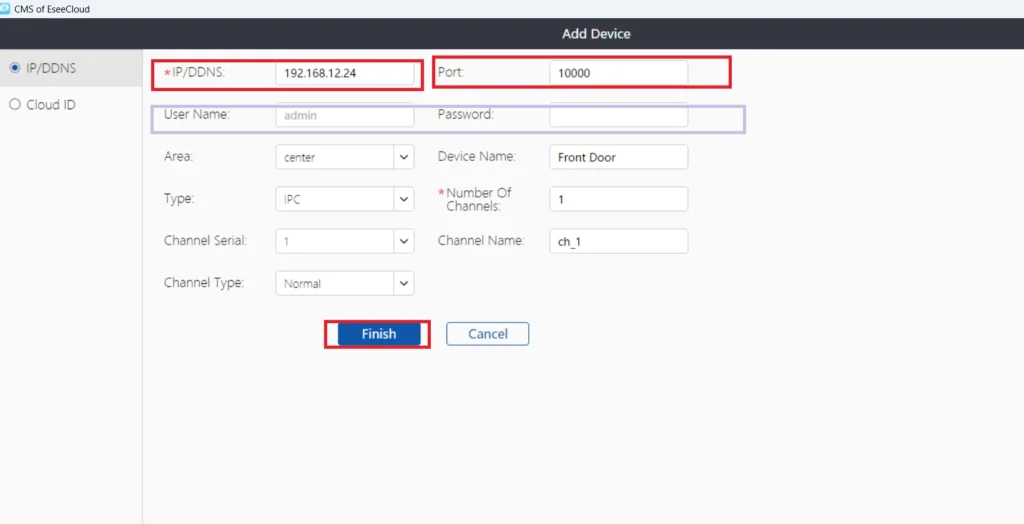
Here, you have to give the device, IP camera, or NVR details.
Give the device name, device IP, port, username, and password.
After that, press the Finish button on the screen.
The device is added. This way, we will add multiple cameras one by one.
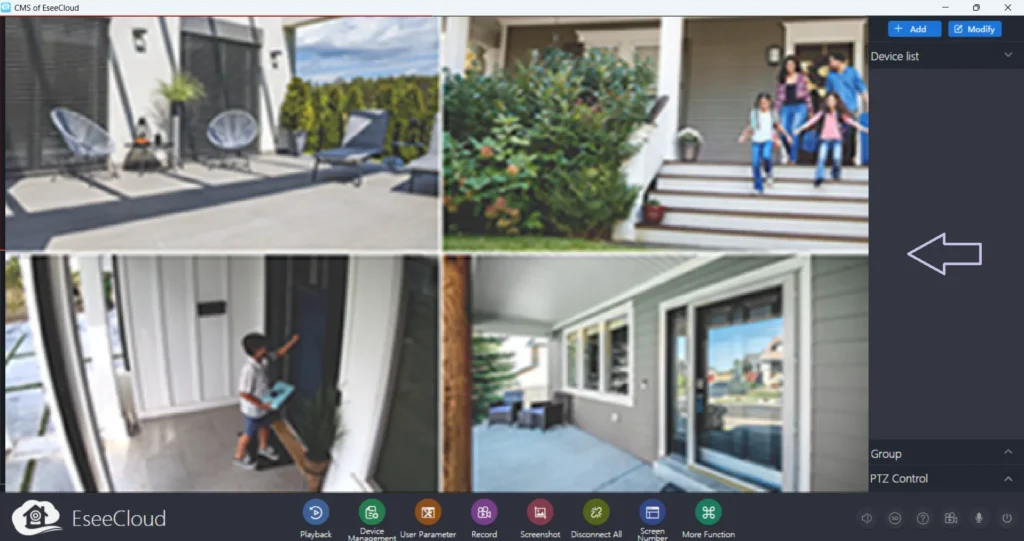
When cameras are added, you can view them on the screen.
All the cameras will appear on the Windows Desktop.
Conclusion
The Anran App for PC is detailed and described here. The download button for the app is shared for Windows. The complete illustration for the installation, login, and device addition is discussed.
The images and narrations are given for easy comprehension. You can easily get them on the screen.
Kindly ask your queries and suggestions in the comment section. We go through all comments sent to us by our esteemed visitors.
We respond to them and encourage interaction.
Thank You.
Is the Anran CCTV App free to use?
Yes, this application is free to use. It is available on the Google Play Store for Android and at trusted CCTV websites and company’s official platform for Windows.
Which devices support the Anran CCTV App?
It supports Android devices, iOS, and PCs.
How do I download the Anran CCTV App?
You can download it from the Google Play Store for Android devices or the Apple App Store for iPhone and iPad.
Can I view live footage remotely through the Anran App?
Yes, with the help of the internet connection, you can access the system. You can view live footage from any remote location.
Does the Anran CCTV App support playback?
Yes, users can access recorded footage stored on SD cards, NVRs, or cloud storage through the playback feature.
Does the Anran app support motion detection alerts?
Yes, the Anran application sends instant push notifications when motion is detected. It tracks objects and issues alert notifications.
Can multiple users use the same camera through the Anran App?
Yes, it supports device sharing. Multiple users can share the same camera.
Does the Anran CCTV App support two-way audio?
Yes, if your Anran camera model supports audio, you can speak and listen through the app.
Can I control PTZ cameras using the Anran app?
Yes, it can manage PTZ cameras. It supports panning, tilting, and zooming.
Is the Anran CCTV App secure?
This software uses encrypted data transmission. It does so to help protect user privacy and video feeds.

