
This post will guide users through the step-by-step installation of the EasyVMS for PC CMS Application. It is illustrated here on a Windows 11 OS. You can download and install the EasyVM App for Windows 11, 10, 8, and 7.
The EasyVMS App is a CCTV Application. It is used to add CCTV cameras and recorders, and gives access to locations from remote areas on PCs. Its app for Android is known as EasyVMS App.
Through this software, owners can get live relays, playbacks, 2-way audio, and many other surveillance features from their places.
Viewers will find here the complete solution for the app functionality. They will get the solution for features like
- The Latest EasyVMS version details.
- The basic system is required for the software to load and install.
- How to download and install VMS successfully.
- Complete step-by-step guidance.
- The EasyVMS App for PC key features.
- Common errors & fixes
The EasyVMS for PC– Quick Download Information
The basic download information is as follows.
| Software Name | EasyVMS |
| Category | CCTV Monitoring Software |
| File Size | Between 40 and 60 MB (varies by version) |
| Platform | Windows 7 / 10 / 11 (32-bit & 64-bit) |
| License | Free |
| File Type | ZIP / EXE Installer |
| Version | Latest Stable Release (2026) |
More information regarding the application is mentioned in the next sections.
What is the EasyVMS App for PC?
The EasyVMS App is a Video Management System (VMS). It is designed by YUCHENG.INC for monitoring CCTV Devices from remote locations. This VMS supports DVRs, NVRs, and IP cameras. Users can connect the application to a PC via a LAN cable or Wifi.
The main purpose of this application is to monitor our businesses and homes from anywhere. It keeps us connected all the time and gives us mental peace. We can monitor our family members, staff, and pets and communicate with them if required. We miss no action and still free to move around.
Watching our locations on PCs gives us connection, stability, awareness, and security.
Key Features for the EasyVMS
There are many surveillance features. We are giving here the key functions.
- It gives us live feeds. There is no time lag between action and monitoring.
- Users can get a live multi-channel view at a time. You don’t have to switch channels for every location.
- Users can operate devices from their places. They can adjust cameras, pan, tilt or zoom features.
- This app supports PTZ cameras and their complete features.
- You can record events on PCs or in the cloud and check playbacks at will from remote areas.
- This app supports device management like IP modifications and software updates.
- It supports motion detection alerts. Tracks objects and raises alarms and messages, sensing suspicious threats.
- You can click snapshots & export videos through the app from any place.
- Gives full remote access support.
- It supports multi-user login. Many people at the same time monitor locations from different places.
These features make this application suitable for both small businesses and larger surveillance setups.
System Requirements
Before installing EasyVMS on a PC, make sure your system meets these requirements –
Minimum Requirements are shared in the table.
| Operating System | Windows 11/10/8/7 |
| Random Access Memory (RAM) | 4GB to 8GB. For a smoother multi-camera viewing, 8GB is recommended. |
| Processor | Intel i3 or above is required. |
| Storagre/Capacity | It requires around 500 MB free space. |
| Monitoring Access | For remote surveillance, an internet connection is required. |
How to Download, Install, and Configure the EasyVMS on Windows OS
The complete step-by-step procedure is illustrated here.
Step 1 – Download the File
The download button is given here. Click the button and get the .exe file.
It is given here in a zipped file format.
Step 2 – Extract the ZIPPED File
The first thing is to extract the zipped file. Decompress it to get the application.
When we open the zipped file, we get the following steps.
Step 3 – Install the EasyVMS
When we open the EasyVMS, we get the following page on the screen.
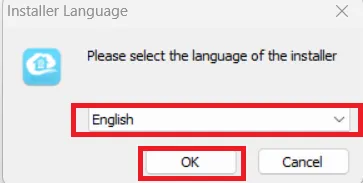
Here, select the language for the application. We have chosen here ‘English” as the main language.
After that, press the OK button.
We get this page on the screen.
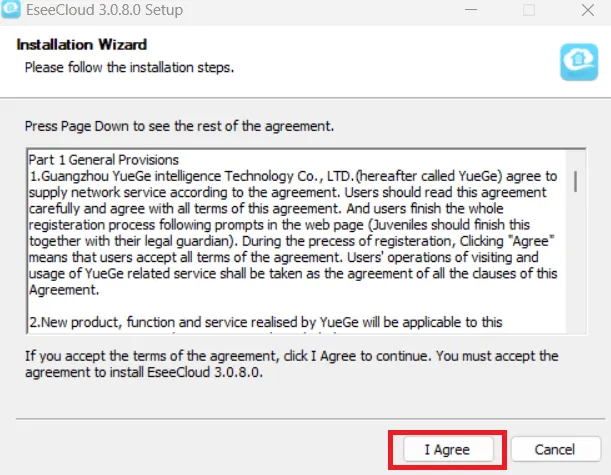
It is the Agreement page. Read the information carefully. If fully agreed, press the ‘I Agree’ button.
We get this page.
Here, we have to select the folder and the path to install the CMS App.
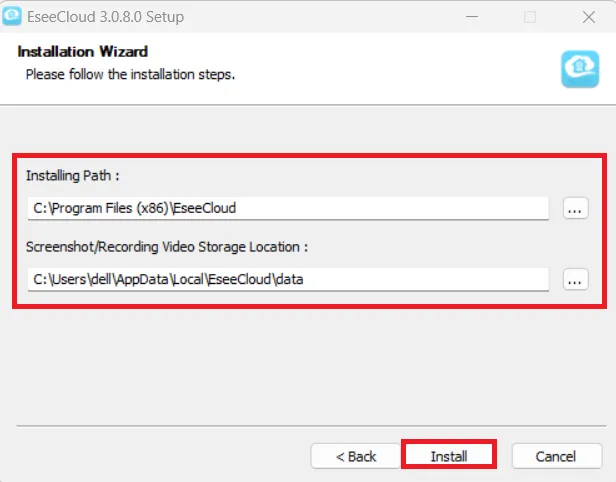
When fully done, press the ‘Install’ button. The file will begin to transfer.
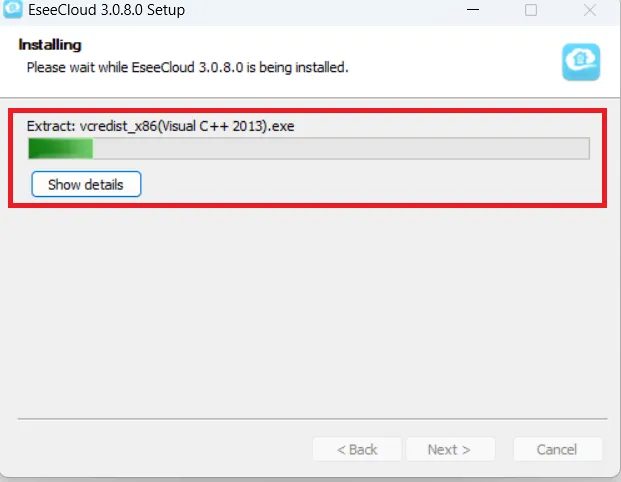
When this installation process is completed, we get this page on the screen.
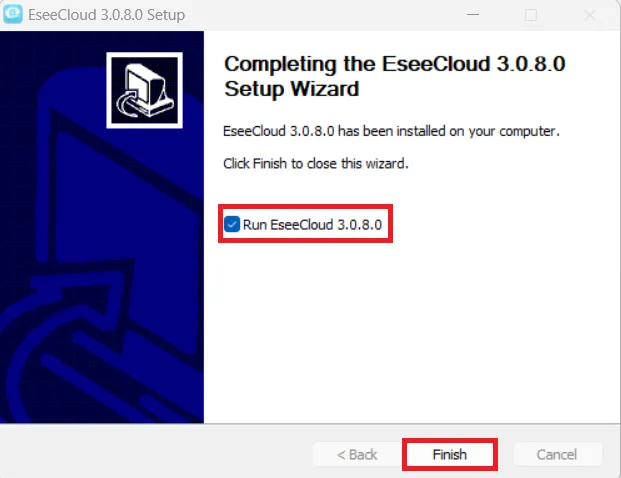
This page indicates that the installation process is completed.
Press the Finish button.
When the installation process is completed, we get this page on the screen.
Step 4 – Login to the EasyVMS
It is the Sign-in page.
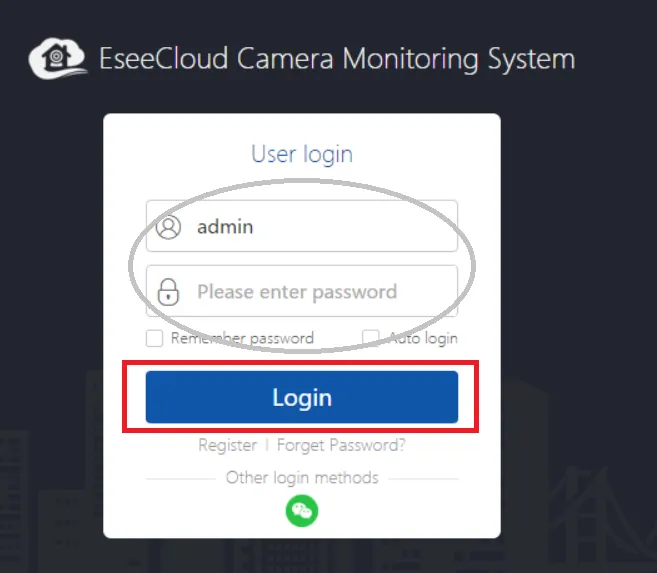
The company has shared a default ID and password to log in.
Username – admin
Password – (Blank) – There is no password.
Now, sign in to the EasyVMS app.
We get the interface of the application.
Step 5 – Add Devices for Remote Surveillance
It is the interface for the software.
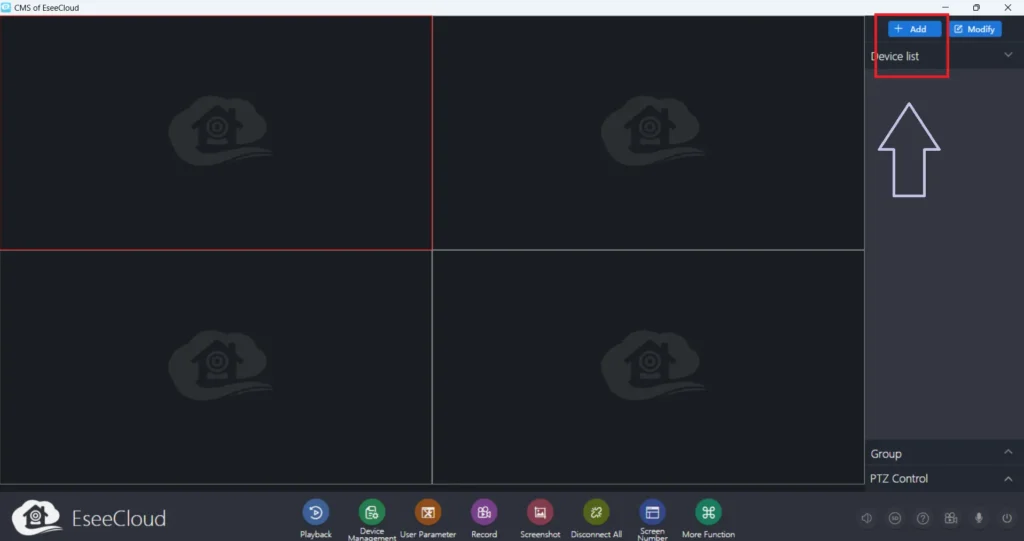
We have to add our cameras or recorders.
Press the Add button. We get this page on the screen.
Here, we have to add the device. We can use it through the device credentials.
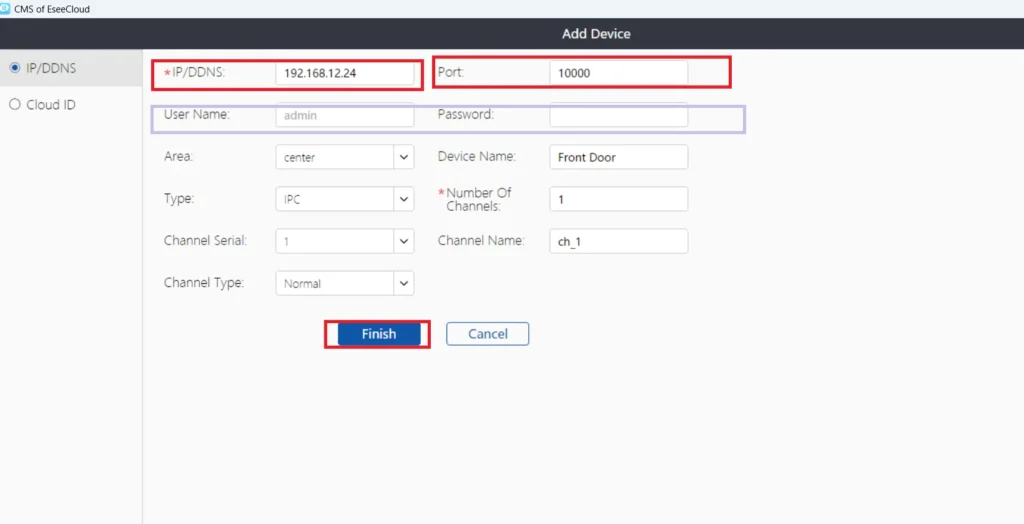
Mention device details like IP address, device username, password, device port, etc.
We can add multiple devices one by one. When the devices are added, we get them on the Windows Screen.
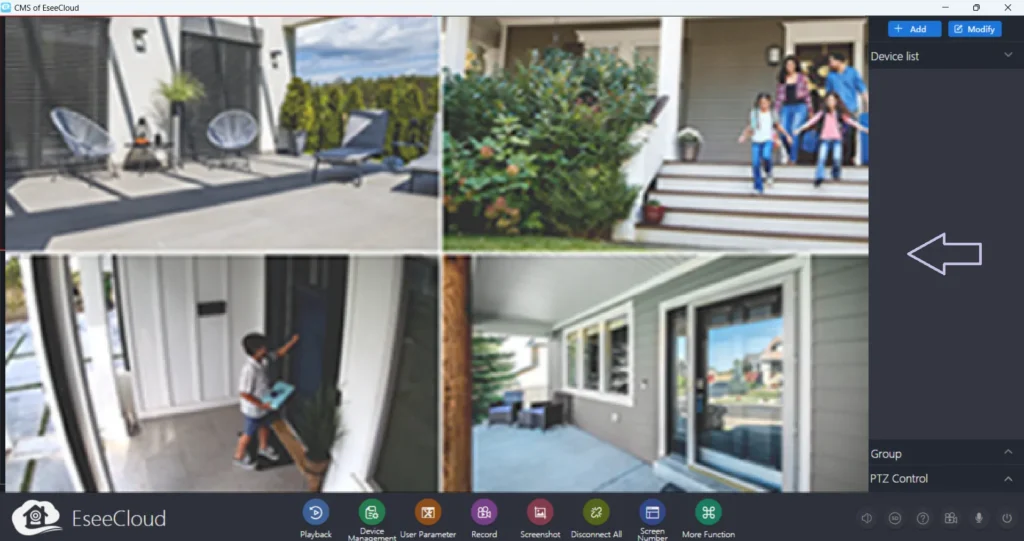
Watch from any remote locations. You can monitor easily.
Key Troubleshoots & Fixes
We may face certain issues while using the application. Don’t worry. Its fixes are easy.
1- EasyVMS not opening
If the application is not opening, run the system as an administrator. You can install Microsoft Visual C++ Redistributable for smoother functioning. If the problem persists, disable the antivirus temporarily.
2- Devices are not adding
If the CCTV devices, NVRs, or Cameras are not showing added, take the following steps.
- Check if the DVR, NVR, or Camera is online.
- Check and verify port forwarding settings.
- Confirm IP & port and recheck the device credentials.
- Disable Windows Firewall temporarily
3- Blank Screen while getting live feeds
If the screen appears blank, check the resolution of the screen and adjust it. Check the VGA or HDMI port. Check the internet speed. Your issue will be solved.
Is the EasyVMS Safe to Download on PCs?
Yes, this EasyVMS is safe. Install it from the trusted and official platforms. Don’t use the cracked version. When you use this application from trusted sources, you will never face security issues.
Some EasyVMS Alternative Apps
The EasyVMS has certain alternative apps as well. They are as follows.
- iVMS 4200
- VMS Pro
- Smart PSS
- CMS Software
Conclusion
This way, we get the complete information regarding the app. We have witnessed here the EasyVMS download, installation, and configuration. All these things are shared in an illustrated form.
The images and narrations are supported to comprehend the procedure easily. The key features and troubleshoots issues are also elaborated.
Kindly ask queries and share messages to understand the topic better. We respond to all queries. You can get to us through the comment section.
Thank You.
Is EasyVMS free?
Yes, it is a free CCTV App. Users don’t need to purchase this software.
Does EasyVMS work on Windows 11?
Yes, it does. It supports Windows 11/10/8/7.
Can we use the EasyVMS without internet?
Yes, we can use the application for local monitoring. We can operate it through LAN.
Why does the EasyVMS go offline often?
It may go offline because of firewall blocking, old app version, wrong IP, port, etc. Once you exactly know the problem you can solve the issue.
Which devices are compatible with EasyVMS?
EasyVMS is mainly compatible with Uniview IP cameras, DVRs, and NVRs.
Does EasyVMS support playback?
Yes, users can search and play back recorded footage by selecting date and time.
Does EasyVMS support motion detection alerts?
Yes, if motion detection is enabled on the camera or NVR, the EasyVMS can shoot alerts and event notifications.
Is EasyVMS a mobile app?
The EasyVMS is a desktop application. It is mainly used on Windows PC for remote surveillance.

