
Bosch BVMS (Bosch Video Management System) is professional video management software designed to monitor, manage, and operate compatible video surveillance systems from a Windows workstation. It provides a centralized environment for managing live camera views, recorded video, alarms, and connected surveillance devices.
If you are looking for Bosch BVMS for Windows, this guide covers the official BVMS 14.0 Viewer Setup download, installation preparation, client connection, and the basic configuration workflow. It also explains the difference between the Operator Client and Configuration Client so you can choose the correct software components for your CCTV system.
The supplied download is identified as BVMS 14.0.0.120 Viewer Setup. A Viewer Setup package should not be confused with the complete BVMS Management Server installation. To connect to an existing surveillance system, you will need the appropriate server details and user credentials.
Bosch BVMS Download for Windows
You can obtain the BVMS 14.0 Viewer Setup package using the official Bosch-hosted download link below.
Software Information
| Detail | Information |
|---|---|
| Software name | Bosch Video Management System (BVMS) |
| Version | 14.0.0.120 |
| Package | Software Viewer Setup |
| Developer | Bosch Security Systems |
| Platform | Windows PC |
| Software category | Video Management System |
| Download format | ZIP archive |
| License | Depends on the BVMS edition and licensed features |
| Official download | Bosch-hosted ZIP package |
Bosch BVMS 14.0 Viewer Setup Download:
Download Bosch BVMS 14.0 Viewer Setup
Official Bosch Download Area: https://downloadstore.boschsecurity.com/?type=BVMS
Important: The direct package is supplied as a Viewer Setup. Check the included documentation and available installation components before assuming it contains Management Server or recording-server components.
What Is Bosch BVMS?
Bosch Video Management System is a centralized video surveillance management platform. It is designed for installations where operators need to monitor cameras, review recordings, handle alarms, and manage video devices through a coordinated system.
Unlike a simple camera discovery utility, BVMS is intended to operate as part of a larger surveillance environment. Its components can be deployed across different computers depending on the system design.
For example, a surveillance installation may have a dedicated computer running the Management Server while security operators use separate Windows workstations with Operator Client.
The system can also include video recording, storage, streaming, and other services according to the selected BVMS edition and deployment.
Main BVMS software components
Understanding the different components is important before installing Bosch BVMS software for PC.
1. Operator Client
Operator Client is the workstation application used by security operators. It provides access to the connected BVMS system for day-to-day surveillance operations.
Depending on permissions and system configuration, operators can use it to:
- View live camera streams.
- Access recorded video.
- Monitor alarms and events.
- Navigate connected cameras and devices.
- Work with available surveillance views and playback functions.
2. Configuration Client
Configuration Client is intended for administrators and system integrators who configure the BVMS installation.
It provides access to system configuration, including devices, workstations, user groups, permissions, recording settings, and other system components.
3. Management Server
Management Server is the central management component of a BVMS installation. It manages system configuration, user access, events, and communication with connected components.
It is generally deployed separately from an operator workstation in larger installations.
4. Video Recording Manager (VRM)
VRM is a recording-management component used in supported BVMS systems. Its role is related to managing video recording and storage resources.
Its availability and configuration depend on the system architecture.
5. Video Streaming Gateway (VSG)
VSG is a component used in supported installations to provide video-streaming functionality for compatible devices and system configurations.
These components should not be confused with a standalone video player. BVMS is a coordinated platform whose functionality depends on the installed modules and configured system.
Bosch BVMS Features
The available features depend on the BVMS edition, software components, connected hardware, and licensing.
1. Centralized camera monitoring
BVMS provides a central workstation interface for viewing cameras connected to the configured surveillance system.
Instead of accessing each supported device individually, an operator can work through the BVMS environment.
2. Live video and playback
Operator Client provides access to live video and recorded footage available through the connected system.
The available playback functions depend on the recording configuration, storage components, device support, and user permissions.
3. Alarm and event management
BVMS supports centralized alarm and event handling.
This helps operators identify events generated by connected devices and work with them through the management interface.
4. Multiple workstation support
BVMS can be deployed across multiple computers. Different workstations can have specific configurations and user permissions.
This is useful in installations where administrators and security operators perform different tasks.
5. Device discovery and management
Configuration Client includes device-scanning functionality for supported devices, including encoders, decoders, VRM devices, Video Streaming Gateway devices, and DVR devices.
The available discovery options depend on the device type and system configuration.
6. User groups and permissions
Administrators can configure user accounts and permissions to control access to system functions.
This is important when several operators use the same surveillance system but require different levels of access.
7. Recording configuration
BVMS supports recording-related configuration through its supported recording components.
Recording profiles, storage resources, and camera settings can be managed according to the system design.
Bosch BVMS System Requirements
Before installing Bosch BVMS on a Windows PC, check the system requirements for the exact release and software component you intend to use.
One important point is that the requirements for Operator Client are not necessarily the same as those for Management Server, VRM, or other BVMS components.
For example, a workstation used only for video monitoring has a different role from a dedicated computer responsible for central system management and recording services.
What should you check?
| Requirement | What to verify |
|---|---|
| Operating system | Windows version and edition supported by BVMS 14.0 |
| System architecture | Supported 64-bit Windows environment |
| Processor | Bosch’s recommended CPU for the selected component |
| RAM | Recommended memory for the intended deployment |
| Storage | Free disk space for installation and application data |
| Graphics | Supported graphics hardware for the required video display workload |
| Network | Suitable Ethernet connectivity to the BVMS server and video devices |
| Permissions | Administrator rights for software installation |
| Licensing | Appropriate BVMS edition and licenses |
Important Windows compatibility note: Do not assume that every Windows 10 or Windows 11 edition is supported. Bosch advises checking the release letter or product datasheet for the specific BVMS version.
Official compatibility reference:
For a production installation, check the BVMS 14.0 release documentation before choosing the operating system or workstation hardware.
How to Install Bosch BVMS on Windows
The following procedure covers preparation and installation of the supplied Viewer Setup package. The exact installer screens and available options may differ from the complete BVMS installation package.
Step 1: Download the BVMS package
Open the official Bosch download link provided above.
Download the BVMS 14.0 Viewer Setup ZIP archive to your Windows computer.
Save the file in a folder where you can easily locate it.
Step 2: Extract the ZIP archive
After the download finishes:
- Open File Explorer.
- Navigate to the folder containing the downloaded ZIP file.
- Right-click the archive.
- Select Extract All.
- Choose a destination folder.
- Wait for Windows to extract the contents.
Open the extracted folder and inspect the available installation files and documentation.
Do not run an unrelated executable or assume that every file inside the archive is required.
Step 3: Start the installer
Locate the installer executable supplied in the extracted package.
If the package includes Setup.exe, use it to launch the installation process. If Bosch supplies a different launcher, follow the included instructions.
If Windows requests administrator permission, approve it only after confirming that the installer came from the official Bosch package.
Step 4: Review the available installation components
Follow the installer instructions and review the components offered by the package.
Select the appropriate Viewer or client components where the installer provides those options.
Do not select server or recording components unless they are actually included in the package and required for your deployment.
Follow the on-screen instructions to complete the installation.
Step 5: Complete the installation
Wait until the installation process finishes.
If the installer requests a Windows restart, follow its instructions.
After installation, check the Windows Start menu for the installed BVMS application shortcuts.
The available shortcuts depend on the components included in the package.
Bosch BVMS Client Setup: How to Connect to a Server
Installing the viewer or operator application does not automatically create a complete surveillance system.
For client access, an existing BVMS Management Server or another supported system access point must be available.
You will also need the correct network address, user account, and password.
Step 1: Open the BVMS client
Launch the installed BVMS client application from the Windows Start menu.
The appropriate login window should appear.
Select the connection entry provided by your system administrator or use the address-book/server-lookup workflow supported by your installed version.
Step 2: Enter the Management Server address
If the server is not already listed, use the address-book or server-lookup option available in your client.
Enter the valid network address of the intended BVMS Management Server.
The address may be a hostname or an IP address, depending on how the system has been configured.
Step 3: Enter your login credentials
Enter the username and password provided by the BVMS administrator.
Make sure you are using an account with the required operating permissions.
If the account is not authorized for Operator Client access, the login may fail even when the server address is correct.
Never use an unknown default password or share administrator credentials with regular operators.
Step 4: Select the correct server
If Server Lookup returns a list of available systems, select the intended Management Server.
Confirm the connection details and continue.
Once the connection is established, Operator Client can receive the events and alarms available to that user and display live and playback video according to the system configuration.
Step 5: Check the camera views
After a successful login, check the available camera resources and monitoring views.
The cameras displayed depend on the server configuration and your account permissions.
If the camera list is empty, do not assume that the client installation failed. The administrator may need to configure the cameras, recording resources, and user permissions on the server.
How to Configure a BVMS System Using Config Wizard
Config Wizard is a configuration utility documented in the supplied BVMS 12.0 Configuration Manual.
It is designed to simplify initial configuration of smaller BVMS systems. Its workflow includes system setup, device scanning, authentication, cameras, recording profiles, storage, and user groups.
The following explanation is based on the supplied BVMS 12.0 manual. Check the equivalent workflow in your installed BVMS release before following it on a production system.
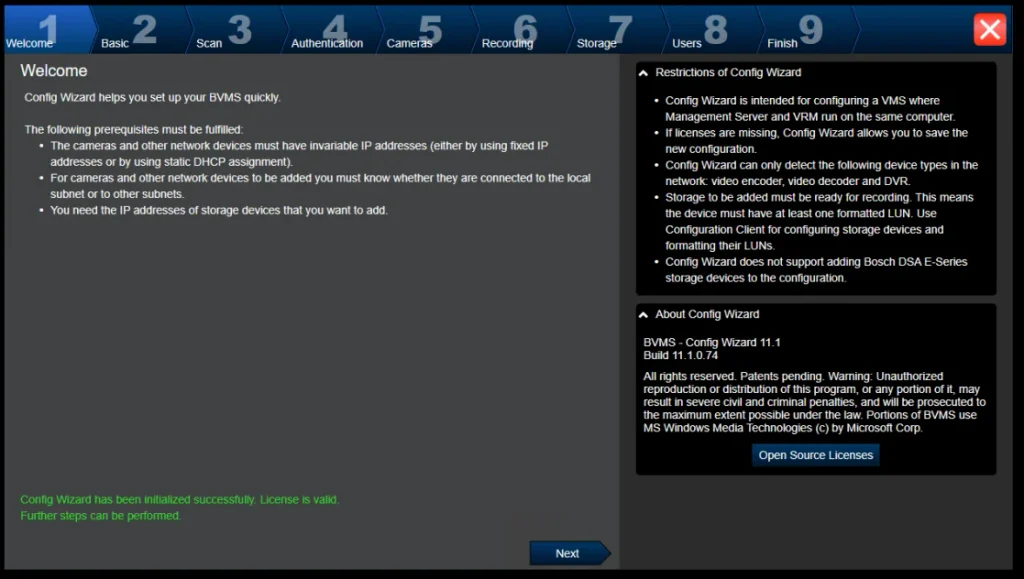
Step 1: Open Config Wizard
On an installation that includes this component, open:
Start > All Programs > BVMS > Config Wizard
The Welcome page appears.
Click Next to continue.
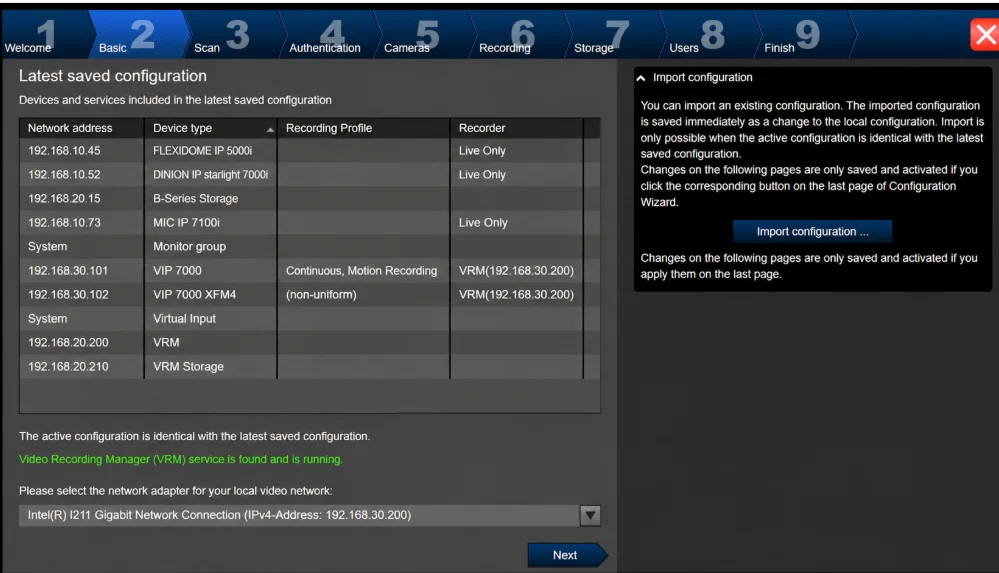
Step 2: Select the network adapter
On the Basic page, select the network adapter connected to your video devices.
This is important because the selected adapter’s IP address is used for relevant local BVMS services, including VRM and VSG in the documented configuration workflow.
Before proceeding, confirm that the selected adapter is connected to the intended surveillance network.
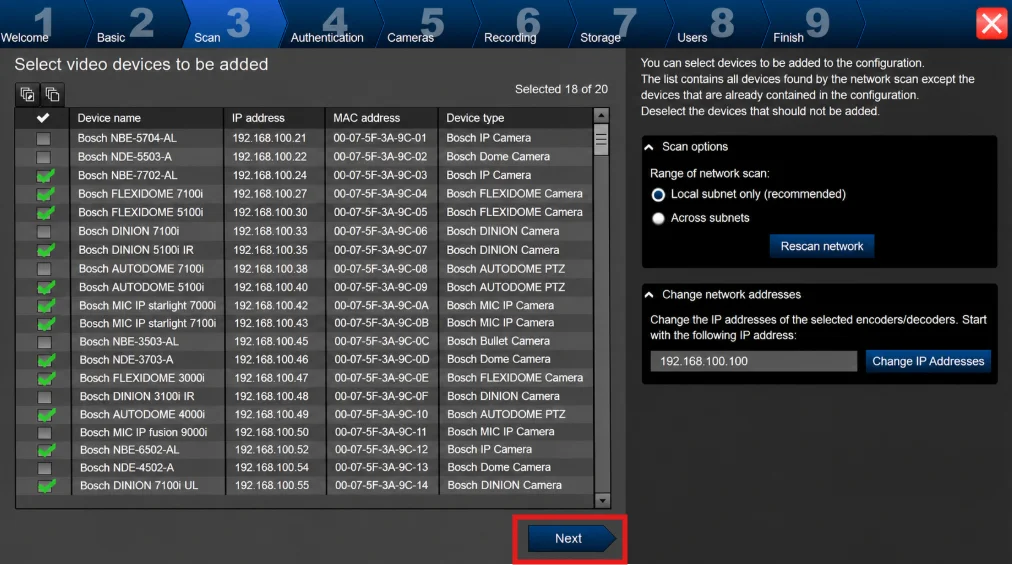
Step 3: Scan for video devices
The Scan page displays supported devices that are not included in the saved configuration.
Review the discovered devices and clear the selection for any device that should not be added.
Continue after checking the device list.
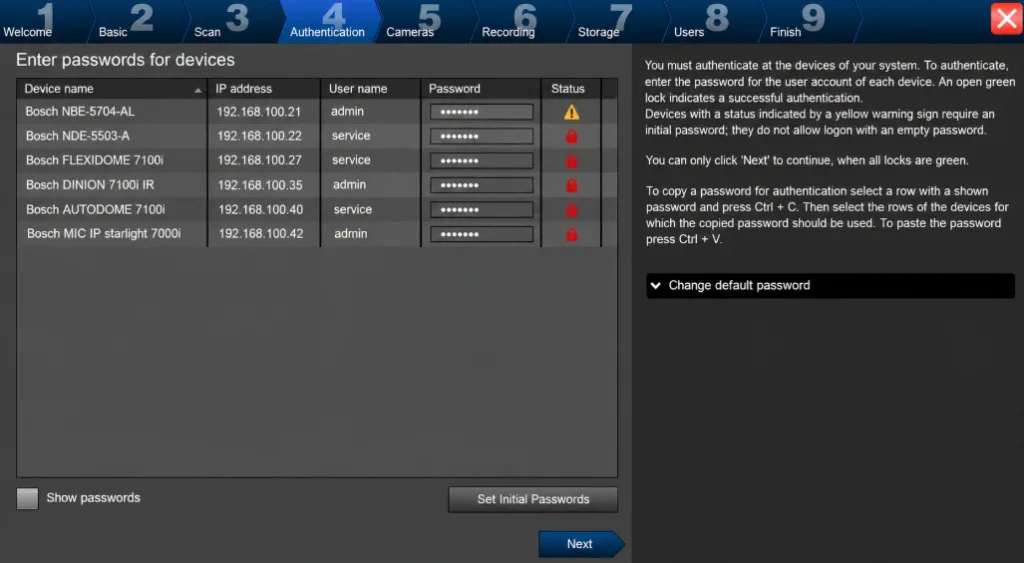
Step 4: Authenticate connected devices
On the Authentication page, provide the required credentials for password-protected devices.
For devices requiring an initial password, complete the initial password setup before proceeding.
Make sure each device is authenticated correctly.
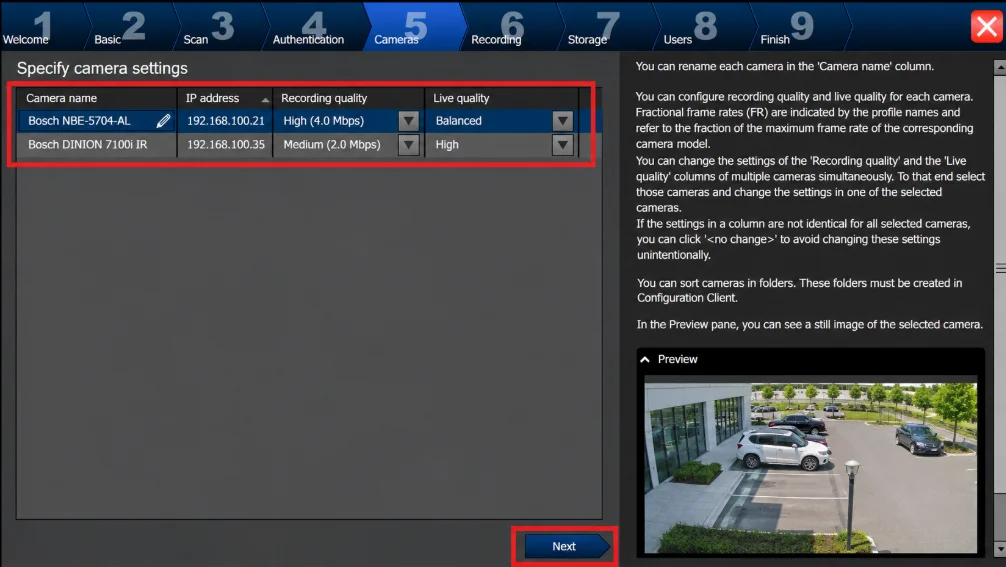
Step 5: Review cameras and recording profiles
The Cameras page allows you to manage cameras included in the configuration.
The Recording page provides recording-profile options for newly added cameras.
Review the selected camera and recording settings carefully before activating the configuration.
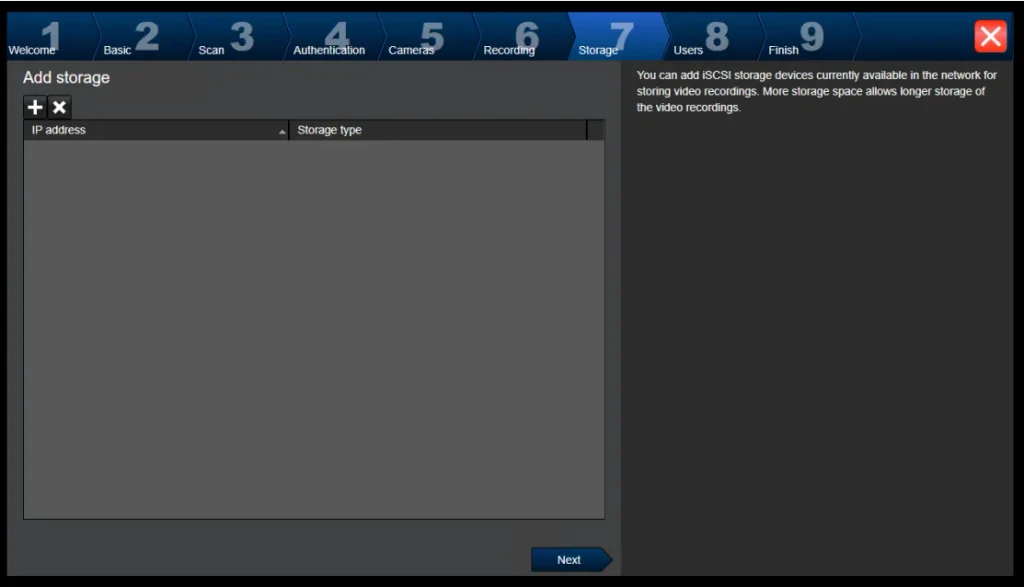
Step 6: Configure storage
Review the Storage page and add any additional supported storage resources required by the installation.
For a standard software installation, Bosch’s documentation notes that iSCSI systems may need to be added manually.
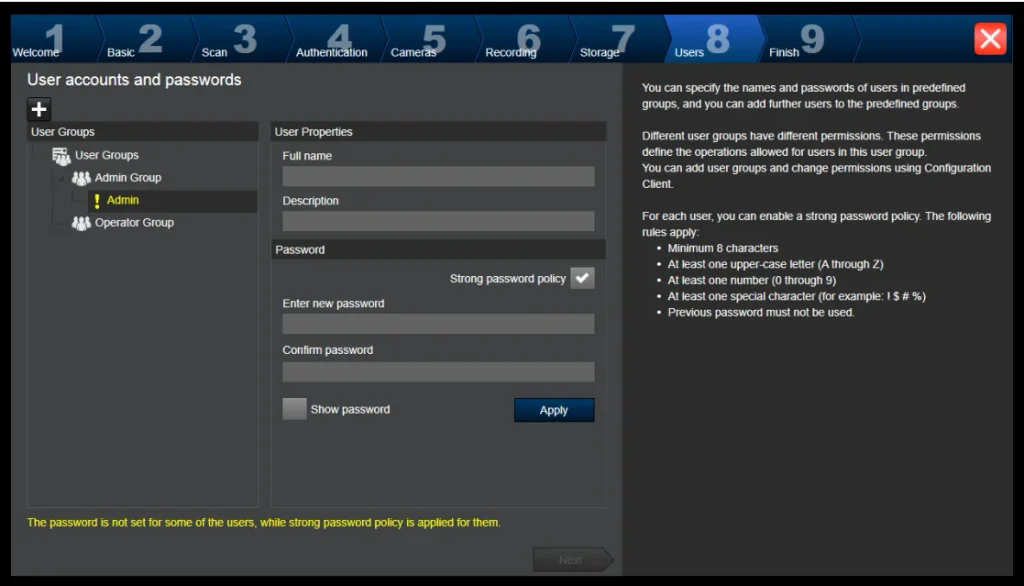
Step 7: Configure users
On the Users page, add the required user accounts and descriptions.
Set strong passwords and assign suitable permissions.
Avoid giving every operator administrative access.
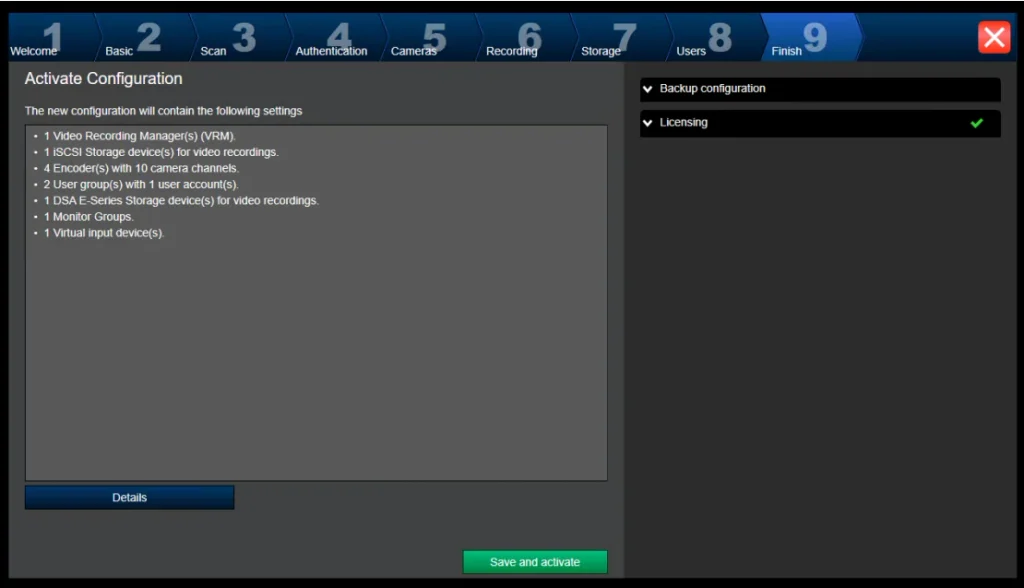
Step 8: Review and activate the configuration
Review the selected settings before activating the configuration.
Confirm that the required devices, cameras, storage, and users are included.
Once the configuration is activated, check the system for any errors and verify that the connected devices are available.
Bosch BVMS Troubleshooting
If the BVMS client does not connect or cameras are unavailable, identify whether the problem is related to installation, network connectivity, authentication, or server configuration.
1. BVMS client cannot connect to the server
Possible causes:
- Incorrect Management Server address.
- Server is unavailable.
- Network connection problem.
- Firewall or network communication restrictions.
- Incorrect login credentials.
What to check:
- Confirm the server address with the administrator.
- Check whether the Windows workstation can communicate with the server.
- Confirm that the required BVMS services are running.
- Check firewall rules and network communication requirements.
- Verify the username and password.
Do not randomly open ports or disable the Windows firewall. Use the port information applicable to your exact BVMS deployment.
2. Cameras are not appearing in Operator Client
Possible causes:
- Cameras have not been added to the BVMS configuration.
- Devices are not reachable over the network.
- Device authentication has failed.
- The user does not have permission to view the cameras.
- The system configuration has not been activated.
What to check:
- Ask the administrator to review the device list in Configuration Client.
- Check the camera’s network connection.
- Confirm the device authentication status.
- Review the user group’s operating permissions.
- Verify that the relevant configuration is activated.
3. BVMS installation is unsuccessful
Possible causes:
- Unsupported Windows version.
- Missing software prerequisites.
- Insufficient administrator permissions.
- Incomplete or damaged installation archive.
- Conflict with an existing BVMS installation.
What to check:
- Verify the Windows compatibility requirements for BVMS 14.0.
- Download the installer again from Bosch if the archive is incomplete.
- Extract the complete package before starting setup.
- Review the installer error message.
- Follow Bosch’s installation documentation for the relevant software component.
4. Login fails even with the correct server address
Check whether the account has been created on the BVMS system and whether it has the necessary permissions.
Also confirm that you are selecting the correct server and using credentials associated with that system.
Contact the administrator if the account is locked or its permissions need to be changed.
Bosch BVMS vs. Bosch Configuration Manager
Bosch BVMS and Bosch Configuration Manager are two different applications designed for different surveillance tasks.
| Comparison | Bosch BVMS | Bosch Configuration Manager |
|---|---|---|
| Main purpose | Centralized video management | Configuration of supported Bosch network video products |
| Primary users | Security operators and system administrators | Installers and technicians |
| Live video | Through configured BVMS client components | Depends on available device functionality |
| Recording management | Through supported BVMS recording components | Not its primary purpose |
| Device configuration | Through BVMS Configuration Client | Through supported device configuration functions |
| Typical use | Operating a surveillance installation | Discovering and configuring supported devices |
If you need to discover a Bosch camera or change its IP address, see our separate guide:
Bosch Configuration Manager Download: Installation and Setup
You can also read our guide to the Bosch Camera IP Helper Tool for IP discovery and configuration-related tasks.
Frequently Asked Questions
1. Is Bosch BVMS available for Windows?
Yes. Bosch BVMS provides Windows-based software components, including client applications and system-management components. The supported Windows versions depend on the specific BVMS release and installed component.
2. Where can I download Bosch BVMS for Windows?
You can use the official Bosch-hosted BVMS 14.0 Viewer Setup link provided in this guide. Bosch’s official Download Area also lists available BVMS software packages and release information.
3. Is Bosch BVMS free?
The availability of a software download does not mean every BVMS feature is free. BVMS editions and features have licensing requirements. Check the applicable Bosch licensing documentation before deploying the system.
4. What is the difference between Operator Client and Configuration Client?
Operator Client is intended for daily surveillance operations, including live monitoring and playback. Configuration Client is used by administrators and integrators to configure devices, workstations, users, permissions, and other system settings.
5. Can I use BVMS without a Management Server?
A standard Operator Client deployment requires access to a supported BVMS system. A Viewer Setup should not be treated as a complete standalone Management Server installation.
6. Does BVMS support Windows 11?
Windows compatibility depends on the exact BVMS release and component. Check the official BVMS 14.0 release documentation or datasheet before installing it on Windows 11.
7. Can I connect multiple cameras to BVMS?
BVMS supports managing multiple cameras within a configured surveillance system. The actual camera capacity depends on the selected edition, licensing, hardware, network resources, and system architecture.
8. What is Config Wizard in BVMS?
Config Wizard is a utility for simplifying initial configuration of smaller BVMS systems. It can assist with device discovery, authentication, cameras, recording profiles, storage, and user groups.
Final Verdict
Bosch BVMS is a professional video management platform for Windows-based surveillance workstations. It is designed for centralized monitoring, playback, alarm handling, and administration of supported video surveillance systems.
The supplied BVMS 14.0 Viewer Setup is the appropriate starting download for users who need the corresponding viewer package. However, installing a viewer does not automatically provide the Management Server, recording infrastructure, or required system licenses.
Before installation, confirm Windows compatibility, review the available software components, and obtain the correct server address and user credentials from your BVMS administrator.
For detailed configuration, always refer to the official documentation matching your installed BVMS version.
