
Bosch Configuration Manager is a configuration utility for Bosch IP network video products. It helps installers and security technicians discover supported devices on a network and access configuration and licensing functions, depending on the device and its capabilities.
If you need the Bosch Configuration Manager download for Windows, use the official Bosch Security and Safety Systems Download Area. There, you can find the available software packages, release notes, and checksum information.
Official download: Bosch Configuration Manager – Download Area
Before downloading, check the version shown on Bosch’s website. The supplied release-note reference mentions version 7.80.0038, but the live download listing I checked displayed version 7.79.0057 as its newest listed package. Confirm the currently available version directly with Bosch before installing.
Bosch Configuration Manager Software Details
| Detail | Information |
|---|---|
| Software name | Bosch Configuration Manager |
| Developer | Bosch Security and Safety Systems |
| Software category | IP video device configuration |
| Platform | Windows PC; confirm requirements for the selected release |
| Latest version | Check the official download page |
| Download format | ZIP package for the listed 7.79.0057 release |
| License | Check Bosch’s release documentation |
| Official download | Bosch Download Area |
Configuration Manager is intended for Bosch IP network video products, including supported hardware devices and software modules. Available functions can vary by product, firmware, and software version.
Key Features of Bosch Configuration Manager
1. Discover network video devices
The software can help locate supported Bosch network video devices connected to an accessible network. This is useful when an installer needs to identify a camera or other device before configuring it.
2. Access device configuration
After discovering a supported device, you can select it and inspect the configuration options available for that device. The settings depend on the hardware, firmware, and your access permissions.
3. Configure network settings
For supported devices, Configuration Manager provides access to network-related settings. Before changing an IP address, subnet mask, or gateway, confirm the correct network values with the network administrator.
4. Manage supported software and hardware functions
Bosch describes Configuration Manager as a generic configuration tool for its IP network video products. It also supports licensing and configuration functions for applicable products.
Do not assume that every Bosch camera, recorder, or third-party ONVIF device exposes the same settings.
Bosch Configuration Manager Download for Windows
Follow these steps to obtain the software from Bosch.
- Open the official Bosch Configuration Manager download page.
- Find the Configuration Manager software listing.
- Review the available version numbers and select the package appropriate for your installation.
- Read the corresponding release notes and system requirements before downloading.
- Click the software package link to download the ZIP file.
- If Bosch provides a SHA-256 checksum for that package, use it to verify the downloaded file.
- Extract the ZIP archive into a folder on your Windows computer.
Important: The exact package name and available versions may change. Use the version listed on the official website rather than relying on an old third-party download link.
How to Install Bosch Configuration Manager
After downloading the package, follow the installation instructions included with that release.
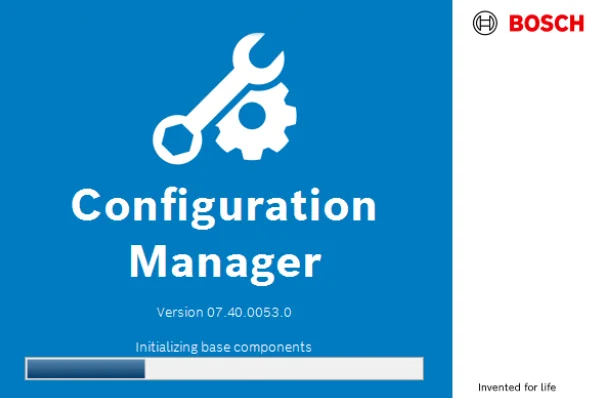
- Open the folder containing the downloaded ZIP file.
- Right-click the archive and select Extract All.
- Open the extracted folder.
- Look for the installer or application files and any included documentation.
- Follow the supplied installation instructions. If the package contains a Windows installer, run it and complete the setup prompts.
- If Windows requests administrator permission, verify the file’s origin before approving it.
- Launch Configuration Manager from the installed application or the location specified in the release documentation.
The exact installation procedure depends on the package. Do not assume that every release uses the same installer or that extracting the ZIP file alone completes installation.
Check the Windows requirements
Bosch’s published Configuration Manager 7.77 release notes list Windows 10 64-bit, Windows 11 64-bit, Windows Server 2016, and Windows Server 2019, along with requirements such as 8 GB RAM and Microsoft .NET Framework 4.7.2.
These are requirements documented for that release, not a guarantee that the same specifications apply to every version. Check the release notes for the version you actually download.
Reference: Bosch Configuration Manager release documentation.
How to Use Bosch Configuration Manager
Once the program is installed, you can use it to locate and configure supported devices. The precise interface and available commands depend on the software version.
Step 1: Connect the Bosch IP camera
Connect the camera or other supported network video device to your local network using the appropriate Ethernet connection and power supply.
Make sure your computer can communicate with the device’s network. If the camera is connected to a separate VLAN or isolated network, discovery may require additional network configuration.
Step 2: Open Configuration Manager
Launch Bosch Configuration Manager on your Windows computer.
If the program asks you to select a network interface, choose the Ethernet adapter connected to the camera network. If your computer has several adapters, such as Wi-Fi, Ethernet, and a VPN, choosing the wrong interface may prevent device discovery.
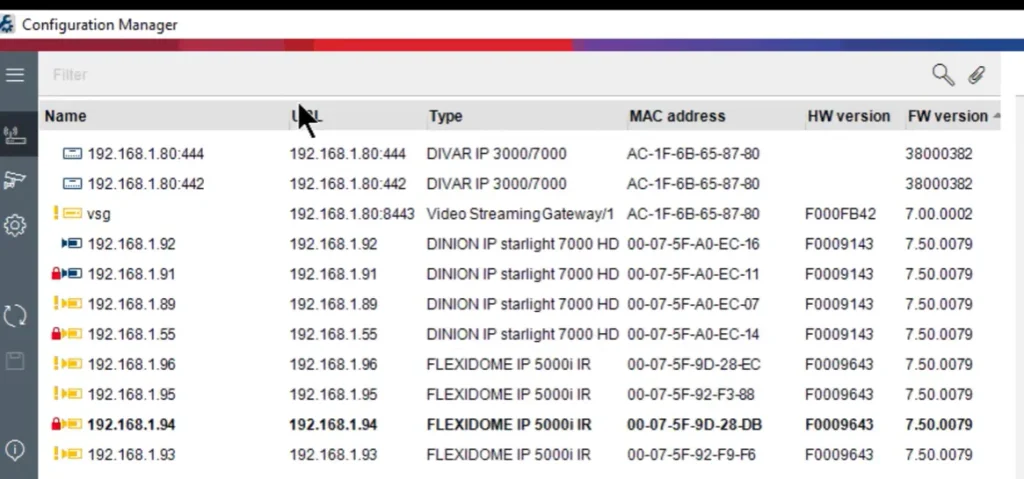
Step 3: Discover available devices
Use the device-discovery or refresh function available in your version of Configuration Manager.
Wait for the software to populate its device list. Only devices that are discoverable and supported under the current network and software conditions will necessarily appear.
If your camera does not appear, check its power, Ethernet link, IP address, network adapter, and any relevant firewall or VLAN restrictions.
Step 4: Select the required camera
Select the correct device from the discovered list. Confirm its identity using the available device information, such as the model or IP address.
Avoid changing settings on a device until you have confirmed that it is the intended camera.
Step 5: Access the configuration options
Open the configuration view or settings available for the selected device.
Depending on the camera and firmware, the software may expose network configuration and other supported device functions. Some settings may require authentication or additional permissions.
If prompted, enter the authorized device credentials. Do not assume that the Windows account password is the same as the camera’s password.
Step 6: Change the IP address if necessary
If you need to assign a static IP address, first identify the correct network details:
- IP address: A unique address suitable for the camera’s network.
- Subnet mask: The mask used by the local network.
- Default gateway: The router address, where required.
- DNS server: The DNS address required by your network configuration.
Check that the proposed address is not already in use and does not conflict with your DHCP address pool or network policy.
Enter the required values using the device’s available configuration controls, then apply the changes according to the software prompts.
Warning: Changing a camera’s IP address can interrupt your current connection. If you assign an address on a different subnet, you may need to change your computer’s network configuration before reconnecting.
Step 7: Verify the connection
After applying the changes, check the device list and confirm that the camera is reachable at its intended IP address.
If the camera becomes unreachable, verify the computer’s IP configuration, subnet, cabling, and the camera’s new address. Use the documented recovery procedure for the specific device if needed.
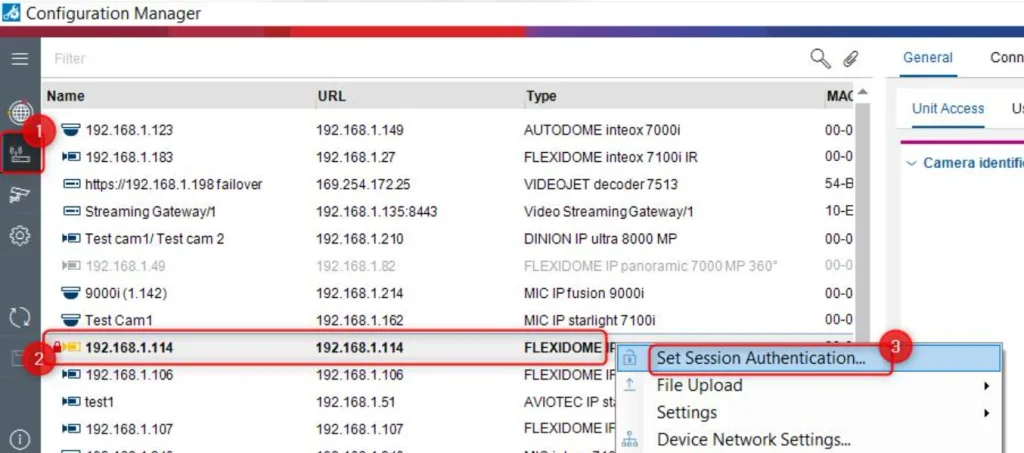
Step 8: Save and document your settings
Record the final IP address and other relevant network settings in your installation notes. Keep credentials secure and follow your organization’s access-control policy.
For a multi-camera installation, documenting each device’s model, location, and IP address makes future maintenance easier.
Understanding Camera Status Icons in Bosch Configuration Manager
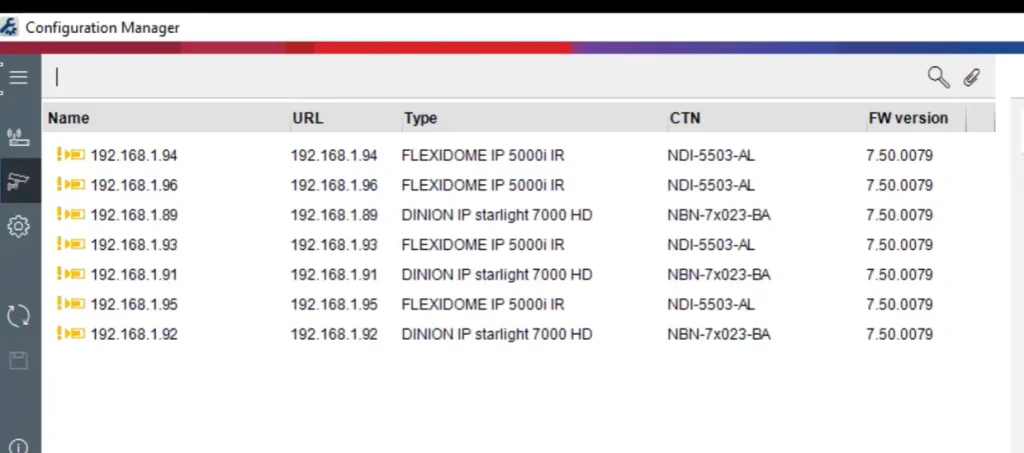
Bosch Configuration Manager uses different camera icons to indicate device status, connectivity, authentication, and certificate trust. The icon color and any warning, error, or lock symbol help you understand whether a device is accessible and whether its connection is trusted.
The following table explains the status combinations provided in the software documentation.
| Camera icon | Status | Online | Authentication | Secure connection | Trusted certificates |
|---|---|---|---|---|---|
| Gray camera | OK | No | Unknown | Unknown | Unknown |
| Gray camera with yellow exclamation mark | Warning* | No | Unknown | Unknown | Unknown |
| Gray camera with red exclamation mark | Error* | No | Unknown | Unknown | Unknown |
| Gray camera with red lock | No access | No | No | Unknown | Unknown |
| Blue camera | OK | Yes | Yes | No | Not relevant |
| Blue camera with yellow exclamation mark | Warning | Yes | Any | No | Not relevant |
| Blue camera with red exclamation mark | Error | Yes | Any | No | Not relevant |
| Blue camera with red lock | No access | Yes | No | No | Not relevant |
| Yellow camera | OK | Yes | Yes | Yes | No |
| Yellow camera with yellow exclamation mark | Warning | Yes | Any | Yes | No |
| Yellow camera with red exclamation mark | Error | Yes | Any | Yes | No |
| Yellow camera with red lock | No access | Yes | No | Yes | No |
| Green camera | OK | Yes | Yes | Yes | Yes |
| Green camera with yellow exclamation mark | Warning | Yes | Any | Yes | Yes |
| Green camera with red exclamation mark | Error | Yes | Any | Yes | Yes |
| Green camera with red lock | No access | Yes | No | Yes | Yes |
How to interpret these icons
- Gray camera: The device is offline or its online status has not been established. The other connection and authentication details are unknown.
- Blue camera: The device is online and authenticated, but the secure connection status is shown as No.
- Yellow camera: The device is online and authenticated, and a secure connection is indicated. The trusted-certificate status is No.
- Green camera: The device is online and authenticated, with a secure connection and trusted certificates indicated.
- Yellow exclamation mark: The device has a warning that may require investigation.
- Red exclamation mark: The device has an error that should be investigated.
- Red lock: The device is not accessible with the current authentication status or permissions.
Important: “Any,” “Unknown,” and “Not relevant” are status values from the supplied table, not additional error states. The asterisks next to the gray-camera warning and error statuses should be checked against the applicable Bosch documentation before publication. Do not assume that a green icon alone proves every aspect of a device’s security configuration is correct.
Bosch Configuration Manager vs. Bosch Camera IP Helper Tool
CCTVDESK already has a separate guide for the Bosch Camera IP Helper Tool. These tools should not be treated as interchangeable simply because both relate to Bosch device configuration.
| Comparison | Configuration Manager | Bosch Camera IP Helper Tool |
|---|---|---|
| Main purpose | Configuration of supported Bosch IP network video products | Bosch camera IP discovery and network configuration |
| Scope | Broader configuration and licensing functions for supported products | Focused IP configuration workflow |
| Best starting point | Bosch’s Configuration Manager download area | The existing CCTVDESK IP Helper guide |
| Compatibility | Depends on the software release and supported device | Depends on the tool release and supported device |
Choose the utility that matches your device and task. Consult Bosch documentation if you are unsure which tool supports a particular camera or recorder.
Troubleshooting Bosch Configuration Manager
The camera does not appear in the device list
Check that the camera is powered on and connected to the network. Confirm that your computer is using the correct network adapter and that network isolation, VLAN rules, or firewall restrictions are not preventing discovery.
The software cannot connect to a camera
Verify the camera’s IP address, subnet, and network reachability. If the device requires authentication, use the correct authorized credentials. Confirm that the camera’s model and firmware are supported by your software version.
The camera becomes unreachable after changing its IP address
Your computer may now be on a different subnet from the camera. Review the new network settings and adjust the computer’s adapter configuration as appropriate. Avoid resetting the device unless the documented recovery process requires it.
The downloaded file does not open
Make sure the download completed successfully and extract the ZIP archive before attempting to run its contents. Check the release documentation for the correct launch or installation procedure.
Windows reports a security warning
Verify that the file came from Bosch’s official download domain. Check the file’s digital signature when available and compare its SHA-256 checksum with Bosch’s published value if one is provided. Do not bypass a security warning for an unverified file.
FAQs
Is Bosch Configuration Manager free?
The official Bosch download area provides access to Configuration Manager software packages. Check Bosch’s current terms and documentation for any licensing conditions that apply to your intended use and the devices you manage.
Is Bosch Configuration Manager compatible with Windows 11?
Bosch’s published 7.77 release notes list Windows 11 64-bit among the supported operating systems. Confirm the requirements for the specific version you download, particularly if you are using a newer release or an older Windows computer.
Can Bosch Configuration Manager change a camera’s IP address?
It provides configuration functions for supported Bosch IP network video products. Whether a particular camera exposes IP-address controls depends on its model, firmware, network configuration, and your permissions.
Where should I download Bosch Configuration Manager?
Use the official Bosch Configuration Manager download page. Check the available version, release notes, and checksum before downloading.
Final Verdict
Bosch Configuration Manager is a useful utility for technicians who need to discover and configure supported Bosch IP network video products. Download it from Bosch’s official website, check the requirements for your selected version, and confirm each device’s network settings before applying changes.
For camera IP discovery and basic network configuration, readers can also consult the separate CCTVDESK guide to the Bosch Camera IP Helper Tool. Choose the utility according to the device and configuration task rather than assuming the two programs provide identical functionality.
Official References
- Bosch Configuration Manager Download Area
- Bosch Configuration Manager 7.77 Release Notes
- Bosch Camera IP Helper Tool Guide on CCTVDESK
Testing Notes
No hands-on installation or device-configuration test was supplied for this article. The installation and usage instructions should therefore be treated as a documentation-based guide, not a report of independently verified testing. Before publication, test the exact downloaded release on a supported Windows computer and capture genuine screenshots of the installation, device discovery, and configuration workflow.
