
If you want to find an AVYCON IP camera on your local network or change its IP address, the AVYCON IP Device Tool is a useful utility for the job. It helps discover compatible AVYCON network cameras and identify their current IP addresses.
The AVYCON IP Device Tool for Windows is designed for compatible NDAA and Diversity Series cameras. It allows users to search for connected devices, view their network information, and access camera configuration settings.
Whether you are installing a new camera, replacing an existing device, or troubleshooting a network connection, this utility can make the discovery process easier.
In this guide, you will find the official AVYCON IP Device Tool download for Windows and Mac, installation instructions, camera discovery steps, and instructions for changing an IP address.
AVYCON IP Device Tool Download for Windows and Mac
AVYCON provides separate download packages for Windows and macOS. Choose the version that matches your computer.
| Software | Operating system | Download |
|---|---|---|
| AVYCON IP Device Tool | Windows | Download for Windows |
| AVYCON IP Device Tool | macOS | Download for Mac |
Both download packages are provided through AVYCON’s official resources.
Important: These downloads are intended for the Diversity Series. If you have an older AVYCON Plug & Play camera or recorder, you may need IP Tool 2.0 instead.
For more information, visit the official AVYCON website.
What Is AVYCON IP Device Tool?
AVYCON IP Device Tool is a network discovery and configuration utility for compatible AVYCON IP cameras. It helps installers and users identify cameras connected to their local network without manually checking every device. Some people call it AVYCON IP camera finder tool so do not get confuse with name.
When an IP camera is connected to a PoE switch, router, or surveillance network, you may not know its current IP address. Without that information, accessing its web interface or configuring its network settings can become difficult.
The AVYCON IP Device Tool software helps solve this problem by searching for compatible devices and displaying their available network information.
It is particularly useful for:
- Finding connected AVYCON IP cameras.
- Checking the current camera IP address.
- Identifying cameras connected to a PoE switch.
- Configuring a static IP address.
- Accessing a camera’s web interface.
- Troubleshooting camera discovery problems.
Unlike full CCTV monitoring applications, the AVYCON IP Device Utility focuses on device discovery and network configuration rather than continuous video monitoring.
Main Features of AVYCON IP Device Tool
1. Discover Connected IP Cameras
The utility searches for compatible AVYCON devices connected to the local network. This helps identify cameras that are difficult to locate manually.
2. Find Camera IP Addresses
You can use the AVYCON IP Search Tool to identify the network address assigned to a compatible camera. This information is useful when accessing the camera through a browser or configuring an NVR.
3. Configure Static IP Addresses
The tool supports changing the camera’s network mode to Static and assigning a new IP address through the configuration procedure documented by AVYCON.
4. Access the Camera Through a Browser
After discovering a camera, you can use its IP address to open its web interface in your default browser.
5. Search Compatible Network Devices
The application provides a convenient way to locate supported devices connected to the surveillance network.
How to Install AVYCON IP Device Tool on Windows
Follow these steps to prepare the utility on your Windows computer.
Step 1: Download the Software
Visit the official AVYCON download link provided above and download the Windows ZIP package.
Save the downloaded file to an easily accessible location, such as your Downloads folder.
Step 2: Extract the ZIP File
Locate the downloaded ZIP package.
Right-click the file and select Extract All or use an archive extraction program.
Open the extracted folder and locate the application or installer provided inside it.
[IMAGE 1 – Insert screenshot of the extracted AVYCON IP Device Tool Windows ZIP folder here]
Image alt: AVYCON IP Device Tool extracted Windows download folder.

Step 3: Launch the Application
Open the extracted application or run its installer if the package contains an installation wizard.
If Windows displays a security prompt, verify that the file came from the official AVYCON download source before proceeding.
After launching the application, wait for the main interface to load.
Step 4: Connect Your Camera to the Network
Before searching for cameras, connect your AVYCON IP camera to a powered PoE switch or another suitable power source.
Connect your Windows computer to the same intended local network.
Make sure the camera has completed its startup process before beginning the search.
How to Use AVYCON IP Device Tool to Find Camera IP Address
Once the application is ready, you can search for connected cameras.
Step 1: Open the IP Device Tool
Launch the AVYCON IP Device Tool on your Windows computer.
Wait for the application to perform its initial scan.
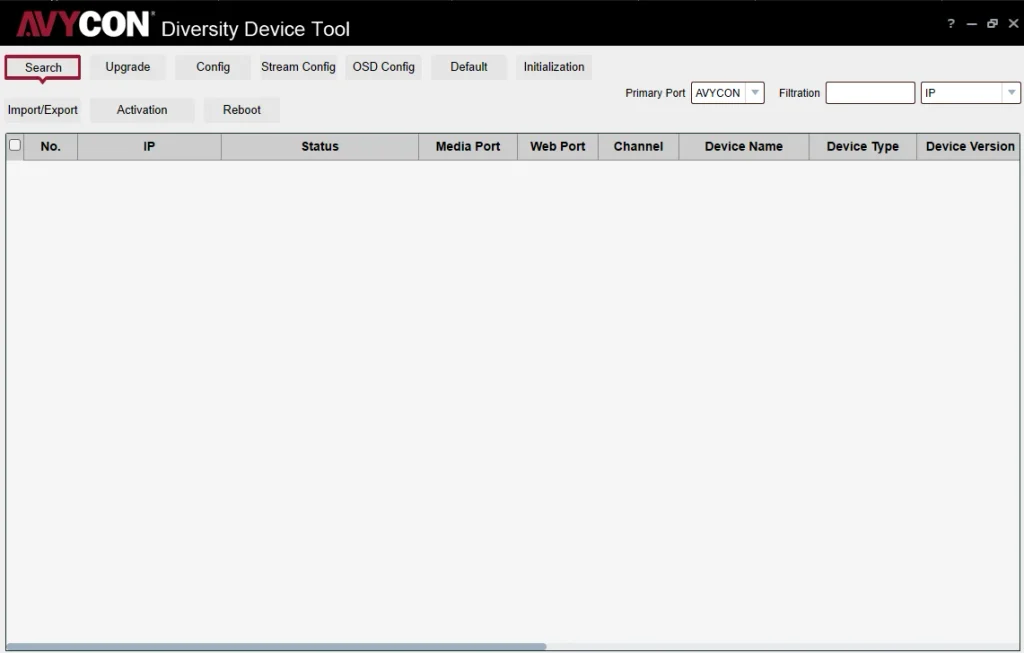
Step 2: Click Search
Find the Search button in the application and click it to scan the network.
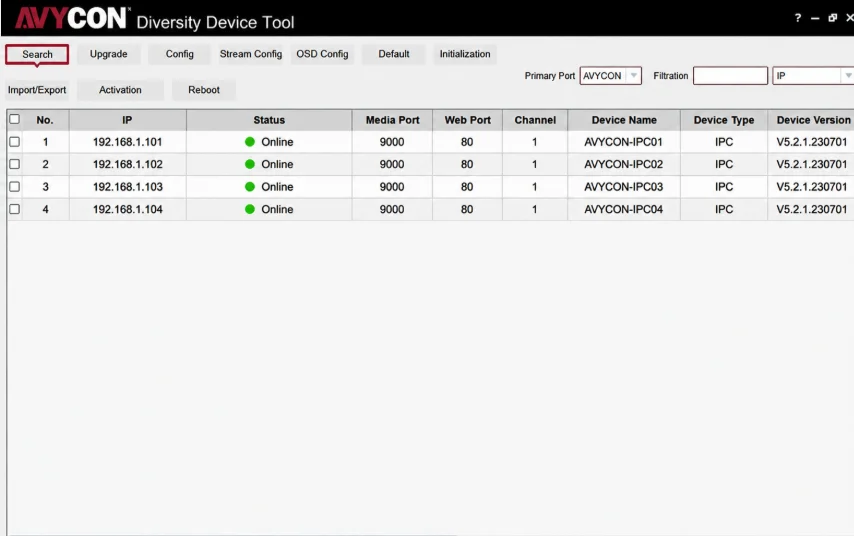
The utility will search for compatible devices and display the discovered cameras.
Step 3: Identify Your Camera
Review the discovered device list and match the camera using the available device information.
Once you identify the correct camera, note its IP address.
Step 4: Open the Camera in a Web Browser
Copy or note the discovered IP address.
Open your preferred web browser and enter the camera’s IP address in the address bar.
If the camera is reachable and the network settings are correct, its web interface should open.
Enter the appropriate login credentials when requested.
How to Change AVYCON Camera IP Address
If your camera needs a different network address, AVYCON’s support instructions describe the following procedure.
- Connect your Windows computer to the same local network as the camera.
- Open the AVYCON IP Device Tool.
- Search for the connected camera.
- Select the camera you want to configure.
- Change the Net Mode setting to Static.
- Enter the new static IP address.
- Enter the camera’s username and password.
- Click Modify to save the changes.
Before applying the new settings, make sure the IP address belongs to the intended network and is not already assigned to another device.
After changing the address, access the camera using its new IP address.
Note: Changing the camera’s IP address may interrupt an existing connection. If the camera is connected to an NVR, ensure that the recorder’s camera configuration is updated when necessary.
AVYCON IP Device Tool vs IP Tool 2.0
AVYCON provides different IP utilities for different camera and recorder generations. Downloading the wrong tool may prevent you from discovering your device.
| Utility | Intended product family |
|---|---|
| IP Device Tool | NDAA / Diversity Series |
| IP Tool 2.0 | Plug & Play Series |
AVYCON’s support documentation identifies IP Device Tool v1.0.1.55 for Windows and v1.0.1.81 for macOS in its March 2022 compatibility reference. These are documented historical versions, not necessarily the current versions of the downloadable packages.
Always check your device model before downloading.
How to Find Newer AVYCON Cameras Using HTTP Protocol
Some newer Diversity Series cameras require a different discovery method.
According to AVYCON’s support instructions, the following models use the HTTP scanning procedure:
- AVC-NCMS321M04
- AVC-NSMS321M04
- AVC-NAE41F28
- AVC-NAE81F28
- AVC-NAB41F28
- AVC-NAB81F28
- AVC-NBE41F28
- AVC-NBE81F28
- AVC-NBB41F28
- AVC-NBB81F28
Follow these steps:
- Launch the Diversity IP Device Tool.
- Allow the initial scan to finish.
- Click the question mark (?) icon in the upper-right corner.
- Open Protocol Type.
- Change the protocol from Media to HTTP.
- Click Search again.
- Wait a few seconds for the new scan results to appear.
- Find your camera in the updated device list.
- Click its IP address to open the camera in your default web browser.
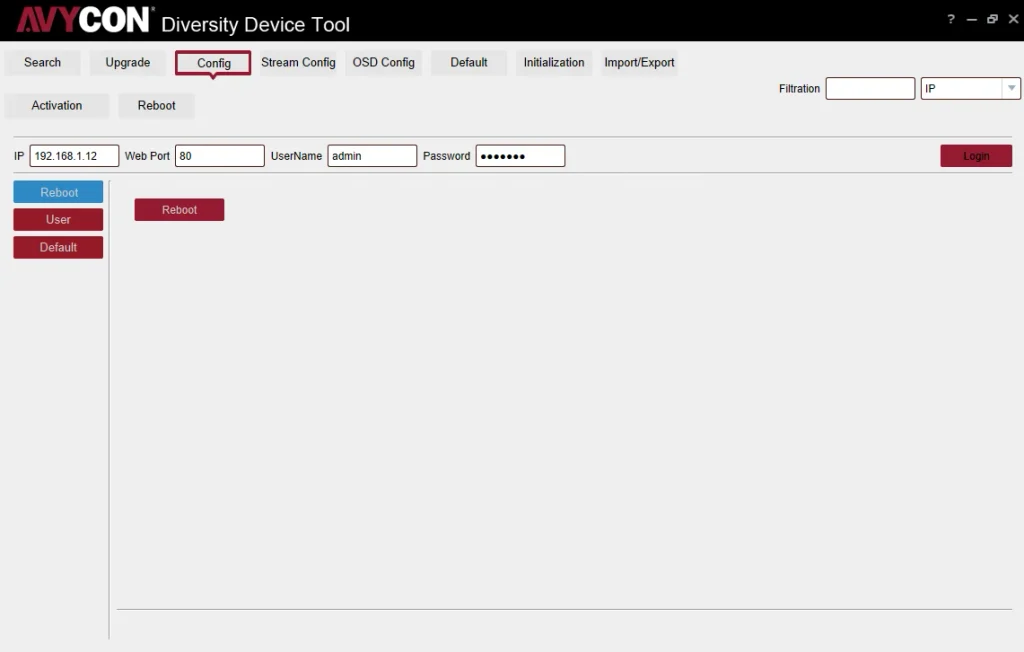
The application window may temporarily appear blank after changing the protocol. AVYCON explains that additional cameras should appear after the HTTP scan finishes.
This procedure is particularly useful when certain newer Diversity Series cameras do not appear in the initial search.
AVYCON IP Device Tool Not Finding Cameras? Try These Checks
If the AVYCON IP Search Tool does not discover your camera, check the following points.
1. Check the Network Connection
Make sure the camera is powered and connected to the correct PoE switch or network port.
Check the Ethernet cable and switch link indicators.
2. Check Your Computer’s Network Connection
Your computer should be connected to the same intended surveillance network as the camera.
If you are using multiple network adapters, verify that Windows is connected to the correct network.
3. Check the IP Range
AVYCON recommends keeping the computer and camera on the same IP range for device discovery.
For example:
- Computer: 192.168.1.100
- Camera: 192.168.1.168
- Subnet mask: 255.255.255.0
These example addresses belong to the same IPv4 subnet.
If the devices are configured on different subnets, discovery or direct access may not work as expected.
4. Try the HTTP Protocol
If you are using one of the newer Diversity camera models listed earlier, change the Protocol Type to HTTP and perform another search.
5. Check the Camera’s Power Supply
If the camera does not appear in the scan, verify that it is receiving power through the PoE switch or its appropriate power source.
A network discovery tool cannot locate a camera that is not powered or connected to the network.
For additional troubleshooting guidance, read our guide on IP camera connection problems and how to fix them.
AVYCON IP Device Tool vs AVY Mobile CVMS
It is important not to confuse the AVYCON IP Device Tool with AVY Mobile CVMS because both utilities serve different purposes.
The IP Device Tool is designed to discover compatible network cameras and help configure their IP addresses. AVY Mobile CVMS, on the other hand, is a camera-management application used for accessing compatible surveillance systems.
If you want to manage and view your AVYCON cameras from a computer, read our separate guide on AVY Mobile CVMS for PC.
You can also explore our collection of free IP camera software and discovery tools to find other utilities for configuring network cameras.
Frequently Asked Questions
Is AVYCON IP Device Tool free?
AVYCON provides the IP Device Tool through its official support and download resources. The manufacturer does not list a purchase requirement for these utility downloads.
How do I download AVYCON IP Device Tool for Windows?
Visit AVYCON’s official support resources or use the Windows download link in this article. Download the Diversity Series ZIP package, extract it, and launch the included application or installer.
Is AVYCON IP Device Tool available for Mac?
Yes. AVYCON provides a separate macOS IP Device Tool package for compatible Diversity Series devices.
Can I change the IP address using AVYCON IP Device Tool?
Yes. AVYCON documents a procedure that involves selecting the camera, changing Net Mode to Static, entering the new IP address and credentials, and clicking Modify.
Why is my AVYCON camera not showing in the IP Device Tool?
Check the camera’s power, Ethernet connection, computer network, and IP range. For certain newer Diversity Series models, change the Protocol Type to HTTP and search again.
What is the default IP address of an AVYCON camera?
AVYCON states that cameras are configured for DHCP by default. If no DHCP service is available on the connected network, the default IP address is 192.168.1.168.
This address should not be assumed for every camera because its network configuration may have been changed.
Is AVYCON IP Device Tool the same as AVYCON CMSONE?
No. IP Device Tool is a network discovery and configuration utility. CMSONE is desktop camera-management software used to connect to compatible AVYCON recorders and view surveillance video.
They serve different purposes.
Conclusion
The AVYCON IP Device Tool is a useful utility for locating compatible Diversity Series IP cameras and configuring their network addresses.
With the official Windows and macOS download packages, you can discover connected cameras, identify their IP addresses, and access their web interfaces.
Before downloading, confirm that your camera belongs to the supported product family. If you have a Plug & Play Series device, check the separate IP Tool 2.0 download instead.
Using the correct utility and following the manufacturer’s network instructions can make camera discovery and initial configuration much easier.
