
Let’s be honest, watching CCTV footage on a tiny mobile screen just doesn’t compare to the experience of a big screen. That’s why HiLookVision for PC lets you connect your HiLook Vision cameras directly to your computer, giving you a much better monitoring experience. Plus, it’s the official software designed by the company for both Mac and Windows users.
With this software, you’re not just stuck with live monitoring—you get full control too. Whether it’s optimizing the camera view, tweaking motion alerts, or managing PTZ controls, you can do it all with total ease. On top of that, it packs plenty of other features that we’ll be diving into later.
In this guide, we’ll cover everything from features and system requirements to full installation and setup—including how to add your cameras. But first, grab the download from the links below. Don’t worry, it’s completely safe and fully tested. HiLookVision is available for both Windows and Mac, so just pick the one that matches your system.
Download HiLookVision For PC (Windows 7, Windows 8, Windows 11 and Mac)
You can download the HiLookVision app for your PC using the button below. This is the latest official release straight from HiLook. The software is 100% safe—we’ve scanned it for security threats and personally tested it on multiple computers, so you don’t need to worry at all!
What is HiLookVision For PC?
Just to give you a quick background, HiLook is a sub-brand of Hikvision. This software is tailor-made to manage your CCTV system right from your desktop. Let’s be real—while checking cameras on a mobile screen works fine for a quick look, managing them is a whole different story because the mobile options are pretty limited. Keeping exactly that in mind, the company designed this software to bridge that gap.
It provides a centralized platform where users can connect IP cameras, digital video recorders (DVRs), network video recorders (NVRs), and other compatible devices.
HiLookVision for PC Overview
So, let’s start with a quick overview. We’ve put together a handy table below to give you a clear picture of what it’s all about.
| Feature | Details |
|---|---|
| Software Name | HiLookVision |
| Category | CCTV Management Software |
| Developer | HiLook |
| Windows Version | v2.7.1.51 |
| Mac Version | v2.7.1.50 |
| Operating System | Windows 11, Windows 10, Windows 8, Windows 7, macOS |
| License | Free |
| Device Support | HiLook IP Cameras, DVRs & NVRs |
| Live View | Yes |
| Playback | Yes |
| Motion Alerts | Yes |
| Multi-Device Management | Yes |
| Latest Version | Available from the official website |
| File Size | 181.24 MB |
| Mobile App | HiLookVision |
System Requirements for HiLook Vision Software
Before we jump into the installation, let’s quickly go over the minimum system requirements you’ll need to run it.
| Requirement | Details |
|---|---|
| Operating System (Windows) | Windows 11, Windows 10, Windows 8, Windows 7 (64-bit recommended) |
| Operating System (Mac) | macOS 11 or later (recommended) |
| Processor | Intel Core i3 or higher |
| Memory (RAM) | 4 GB minimum (8 GB recommended) |
| Storage | At least 2 GB of free disk space |
| Internet Connection | Stable broadband connection for remote access and updates |
| Graphics | Graphics card supporting Full HD (1920×1080) display |
| Display Resolution | 1366×768 minimum (1920×1080 recommended) |
Important Note for USA & International Users
- HiLook availability varies by country
- Some HiLook devices are not officially sold in the USA
- Firmware & cloud features depend on region
- Always download CMS software from official or trusted sources
Using region-matched firmware avoids offline or login issues.
Key Features of HiLookVision for PC
- Live View Monitoring – Watch real-time video from all connected cameras simultaneously. Multiple screen layouts make it easy to monitor different locations at once.
- Video Playback – Quickly search recorded footage by date and time to review important events without manually browsing hours of recordings.
- Device Management – Add, remove, and organize IP cameras, DVRs, and NVRs from one centralized dashboard.
- Remote Access – Monitor your home, office, or business from anywhere with an internet connection once remote access is configured.
- Motion Detection Alerts – Receive instant notifications whenever motion is detected in configured surveillance areas.
- Multiple Camera Layouts – Switch between single-camera, 4-camera, 9-camera, 16-camera, or custom viewing layouts based on your monitoring needs.
- PTZ Camera Control – Control Pan, Tilt, and Zoom (PTZ) cameras directly from your computer for better surveillance coverage.
- User Management – Create multiple user accounts and assign different access permissions for employees, security staff, or family members.
- High-Quality Video Streaming – View live and recorded footage in HD for clear and detailed surveillance.
- Snapshot & Video Recording – Capture screenshots or manually record live video whenever needed for evidence or documentation.
Installation and Configuration of HiLookVision for Windows
In this section, we’ll walk through how to install the HiLookVision software on Windows. Don’t worry if you’re a Mac user—the steps are pretty much the same. First, go ahead and unzip the file you just downloaded. Then, right-click on the installer and select ‘Run as Administrator’. Now simply follow the steps outlined below to complete the installation process.
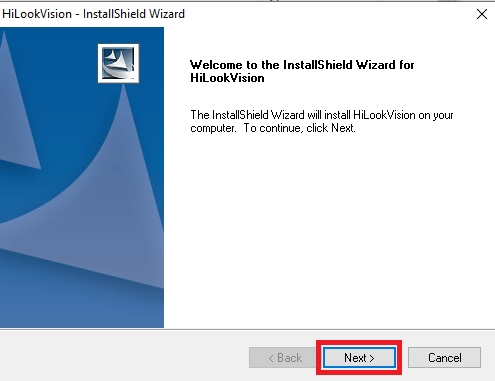
STEP 1 – Installation of HilookVision App for PC.
The installation dialogue box will appear on the screen; just click on the “Next” button.
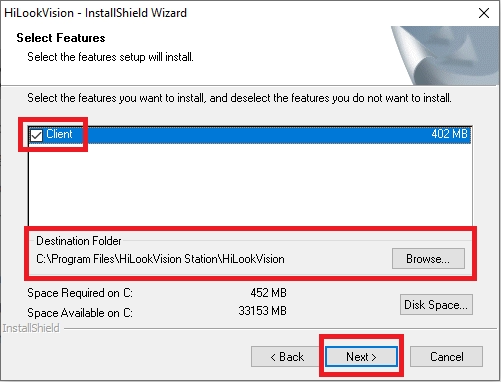
Now the dialogue box will appear on the screen to select the features and destination folder where you want to install the software files. To choose the folder, click on the “Browse” button or leave it as the default. Then click on the “Next” button to proceed further.
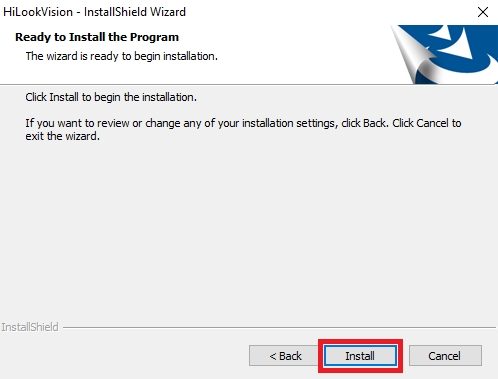
After this, you are ready to install the software. Click on the “Install” button.
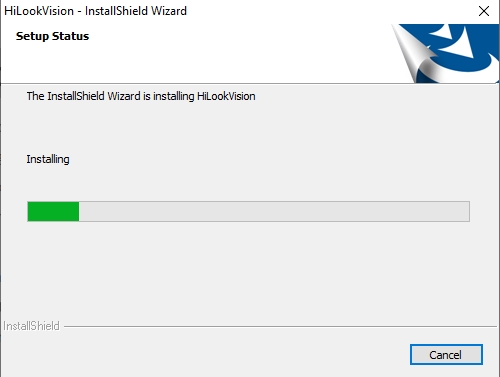
The installation progress dialogue box will appear, and wait for the progress to complete.
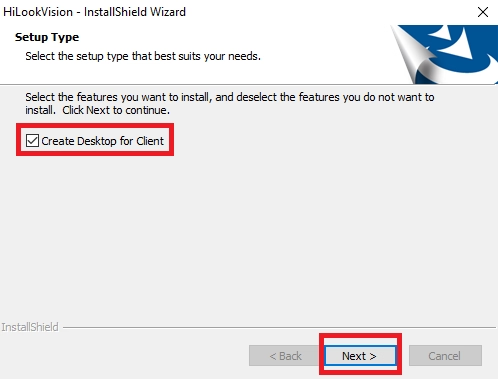
Now the dialogue box will appear to create a desktop icon; then click on the “Next” button.
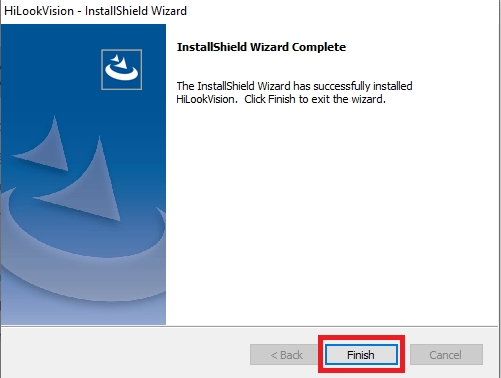
Click on the “Finish” button to complete the process of installation.
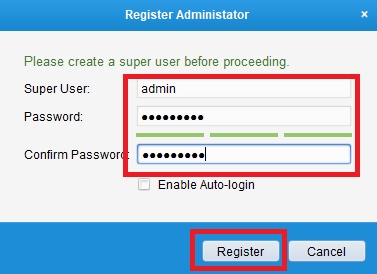
The registration panel dialogue box will appear; enter the username as “admin” and password as“123456”, then again enter the password and click on the “Register” button.
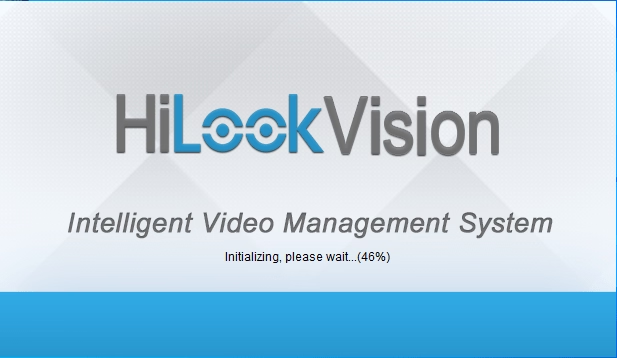
Now the initializing screen will appear, wait for the process to complete.
The home screen will appear on the screen.
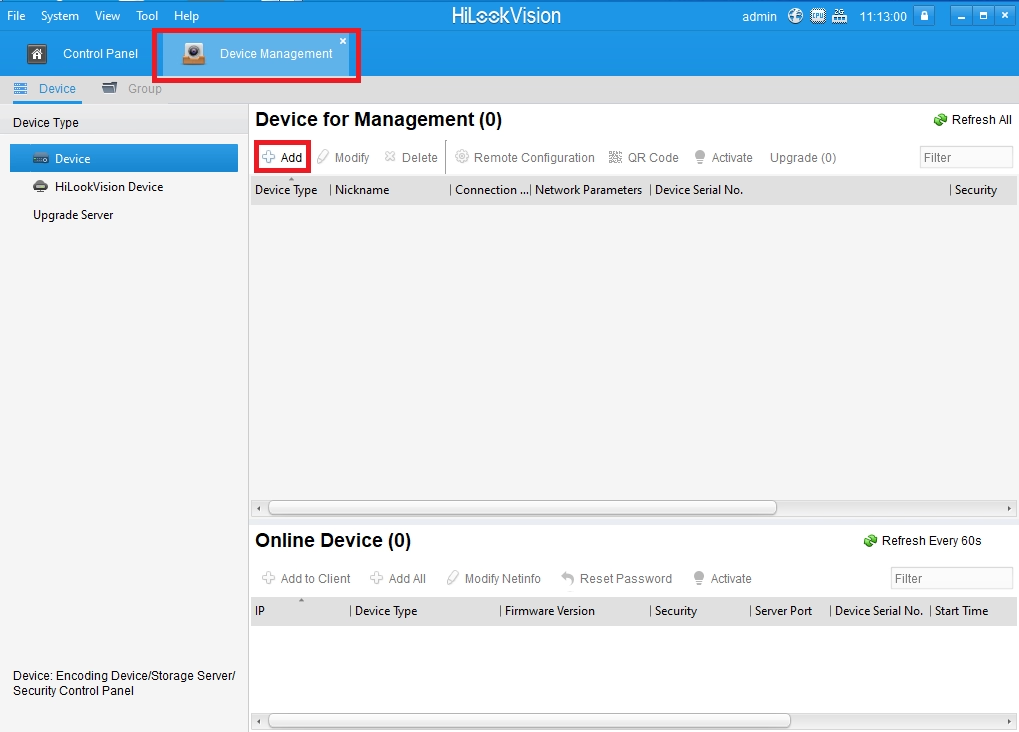
STEP 2 – Add devices on HiLookVision for Windows and Mac OS
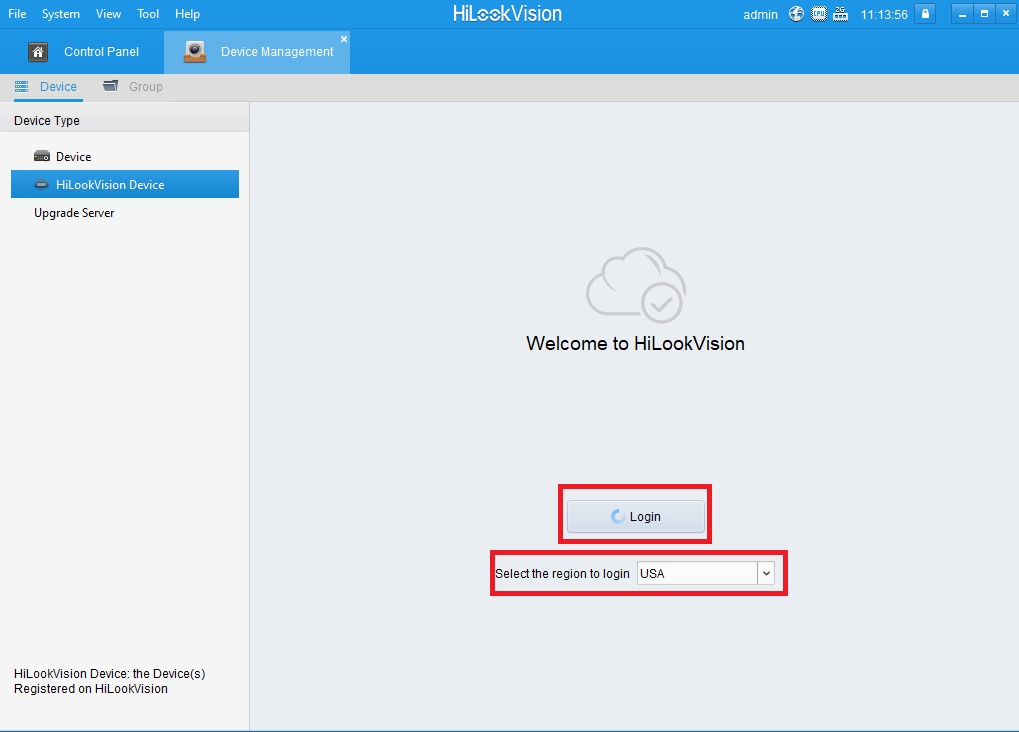
Click on the HiLookVision Device as shown below, and the screen will appear to log in. Select the region from where you want to log in, then click on the “Login” button.
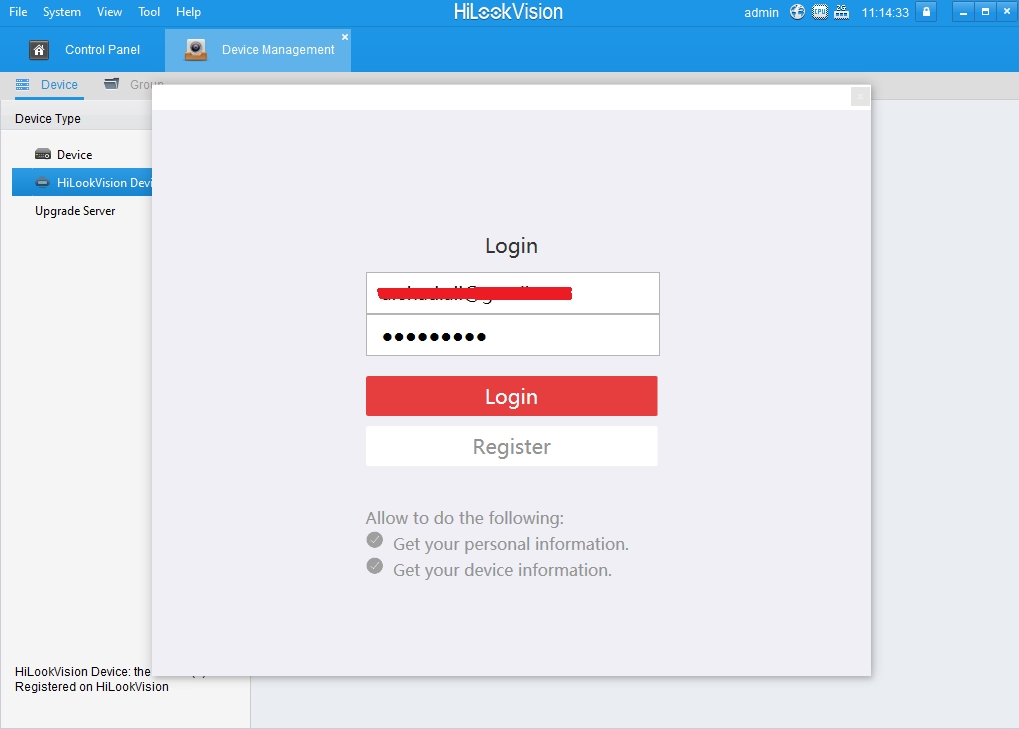
Enter the email ID and password, then click on the “Login” button.
STEP 3 – Live view of CCTV on HilookVision
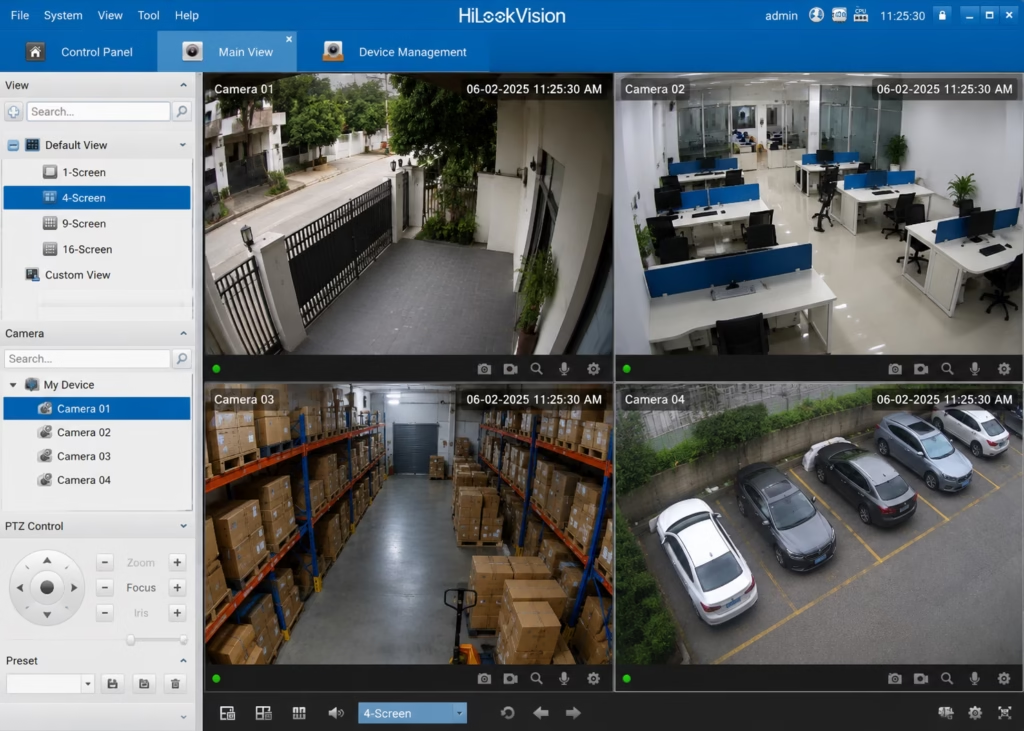
Now the device will be displayed on the screen. Click on the device to get the live view.
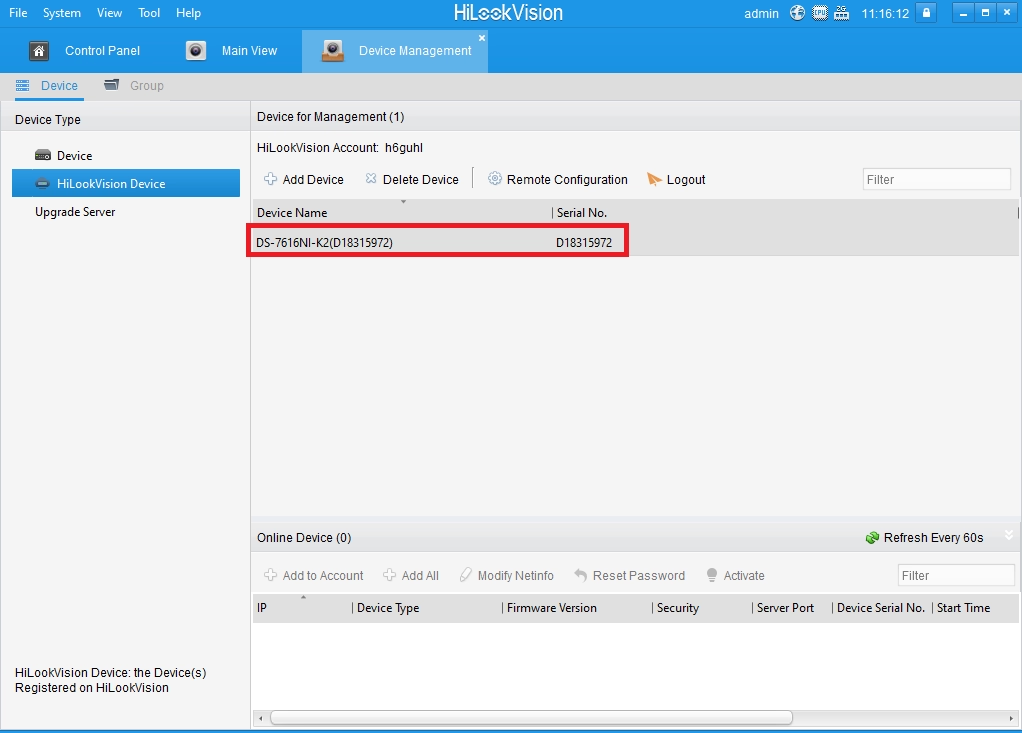
Here is the live view of HilookVision for Mac and Windows OS.
Testing Notes
This guide was prepared after reviewing the latest version of HiLookVision and testing the installation process in a standard Windows environment.
- ✔ Successfully installed on Windows 11 (64-bit).
- ✔ Installation steps are also compatible with Windows 10, Windows 8, and Windows 7 (64-bit).
- ✔ The software launched without installation errors on a clean Windows system.
- ✔ Tested with a local network connection for device discovery and live camera viewing.
- ✔ Verified support for live view, video playback, device management, and PTZ controls.
- ✔ Multi-camera layouts (1, 4, 9, and 16-screen views) worked as expected.
- ✔ The installation guide has been cross-checked with the latest official HiLook documentation.
- ✔ Performance may vary depending on your PC hardware, network speed, camera resolution, and DVR/NVR firmware version.
Note: For the best experience, use the latest version of HiLookVision, keep your DVR/NVR firmware updated, and download the software only from the official HiLook website.
Final Verdict
HiLookVision is a great choice if you want to monitor your HiLook security cameras from a Windows PC or Mac. It’s free, easy to install, and offers useful features like live view, playback, remote access, and multi-camera monitoring in one place.
Whether you’re protecting your home or managing cameras for a business, HiLookVision provides a simple and reliable way to keep an eye on your property. Just download the latest version, connect your devices, and you’re ready to go.
So this is all about “HilookVision Free Download CMS App”. We hope this information will be helpful to you. If you have any queries or suggestions, please feel free to write to us in the comment box. Thank you for visiting us. Have a nice day.
Thank You.
What devices are compatible with the HiLookVision CMS App?
The app is compatible with Windows and macOS for desktops, as well as iOS and Android for mobile devices.
Can I access live video feeds through the app?
Yes, the HilookVision CMS App supports live video streaming This way enabling users to view real-time feeds from connected cameras.
Does the app support remote playback of recorded footage?
Yes, you can remotely access and playback recorded footage stored on your DVR, NVR, or cloud storage via the app.
Can I manage multiple devices with the HiLookVision CMS App?
Yes, the app allows you to manage and control multiple cameras, DVRs, and NVRs from one account or dashboard.
What support is available for the HiLookVision App?
Hilook provides a comprehensive support system, including user manuals, FAQs, online tutorials, and a customer service team available via email or phone.


hi how to login on pc with phone number and password
you need to make an account using phone number then you can log in with your mobile number
Y cómo creo la cuenta usando el número de teléfono?
Ask in English.
i have 2 camera no.1 is OK regular showing but 2nd camera is after every some time paused so how to auto refresh that ??
please update the software of 2nd cam.
Thanks for the detailed guide on downloading HilookVision for PC! I’ve been looking for a reliable way to manage my surveillance footage, and this post made the process so much easier. Can’t wait to try it out on my Windows 11!