
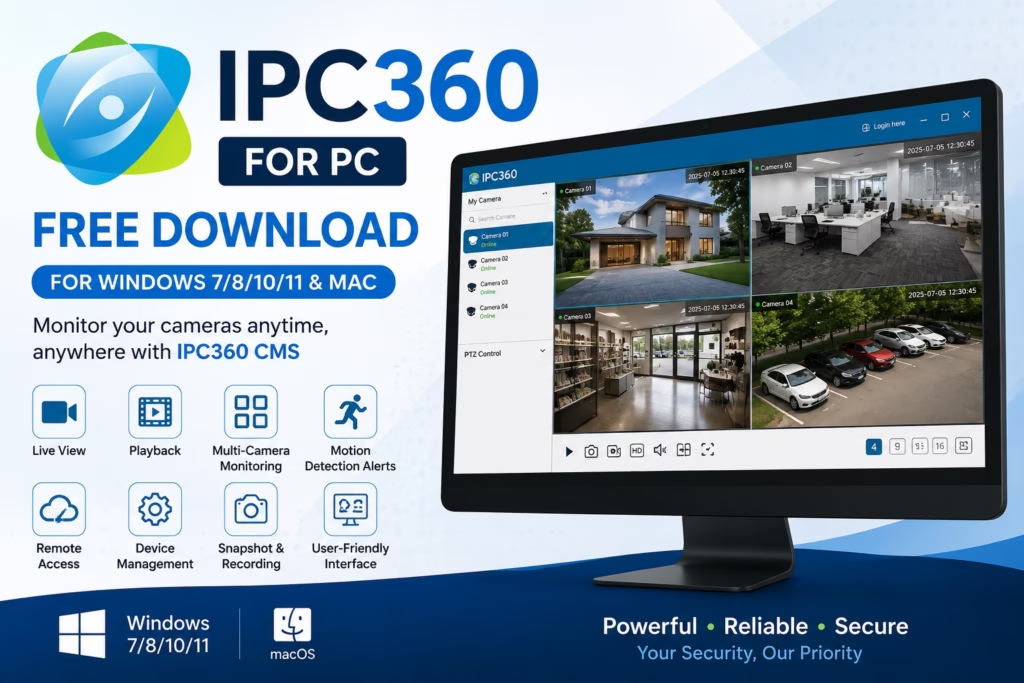
If you’ve got an IPC360 camera and want to hook it up to your computer, IPC360 for PC is exactly what you need. This software makes it super easy to monitor your security cameras right from your Windows desktop or laptop. The official IPC360 CMS lets you view live camera feeds, play back recorded videos, manage multiple devices, and receive motion alerts directly from your Windows computer.
With this software, keeping an eye on your home or office is an absolute breeze since it lets you view everything on a much bigger screen. Plus, it gives you full control over your security setup, packing in great features like video playback, PTZ control, user permissions, and multi-camera monitoring.
You can download the software using the button below. Rest assured, it’s completely safe and secure—we’ve run full security scans on it and extensively tested it on our own end first.
About IPC360 For PC (Windows)
We’ve laid out the entire installation process below, so all you have to do is follow along. But before we get to that, take a quick look at the table below to get a better handle on how the software works.
| Software Name | IPC360 for PC |
|---|---|
| Version | Latest Version |
| Developer | Puwell |
| Category | Security & Surveillance |
| License | Free |
| Supported OS | Windows 7/8/10/11 & macOS |
| File Size | 50.4 MB |
| Language | English |
| Main Features | Live View, Playback, Multi-Camera Monitoring, Motion Alerts, Device Management |
| Camera Support | IPC360 Compatible Wi-Fi & IP Cameras |
| Installation | Native Desktop CMS (No Emulator Required) |
| Last Updated | Latest Release |
| Mobile App | IPC360 |
IPC360 for PC System Requirements
Before you jump into the installation, it’s a good idea to check out the system requirements to make sure everything installs and configures smoothly.
| Component | Requirement |
|---|---|
| Operating System | Windows 7/8/10/11 (32-bit & 64-bit) |
| Processor | Intel Core i3 or higher |
| RAM | 4 GB minimum (8 GB recommended) |
| Storage | 200 MB free space |
| Internet | Broadband connection for remote viewing |
What is IPC360 for PC?
IPC360 for PC is the desktop version of the IPC360 surveillance platform. It allows you to connect compatible Wi-Fi cameras and IP cameras to your computer for real-time monitoring. With the official CMS, you can manage multiple cameras from a single dashboard without relying on an Android emulator.
Whether you need to keep an eye on your home while traveling or monitor multiple cameras at work, IPC360 CMS provides a simple and reliable solution.
Key Features of IPC360 for PC
- Live Camera Viewing – Watch your security cameras in real time with smooth, high-quality video streaming.
- Multi-Camera Monitoring – View and manage multiple IPC360 cameras simultaneously from a single dashboard.
- Video Playback – Access and review recorded footage stored on your camera or cloud storage.
- Motion Detection Alerts – Receive instant notifications whenever motion is detected by your cameras.
- Remote Access – Securely monitor your cameras from anywhere using your IPC360 account.
- Device Management – Easily add, remove, rename, and configure connected camera devices.
- Snapshot & Recording – Capture screenshots and record live video directly from the desktop CMS.
- User-Friendly Interface – Navigate a clean and intuitive dashboard designed for both beginners and advanced users.
Installation & Configuration of IPC360 (Windows)
Once you’ve downloaded the file, let’s walk through the installation so you don’t run into any hiccups. First, the file you downloaded will be in a ZIP format, so go ahead and unzip it. Next, right-click on the installer file, select ‘Run as administrator’, and grant permission to start the setup. From there, just follow the steps outlined below.
1. STEP – Install the IPC360
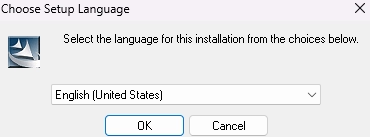
Now the first screen for the installation comes to you. As we told you earlier, the software is multi-language, so here you need to choose your desired language for the IPC360 App for Windows. After selecting the language, click on the “OK” button.
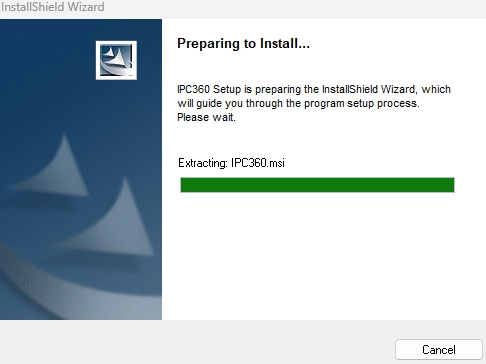
Now the setup will be prepared for the installation. Wait for some time, and the new screen will appear.
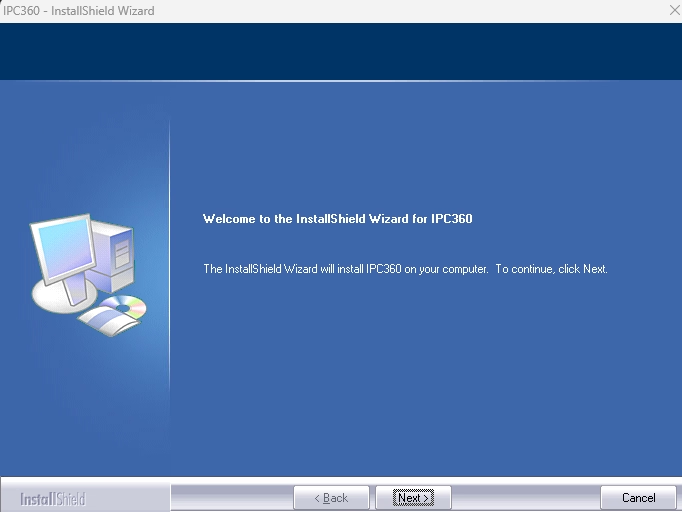
In the next screen, A welcome wizard comes to you, and you need to just click on the “Next” button.
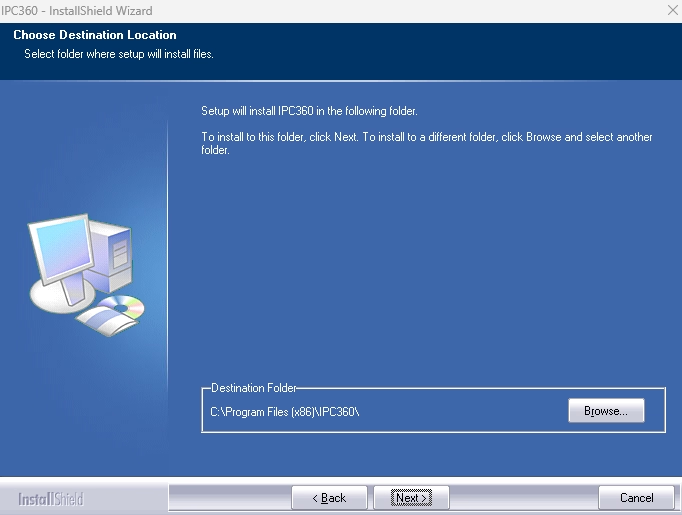
In this window, you need to set the installation directory. To do this, just click the Browse button and choose the desired path for the installation of the app on Windows PC. After choosing the destination folder, click on the “Next” button.
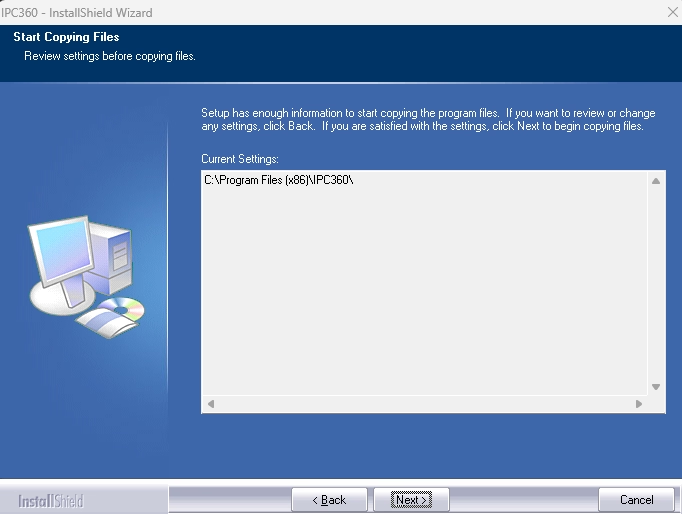
After this, the setup will start copying the files for the setup. Now just press the “Next” button.
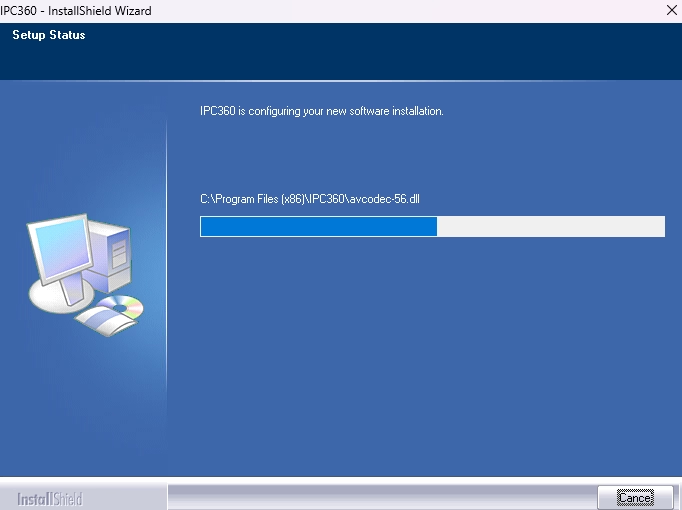
Now the system will start the installation of the CMS. Wait until the Finish window comes to you. This may take some time so have patience.
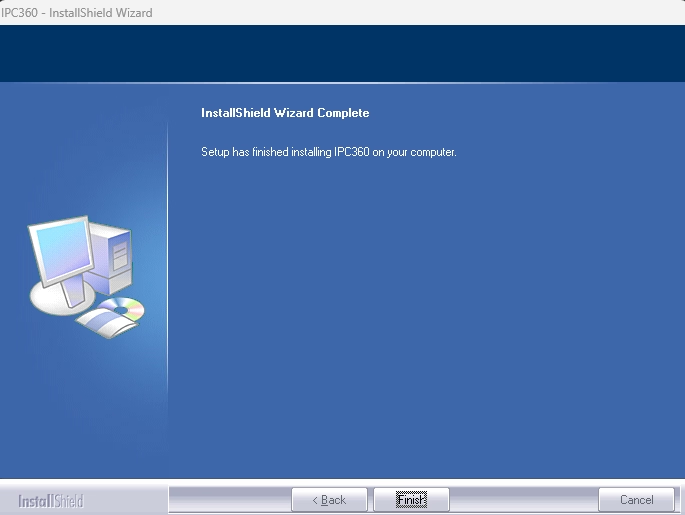
Now the final window of the installation comes, and you need to just press the “Finish” button.
2. STEP – Run the IPC360
After finishing the installation of the CMS, you need to run the software on your PC. To do this, go to your desktop and find an icon named IPC360. Double-click on that icon and now your software will be running on your PC.
3. STEP – Login to the software
After running IPC360, you will see the software screen as shown in the picture below.
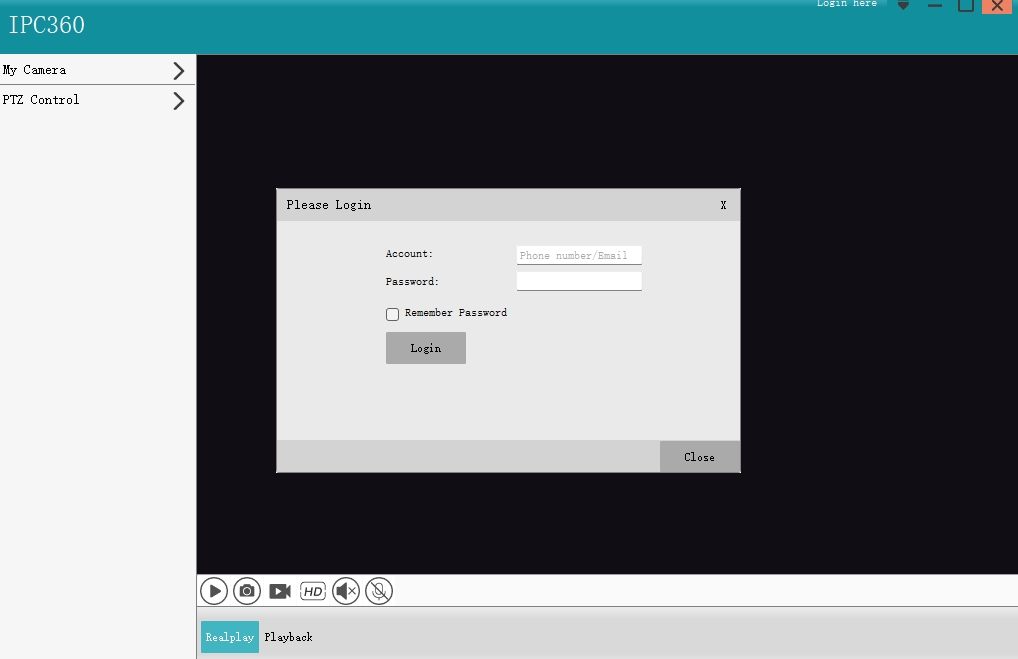
Here, the software will ask you for your login details. Use the same account name and password as your mobile application username and password. Now click on the “Login” button.
4. STEP – Monitoring the Camera on the PC
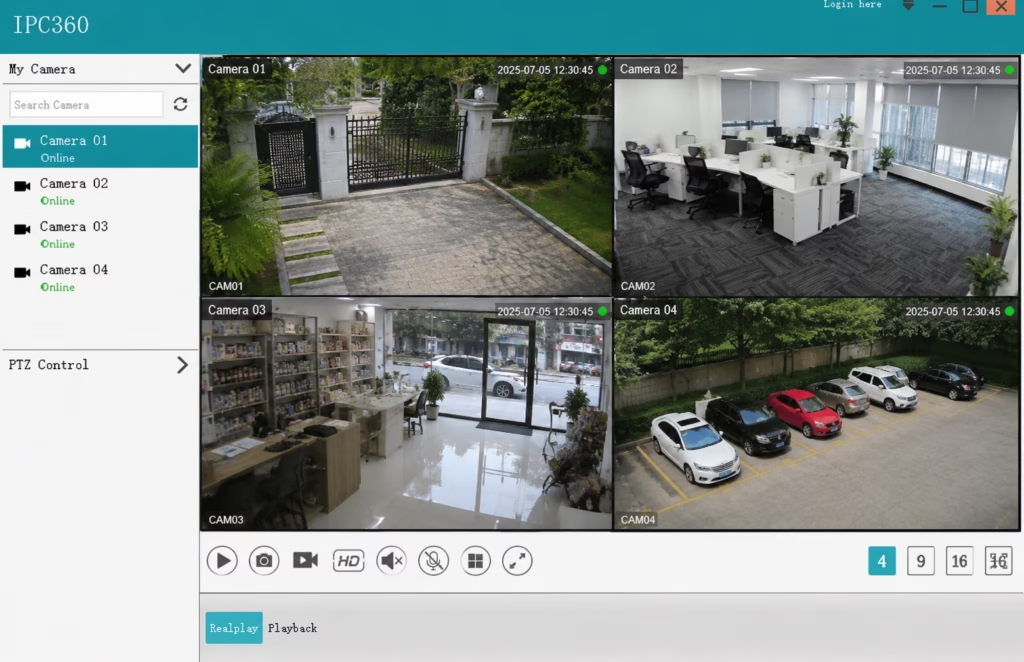
After successfully logging into your account, you can see the list of all the connected cameras on the left side panel. Just double-click on the camera name, and now you can see your IPC360 cameras on your PC using IPC360.
Conclusion
IPC360 is a very useful software for monitoring, managing and configuring the CCTV camera system on a laptop or computer. It is useful for both kinds of connections, meaning local premises and a remote location as well.
This application has some rich options for managing and configuring the cameras by using your PC.
So this is all about the IPC360. We hope this information will be helpful to you. If you have any queries or suggestions please feel free to write to us in the comment box. Thank you for visiting us. Have a nice day.
What is IPC360 CMS App used for?
IPC360 CMS App is used to remotely access surveillance cameras on PCs. It can monitor anmd manage CCTV devices.
How do I add a new camera to IPC360?
Install the application and open the settings option. Go to the “+” sign and it will guide you to add the device. You can add the CCTV camera or recorder by scanning the QR code or adding their IPs/Serial numbers.
Does IPC360 CMS support cloud storage?
es, IPC360 offers cloud storage plans that allow users to save and playback footage securely. Local SD card storage is also supported.
Why is my IPC360 camera showing as offline?
Check the power connection and internet connectivity. Update the application. Hopefully, your problem will be solved. You can also contact the support team.
Is the IPC360 CMS app free to use?
Yes, it is absolutely free to use.

Buna ziua! am instalat programul pe PC si dupa ce ma autentific si dau pe camera sa vad imi zice sa introduc contul original obligatoriu…Ce cont?
cel de m-am autentificat nu merge…
Va multumesc si astept raspunsul dvs.
ASk in English.
Hello! I installed the program on the PC and after I log in and I turn on the camera to see it tells me to enter the mandatory original account… What account?
the one I logged in with doesn’t work…
Thank you and I await your reply.
PC software prompt is requesting an ‘original binding account’.
Specify the camera password in Camera Settings > Encryption Mode > Customized Encryption and enter it in the PC software to view it.
Thank you Arsh!! It solved the main problem. I got all connected.
Now my last question, Im trying to get 8hrs view of my cameras but if I dont touch on keyboard, in few minutes it turn off. Any tip to leave in on for as long I want?
Thank you
To prevent IP360 software from turning off after a few minutes of inactivity:
1. Open Control Panel.
2. Go to Power Options.
3. Adjust “Turn off the display” and “Put the computer to sleep” settings to a longer duration or select “Never.”
Save changes.
ai primit raspuns ? spune-mi si mie cum ai rezolvat la e-mail : georgescusg@yahoo.com
Hello. I installed the program, loged in. Shows both cameras…but offline, all the time.
On phone, they are online and i can see what is happening, but on PC keeps showing me offline
What should i do?
thank you
If the IPC360 for PC software shows your cameras as offline while they are online and functioning correctly on your phone, you can try the following steps to resolve the issue:
1. Check network connection on PC.
2. Verify firewall and antivirus settings.
3. Update IPC360 software on PC.
4. Confirm correct camera settings for remote access.
5. Double-check login credentials.
6. Review router settings (port forwarding, UPnP).
7. Restart IPC360 software on PC.
8. Update camera firmware.
9. Reboot the cameras.
10.Contact IPC360 support if the issue persists.
dvakrat klinem na ip cameri a na obrazovkesa zobrazi LOANDIG….
Když dvakrát kliknete na IP kameru a zobrazí se zpráva “LOANDIng for IPC360 For PC,” zkuste:
Zkontrolovat internetové připojení.
Aktualizovat IPC360 For PC.
Restartovat IPC360 For PC.
Ověřit systémové požadavky.
Zkontrolovat kompatibilitu kamery.
Nastavení firewallu.
Zkuste restartovat kameru.
Případně znovu nainstalovat IPC360 For PC.
Kontaktovat podporu IPC360 For PC pro další pomoc.
“Specify the camera password in Camera Settings > Encryption Mode > Customized Encryption and enter it in the PC software to view it.”
WHERE do I find this please?
Also my camera’s don’t have a password? What do I do please?
Maalesef Windows 8,10 ve 11 ,de çalıştıramadım uyumluluk bölümünde sadece 7 ve daha eski Windows sürümleri görünüyor.bilgissyarıma Windows 7 kurup onu deneyeceğim.
“Specify the camera password in Camera Settings > Encryption Mode > Customized Encryption and enter it in the PC software to view it.”
WHERE do I find this please?
already answer above
Great. It work fine, detected each cameras, but it stopped on:
“Please enter the original binding account:”
What should I type?
“Specify the camera password in Camera Settings > Encryption Mode > Customized Encryption and enter it in the PC software to view it.”
WHERE do I find this please?
To find the camera password, open the IPC360 app on your phone, go to the camera’s settings, tap on “Encryption Mode,” then select “Customized Encryption.” Set or note the password there. Use this password in the PC software to view the camera.
I did the installation but it does not accept my username and password, even though I use the same username and password on my phone, I can track my camera just fine. Can you please help?
if you’re unable to log into the IPC360 app on your PC using the same username and password that work on your phone, the issue may be due to differences between the mobile and PC versions of the app. Make sure you’re using the correct login method (email, phone number, or third-party login) and that the PC app is up to date. Check if your PC is connected to the same network as your camera and ensure no firewall or antivirus is blocking the app. Also, confirm that you’re not confusing the account password with the camera-specific password. If the problem persists, try resetting your password or contact IPC360 customer support for help.
Thanks for sharing this guide! I’m excited to try out IPC360 on my PC. The download links and step-by-step instructions make it really easy to follow. Can’t wait to see how it works!
Great post! Thank you for sharing the download links for IPC360. I’ve been looking for a reliable way to use the app on my PC. Your instructions are clear and easy to follow. Can’t wait to try it out!