
If you’re looking for a simple way to manage Dahua security devices from a Windows computer, SmartPSS Lite is a useful option. The software lets you connect compatible Dahua cameras, DVRs, and NVRs for live viewing, video playback, device management, and other day-to-day surveillance tasks. In this guide, you can download SmartPSS Lite for PC and learn how to install and use it on Windows 8, Windows 10, and Windows 11.
The full form of the SmartPSS Lite App is the Smart Professional Surveillance System (SmartPSS). This post provides users with the download button for the SmartPSS Lite for PC App.
The complete installation and configuration are demonstrated. The step-by-step analysis gives users a full understanding of the procedure. The illustration of the CMS App setup on Windows OS is defined comprehensively.
Download SmartPSS Lite for Windows 7/8/10/11
You can download SmartPSS Lite for Windows 7, 8, 10, and 11 directly from this button. The software provided here is the official Dahua SmartPSS Lite version, so you don’t need to rely on modified or third-party installers. Dahua’s documentation confirms support for 64-bit Windows 7, 8, 10, and 11, while Dahua’s software resources also list SmartPSS Lite releases for Windows.
About SmartPSS Lite for PC
The table below gives you a quick overview of SmartPSS Lite, including its developer, supported Windows versions, compatible devices, license, and main features. Checking these details before downloading helps you confirm that the software is compatible with your PC and CCTV system and that you are downloading the correct version for your needs.
| Software Details | Information |
|---|---|
| Software Name | SmartPSS Lite for PC |
| Developer | Dahua Technology |
| Category | CCTV / Video Surveillance Software |
| Platform | Windows PC |
| Supported Windows | Windows 7, 8, 10, 11 |
| Architecture | 64-bit |
| Compatible Devices | Dahua IP Cameras, DVRs, NVRs |
| Main Features | Live View, Playback, Device Management, Recording |
| License | Free |
| Version | v1.003 |
| File Type | Windows Installer |
| Use | CCTV Monitoring and Management |
| Official Software | Yes, Dahua SmartPSS Lite |
What is the SmartPSS Lite CMS Application?
The SmartPSS Lite CMS App adds multiple Dahua CCTV Cameras and gives you remote surveillance. The app can be downloaded and installed on Windows OS and Mac OS.
With its help, you can manage your Dahua Cameras and NVRs. It gives you live video feeds from any place. You get alert notifications and signals whenever any suspicious object or behaviour is detected.
Dahua’s Android app is called DMSS, and many users commonly refer to its PC version as DMSS for PC. However, when people search for “DMSS for PC,” they are generally referring to Dahua’s PC surveillance software, such as SmartPSS Lite.
Dahua Technologies is the designer and provider of the application. This company is the second-largest CCTV company in the World. Its headquarters is located in Shenzhen, China. The company deals in CCTV Devices, Access Control Systems, Doorbells, CCTV Accessories, etc. Its network cameras and standalone devices are highly popular.
Features & Functions of the SmartPSS Lite For PC?
The main features and functions of this app are represented here. These characteristics are given to understand the product better and use it properly.

- It is an efficient device management tool that shows users up to 256 devices at a time.
- The CMS App supports H.265 and H.264 Dual Video Compression Codecs
- It adds devices and gives users live video feeds in real time. There is no time lag.
- It allows users to operate CCTV Devices from remote locations. The app also supports PTZ features.
- The app supports multilingual users. It can be used in different parts of the World with different languages knowing people.
- The bidirectional talk feature allows users to communicate via the app. You can pass instructions, alert messages, or normal messages to people on the camera side.
- The application pushes alert notifications to users. Whenever it senses any dangerous movement or sound, it starts recording 30-second clips and sends them to users for alert notifications.
- It stores data on the cloud server.
- You can watch playback from remote locations.
- You can share devices, and multiple monitoring is possible. You can get these cameras on many devices at a time at different locations. You just have to share the account with them.
Installation of the SmartPSS Lite Software on Windows 11/10/8/7
The SmartPSS app provides users with a download button. Click it to download the file to your PC. After that, proceed to run the application file. When you open the application file, you will get guidance to install the Surveillance CMS App on Windows PCs. The complete display is shown here.
The first step guides users through the installation of SmartPSS Lite for PC. The second step and third steps teach you about the sign-in and the device addition, respectively.
Step 1- Install SmartPSS Lite For PC
Click the download button and open it. You get the zipped folder. When you decompress the folder, you get the application.
When you open the application, you get the following page on the screen.
It is the first page of the SmartPSS Lite App. Here, you have to select the app language. The terms and conditions of the software are also given.

Select the language of your choice and tick the agreement box. Then press the Next button.
The next page surfaces. It represents the installation path and folder.
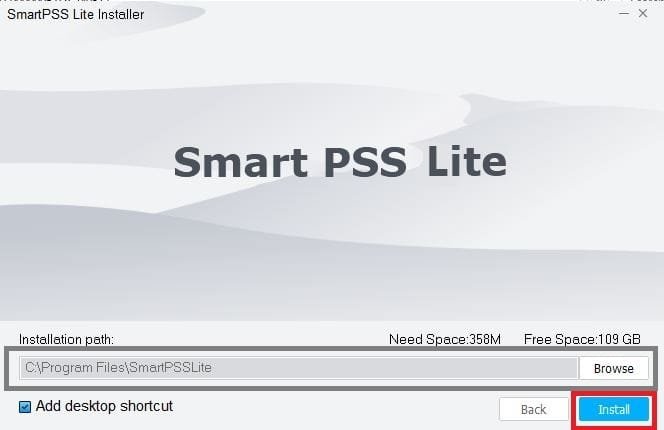
Select the folder location. Make sure that the folder doesn’t contain any other files. Give the installation path where it has to install all the contents.
Then press the ‘Install’ button. The application file will begin to load on the screen.

The installation process is going on. It takes a few minutes to complete the process.
When it finishes the installation, we get a new notification window.
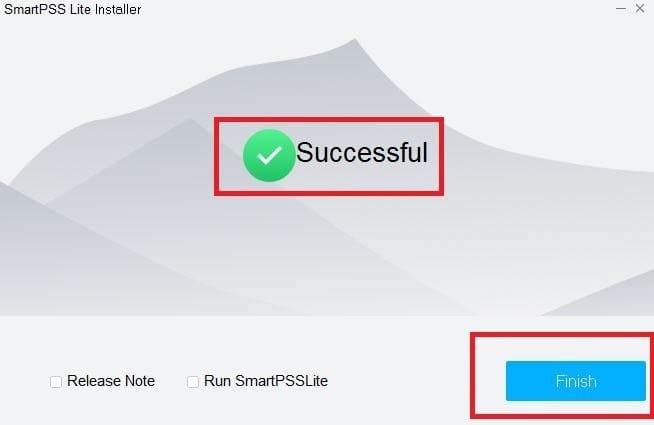
The page indicates that the software is installed successfully.
Now, we move to the next window. It is about logging in to the SmartPSS App.
Step 2- Log in to the CMS
When we open the installed app, we get this page.
It shows the multiple devices this application can operate.
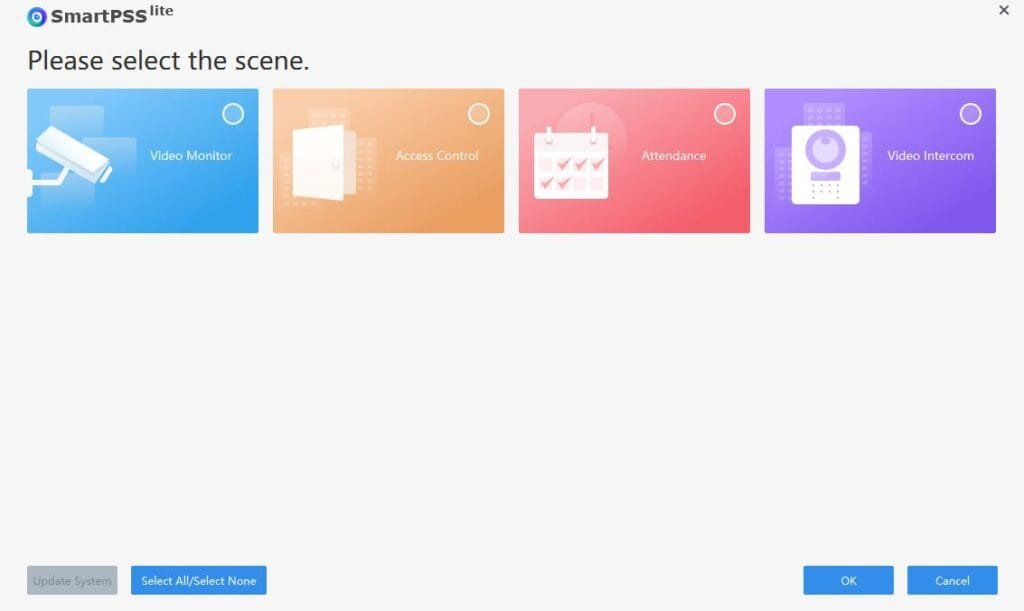
In our case here, we have to set up the app for security surveillance configuration.
Select the ‘Video Monitor’ option.
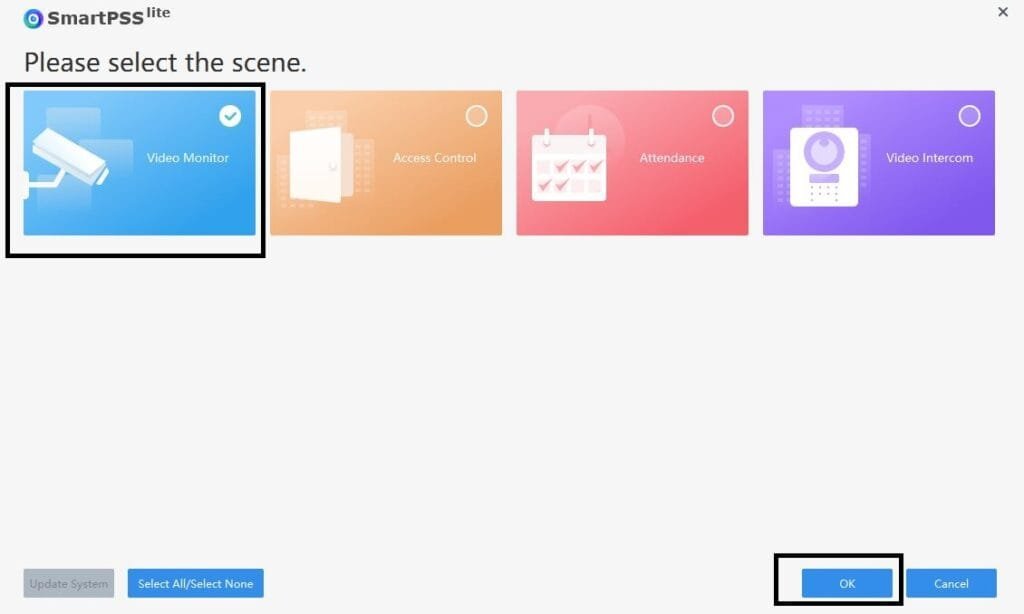
After selecting the Video Monitor tab, press the ok button.
We get the software license agreement page.

Tick the box and then press the agree button for the next step.
We get the app privacy policy page on the screen.
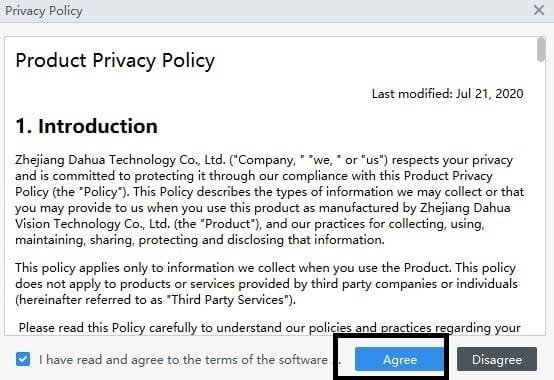
Tick the box and press the Agree button.
We get the password creation page.

Create a strong password. After that, click the Next button.
This is a question-and-answer page for password recreation.

These questions are useful in case you forget the password. Press the Complete button.
The login page appears on the screen.

Enter the credentials. It automatically takes the IP address of the network.
The account is created, and you are logged in to the CMS App.
Now, we go to the next step. This step is for device addition.
Step 3- Add CCTV Cameras for Remote Surveillance
Now, we get to this page after logging in.
It shows the software features.
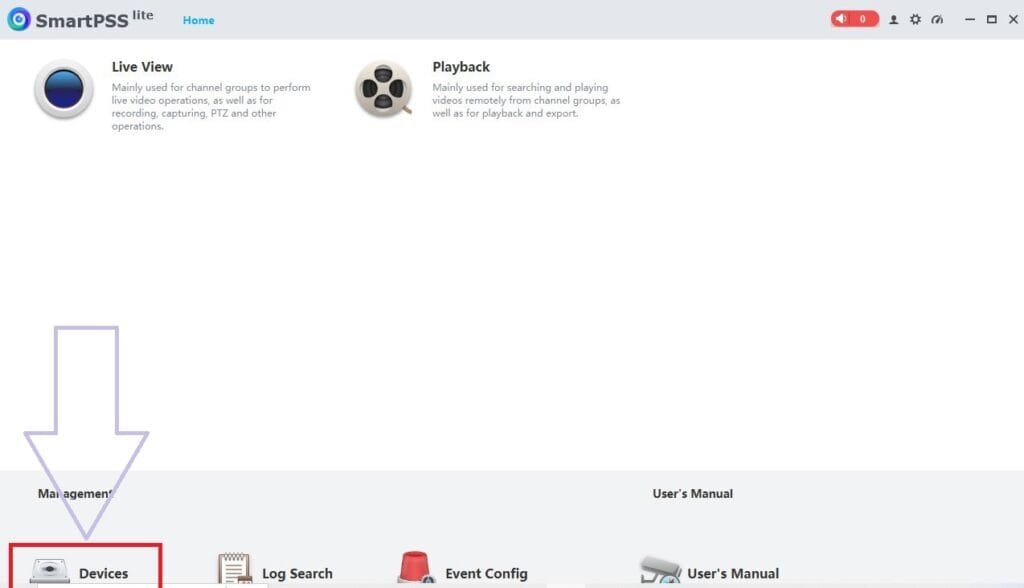
We have to add devices. Press the ‘Devices’ option.
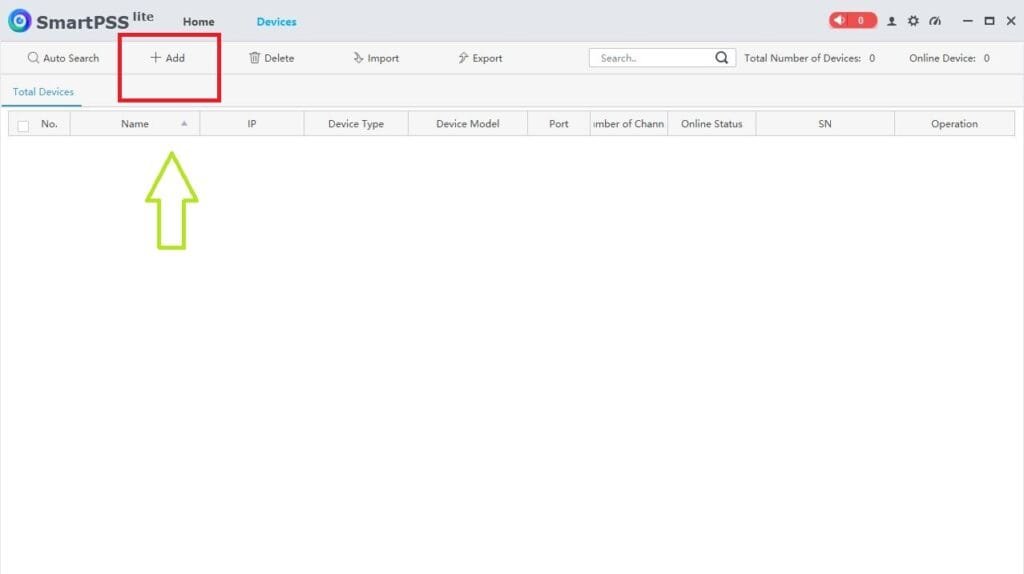
This page appears on the screen.
Now, we have to add cameras.
Press the ‘+Add’ tab to add devices.
The following page surfaces on the screen.

On this page, we have to enter device details.
This way, we add security cameras. We can add as many cameras as required into SmartPSS Lite for PC. You can add your device into SmartPSS via your local IP address(find Dahua IP) or via serial number. To learn how to add a Dahua device into DMSS.
Press Live View to get the camera on a Windows screen.
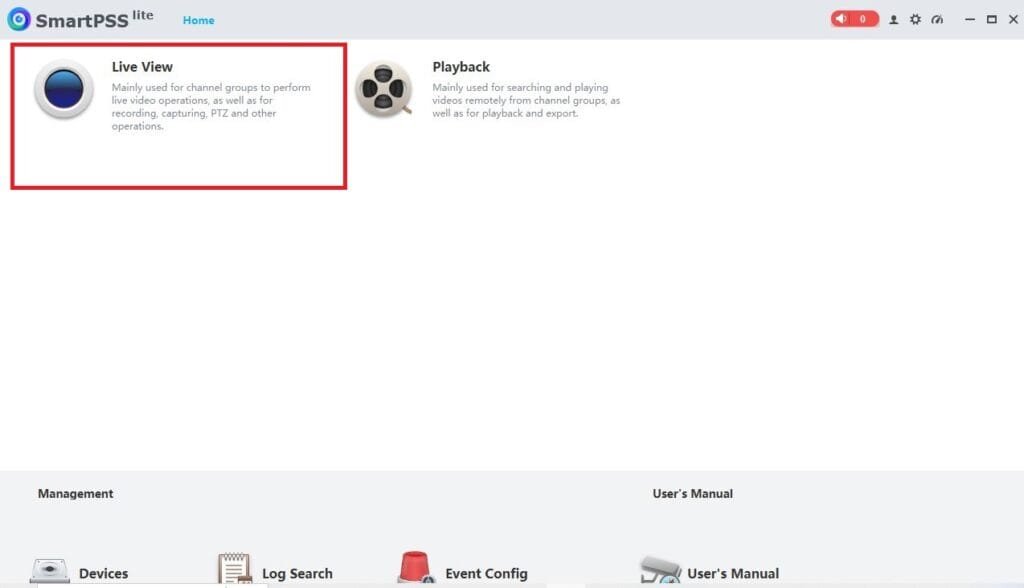
This way, devices appear on the screen in SmartPSS Lite for PC.
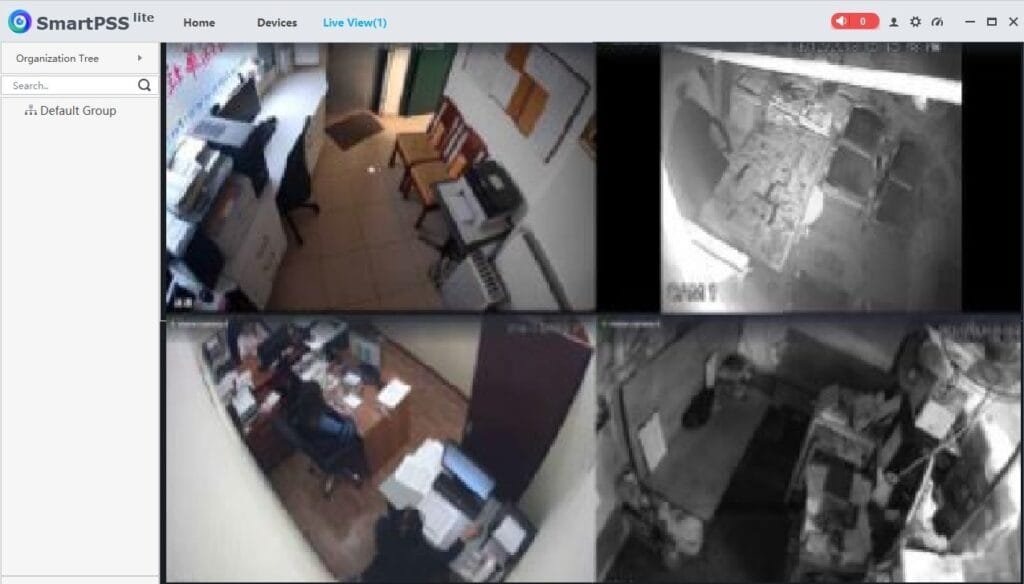
Devices appear on the screen. This way, you can add devices and view them from remote areas on the screen.
How to Playback and Watch Video Feeds from Remote Locations?
If you want to watch playbacks, you have to click the “Playback” option.

You will see the following page on the screen. Here, select the camera or cameras you want to watch the playback, enter the date and time of the video clip, and then select the search option.
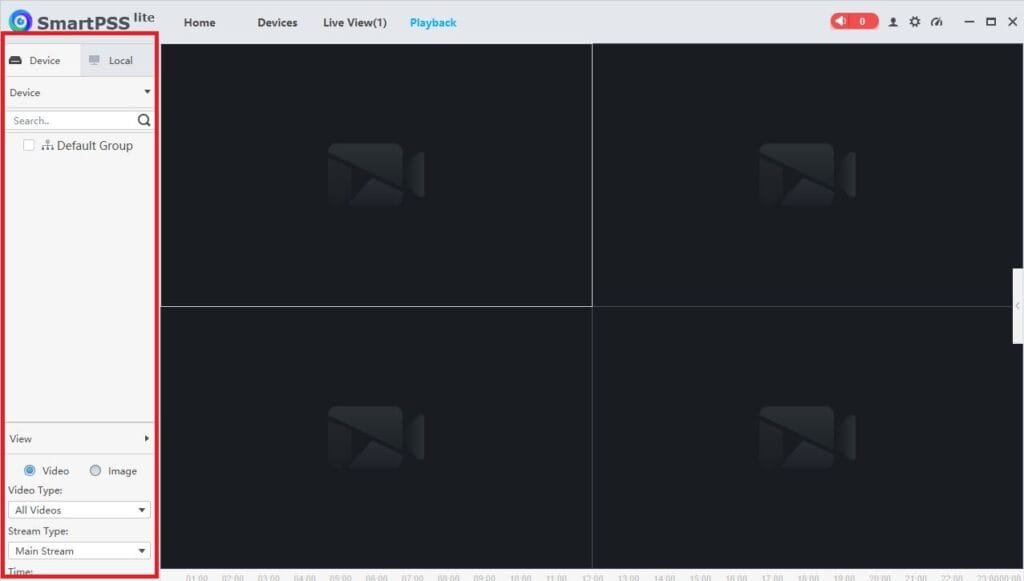
This way, we will watch playback through the app on a Windows device.
Common Errors & Quick Fixes
| Error | Fix |
|---|---|
| Dahua camera keeps going offline | Check PoE power, LAN cable, and switch port. |
| Camera disconnects randomly | Assign a unique static IP and check for IP conflicts. |
| NVR shows camera offline | Re-add the camera manually with the correct IP and login details. |
| DMSS shows device offline | Check P2P, gateway settings, and internet connection. |
| Camera keeps restarting | Check the PoE power supply, cable, and firmware. |
For detailed troubleshooting steps, you can also check our guide on Dahua IP Camera Keeps Going Offline – 8 Fixing Steps
Conclusion
SmartPSS Lite for PC is described here. The download button is shared for Windows OS, and the installation process is illustrated. The sign-in to the app and the device addition steps are elaborated.
Images and step-by-step instructions are provided for better understanding of the process. The guide also shows how to check playback and watch the desired video clips.
Kindly share your opinions and queries, if any. We answer all queries. Your opinions matter to us; you matter to us.
Thank You.
What is SmartPSS Lite For PC?
SmartPSS Lite is a simplified version of the SmartPSS software. This application is designed for managing and monitoring Dahua security devices like IP cameras, NVRs, and DVRs from a PC.
What are the system requirements for SmartPSS Lite?
The minimum system requirements are Windows 7/8/10/11, a dual-core processor, 2GB RAM, and 500MB of free disk space.
How can I download SmartPSS Lite?
To download SmartPSS Lite from CCTVDesk, open the SmartPSS Lite for PC download page and click the download button provided for Windows. You will then be taken through the secure download process. After the download is available, save the setup file on your PC
How do I install SmartPSS Lite?
Download the installation file from our website, run the installer, and follow the on-screen instructions. You can also get this application on other third-party websites.
How do I add a device to SmartPSS Lite?
Open SmartPSS Lite, go to “Devices,” click “Add,” and enter the device’s IP address, port, username, and password.
Is SmartPSS Lite free to use?
Yes, SmartPSS Lite is free software provided by Dahua for managing their security devices. It is absolutely free to use. However, if you want to store data on the cloud server, you have to take a subscription plan for that.
Can I view the live video on SmartPSS Lite?
Yes, you can view live video from connected cameras by going to the “Live View” tab.
How many cameras can I manage with SmartPSS Lite?
SmartPSS Lite supports up to 256 channels, depending on your system’s resources.
Does SmartPSS Lite support remote access?
Yes, as long as your devices are configured with remote access capabilities, you can manage and monitor them remotely using SmartPSS Lite.
What should I do if SmartPSS Lite is not connecting to my device?
Check the device’s IP address. Ensure it is on the same network, verify login credentials, and make sure the device is online. If you still face issues, call the support team.
Can I receive notifications on SmartPSS Lite for PC?
Yes, you can configure alarm notifications in the “Alarm” settings, including motion detection and more.
