
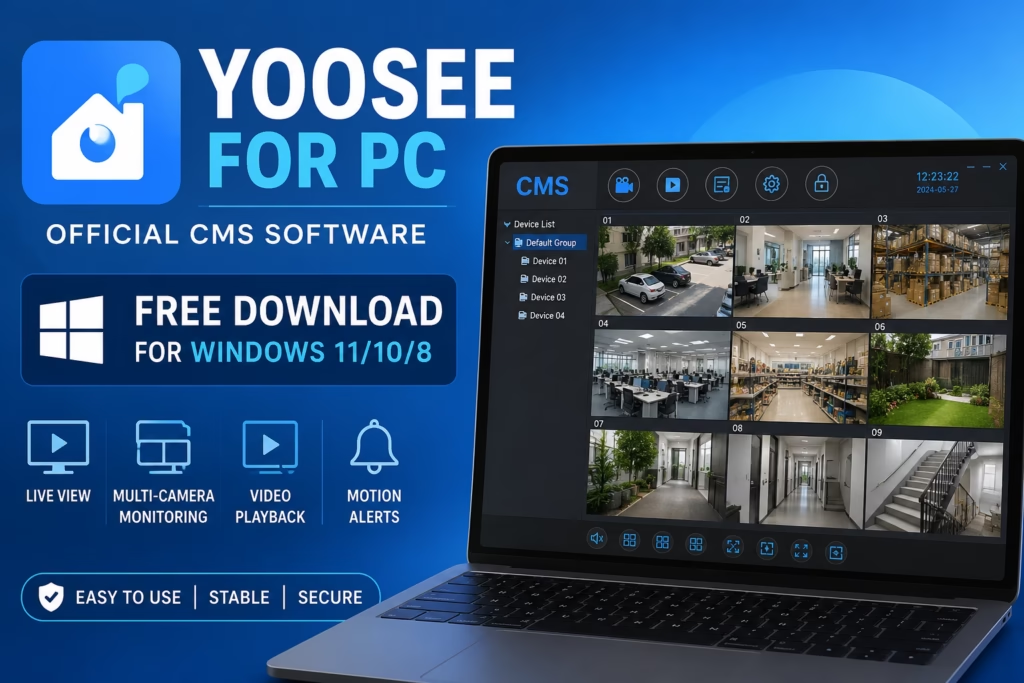
Yoosee for PC is a security app that brings your Yoosee camera feeds straight to your computer screen. Since it’s the official software developed by Yoosee for their users, it’s completely reliable. With this tool, you can easily monitor multiple CCTV cameras all at once from a single desktop dashboard.
It gives you a wider, much more compatible view, making monitoring a breeze. Plus, it’s not just for watching live feeds—the software also lets you fully manage and operate your cameras. We’ve broken down its best features below, which should come in handy for setting up your system
Unlike many guides that recommend Android emulators, this article focuses on the official Yoosee PC software for Windows, providing a more stable and reliable solution.
There are two versions available for Windows. The first is for devices with a 10-digit ID, and the second is for older or different models with an 8-digit ID (or fewer). Just check your device ID and grab the right version using the download buttons below.
You can rest assured that every file we provide for download is 100% safe. We run thorough security scans on everything before uploading it. Plus, we personally test the software across multiple systems beforehand and only ever share the official CMS files.
Why Use Yoosee on a PC?
Although the Yoosee mobile app works well, using the desktop CMS provides several advantages.
- Watch live camera feeds on a larger display.
- Manage multiple security cameras simultaneously.
- Easily configure camera settings.
- Review recorded footage more comfortably.
- Better control using a keyboard and mouse.
- Suitable for home and business surveillance.
We’ve put together a step-by-step installation guide below, along with a walkthrough on exactly how to use it.
About Yoosee for PC
Before we dive in, let’s quickly look at the software specs so you can get a better idea of what it offers.
| Feature | Details |
|---|---|
| Software Name | Yoosee for PC |
| Version | v1.0.0.14 |
| Developer | Yoosee |
| File Size | 136.27 MB |
| File Format | ZIP |
| Category | CCTV Monitoring Software |
| Compatibility | Windows 11, Windows 10, Windows 8 |
| License | Free |
| Mobile App | Yoosee |
System Requirements
Before downloading Yoosee for PC, make sure your computer meets these basic requirements.
- Windows 11, Windows 10, or Windows 8
- Intel or AMD Processor
- Minimum 2 GB RAM
- At least 500 MB free storage
- Stable internet connection
- Mouse and keyboard
Key Features of Yoosee for PC
- Live Camera Viewing – Watch your connected cameras in real time with smooth video streaming on a larger PC screen for a clearer viewing experience.
- Multi-Camera Monitoring – View and manage multiple Yoosee cameras simultaneously from a single dashboard, making it ideal for homes, offices, shops, warehouses, and schools.
- Remote Device Management – Configure camera settings, check device status, and manage your cameras remotely without requiring physical access.
- Video Playback – Access recorded footage anytime and quickly search recordings by date and time to review important events.
- Motion Detection Alerts – Receive instant motion alerts so you can monitor suspicious activity and respond quickly.
- Snapshot and Recording – Capture screenshots or record live video directly from the CMS software for future reference.
- Device Configuration – Easily adjust Wi-Fi settings, video resolution, storage options, passwords, and other camera preferences.
- User-Friendly Interface – Navigate the official Yoosee CMS with an intuitive interface designed for both beginners and experienced users.
Yoosee For Mac
There is no CMS software available for the Yoosee app to load and install on Mac PCs. But if you want to run your CCTV cameras on your MAC PC then there is a solution.
For viewing CCTV cameras on your MAC PC you need to use an emulator program that allows you to run any mobile application on your MAC PC.
Configuration of Yoosee On Windows 7/8/10/11
Now, let’s move on to the installation and setup. First, unzip the file you just downloaded. Once that’s done, right-click on the installer and select ‘Run as administrator.’ When the system asks for permission to install, just click ‘Yes.’ From here, just follow the simple steps outlined below.
1. Step – Installation of Yoosee PC
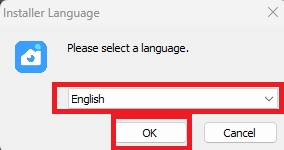
You will get the first display screen of the installation process of Yoosee. You’ll see a screen like this, where you just need to select your language and click ‘OK.
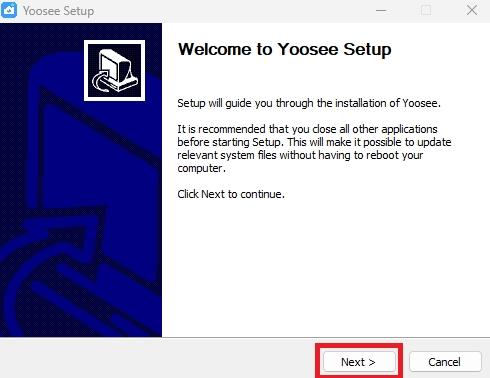
Next, you’ll be greeted by the welcome screen. All you have to do here is click ‘Next’.
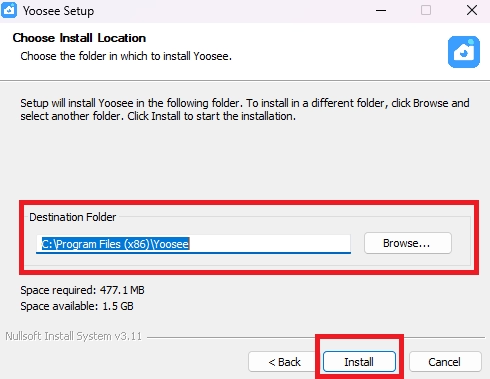
Next up is the destination folder screen. If you want to change where the software gets installed, you can do that here—otherwise, just leave it as the default and click ‘Install’ to keep going.
“The installation is now underway. Just give it a few moments to finish up.
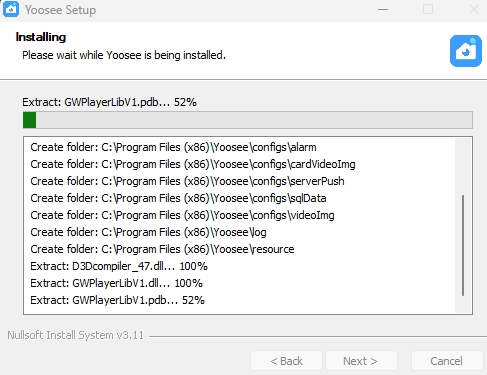
After that, check the box to run Yoosee software on your PC and then click on the “Finish” button.
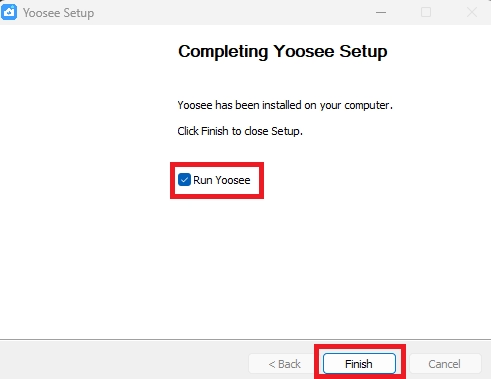
Now the installation process is finished and you need to move to the next step for the configuration of the Yoosee app.
2. Step – Login to the Yoosee PC
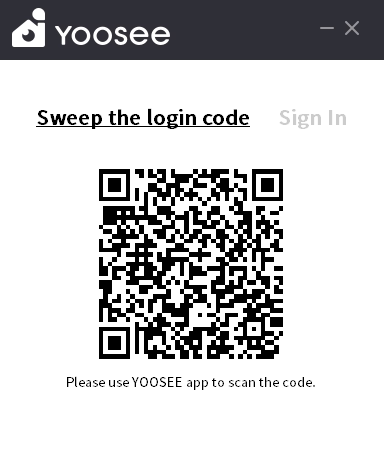
“Once the installation wraps up, you’ll see this login screen. You’ve got two ways to sign in: you can either use the Yoosee app on your phone to quickly scan the QR code, or you can just enter your credentials manually using the standard login option..
3. Step – Live View on Yoosee
After logging in to Yoosee for Windows, you can see the live view of your camera on your PC.
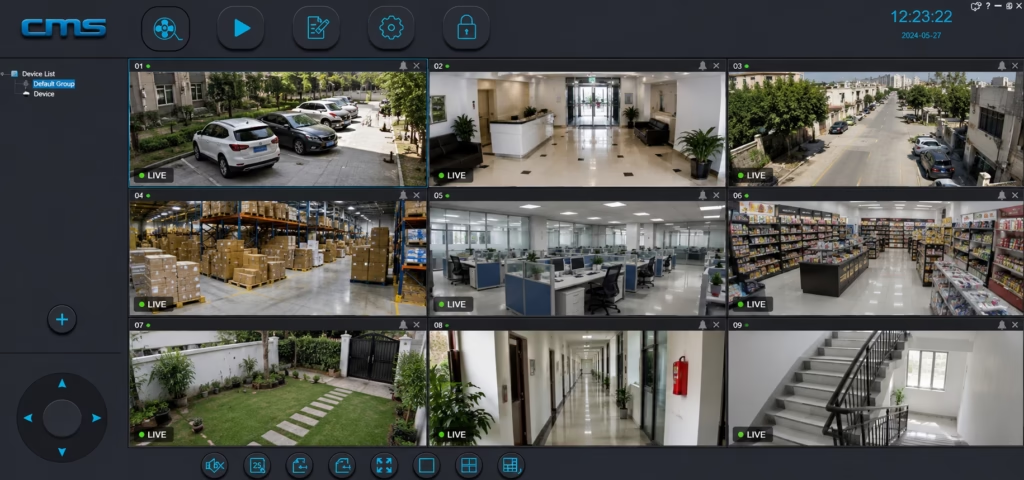
Here you can see your added device name beneath the device listing on the left side. Right-click on the device name, and then you can discover the option named “start monitoring”. Now you can see your camera on your laptop using this app.
Testing Notes
- Software Tested: Official Yoosee CMS for Windows
- Operating Systems: Windows 11, Windows 10, and Windows 8
- Installation Status: Successfully installed and launched.
- Features Verified: Live camera viewing, multi-camera monitoring, video playback, snapshots, motion alerts, and device management.
- Connection Test: Cameras connected successfully using Device ID and login credentials.
- Performance: Smooth live streaming with a stable internet connection.
- Recommendation: Download the latest version of the official Yoosee CMS for the best performance and security.
Conclusion
Yoosee for PC is a reliable solution for monitoring your security cameras from a Windows computer. With the official CMS software, you can watch live video, manage multiple cameras, review recordings, and configure device settings from one convenient dashboard. If you’re looking for an easy way to monitor your home or business surveillance system on a larger screen, Yoosee CMS is a great choice.
So that is all about “Yoosee for Windows”. we are hoping this information will be useful to you. If you have any queries, please feel free to write to us in the comment box. thanks for visiting us. Have a pleasing day.
Thank You.
What is Yoosee CMS?
This Central Monitoring System is a surveillance app. It manages and monitors locations on PCs from remote areas. The IP surveillance software connects you to your property and people.
How can I download Yoosee CMS?
You can download it from the official website or other trusted CCTV App websites.
How do I add a camera to Yoosee CMS?
Launch Yoosee CMS. Click “Add Device”. Enter the camera’s Device ID, username, and password. Click “Save” to connect the camera.
Can I view my cameras remotely using Yoosee CMS?
Yes, as long as your cameras are connected to the internet and properly configured with Yoosee CMS, you can access them remotely.
How do I resolve Yoosee CMS login issues?
Ensure you are using the correct username and password. Reset your password if necessary. Check your internet connection. Reinstall the software if the issue persists.

Heeft u ook een update naar windows 11
NO DEAR PETER.
it shows on my laptop the courtyard but it shows a locked lock no pic but on my phone working
Execuse me,
I need a help. There is no written “Device RTSP password“ in may Yoosee ip cam’s manuel. Because of this reason i couln’t Login to the Yoosee for Windows.
I will be grateful if you can help with this.
Best regarsd.
For RTSP password please watch this video
https://www.youtube.com/watch?v=cC7oxB06g9w
Hello dear admin, I have 2 yoosee cameras. One of it device id number 8 digits, the other one device id number 10 digits. I can not use the same cms client software for both of them. 8 digits > version v 1.0.0.5 , 10 digits > 1.00.00.54 … So I have 2 cms software installed on my pc. Is there any way to use 1 software for both of them ? ( not mentioning the app emulators like bluestacks , nox player .. etc). Thank you very much.
The simplest solution for this is to update the firmware of the camera which has 8 Digit device Id.
ok, and how can i update the firmware?
sudah ditambahkan perangkat tetapi di layarnya ada gambar kunci… sehingga tidak ada gambarnya…mohon bantuannya
Ask in english
Hello, I have 36 cameras installed, they are 10 bit, Yoosee on the pc is always freezing. Any tips to help me solve the problem? Thank you very much
To resolve freezing issues with the Yoosee application on your PC when using multiple 10-bit cameras, follow these steps:
Ensure your PC meets the system requirements for running Yoosee with multiple cameras.
Update the Yoosee application to the latest version.
Reduce the number of cameras being displayed simultaneously to alleviate strain on system resources.
Adjust camera settings, such as video quality and frame rate, to lessen the processing load.
Optimize network bandwidth by reducing camera streaming quality or using a dedicated network for the cameras.
Close unnecessary applications running in the background to free up system resources.
Contact Yoosee support if the freezing issues persist for further assistance.
By following these steps, you can optimize performance and address freezing problems when using the Yoosee application with multiple 10-bit cameras on your PC. Please Like, Share and Subscribe.
How to use CMS Software with 10 bits CCTV.
Using CMS software with 10-bit CCTV for Yoosee on a PC might be challenging due to compatibility issues. Check if your CMS supports 10-bit video, update the software, and contact Yoosee support. If compatibility remains a problem, consider alternative software.
Hello!
Is there any alternative software for Yoosee?
Yes, Sricam For Pc.
i have 22 yoosee camera come with 8 digit. I am using CMS Client to view on PC, but the problem is i only can view 6 cctv, the remains is blank..how to fix it
It seems you’re facing an issue with the Yoosee software for PC when trying to view your 22 Yoosee cameras. Here’s a concise solution:
Camera Limit: Yoosee software might have a limit on simultaneous camera views. Check software documentation or settings to confirm.
Software Update: Make sure you’re using the latest version of Yoosee software. Updates might resolve compatibility or viewing issues.
Camera Grouping: If available, try grouping cameras in sets of 6 or fewer. This might help you view more cameras at once.
PC Performance: Ensure your PC meets requirements and has enough resources (CPU, RAM) to handle multiple camera streams.
Contact Support: If issue persists, contact Yoosee support for specific guidance on optimizing camera viewing on PC.
Arsh,
I use yoosee in a virtual machine (VM) in the cloud. I use the 10-bit one because it records in MP4 and I already make backups to OneDrive.
The recordings are made, but it is not possible to see them in real time. Another detail of the 10bits software is that it doesn’t have any configurations of the 8bits version, like recording time for each file! Is there a solution for this?
If you are using the Yoosee software in a virtual machine (VM) in the cloud, and you are facing issues with real-time viewing and missing configuration options like recording time for each file in the 10-bit version, here are some steps you can take to address these concerns:
Real-Time Viewing Issue:
Check your internet connection: Ensure that your VM has a stable and high-speed internet connection to allow for real-time streaming.
VM resources: Verify that your VM has enough resources (CPU, RAM, etc.) allocated to it. Insufficient resources can lead to lag and buffering during real-time viewing.
Firewall and network settings: Review your VM’s firewall and network settings to make sure they are not blocking the real-time video stream. You may need to configure the firewall to allow Yoosee’s traffic.
Recording Time for Each File (Configuration Issue):
Limited settings in the 10-bit version: If the 10-bit version of Yoosee does not provide the configuration options you need, it’s possible that this version has limited settings compared to the 8-bit version. Unfortunately, if the software lacks these settings, there may not be a direct solution within the software itself.
Consider the 8-bit version: If you require specific configuration options, you might consider using the 8-bit version of Yoosee if it meets your needs, even if it records in a different format. This version may offer more flexibility in settings.
Contact Yoosee Support:
Reach out to Yoosee’s customer support or technical support for assistance. They may be able to provide guidance on any available updates or alternative solutions for your specific use case.
Ask if there are any plans to enhance the configuration options in the 10-bit version in future updates.
Alternative Recording Solutions:
If Yoosee does not meet your requirements, you might explore alternative video recording and surveillance software that offers the specific settings and features you need. There are many third-party options available that can be tailored to your requirements.
Remember that using cloud-based VMs for video surveillance may have its limitations, including network latency and resource availability, which can impact real-time viewing. It’s essential to choose software and settings that best suit your surveillance needs and the capabilities of your VM.
I have a yoosee smart camera. I can connect it by my mobile, after registering. However, I would like to use it on my PC just in home LAN. I tried the CMS software, however it does not see the camera (with email login). I also tried to login as admin without password. The software seems to work but no camera appears. I tried manual setting of the camera, but even then it does not connect.
What could be the problem?
Hi Gyula
If you’re having trouble connecting your Yoosee smart camera to your PC using the CMS (Central Management Software), here are some steps you can follow to troubleshoot the issue:
1. Ensure both PC and camera are on the same LAN.
2. Check IP address and subnet.
3. Temporarily disable firewall and antivirus.
4. Configure camera for LAN access.
5. Add the camera manually using its IP address.
6. Use correct camera login credentials.
7. Consider a factory reset if the issue persists.
8. Contact Yoosee support if needed.
Please help me
I like this software very very much.