
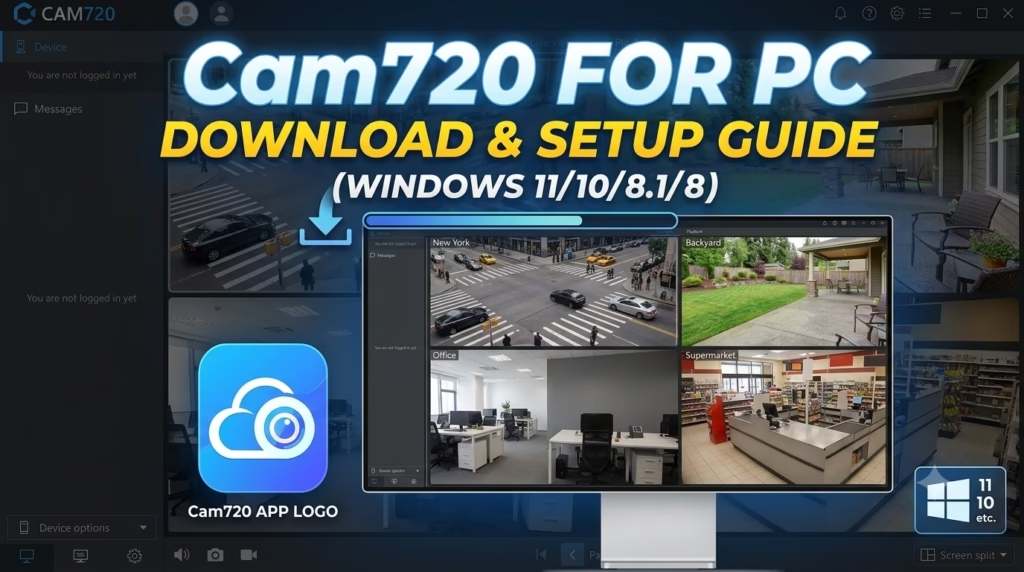
Connecting Cam720 cameras to a computer can be a real hassle, but we’ve got you covered with a solid solution. Cam720 for PC is software designed to bring your camera feeds straight to the big screen, letting you monitor everything live on your computer. Plus, this is the official, fully updated version of the Cam720 software, so you can count on it to work smoothly.
In this guide, we’ll walk you through the step-by-step installation process and show you exactly how to configure your cameras. We’ll also dive into its best features so you can easily manage and monitor your live feeds like a pro.
First things first, go ahead and click the button below to download it onto your system. It’s completely safe and secure—we’ve personally tested it across multiple computers and run thorough security scans to make sure it’s good to go.
So, first things first—let’s actually break down what this software is all about.
What is Cam720 For PC?
We won’t bore you with a long explanation, so let’s keep it brief: if you’ve been watching your Cam720 security cameras on your phone, this software is the exact same thing, just built for your computer. It links your cameras to your PC for seamless live monitoring, while giving you full control over features like PTZ tracking, image and user settings, local or playback recording, snapshots, and more.
In short, this Windows CMS allows you to watch live video, manage multiple cameras, play recorded footage, and change camera settings from your computer.
Key Features of Cam720 for PC
While it’s packed with a ton of features, we’ve only highlighted the most useful ones here.
- Live Camera Viewing – Watch your security cameras in real time with smooth video streaming directly from your Windows PC.
- Multiple Camera Management – Manage and monitor multiple cameras from a single dashboard without switching between devices.
- Remote Monitoring – Access your connected cameras over the internet and keep an eye on your home or business from anywhere.
- Video Playback – Review recorded footage whenever you need to check past events.
- Motion Detection Alerts – Receive notifications when motion is detected, helping you respond quickly to important events.
- Device Management – Add, edit, or remove cameras and change basic settings through the CMS software.
- User-Friendly Interface – The software offers a simple layout that makes camera management easy, even for beginners.
About Cam720 for PC
| Feature | Details |
|---|---|
| Software Name | Cam720 CMS |
| Version | v1.0.0.4 |
| File Size | 90.5 MB |
| File Format | ZIP |
| Developer | Cam720 |
| Category | CCTV Monitoring Software |
| Operating System | Windows 11, 10, 8.1, 8 |
| License | Free |
| Purpose | Live View, Playback & Camera Management |
| Mobile App | Cam720 |
System Requirements
Before installing Cam720 CMS, make sure your computer meets these basic requirements.
- Windows 11, 10, 8.1, or 8
- Intel or AMD Dual-Core Processor
- 4 GB RAM or higher
- At least 300 MB of free storage
- Stable internet connection
- Mouse and keyboard
How to Install Cam720 CMS on Windows
Let’s jump right into the installation. First, take the file you just downloaded and unzip it on your system. Next, right-click the setup file and select Run as administrator. When the system asks for permission to install, just click Yes.
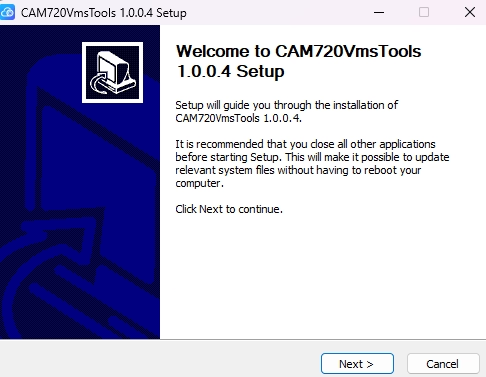
The screen that pops up will look just like this. From here, all you need to do is click Next to keep moving forward.
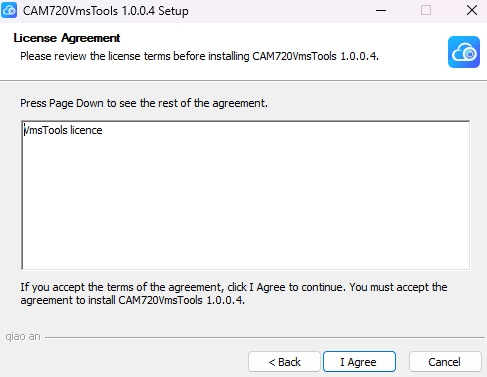
Next, you’ll see this screen. Just review the license agreement and click Agree to proceed.
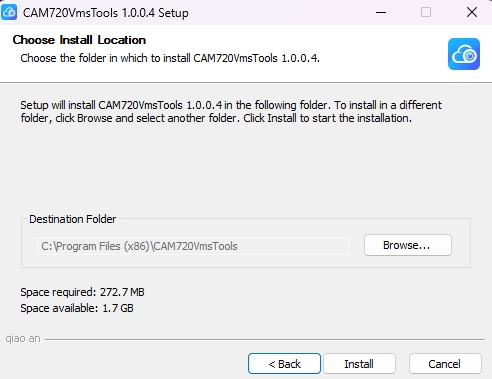
If you want, you can change the installation directory from here. Once you’re set, just click Install, and the process will kick off.
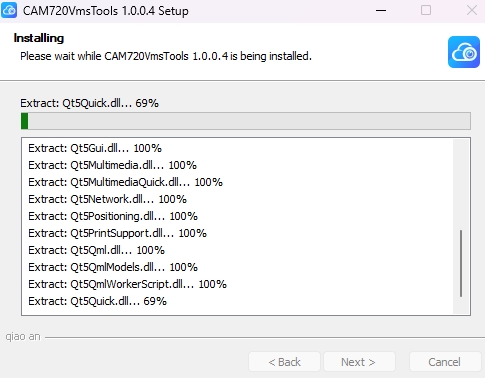
The installation is now underway. Just kick back and wait a few moments for it to finish up.
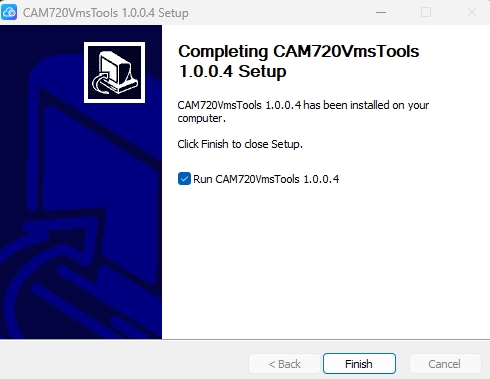
Now that the installation is complete, just click Finish and the software will launch right up.
How to Set Up Cam720 Cameras
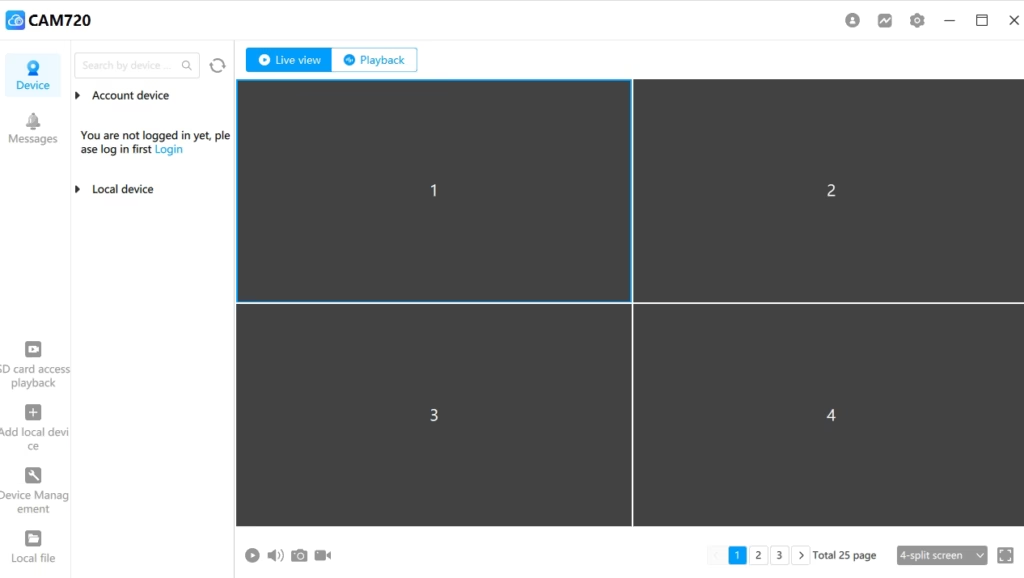
Once you’re in, you’ll see the software’s main dashboard. All you need to do now is log in using your camera’s account credentials. As soon as you’re logged in, you can start monitoring your live camera feeds right away.
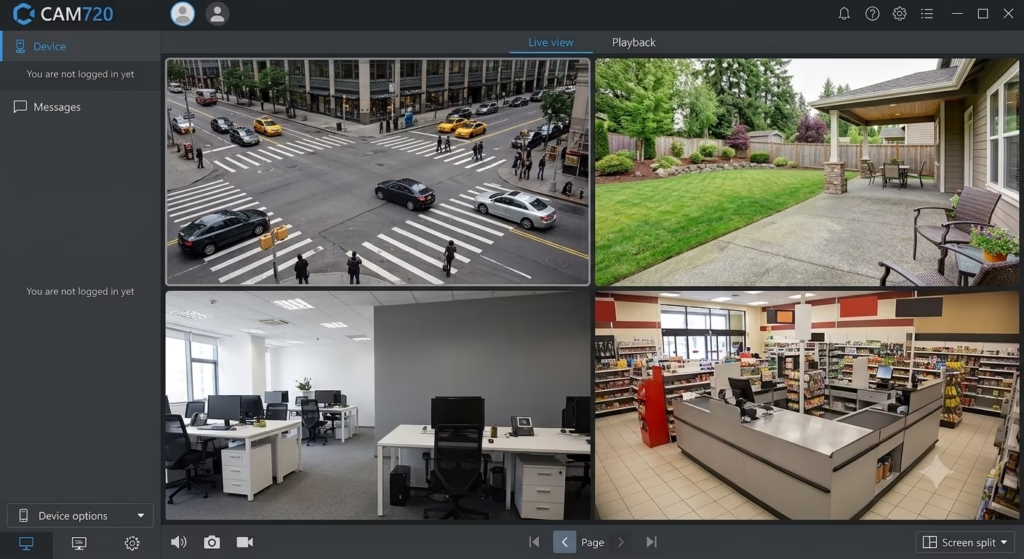
Now you’re all set to monitor your cameras’ live views!
Testing Notes
- Tested on Windows 11 and Windows 10.
- Installation completed successfully using the latest Cam720 CMS.
- Camera setup verified on a local network.
- Live View, Playback, and Device Management features tested successfully.
Final Words
Cam720 for PC makes it much easier to monitor your security cameras on a larger screen. Whether you’re managing a home security system or monitoring a workplace, the Windows CMS provides live viewing, playback, and device management in one place.
Follow the installation and setup steps in this guide, and you’ll be ready to monitor your cameras within a few minutes.
FAQs
Is Cam720 for PC free?
Yes. The Cam720 CMS software is available free for Windows users.
Can I watch multiple cameras at the same time?
Yes. The CMS supports monitoring multiple cameras from one screen.
Does Cam720 support remote viewing?
Yes. After proper configuration, you can remotely access your cameras through the CMS.
Can I play recorded videos?
Yes. The software includes a playback feature for reviewing recorded footage.
