
Speco Blue VMS is video management software designed to help users monitor and manage compatible CCTV cameras and recording devices from a Windows computer. It provides a central interface for live camera viewing, device management, recorded video playback, video backup, and other surveillance management functions.
If you want to use Speco Blue VMS on a desktop or laptop, you can download Speco Blue VMS Lite for Windows using the official download link provided below.
This guide explains how to download and install the software, complete the initial login, add a Speco recorder or camera, configure live viewing, and access recorded footage. It follows the instructions in Speco’s official version 2.1.4 user manual.
Speco Blue VMS for Windows – Software Information
| Information | Details |
|---|---|
| Software name | Speco Blue VMS Lite |
| Software category | Video Management Software (VMS) |
| Platform | Windows |
| Package architecture | 64-bit |
| Package version | 2.1.4.60205 |
| Developer | Speco Technologies |
| Installation format | ZIP archive containing installer |
| Default username | admin |
| Default password | 1234 |
| Official manual | Version 2.1.4 |
Download Speco Blue VMS Lite for Windows
You can obtain the Windows installation package from Speco’s official download endpoint.
Download information:
- Software: Speco Blue VMS Lite
- Package: SpecoBlueVMSLitex64Ver2.1.4.60205.zip
- Architecture: 64-bit
Download Speco Blue VMS Lite for Windows – Official Download
Read the Official Speco Blue VMS Lite User Manual (PDF)
The supplied package is a compressed ZIP file. After downloading it, extract the archive and locate the Windows installer before proceeding.
Note: Speco’s download service may use a temporary download URL. If the supplied link stops working, visit the Speco Technologies website and locate Speco Blue VMS under its management software section.
What Is Speco Blue VMS Software for PC?
Speco Blue VMS Lite is a desktop video management platform that brings supported surveillance devices into one management interface.
Instead of opening separate interfaces for different recorders, users can organize connected devices and access their camera channels from the Windows client.
The software includes several important surveillance management functions.
1. Live Camera Monitoring
The Video Preview module lets you view live video from connected cameras. You can arrange individual camera channels into a viewing layout and select different screen arrangements.
It also provides viewing controls and options for managing camera streams.
2. Centralized Device Management
The Resource Management section allows you to add, edit, and remove supported devices. You can organize recorders and cameras into different areas to make a larger installation easier to manage.
3. Recorded Video Playback
The Record Playback section lets you search and play footage stored on supported recorders, device storage, or the configured storage server.
You can select cameras, dates, and recording times to locate the required footage.
4. Video Backup and Export
The playback interface includes backup controls. You can select a recording interval on the timeline and send the selected footage to the record backup section.
5. Alarm Management
The platform provides alarm configuration and alarm linkage options. Depending on the connected device and its configuration, you can manage alarm-related recording and view alarm information.
6. E-Map and Device Organization
The E-Map module lets you manage maps and monitoring points. This can help organize larger surveillance installations where cameras are distributed across different locations.
7. Advanced Search and Analytics
The software includes additional functions such as smart snapshot retrieval, face comparison, license plate comparison, and target counting. These features depend on compatible cameras, recorders, and the required analytics capabilities.
System Requirements for Speco Blue VMS
Before installing Speco Blue VMS Lite, check whether your computer meets the requirements.
Speco’s documentation lists the following recommended hardware configuration for the Windows PC environment.
| Component | Recommended configuration |
|---|---|
| Processor | Intel Core i5-7500, 3.0 GHz or above |
| RAM | 16 GB |
| Storage | 500 GB or 1 TB SATA, depending on configuration |
| Network | Gigabit network interface |
| Graphics | AMD HD6570 512 MB GDDR5 or above, as listed in the manual |
| Operating system | Windows 10 |
The detailed manual also lists Windows 7 SP1 64-bit Professional/Ultimate and Windows 10 64-bit editions for the 64-bit configuration.
For a new installation, Windows 10 64-bit is the safer documented choice for this package. The supplied installer is x64, so it should not be treated as a 32-bit application.
Important: The actual hardware requirement can vary with the number of connected cameras, video resolution, stream selection, and simultaneous playback workload. A computer running several high-resolution camera streams may need more processing and graphics resources.
How to Install Speco Blue VMS on Windows
Follow these steps to install Speco Blue VMS Lite on your computer.
Step 1: Download the Windows Installation Package
Open the official Speco download link provided in this article.
Download the ZIP archive to your computer. Wait until the download finishes before opening the file.
Step 2: Extract the ZIP File
Locate the downloaded Speco Blue VMS ZIP archive in your Downloads folder.
Right-click the file and select Extract All or use your preferred ZIP extraction utility.
Open the extracted folder and locate the Speco Blue VMS Lite x64 installer.
Step 3: Start the Installer
Double-click the Speco Blue VMS Lite x64 installer.
Windows may display a User Account Control confirmation. Review the publisher information and proceed only if the installer is the official package you downloaded.
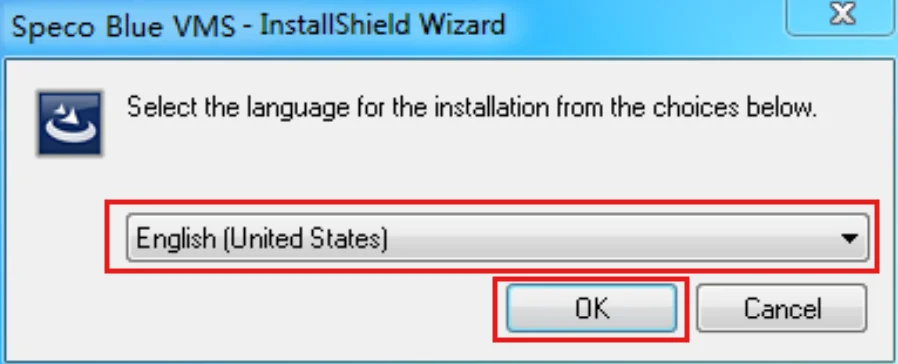
The installation wizard will open and ask you to select the interface language.
Choose your preferred language and continue.
Step 4: Accept the License Agreement
Read the license agreement displayed by the installer.
Select the option to accept the terms and click Next to continue.
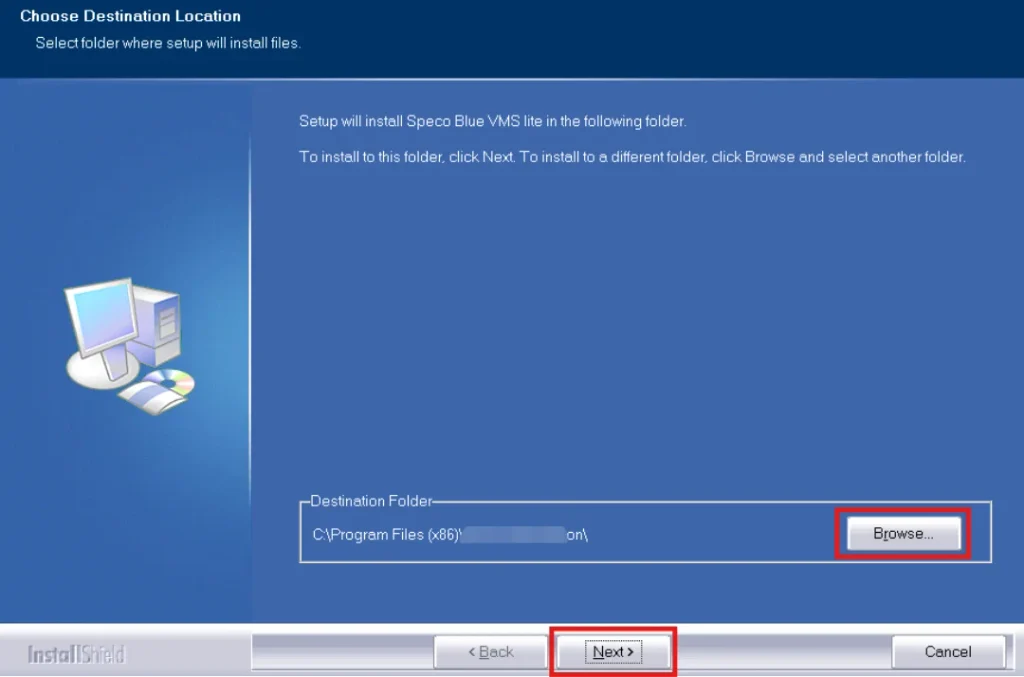
If the installer asks you to choose an installation directory, review the default destination. You can retain the suggested location unless you have a specific reason to change it.
Step 5: Complete the Installation
Allow the installer to copy the required program files.
When the installation wizard reaches its completion screen, keep Launch Software selected if you want to open the application immediately.
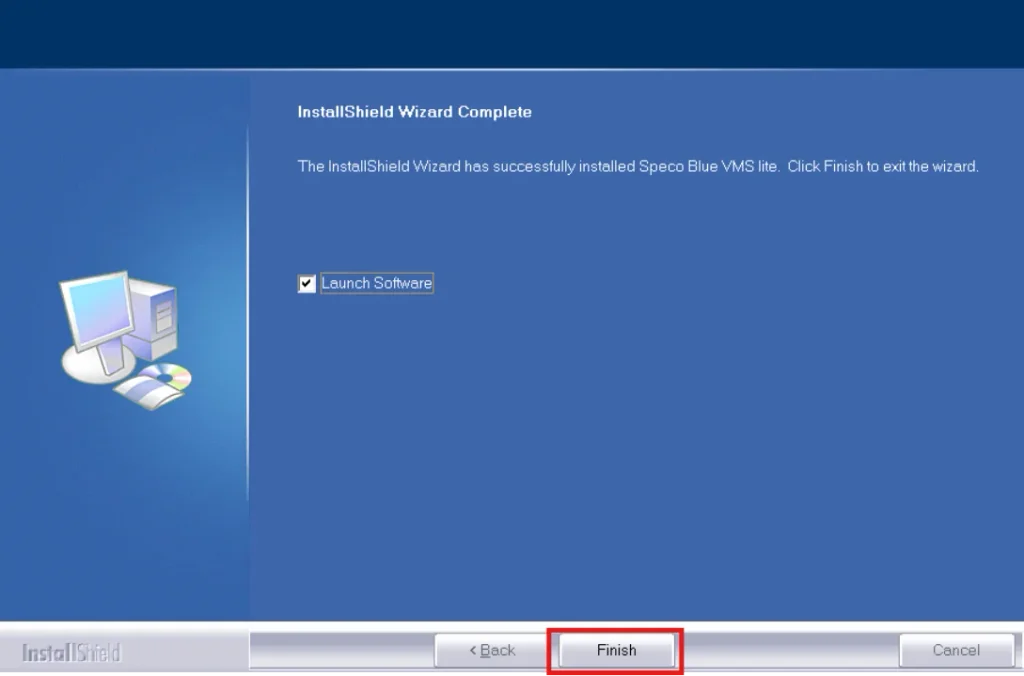
Click Finish.
The software should now be available on your Windows computer.
How to Log In to Speco Blue VMS Lite
After installation, launch the Monitor Client from the desktop shortcut or the Windows Start menu.
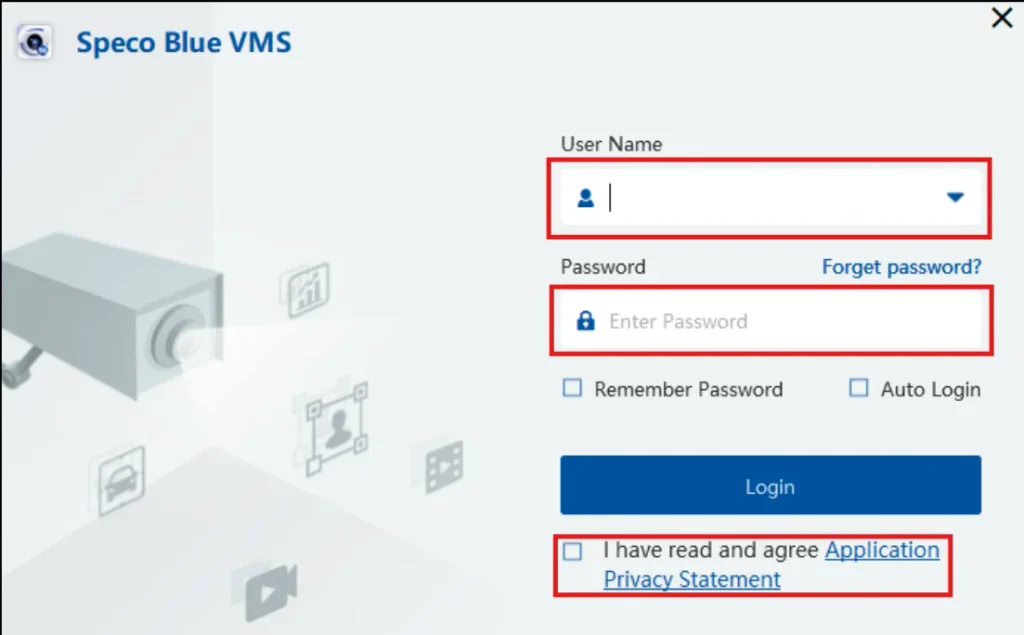
The initial login screen asks for a username and password.
Use the following factory login credentials for the first login:
| Login field | Default value |
|---|---|
| Username | admin |
| Password | 1234 |
Enter the credentials and select the Application Privacy Statement agreement if prompted. Click Login.
Change the Default Password
On the first login, the software prompts you to change the default password.
Create a new password and save it securely. Do not continue using the factory password for routine operation.
Configure Security Questions
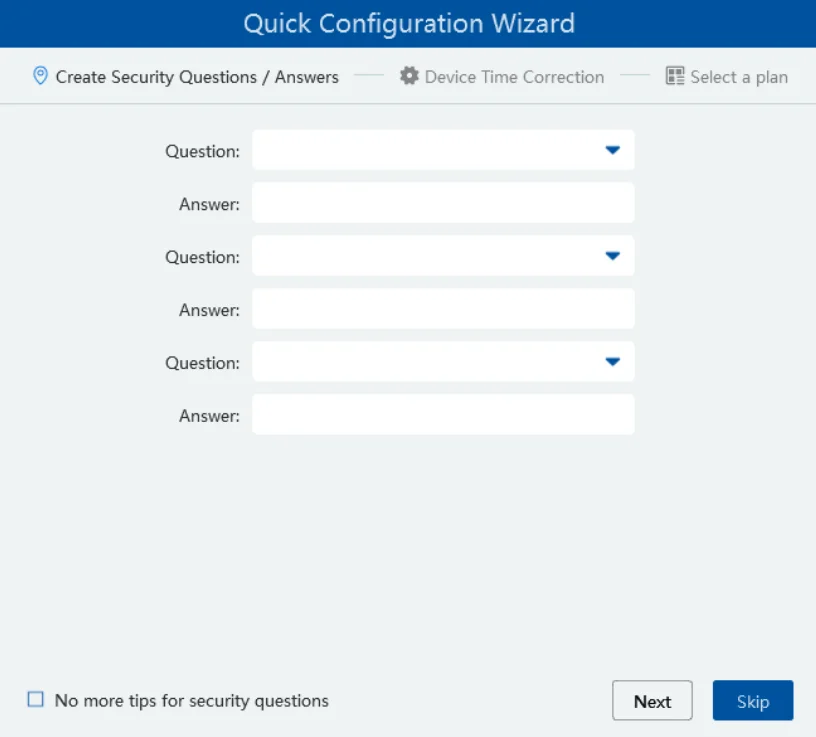
The initial setup wizard also provides an option to create security questions and answers.
These questions can help with password recovery later.
Choose the available questions and enter answers that you can remember. Keep the answers somewhere secure.
Configure Device Time Correction
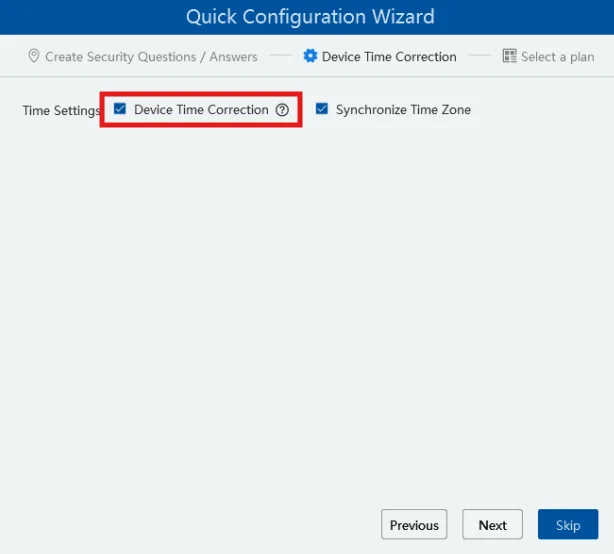
The next part of the wizard provides a Device Time Correction option.
This function helps synchronize the time settings of connected devices with the platform.
Review the time-zone settings and use the synchronization option when required.
Continue through the wizard and click Finish when the configuration is complete.
The application may also display a recording partition configuration window. Do not select a recording partition unless you have reviewed the storage requirements and intend to configure the PC as a storage destination.
How to Add a Speco Camera or NVR to Blue VMS
After completing the initial setup, the next step is to register your surveillance devices.
Speco Blue VMS provides different device addition methods. The appropriate method depends on whether the recorder is on the same local network or needs to be accessed remotely.
Before starting, make sure:
- The camera or recorder is powered on.
- The network connection is working.
- You have the correct device username and password.
- The recorder is accessible through the required network connection.
Method 1: Quickly Add Devices on the Local Network
Quick Add is useful when your Speco device and Windows computer are connected to the same local network.
Follow these steps:
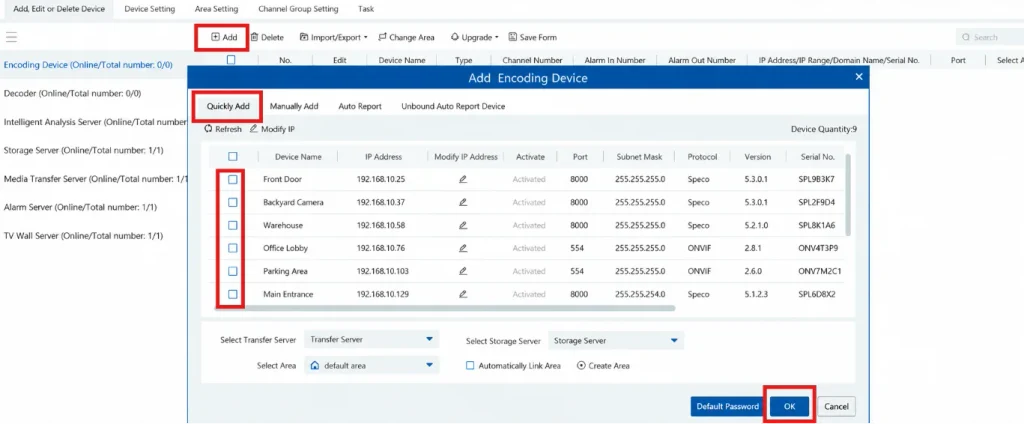
- Open the Speco Blue VMS main interface.
- Select Resource Management.
- Open Add, Edit or Delete Device.
- Click Add.
- Select the Quickly Add tab.
- Click Refresh to search for available devices.
- Select the required camera or recorder from the discovered-device list.
- Assign the appropriate transfer server, storage server, and area.
- Click OK to complete the addition.
The application searches for devices on the same local network. Devices that are not discoverable through this method may need to be added manually.
Method 2: Manually Add a Device Using Its IP Address
If the recorder does not appear in the Quick Add list, you can use the manual addition option.
This method is useful when you already know the device’s IP address and login credentials.
Follow these steps:
- Open Resource Management.
- Select Add, Edit or Delete Device.
- Click Add.
- Open the Manually Add tab.
- Enter the device IP address or domain name.
- Enter the device username and password.
- Select the appropriate protocol.
- Click Test to check the connection.
- Select the required transfer server, storage server, and area.
- Click OK to save the device.
The manual also supports adding an IP range for batch device addition.
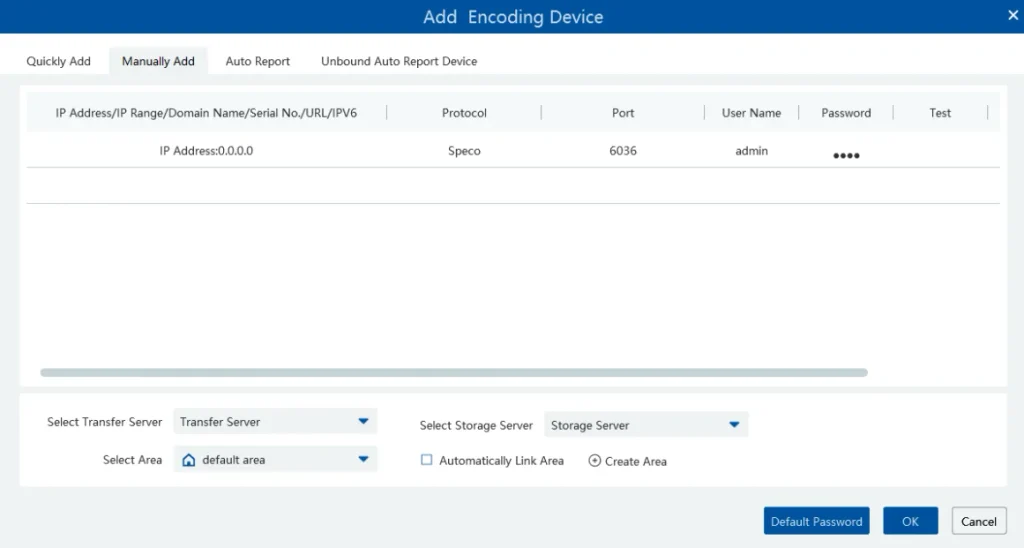
If the connection test fails, check the IP address, network connectivity, credentials, and selected protocol before trying again.
Method 3: Add a Recorder Using Its Serial Number or NAT QR Code
For remote device access, Speco’s Lite Quick Start Guide describes using the serial number and NAT QR code method.
This is different from local-network discovery.
To use this method:
- Open Resource Management.
- Select Add.
- Open the Manually Add section.
- Change the device identification method to Serial No.
- Enter the required serial number or scan/use the recorder’s NAT QR code as supported by the interface.
- Enter the device login details.
- Click Test if the interface provides the connection test.
- Save the device after the connection is successful.
The recorder must have the relevant remote access/NAT configuration enabled. A QR code alone does not guarantee that a recorder is reachable.
How to Organize Cameras into Different Areas
If you manage multiple recorders or surveillance locations, organizing devices into areas makes the camera list easier to navigate.
Speco Blue VMS provides Area Settings for this purpose.
Follow these steps:
- Open Resource Management.
- Select Area Settings.
- Click Add.
- Enter an appropriate area name.
- Select a parent area if required.
- Save the new area.
- Return to Add, Edit or Delete Device.
- Edit the required recorder.
- Select the appropriate area from the Select Area option.
- Save the changes.
You can create separate areas for different buildings, floors, offices, or monitoring locations.

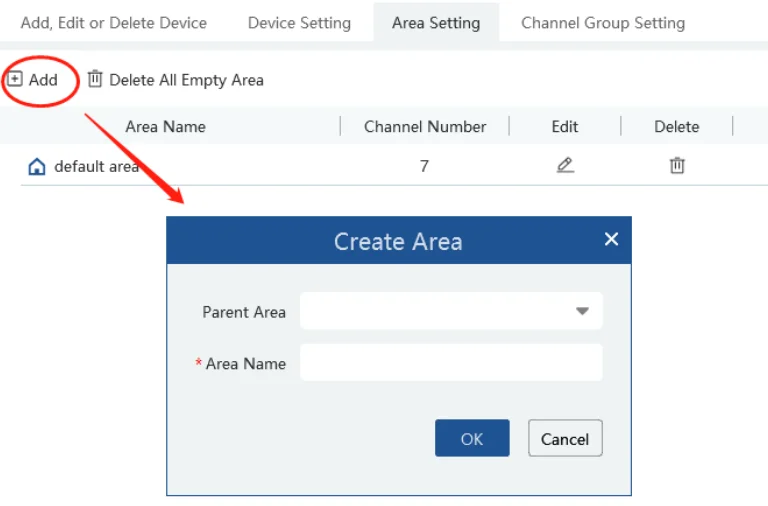
Image 11 – Area Settings and camera organization
How to View Live CCTV Cameras on Speco Blue VMS
After adding the recorder successfully, you can access its camera channels through the Video Preview module.
Here’s how:
- Open the main interface.
- Select Video Preview.
- Locate the connected recorder or camera channels in the resource tree.
- Drag the required camera channel into an available preview window.
- Repeat the process to display additional cameras.
- Select the required screen layout using the viewing controls.
The application allows you to arrange camera channels into different viewing layouts.
You can also save a configured layout so that you can use the same camera arrangement later.
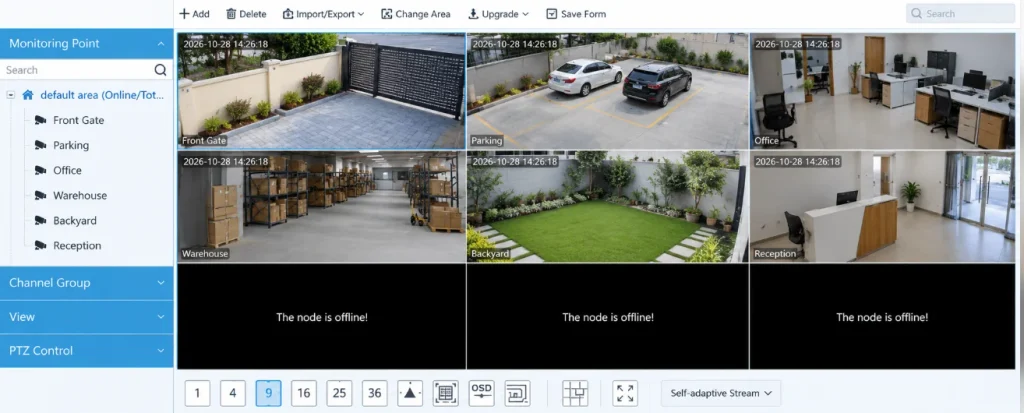
Select the Appropriate Video Stream
Speco Blue VMS Lite provides different viewing stream options.
The official quick start guide describes the following choices:
- Self-Adaptive View: The recommended default viewing mode.
- Sub / Third Stream: Useful for reducing computer resource usage when the PC has limited processing capacity.
- Mainstream: Suitable when the computer has sufficient hardware resources for higher-quality viewing.
The actual stream availability depends on the connected camera or recorder.
If the live video is slow or the computer becomes overloaded, trying a lower stream may help reduce the workload.
How to Play Recorded Videos on Speco Blue VMS
The Record Playback module lets you access footage stored on supported devices or the configured storage server.
To find a recording:
- Open the main menu.
- Select Record Playback.
- Choose the required camera channels.
- Select the playback source.
- Set the recording date and time.
- Click Search to locate the available recordings.
- Select the required recording and click Play.
The timeline displays available recorded footage.
You can use the playback controls to pause, resume, rewind, change playback speed, and move through the recording.
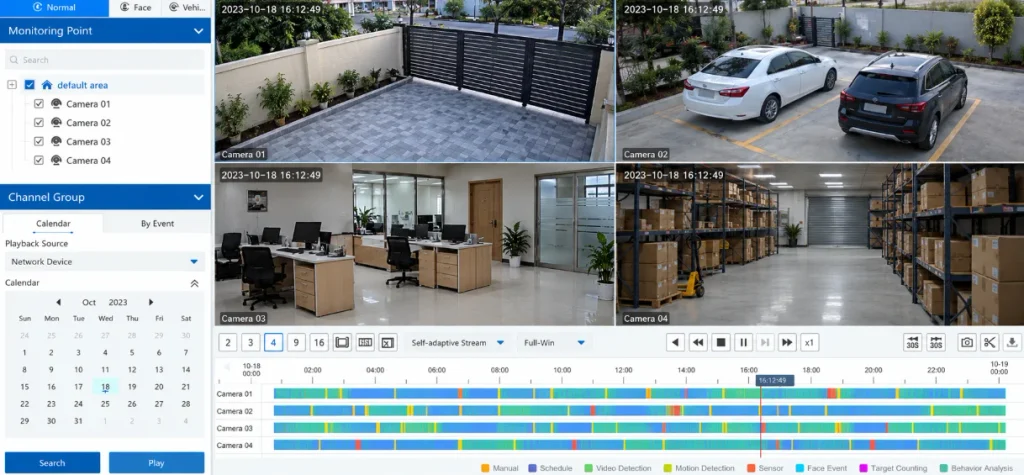
Synchronous and Asynchronous Playback
The software supports two playback modes.
Synchronous Playback: Selected camera channels play recordings using the same timeline. This is useful when you need to compare events from multiple cameras at the same time.
Asynchronous Playback: Different camera channels can be played at different times. This is useful when you need to inspect separate events independently.
Choose the playback mode according to your requirements.
How to Backup and Export CCTV Footage
Speco Blue VMS includes recording backup controls that allow you to save selected footage.
To export a recording:
- Open Record Playback.
- Select the camera and required recording date.
- Search for the available footage.
- Locate the required time interval on the playback timeline.
- Use the backup-time controls to mark the beginning and end of the required footage.
- Click the backup option.
- Open the Record Backup section to check the backup file list and progress.
The actual available export formats and recording sources can depend on the connected recorder and software configuration.
Speco Blue VMS Troubleshooting
If Speco Blue VMS does not work as expected, check the following points before reinstalling the application.
1. Device Is Not Appearing in the Software
If a camera or recorder does not appear in the device list:
- Confirm that the device is powered on.
- Check the network connection.
- Make sure the Windows PC and device can communicate over the network.
- Click Refresh in Quickly Add.
- Try Manually Add if automatic discovery does not find the device.
- Check the selected device area and server assignments.
2. Device Shows Offline
If the recorder appears offline after login, check its IP address and network connection.
Also verify that the media transfer server is running. Speco’s manual specifically identifies the media transfer server status as one of the checks when device information is missing or a device appears offline.
Check the user account permissions as well. An operator account may not have permission to view all devices.
3. Login Is Not Working
If you cannot log in:
- Check the username and password.
- Remember that the initial password must be changed.
- Use the password recovery option if security questions were configured.
- If the recovery questions were not configured, follow Speco’s dynamic-password recovery procedure through its technical support team.
Do not repeatedly try random passwords.
4. Live Video Is Not Displaying
If the device is connected but live video does not appear:
- Check the camera’s online status.
- Verify that the selected channel is correct.
- Check the media transfer server.
- Confirm that the account has the required viewing permissions.
- Try switching between the available video streams.
5. Recorded Video Is Not Playing
If the playback window does not display recordings:
- Check whether footage exists for the selected date and time.
- Verify that the storage server is online.
- Confirm that the selected playback source is correct.
- Check whether your user account has playback permissions.
These checks are consistent with the troubleshooting section of Speco’s official manual.
Frequently Asked Questions
Is Speco Blue VMS available for Windows?
Yes. Speco provides Speco Blue VMS Lite for Windows. The download supplied in this guide is the 64-bit Windows installation package.
Is Speco Blue VMS Lite free to download?
Speco provides a Windows download through its official download service. Check the manufacturer’s current terms and licensing conditions for your intended use.
What is the default username and password for Speco Blue VMS?
The initial login credentials documented by Speco are:
Username: admin
Password: 1234
You are prompted to change the default password during the initial setup.
Can I add a recorder using its IP address?
Yes. Use the Manually Add option and enter the recorder’s IP address, username, password, and appropriate protocol. The Test option can be used to check the connection before saving the device.
Can I add a recorder remotely?
Yes. The Speco Blue VMS Lite Quick Start Guide describes adding a recorder through its serial number and NAT QR code method. The recorder must have the required remote access configuration.
Can I watch multiple cameras simultaneously?
Yes. The Video Preview module supports multiple camera channels in different viewing layouts. The number of usable streams depends on the PC hardware and connected devices.
Does Speco Blue VMS support recorded video playback?
Yes. Its Record Playback module can access recordings stored on supported devices and the configured storage server.
Does Speco Blue VMS support Windows 11?
The supplied documentation identifies Windows 10 as a recommended environment but does not establish official Windows 11 compatibility for this package. Compatibility should therefore be confirmed with Speco before relying on Windows 11 deployment.
Final Verdict
Speco Blue VMS Lite is a useful Windows-based video management solution for users who want to organize compatible Speco surveillance devices, monitor live camera feeds, search recorded footage, and manage video backups from one interface.
Its device management, live preview, playback, alarm, and recording features make it suitable for installations that need more than a basic camera-discovery utility.
If you are using a compatible Speco recorder or camera system, download the official Windows package and follow the installation and configuration steps explained above.
For additional technical information, refer to the official Speco Blue VMS Lite User Manual.
If you also manage surveillance systems from other manufacturers, you can explore our guides to EasyVMS for PC, iVMS-4500 for PC, and GeoVision GV-VMS. These guides cover different video management platforms and their Windows installation procedures.
