

We are going to learn in detail about the MI Home Security Camera App Windows and MAC versions.
In this post:
- How to Download this app
- App Running on MAC OS
- Logging Into the CMS
- Adding Cameras to software
- Obtain LiveView of your cameras
MI as one of the leading brands in the market has been providing the best quality of home security solutions in the global market.
Here we will learn how to install and set up the MI Security Cameras on a PC. The installation process is simple and easy for a Windows user.
To understand how the CCTV cameras can be connected with the MI Home Security Camera.
What is MI Home Security Camera App Software?
This is one of the best CCTV software ever developed by Xiaomi Company for control and monitoring MI Home Camera 360 CCTV cameras. This CMS provides many good functions and features to administer your CCTV cameras from remote locations.
Features of MI Home Security Camera Application

Let us now explore some of the best functions and features of this software. With these features, we will get a glimpse of how might the app serve your needs in security solutions. The features of the MI Home Security Camera App are as follows:-
- Provide access at remote locations.
- Able to connect on WiFi/3G/4G network without any connectivity issue.
- Provides multi-language support.
- Record video on PC.
- Provides playback of recorded video.
Get MI CCTV Camera Software Windows Version
Xiaomi Company has provided the MI Camera App for Windows to download. Here is the free download link of this CMS The downloaded file is in compressed format. You have to extract the file by using an extracting tool.
MI Camera App (MAC OS)
It is very regretful that Xiaomi Company has not provided any software for Mac clients.
As we know CMS is available for Windows OS users. In this case, we will not disappoint the Mac OS clients but in this situation, we will use software known as emulator software. With an emulator, you can now connect your MI camera to a MAC computer.
Uses of the Software
As we have discussed already this helps you to connect and get a live view from MI Security Camera to your computer. This software is developed and provided by the Xiaomi Company to its clients. This is one of the best CCTV software for CCTV surveillance.
1. Method # MI Home Security Camera App on a Windows PC
Get the download by clicking on the download link provided to you above. The downloaded file will be in compressed format.
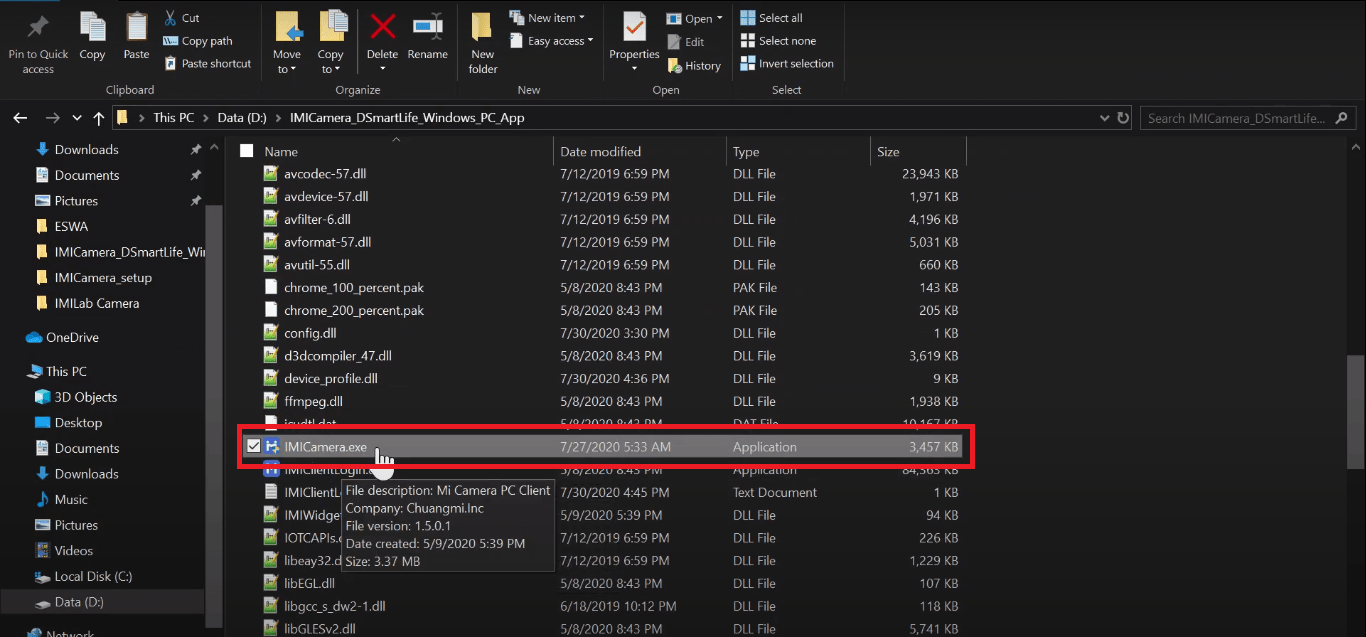
You can extract the folder using WinRAR or some other software. After extracting the software just open the folder and double-click on the “IMICamera.exe”.
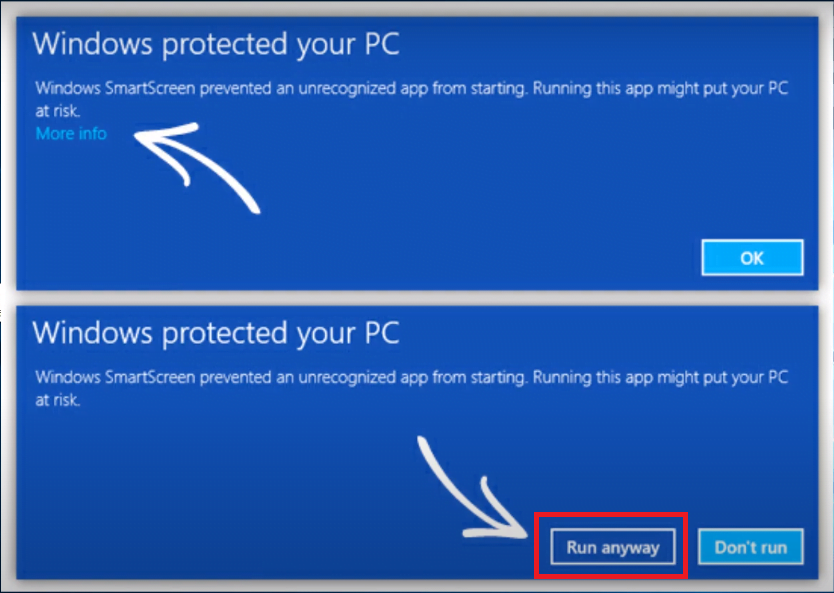
A window alert screen will as shown below. Just click on the “Run Anyway” button to start.
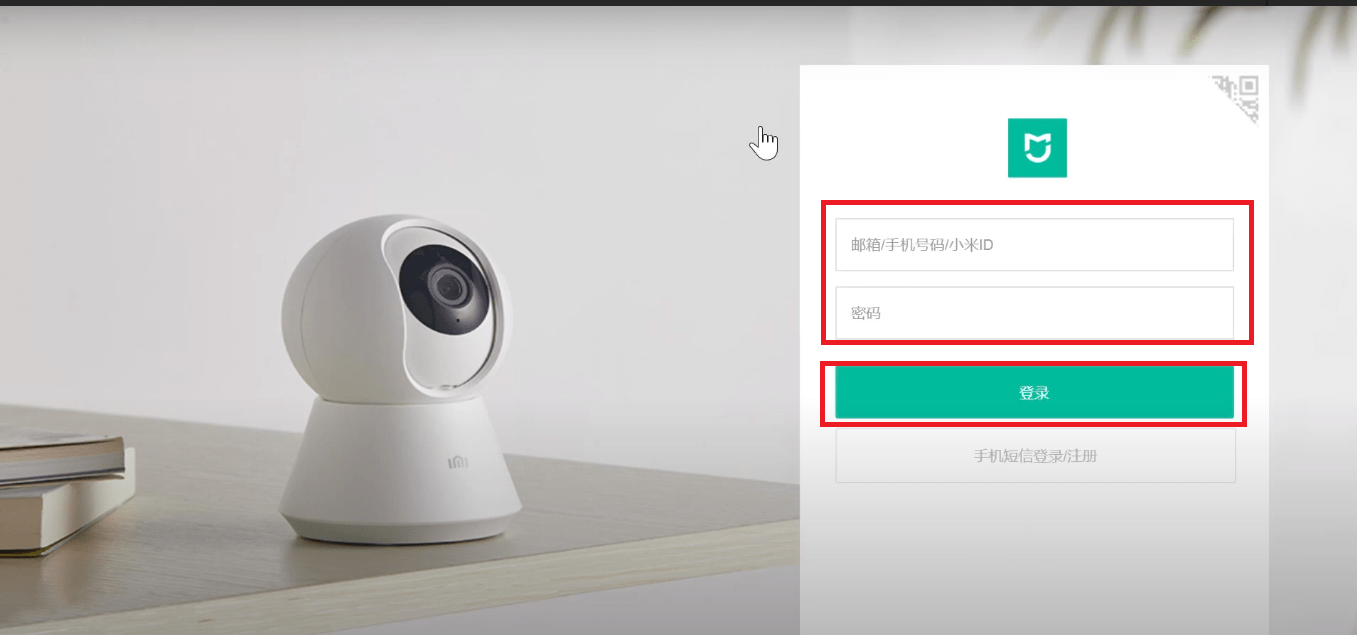
Now the login panel will appear where you must enter the mobile number or email ID with which you have created an account to connect the device on your smartphone and also the password.
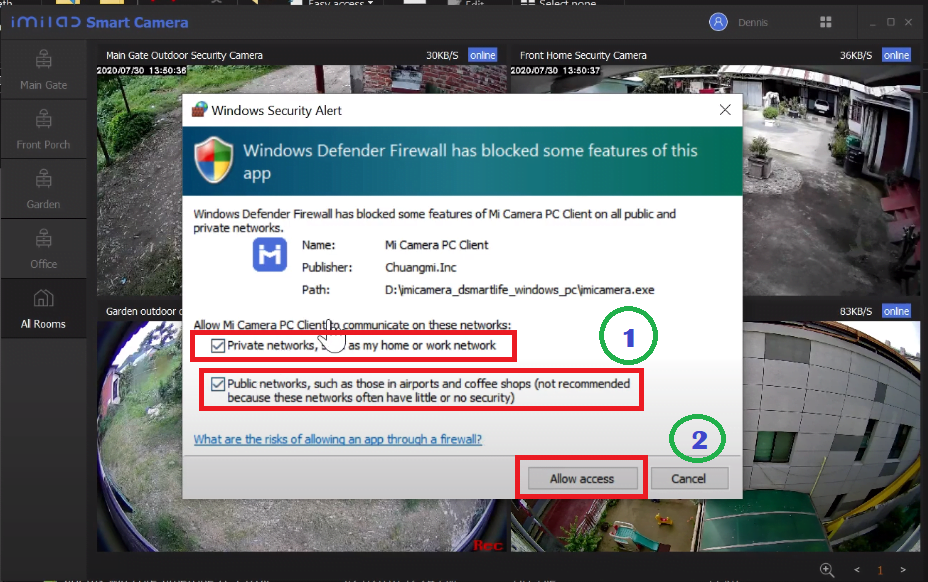
Now a window firewall security screen pops up just allow access to a different network then click on the “Allow access” button.
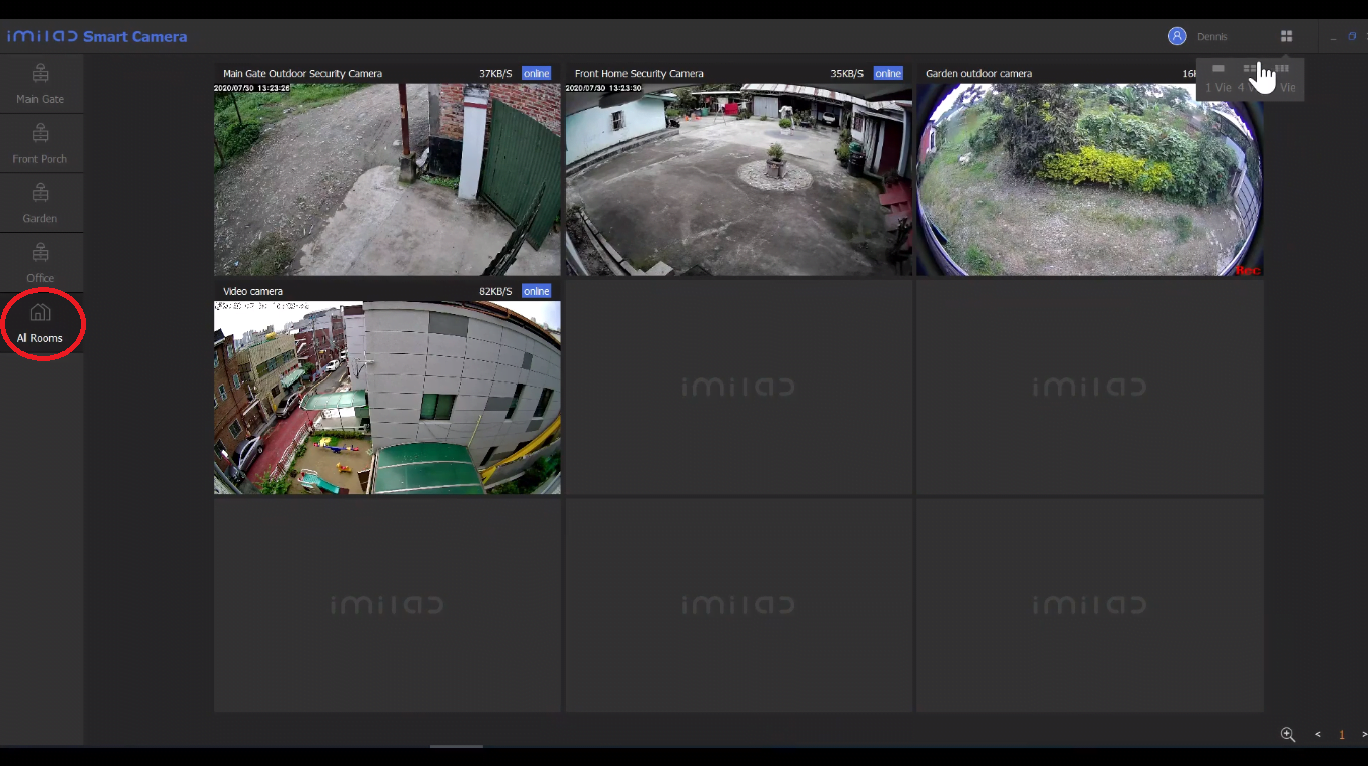
Now your device will be displayed on the screen with a live view
How to Change the Language of the MI Camera Software
After running the software, you will see it is in a language that you can not understand so it is very hard to configure the software.
So you need to change the language of the software. It is a multi-language software and you just set the language that you want.
To do this for the guide below.
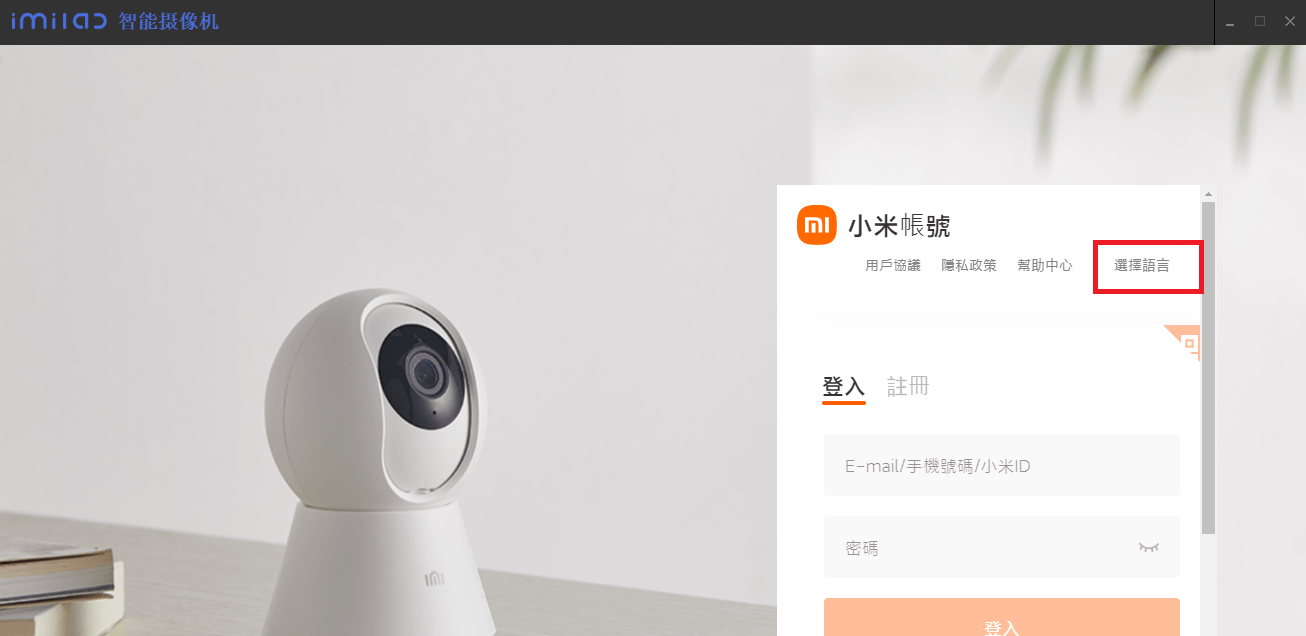
You can see an option in the right-upper corner (Highlighted in the above image). Click on that option and you will get so many language options in front of you as shown in the picture below.
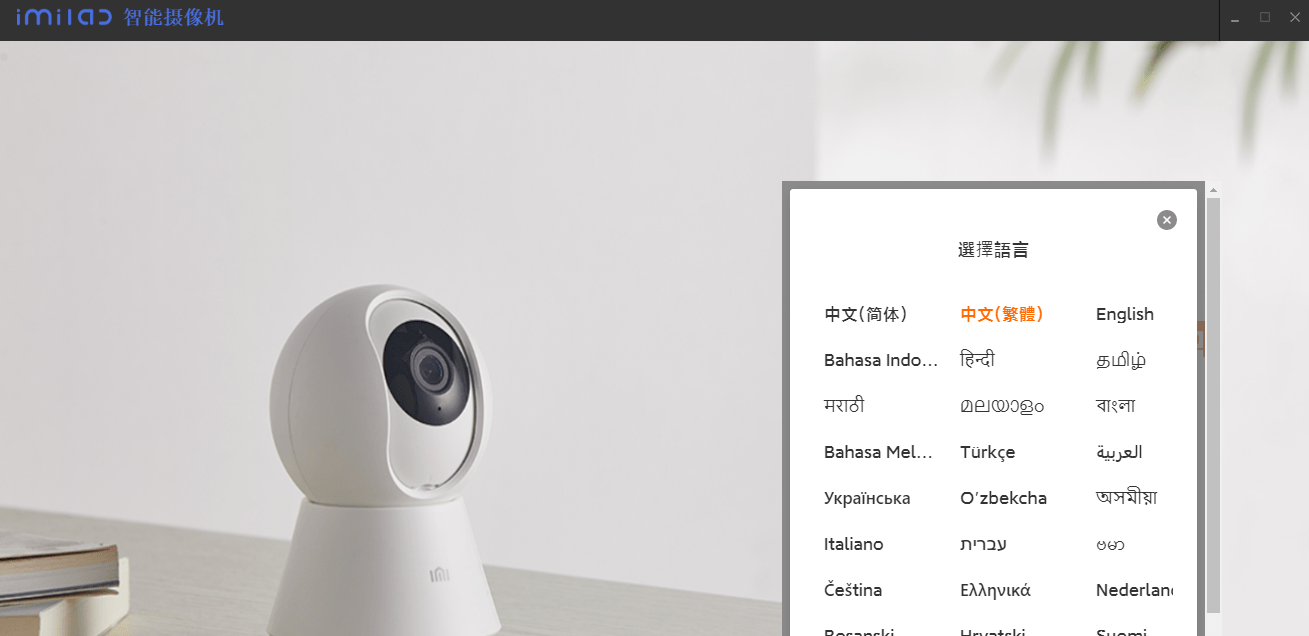
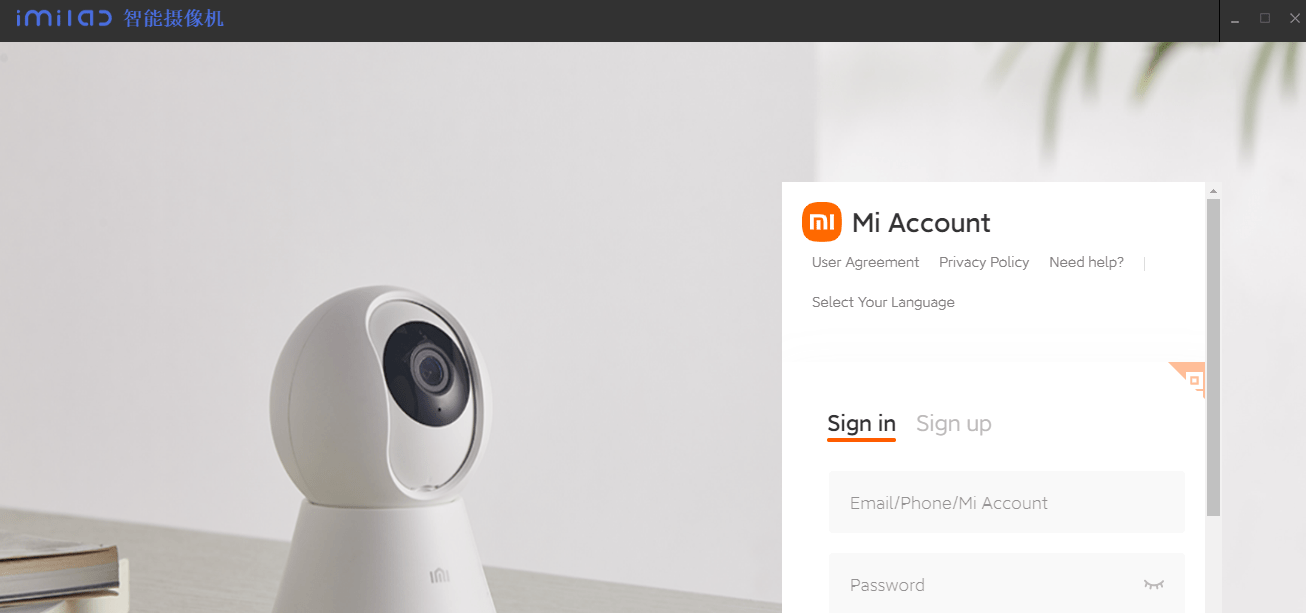
now choose the language according to your needs. As I selected English and you can see in the picture below all the software options change in English.
 How to Connect to MI Home Security Camera App on an Android Device
Here we are going to learn to connect MI Home Security Camera 360 on an Android smartphone. As we know the MI Security Camera App for Windows does not require registration and any other kind of formalities to add a device to the PC.
A question might arise in the mind, how do we add a device on the Mobile number or email ID?
So let us begin with the process to add a device on the MI Camera App for Android smartphones first then we will move to watch a live view of the CCTV camera on our PC.
You must plug and start the camera to add a device to the smartphone.
1. Step # Download the MI Home Security Camera App for Android
Here first download the MI Home Security Camera App for Android and we have provided the link below of this paragraph to download.
2. Step # Add devices on the App
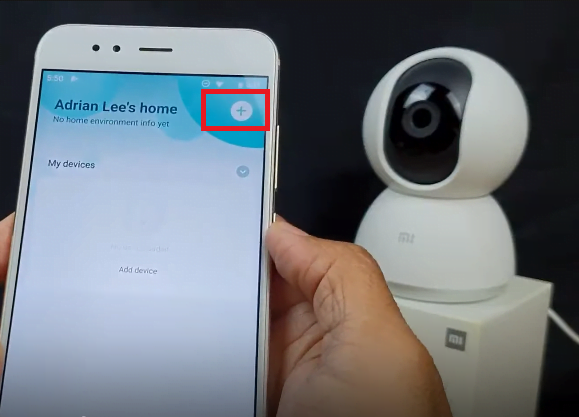
After downloading, open the app on your android smartphone and the screen will appear to add the device by clicking the “+” sign at the top right side of the screen.
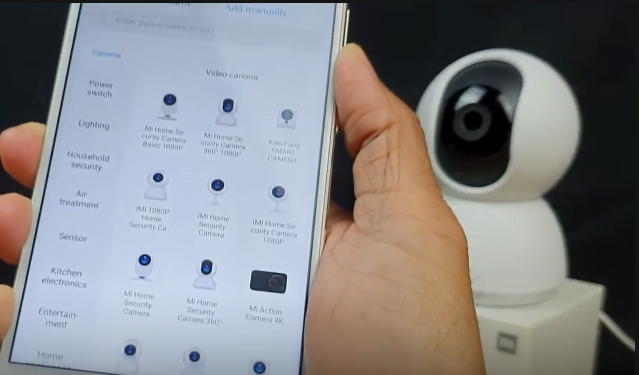
Now the screen of the camera models will appear to select which model you own to connect to MI Cameras.
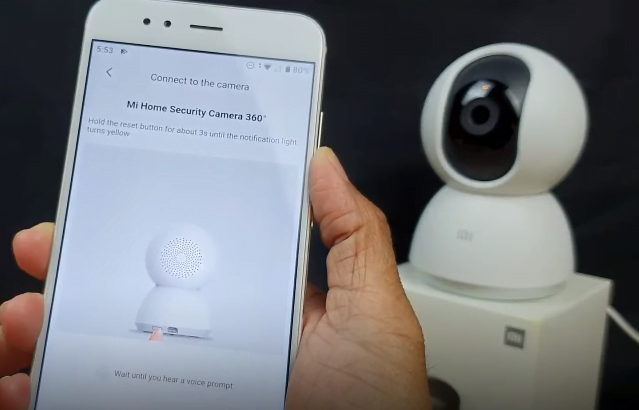
Wait for a voice prompt from the App. Then click on the “Next” button to proceed.
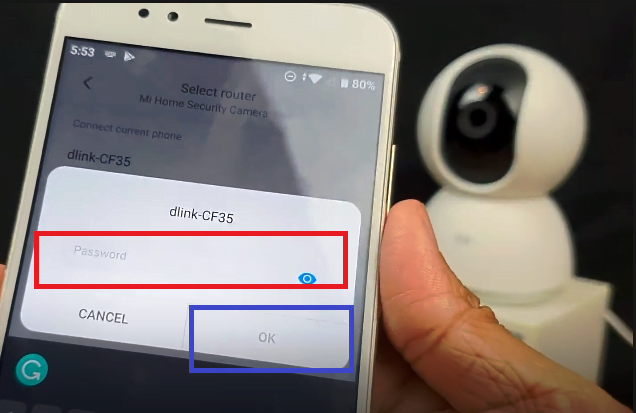
Here we have to connect the CCTV camera with our WiFi Connection. Therefore, select the WiFi you use to connect.
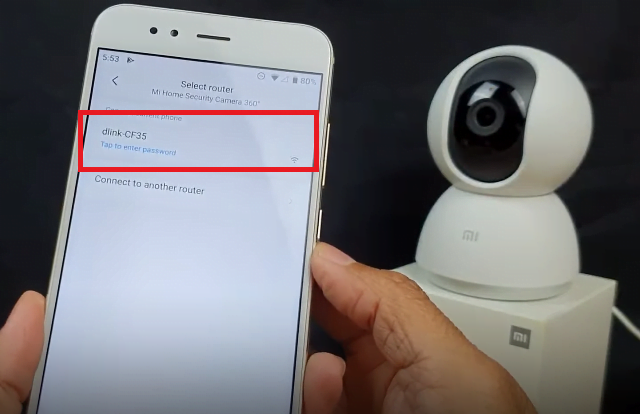
A screen prompt will appear on your smartphone asking you to enter the password of your WiFi, enter the password of WiFi then click on the “OK” button.
After this, a screen will appear with a QR code which you have to scan.
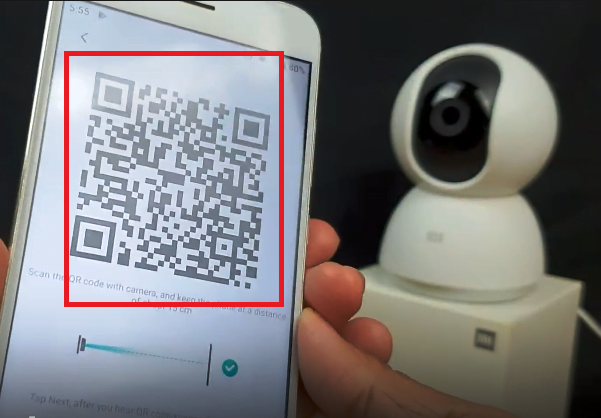
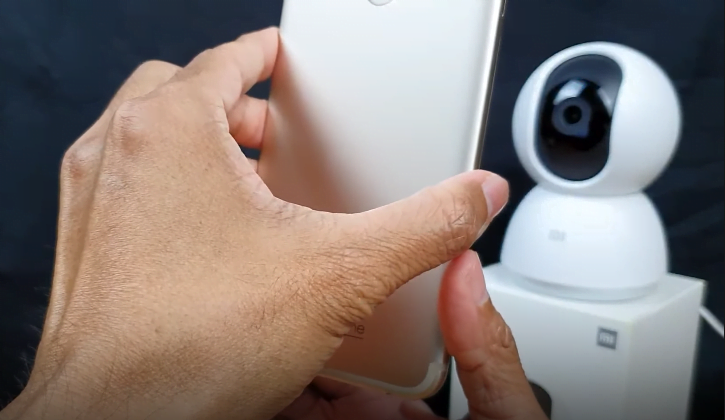
QR code can be scanned by placing your smartphone screen in front of the Mi Home security camera and a blue light will start blinking. Just let the CCTV camera scan the QR code properly on the App.
A new screen will appear showing the progress of connecting the CCTV camera with the MI Home Security Camera for Android.
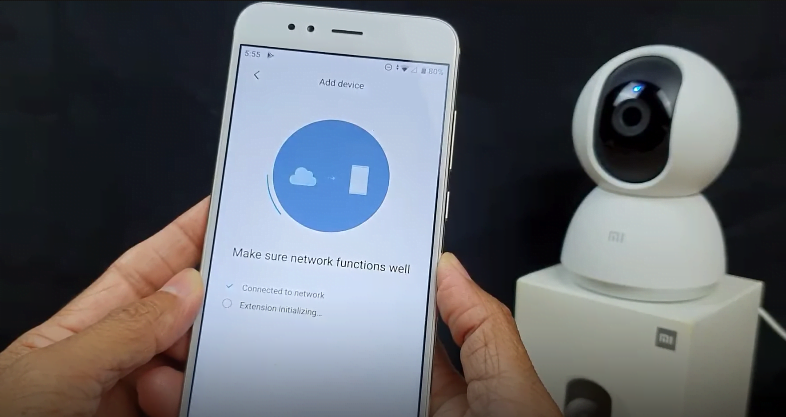
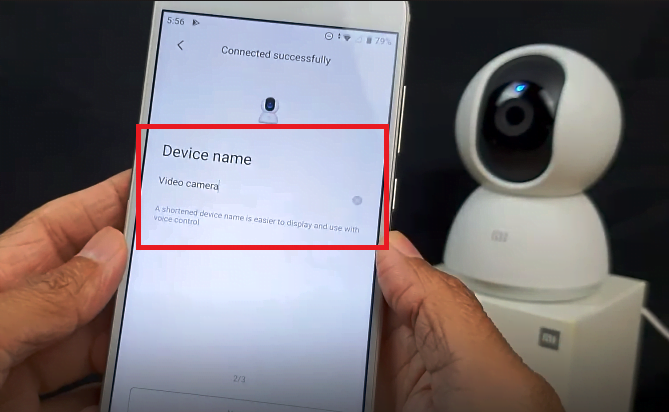
3. Step # Device Naming On the App
Here you can edit the name of the device which will be shown on your MI Home Security Camera App for Android. Then click the “Next” button and a screen will appear to share the device. If you do not want to share the device then click on the “Let’s get started” button.
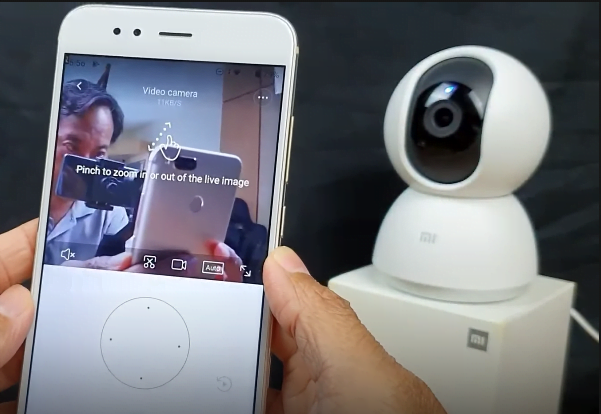
4. Step # Live view on mobile app
Now you can see the live view of the MI Security camera on smartphones.
2. Method # 2 MI Security Camera App On MAC Using Emulator
As we know Xiaomi Company is not provide any App for Mac OS users. Here we will use an emulator program to run your cameras on a MAC PC.
An emulator is software that facilitates one computer system to function like another computer system.
An emulator typically allows the host system to run software or use peripheral devices designed for the guest system. Well, we also provide you with the download of the Bluestacks emulator for PC.
- Firstly, Download the Bluestacks from this link.
- Immediately go to the downloaded file and double-click on that.
- Now the software will begin the installation.
- Execute all steps of the Bluestacks installation.
- After finishing the installation of the emulator you can find the shortcut for this on your desktop.
- Run the Bluestacks by double-clicking on that shortcut.
- Now the system will start the configuration of the emulator on your PC.
- Now you need to select your aspired language for Bluestacks.
- Then the software will ask you for an email account.
- Put your email account information and click on the next.
- After logging in to the Bluestacks, go to the Playstore for Windows or Appstore for Mac.
- Search for your desired mobile application i.e. MI Home Security Camera App.
- Install and run the application on your PC.
- Now add your IP camera to the application.
- After successfully adding the device you can see the live view of your cameras on the MI Home Security App for Mac & Windows.
Frequently Asked Questions (FAQs)
Can the Mi Home camera connect to multiple devices?
The MI Home Camera can connect a maximum of 3 devices at a time. One account can add at max 3 cameras or 3 different accounts with 1 device each with shared permission from the master.
Can I use Mi Home on PC?
MI Home App is a surveillance App developed by MI. It is designed for Android devices. You can use MI Home on PC through the BlueStacks app. It is an emulator software. Download and install it then run this MI Home App through this emulator for remote monitoring.
Can the Mi security camera work without Wi-Fi?
No, it needs a secure internet connection. Then only you can add it with it for surveillance from any location.
Can the Mi camera be used as a webcam?
Yes, sure. Using your Mi Home Security Camera as a webcam is a great way to enhance your video conferencing experience. With its high-quality video and audio capabilities, it can provide a better video conferencing experience than most built-in webcams.
Does the Mi camera work without electricity?
This MI camera will not work when there is no electricity. It is not a battery-operated device.
How much data does Mi camera use?
Normally, a 1080p camera uses around 60GB to 100GB of data per month, if it is recording every event. However, if the camera is set to only record when motion is detected, the data consumption will be much lower.
How many users can use Mi camera?
MI Smart Camera supports up to 3 users in normal circumstances. In special cases with permission, this limit can be raised to 5 users to monitor at the same time.
Does the Mi camera store data?
To ensure the security of your data, Mi Camera adopts a combined secure encryption method for encrypted transmission and storage of your video. Itha has a slot for SD cards up to 256 GB.
What is the Mi Home app for?
Mi Home is the official app from Xiaomi that connects MI products as easily and conveniently as possible. You can install it on your smartphones and configure it for remote monitoring, MI Lamp, Vacuum Cleaner, Smartwatch, Alarm clock, Fan, etc operations.
How do I transfer data from MI to computer?
With a USB cable, connect your device to your computer. On your device, tap the ‘Charging this device via USB’ notification. Then select the File transfer option. This way you can transfer data.
Is the MI camera waterproof?
NO. The MI 360° Camera is an indoor Camera with no waterproof function. If placed in outdoor use, water can damage the camera.
Can we install Mi Home on Mi TV?
Yes, you can install. Go to the user center from PatchWall Homescreen scroll down to find the Mi Home app and then install it on Mi TV.
Does the Mi camera have cloud storage?
Yes. Cloud Storage provides Free 7-day services. After that, you have to buy its subscription plan for further Cloud Storage. However, you can always record on the inbuilt SD Card storage slot.
Can I use a Mi account on two phones?
Your recovery phone number is the only phone number that can be used to sign in to your account or reset your account’s password. Xiaomi Cloud will display the phone number of the current device you’re using. Multiple devices can connect and sync with the same Xiaomi Cloud simultaneously.
How many updates does Mi give?
It will receive four years of Android updates and five years of security updates. This is a significant increase from the three years of Android updates that Xiaomi has been offering on its flagship phones in recent years.
Conclusion
MI Home Security Camera CMS is a very good software for watching your CCTV cameras on your PC.
It has many features like device setting, remote Playback, Live monitoring, PTZ control, changing the device addresses, and so on.
This is the free software provided by Xiaomi company. Enjoy the MI Home Security Camera App Download For PC Free on your PC.
So this is all about MI App. We hope this information is helpful to you.
If you have any queries or suggestions regarding the CCTV on your PC please feel free to write us in the comment box below.
Thank you for visiting us. Have a great day.

Hello you say we can record the video on win 10 but i cannot find the record button
You need to give access to folder.
imi camera shows online (on pc), but constantly buffering. what I can do
double-check the network connections
I solved this continuous Buffering issue by going to Settings by clicking on the profile name /icon on the top and by disabling / removing the check mark on the “Enable Hardware Acceleration”. There are few other website were it says we need to edit the device profile dll which is not necessary. For me just disabling the above noted setting solved the buffering issue on my Xiaomi Camera Viewer Desktop / PC Application in Windows.
Thanks, but after I type in my email and password, it doesn’t move to the viewer but stays in the original panel displaying my profile pic and username with a load of Chinese options. Any ideas?
Same here – I do the login and can change the language but nothing happens…. No camera screen… I tried it many times! Where ist the problem?
Follow the screeshot in post.
change the region to Chinese
ok
how to see in pc
Please read the article.
Hello! I’ve been trying to log on, but the logon goes to my profile instead of the cameras, I’ve already set the region on the config file, but there is no change.
Check region on your PC also.
What do you mean? Do I have to set the same?
I mean. I live in Mexico, so the Region should be US, because there is no NA region.
It used to work a few years back, and suddenly, boom! profile page instead of cameras.
Hi, even after a successful login to my account, I do not get the camera screen, only the profile screen and it is all in Chinees. How can I change it to English?
Check the settings you entered once and try again
When I run the “IMICamera.exe” file, there are no settings there, only the login screen and everything there is in Chinees.
First, Configure on your mobile device using MI app and then login to the computer using the same ID and password it will surely work. Thanks for visiting us.
My account, on my mobile, is set to the correct time zone and everything both in my Mi account and in the camera’s app on my mobile is in English. But once I sign in to the camera app on my PC, even though I get to see my account, everything is in Chinees and I can’t find an option to change the language.
I updated the article. Now you can see how I changed the language of this software
How to change Language of Mi camera software
Hi Arsh, when i turn on my mi camera 1080p 360*device, it’s Yellow indicator doesn’t blink and so it doesn’t let me go through the connection steps..it also does not react on the apply of reset button … I am not using sd card.
its has stop reacting all of sudden!
please advice
thanks
If the problem persists then you may ask for the support of the MI. I think it is the hardware problem.
Not working. Nothing but the login. Cant go further. Can you please help?
login with your mobile application credentials.
Hi Arsh,
I had 2 mi cameras and it worked fine. I add 3 cameras and I can see them on my phone. On my PC in app I can see them only in LAN. Can You help me?
Already answered you.
Hi Arsh,
In pc app I can see camera only in LAN, but when I connect from outside this is in log:
[INFO] :camera 366191020: play video at 1 times from last stable status.[manual]
[ERROR] :ms not init, but callback has received error:4
Can You help me?
if you want to see it outside then connect cameras to your router first then using the app you can it elsewhere.
Dear Arsh,
I had 2 mi cam and app works OK on PC. But when I added 3 more mi cameras I can see only on LAN. When I tried to see on net, I only can see that they are online, but not see what is online.
Can You help me, please?
Regards
Aca
You can see in LAN bcz of hight speed bandwidhth. So try to increase your bandwidhth. And change your router to higher bandwidth.
Dear Arsh,
MI cam connected to the home wifi, Phone and PC also connected to the same wifi.
– phone can see the cam image but pc cannot only profile page.
– the login credential is the same phone and pc.
Could you help me ?
Thank you friend.
Reset the camera and then connect.
How to force the Mi Camera to work only in local (P2P) mode???
You cant force.
how to install in window 7 and how to sea in window 7.
The procedure is already given.
Entire thing is mention in this article. Please read.
Hello! I’ve been trying to log on, but the logon goes to my profile instead of the cameras, I’ve already set the region on the config file, but there is no change.
Please check your region in computer sytem.
Hi Arsh, after the login the software doesnt swap to the camera view. I tried it many times…. Where is the problem – any idea?
Do one thing. First uninstall the software and reset the camera then install and connect. Do check one more thing may be it is aking for firmware update. You can check firmware update on mobile app.
This app stopped working today. Anyone experiencing the same issues?
Try with new system or flash your computer
The app is a joke. Just login with Mi account and nothing more.
For some people its a joke but for some it has great value.
I wonder how they manage to pass the login screen. The mobile app works fine but on PC stuck at login with the account details.
Looks like this app is collecting login credentials with password, absolutely useless after login!!, very cautious!!
Yes, one should always be cautious while logging any password not for this only
not working, after logging in it says no camera please go to youpin. not workinggggg
Doesn’t work with Windows 11. Stack on profile page after login. 2 cameras on my account, but application doesn’t see anyone.
hallo, habe gestern 4 cams installiert und die xiaomi camera viewer app für windows auf dem pc installiert. auf dem handy werden alle cameras angezeigt mit bild etc. – auf dem pc kann ich mich anmelden und sehe auch die 4 cameras, aber das bild bleibt schwarz und es buffert und buffert nur, ein bild kommt nicht. woran liegt das? auf einem anderen pc in einer anderen stadt funktioniert es problemlos, alle 4 cameras werden mit bild angezeigt nur auf dem heimischen pc buffering buffering buffering… es ist windows 10
Ask in english.
Hello, I installed 4 cams yesterday and installed the xiaomi camera viewer app for windows on the pc. all cameras are displayed on the cell phone with a picture etc. – i can log in on the pc and also see the 4 cameras, but the picture stays black and it just buffers and buffers, there is no picture. why is that? on another pc in another city it works without any problems, all 4 cameras are displayed with an image only on the home pc buffering buffering buffering… it’s windows 10
To troubleshoot the issue of buffering and a black screen in the Xiaomi Camera Viewer app on your Windows 10 PC:
Check your network connection.
Update the app and drivers.
Adjust firewall or antivirus settings.
Verify PC hardware specifications.
Disable hardware acceleration.
Reinstall the app.
If the problem persists, contact the Xiaomi Camera Viewer app support team for further assistance.
Great guide! I’ve been looking for a way to use the MI Home Security Camera on my PC, and your instructions made it really easy. Thanks for sharing!
Great post! I really appreciate the step-by-step guide for downloading the MI Home Security Camera app on PC. It made the process so much easier for me. Thanks for sharing!
Hi dear
I downloaded app in my pc ,, after login still profile details appear !
how can move to my devices ! and cam