
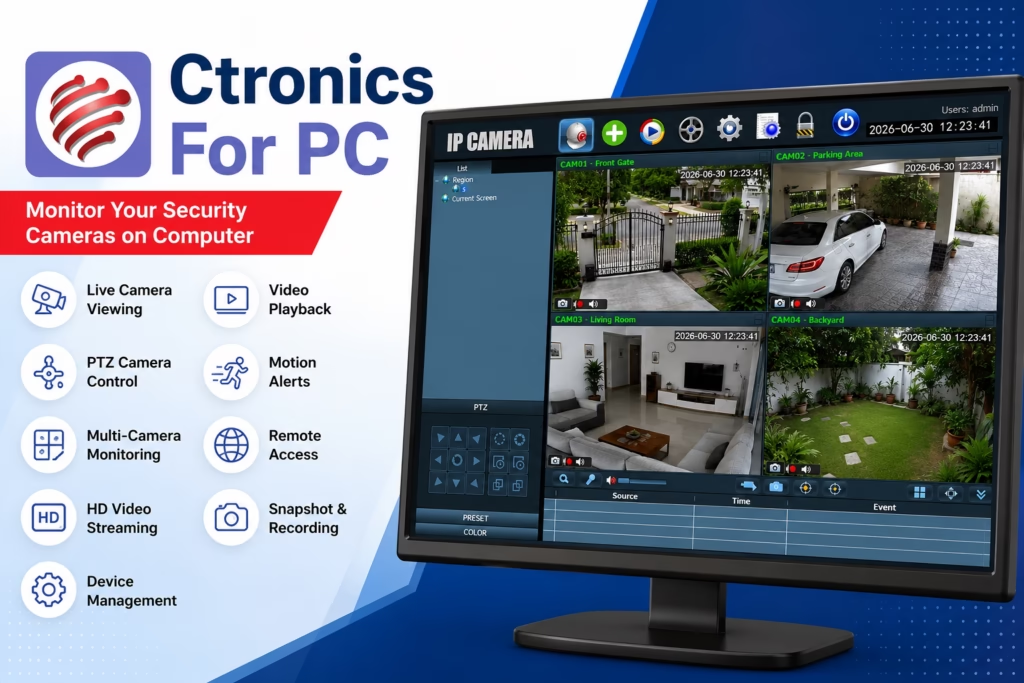
If you own Ctronics security cameras, Ctronics for PC is great software to monitor your cameras live right from your computer. It’s available for both Windows and Mac. Since it’s the official solution provided by Ctronics, it’s perfect if you want to keep an eye on your cameras remotely on a bigger screen.
This software doesn’t just let you stream live video – it also gives you full control over your security cameras. You can easily adjust image resolution, use PTZ (Pan-Tilt-Zoom) controls, and playback recorded footage. Best of all, it allows you to view multiple cameras on a single screen.
You can download it using the link below. It is completely safe, fully tested, and sourced directly from Ctronics.
Ctronics for PC Information
Before you get started, let’s quickly look at the software specifications to ensure a smooth, hassle-free setup.
| Feature | Details |
|---|---|
| Software Name | Ctronics |
| Category | CCTV Monitoring Software |
| Developer | Ctronics |
| Windows Version | v6.5.9.3 |
| MAC Version | v2.1.24 |
| File Size | 28.23 MB |
| File type | ZIP |
| Mobile App | Ctronics |
| Compatible OS | Windows 11, 10, 8, 7 & macOS |
| License | Free |
| Device Support | Ctronics IP Cameras, Wi-Fi Cameras & PTZ Cameras |
| Installation | Official PC Software |
System Requirements
Below are the minimum system requirements needed to install the software. Please make sure to check them before proceeding with the installation.
Windows
- Windows 11, 10, 8, or 7
- Intel or AMD Dual-Core Processor
- 4 GB RAM (8 GB recommended)
- 500 MB Free Storage
- Stable Internet Connection
Mac
- macOS 11 or later
- Intel or Apple Silicon Processor
- 4 GB RAM
- Internet Connection
Key Features
- Live Camera Viewing – Watch real-time video from your Ctronics cameras with minimal delay.
- Video Playback – Review previously recorded footage directly from your PC.
- PTZ Camera Control – Control pan, tilt, and zoom functions for supported PTZ cameras.
- Motion Detection Alerts – Receive instant notifications whenever motion is detected.
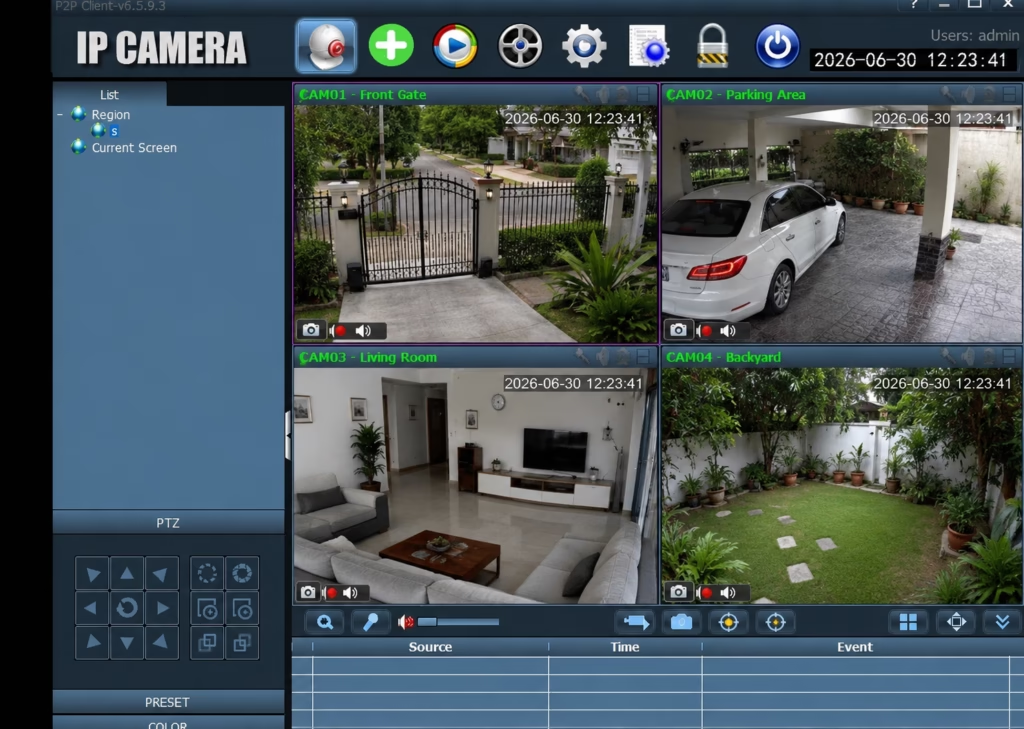
- Multi-Camera Monitoring – Monitor multiple cameras simultaneously using different screen layouts.
- Remote Access – Access and manage your cameras securely from anywhere with an internet connection.
- HD Video Streaming – Enjoy clear, high-definition live video for better surveillance.
- Device Management – Easily add, remove, and configure cameras from a single dashboard.
- Snapshot & Recording – Capture screenshots and record live footage directly to your computer.
Installation & Configuration of Ctronics for PC(Windows)
Once everything checks out, let’s move on to the installation. First, unzip the file you just downloaded, right-click on the installer, and select ‘Run as administrator.’
Step 1. Installation
A prompt will appear asking for permission to install the software—simply click ‘Yes’ to proceed.
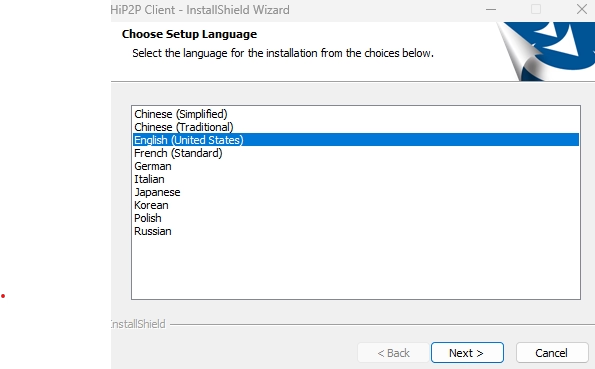
Next, you’ll see a screen asking you to choose your language. Select your preferred language and click ‘Next.
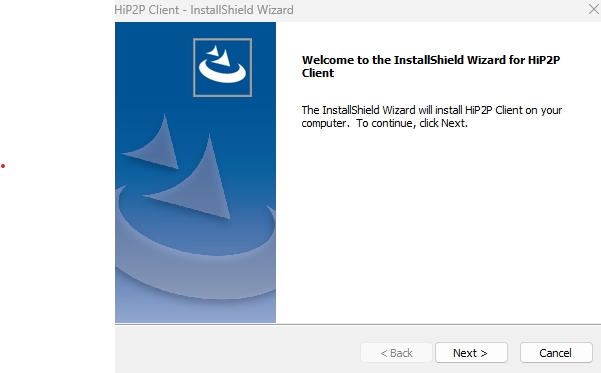
You don’t need to change anything here—just click ‘Next’ and the installation will begin.
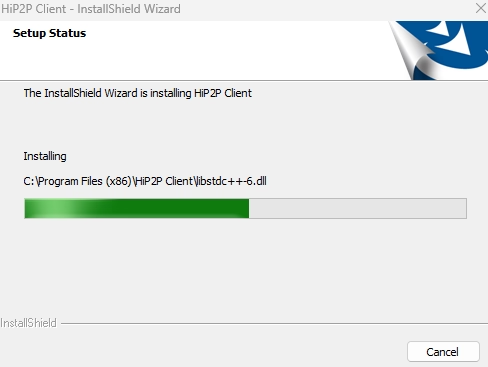
Now, wait for the installation to finish. Once it’s complete, you’re ready to move on to the next step.
Step 2. Log In to the Software
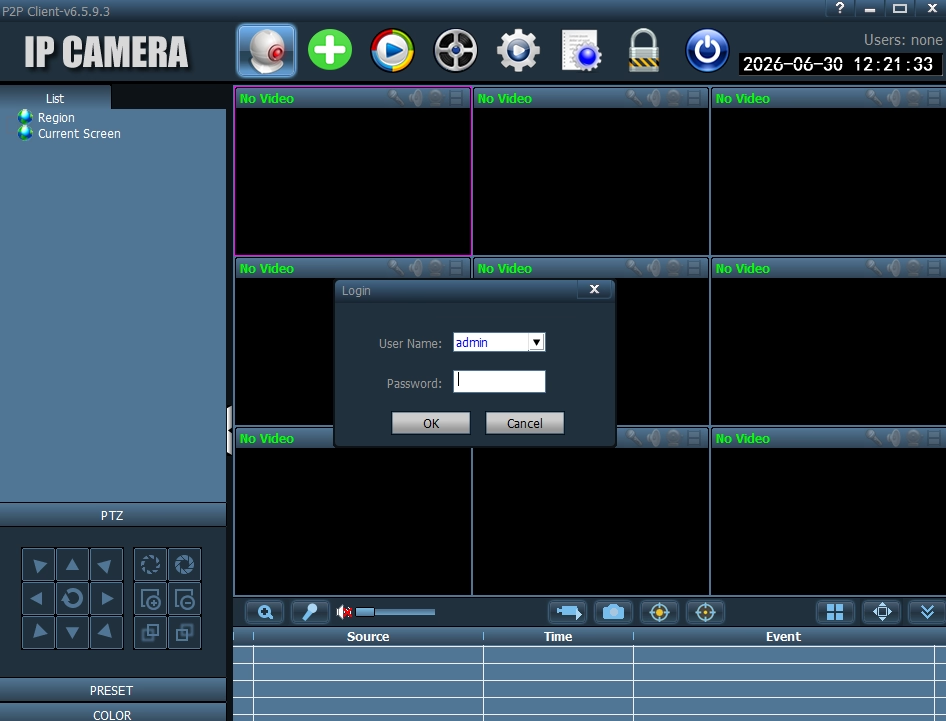
Once you launch the software, you’ll see this screen. To log in, type admin as the username and leave the password field blank.
Step 3. Add NVR/Cameras Into Software
First, click on the Settings icon.
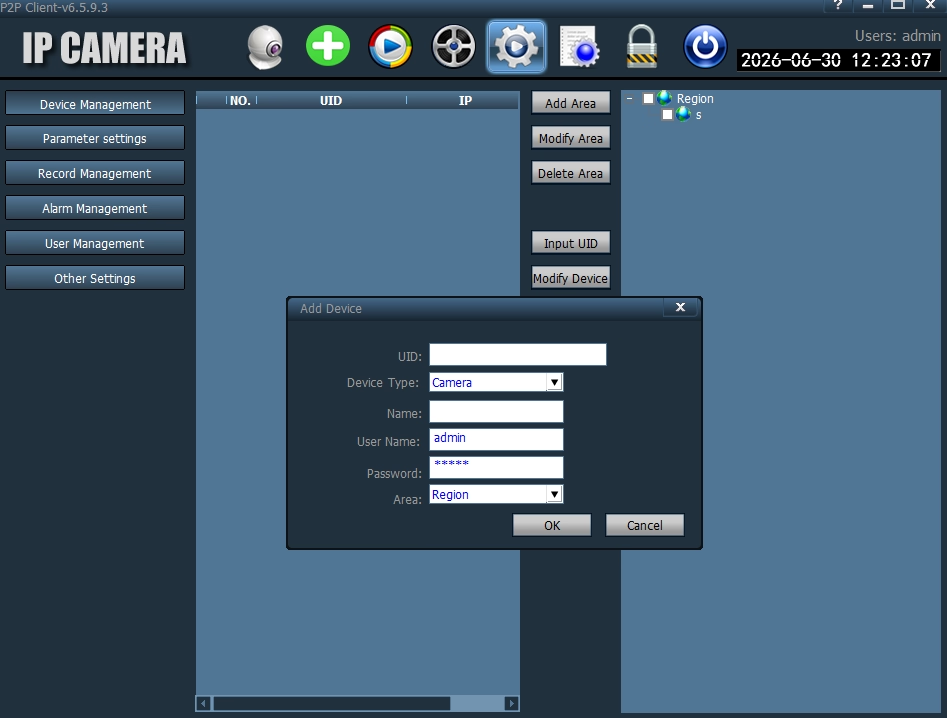
Now, it’s time to add your device. First, click on Add Area to create a location group. Once the area is created, click on Input UID, enter your device’s UID, and click OK.
Your device is now successfully added. Simply click on Live View to start monitoring your cameras in real time.
Testing Notes
- Tested installation on Windows 11 and Windows 10.
- Verified live view, playback, and PTZ control with supported camera models.
- Confirmed compatibility with modern Intel and AMD processors.
- Reviewed software interface and basic camera management features.
Conclusion
Ctronics for PC is a practical solution for monitoring your Ctronics security cameras from a Windows or Mac computer. With features like live viewing, playback, PTZ control, motion alerts, and multi-camera management, it provides everything needed to keep an eye on your property from a larger screen. If you use Ctronics cameras, the official PC software is the recommended way to manage them efficiently.
FAQs
Is Ctronics available for Windows?
Yes. Ctronics provides official software for Windows and Mac that supports compatible security cameras.
Is Ctronics free?
Yes. The desktop software is free to download and use with supported Ctronics cameras.
Can I monitor multiple cameras?
Yes. You can add and manage multiple Ctronics cameras from one interface.
Does Ctronics support PTZ cameras?
Yes. Supported PTZ models allow you to control pan, tilt, and zoom directly from the software.

great blog