
Hikvision SADP Tool is an official IP finder utility used to detect, activate, and manage Hikvision CCTV devices on a local network. It is commonly used for finding IP cameras, DVRs, and NVRs when devices are newly installed or not accessible.
We’ve covered everything you need to know about the SADP Tool in this guide. Since its main job is finding IP addresses, we’ve laid out a simple step-by-step walkthrough for you—plus how to reset your Hikvision device password if you ever get locked out. But first things first, use the button above to download the SADP Tool.
Hikvision SADP Tool Download for Windows
Supports Windows 11 & Windows 10. Designed for local network device discovery.
For All Hikvision official Software: Hikvision For PC
Hikvision SADP Tool – System Requirements & Version Information
| Specification | Details |
|---|---|
| Supported Operating System | Windows 11 (64-bit), Windows 10 (64-bit), Windows 8 / 8.1 |
| Processor | Intel or AMD (Dual-Core or higher) |
| Minimum RAM | 2 GB (4 GB recommended) |
| Storage Space | Around 100 MB free disk space |
| Network Requirement | Local LAN connection (wired or wireless) |
| Internet Requirement | Not required (works on local network) |
| User Access | Administrator privileges required |
| Firewall Permission | Windows Firewall may need access approval |
| Supported Devices | Hikvision IP Cameras, DVRs, NVRs |
| Version Information | Around 100 MB of free disk space |
Hikvision SADP Tool Download All Versions
Here you can download each and every version of this tool. Sometimes this tool does not get the IP address of the devices because we could use the correct version of the tool. So download according to your needs.
v 3.0.4.3
v 3.0.1.4
v 3.0.0.100
v 3.0.2.4
v 3.0.0.2
v 3.0.0.10

Download SADPTool For MAC
If you have a Mac PC, then you can also download the SADPTool for Mac. Just download the software from the given links below for your Mac or PC.
What is Hikvision SADP
Hikvision SADP is a utility to find the IP address of a device on the same network. SADP stands for search active device protocol. the network device. Devices include DVR, NVR, IP camera, and any other IP device manufactured by Hikvision. It is a free tool, so everyone can use it to find the IP address of the IP camera.
It is also used to reset forgotten passwords. By using the tool, you can reset the password for free.
What is the SADP Tool used for
There are the following uses of the Hikvision SADP Tool
- Find the IP address of the device.
- Find the device on the network.
- Change the IP address of the device.
- Change the password of the device.
- To see the number of active devices on the network.
- Active and inactive devices.
- Change the port number of the device.
- Recover the forgotten password of the device.
- Configure Hik-connect for the device.
- IP camera configuration.
Common Issues While Using the Hikvision SADP Tool
Device not detected:
Make sure the camera or recorder is connected to the same local network and the Windows firewall is not blocking the tool.
Inactive device showing:
Newly installed Hikvision devices appear inactive and must be activated using an admin password.
SADP blocked by antivirus:
Some antivirus programs may block network scanning tools. Temporarily allow the SADP Tool if required.
IP conflict issue:
Change the device IP to match your local network range before accessing it via browser or software(IVMS 4500).
Is Hikvision SADP Tool Safe to Use?
Hikvision SADP Tool is an official utility designed for local network use. It does not require internet access and is commonly used by installers and technicians to configure Hikvision devices safely.
How to use the Hikvision SADP Tool
Firstly, you have to download the setup file of the Hikvision SADP tool. It is in the .zip format. If you have WinRAR, then you can easily unzip the setup file. Now, open the folder of the setup file and double-click on that file. The setup process will start.
Step 1 (Install the SADP Tool)
After launching the exe file on your computer, you will find this SADP screen. Here you need to tick the agreement box of the software. We suggest you read it before accepting.

After this, a window will ask for the selection og language. Choose as per your need.
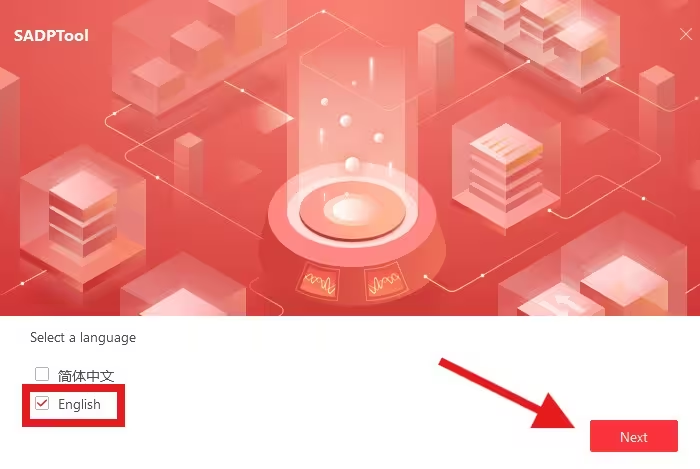
Now the new screen will come as shown below.
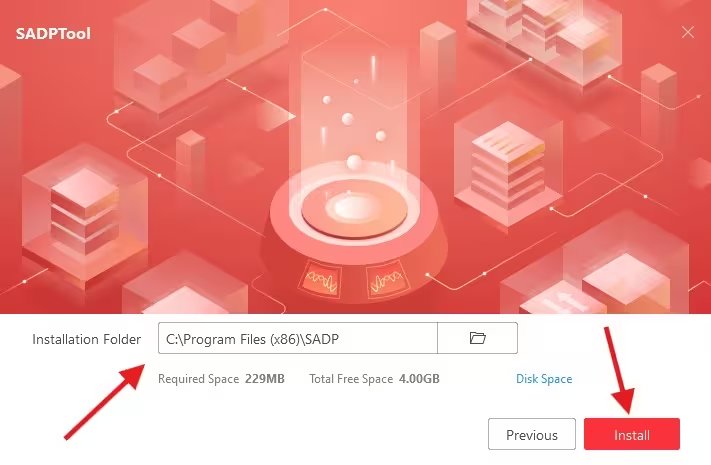
Now select the desired path for the installation.
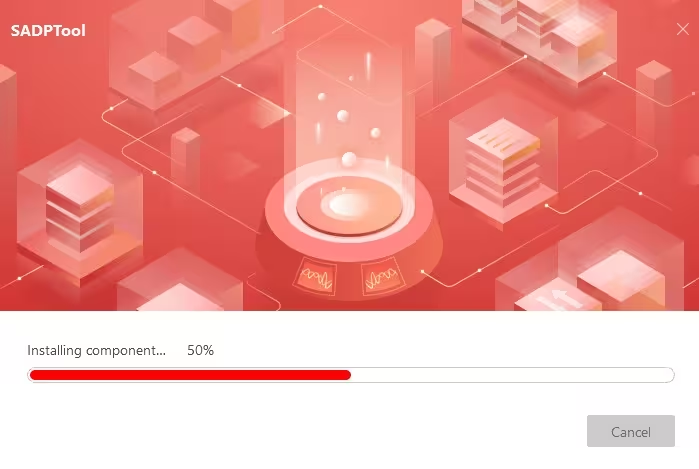
Now wait for the completion of the installation.

Installation completed successfully. It is time to launch the software.
After launching the software, you will see this interface of the software. Means you are ready to find the IP addresses of your CCTV cameras.
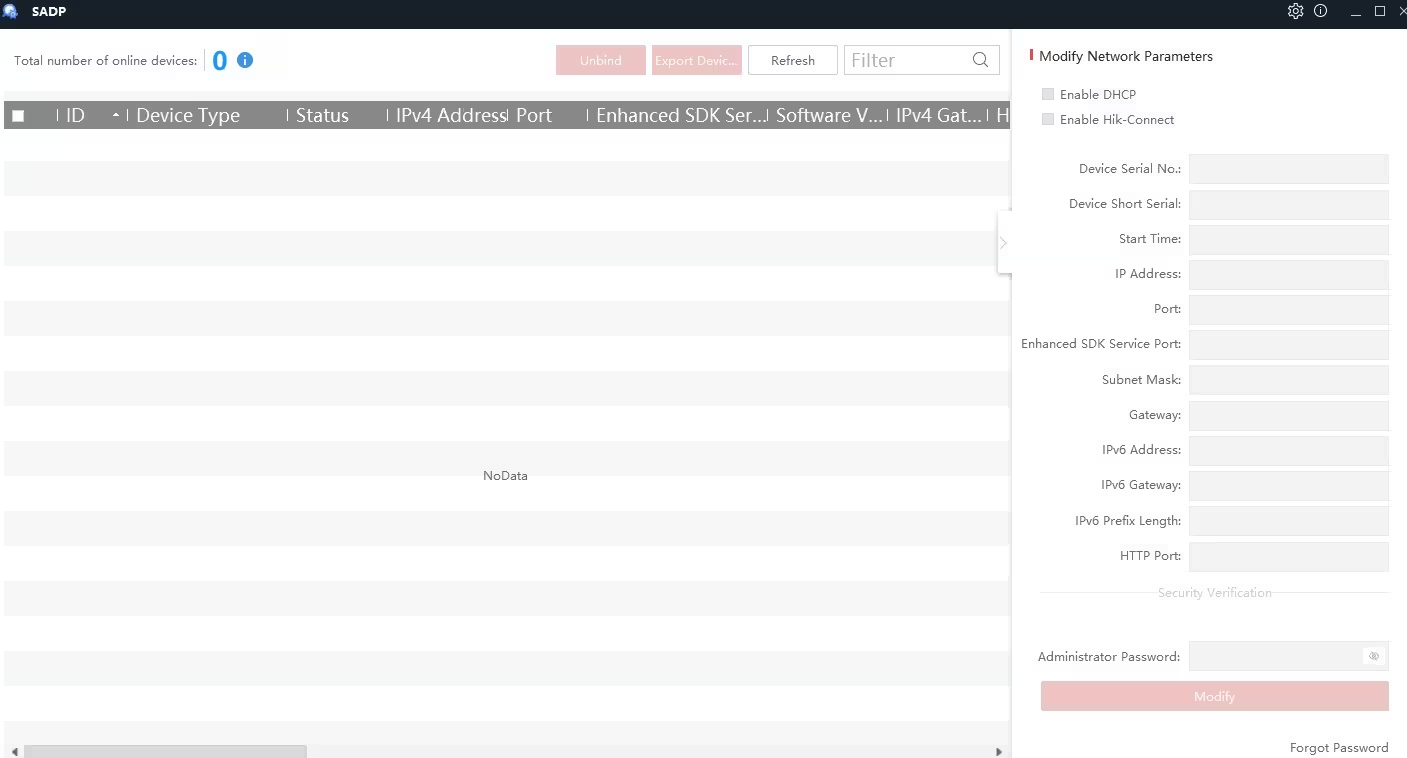
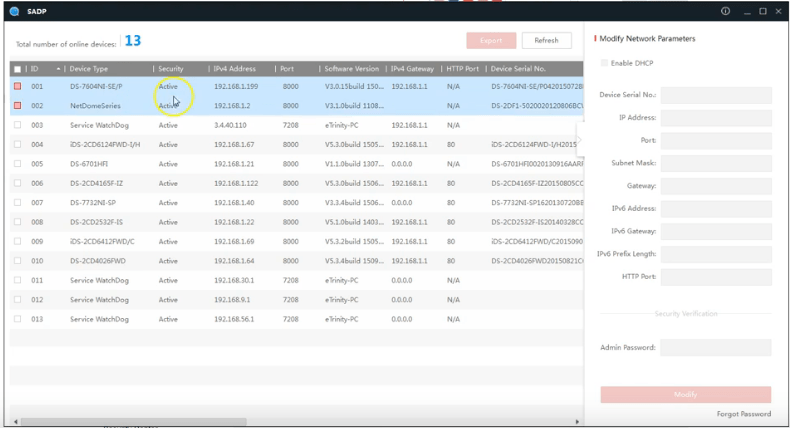
Here you can find all the active and inactive devices on the network.
Step 2 (Change the IP address of the device)
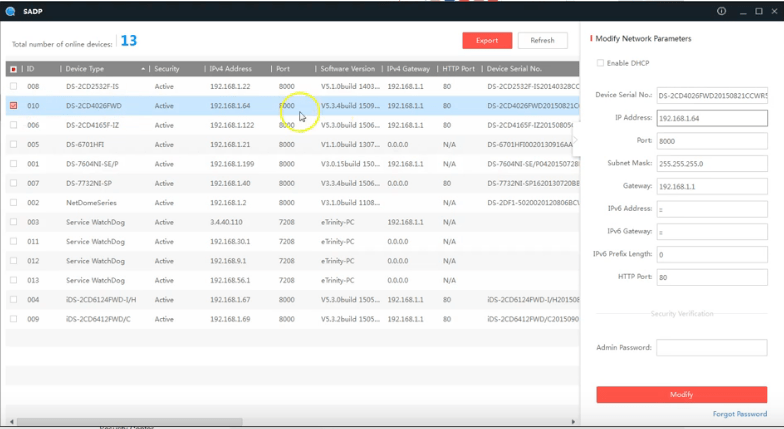
If you want to change the IP address of a device listed in the SADP tool. Just click on the device, and all the information related to that device will come into the right pane. As shown in the screen below.
Step 3 (Save the settings)
Now disable the “DHCP” option and edit the IP address and the port number that you want. The default IP address of Hikvision is “192.0.0.64/192.168.1.64“. After entering the admin password of the device, click on the Modify button. The default password of the Hikvision device is “12345”. Now it is done. You changed the IP address of the Hikvision device.
Hikvision Password Reset Using SADP Tool
You can also reset the password from this Hikvision SADP tool. If you forget the password of the Hikvision device, then the SADP tool may help you to reset it.
As we talked earlier, download the SADP tool and install it on your computer, and follow the simple steps in order to reset the password of the Hikvision device. You can watch the video or follow the steps given below.
1. Step # Connecting the device to the PC
After installing the SADP tool setup on your computer, the first step is to connect the device to the computer. Plug the network cable into the device’s LAN port, and the other end of the LAN cable goes to the computer. Now turn on the device and run the SADP tool on your computer.
2. Step # getting information about the device
Now you can see all your device details on the SADP tool, as shown below. When all the information of your device is displayed on the SADP tool, select your device, and you can see all the text boxes present on your right side filled with your device information.

3. Step # Export the device information using the SADP tool
Now you have to export the information using the SADP tool. Click on the device information and then click on the Forgot Password present in the lower-right corner.
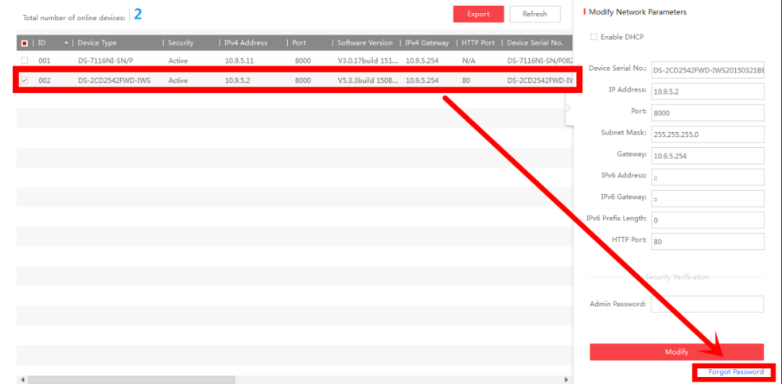
After clicking on Forgot Password, a new window appears.
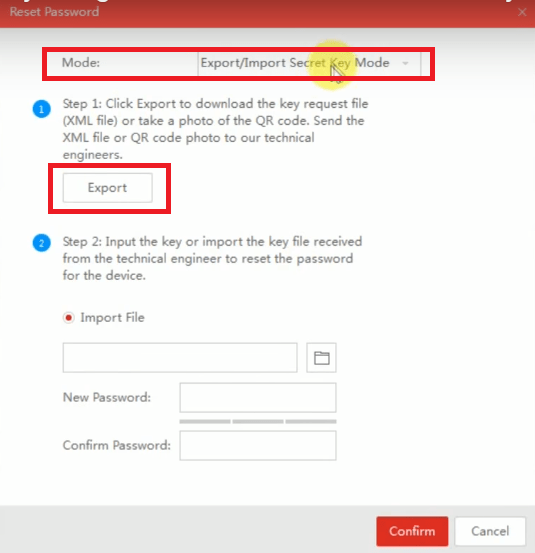
Now select the mode and click on the “Export” button. The SADP tool will export a file of device information. Save it on your computer.
3. Step # Write an Email to Hikvision Support
Now you have to write an email to the Hikvision technical support team to request the security code for your device. After some time, you will get a response from the Hikvision support team with the new security code or XML file.
4. Step # Import the File in the SADP Tool
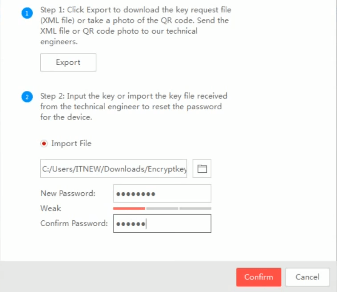
Now import the file given by the Hikvision support team. After importing the file, you need to input the new password and confirm it. After entering the password, you need to press the Confirm button. If the success message comes, then the password of the device is reset using the SADP tool.
Pros and Cons
SADP tool is a very good software for managing Hikvision devices like IP cameras, DVRs, NVRs, access control, etc. This software is widely used to configure the network information of Hikvision devices. There are some pros and cons of the SADP tool.
Pros
- Easy to use.
- Bulk change of IP addresses.
- It can export the list of devices.
- Low RAM consumption.
- Can recover the lost password of the device.
- For security reasons, your Hikvision devices are bound to any email address. You can’t add any more email addresses unless you unbind the earlier one. For that, you have to take the help of the Hikvision SADP tool.
- The SADP tool will display your email address. Locate it and select it, then go to the settings option. There, you will get the network settings option. In that network settings option, you will get the unbind option. Click it to change the email address of the device or the IP address of the device.
- Since its firmware has been recently updated, it has many new AI features included to make this SADP tool more intelligent for device management.
Cons
- It cannot change the password of the device by itself.
- Can not change the MAC address of the device.
Conclusion
Overall, it is a very good software powered by Hikvision. Hikvision is one of the best CCTV camera brands in the world, so it is obvious that it has high-quality tools and utilities for its customers. Hikvision SADP tool is one of them. Use this tool and enjoy it.
This is all about Hikvision SADP Tool Download and configuration. We hope this information is helpful to you. If you have any queries or suggestions, please feel free to write to us in the comment box below. Thank you for visiting us.
Is the Hikvision SADP tool free to download?
Yes, this Hikvision SADP tool is free to download. There is no charge for operating it.
What operating systems does the Hikvision SADP tool support?
The SADP tool is compatible with Windows and Mac operating systems. You can easily operate it on them.
What devices does the Hikvision SADP tool support?
Hikvision SADP tool supports all the CCTV devices of Hikvision. It supports NVRs, DVRs, IP Cameras, PTZ Cameras, etc.
Does the Hikvision SADP tool work with non-Hikvision devices?
No, the Hikvision SADP tool doesn’t work with any other manufacturer’s devices. It works only with Hikvision.
Can I change the IP address of a Hikvision device using the SADP tool?
Yes, you can change the IP address of a Hikvision device using the SADP tool.
Does the Hikvision SADP tool require internet access to function?
No, it does not require internet access to function.
Can I update the firmware of a Hikvision device using the SADP tool?
No never. Firmware updates are typically performed using Hikvision’s dedicated firmware update tools, not through the SADP tool.
Can I use the Hikvision SADP tool to manage multiple devices simultaneously?
Yes, you can use multiple Hikvision devices simultaneously on the same network.
Is there a mobile version of the Hikvision SADP tool available?
No, there is no mobile version of the Hikvision SADP tool available. It is only for Windows and MAC.
Is the SADP tool compatible with Hikvision ColorVu / AcuSense cameras?
Yes. The Hikvision SADP Tool is fully compatible with ColorVu and AcuSense cameras
You may also read these

nice information…keep it up
how to change the hikvision ds7204-hd dvr boot logo. please…
Changing the boot logo on a Hikvision DS7204-HD DVR involves technical steps and potential risks. Here’s a summary:
Prepare Image: Create a custom boot logo image meeting specs.
Enable Telnet: Activate Telnet in DVR settings and set a password.
Telnet Connection: Use a Telnet client to connect to the DVR.
Copy Logo: Copy your custom logo to the appropriate directory.
Reboot: Safely disconnect and reboot the DVR to see the new logo.
Note: This process carries risks, and mistakes can lead to issues. Consult experts or official documentation if unsure.
It is better that you take customer Support.
Gostei muito desse Software, a hikvision sempre a melhorar os seus serviços
Fico feliz em saber que você gosta do software Hikvision SADP Tool. A Hikvision está constantemente trabalhando para melhorar seus serviços e produtos. O Hikvision SADP Tool é uma ferramenta útil para detectar e configurar dispositivos da Hikvision em sua rede. Se você tiver alguma pergunta específica sobre o SADP Tool ou precisar de ajuda, sinta-se à vontade para perguntar!
how to remove a partten forgeted on Hik vision DS-7116HGHI-F1 PLZ
o reset a forgotten pattern on a Hikvision DS-7116HGHI-F1 DVR using the Hikvision SADP (Search Active Device Protocol) Tool, follow these steps:
Note: This procedure may vary slightly depending on the specific model and firmware version of your Hikvision DVR.
Download and Install Hikvision SADP Tool
Make sure your DVR is connected to the same network as your computer. Use an Ethernet cable to ensure a stable connection.
Run Hikvision SADP Tool:
Launch the Hikvision SADP Tool on your computer.
Discover Devices:
The tool will scan your network for Hikvision devices, including your DVR. It will list the devices it finds.
Select Your DVR:
Locate your DS-7116HGHI-F1 DVR in the list of devices shown by the SADP Tool.
View DVR Information:
Select your DVR and click on it to view its details.
Reset the Password:
In the DVR information window, click on the “Forgot Password” button. This will open a web browser and take you to the Hikvision password reset page.
Provide Verification Code:
On the password reset page, you’ll need to enter the device’s serial number, verification code, and security questions’ answers that you set during initial setup.
Reset the Password:
After providing the required information, you will be able to reset the password or pattern.
Access DVR:
Once the password or pattern is reset successfully, you can access the DVR using the default username and the new password you set during the reset process.
Please ensure you have the necessary permissions and authorization to perform this reset, as it may impact the security of the DVR. Additionally, the steps can vary depending on your specific device and firmware version, so refer to Hikvision’s official documentation for your device if needed.
MY HIKVISION DVR 8 CHANNEL HAS NO VIDEO (PICTURES ) SHOW NO VIDEO PUT ALL CONNECT WHAT CAN BE TUE PROBLEM
Already Answer
MY HIKVISION 8 CHANNEL DVR SHOS NO VIDEO BUT ALL ARE CONNECTED WHAT CAN BE THE PROBLEM AVERY THING CHECK POER OKAY ,CONNECTION OKAY
If your Hikvision 8-channel DVR is not displaying any video despite being connected and powered, there are several potential reasons for this issue. Here are some troubleshooting steps you can take:
Ensure all cameras are properly connected and powered. Check video cables for damages. Verify DVR output settings. Test the monitor/display on another source. Confirm cameras are connected to the correct channels. Reboot the DVR. Check for firmware updates. Reset to factory settings if needed. Seek professional assistance if issues persist
Great post! The Hikvision SADP Tool has been incredibly helpful for me in locating my IP cameras quickly. Thanks for providing the download link and detailed instructions!
Thank you for sharing the info about the Hikvision SADP Tool! I’ve been looking for a reliable way to find my Hikvision IP cameras, and this seems like a great solution. The step-by-step instructions you provided are really helpful. Can’t wait to try it out!
Thanks for sharing this useful guide! The Hikvision SADP tool is such a lifesaver when it comes to finding my IP cameras quickly. Just downloaded it, and the installation was a breeze. Appreciate the clear instructions!
Great post! The Hikvision SADP tool is really helpful for quickly finding IP cameras on the network. Thanks for providing the download link and the step-by-step instructions!