
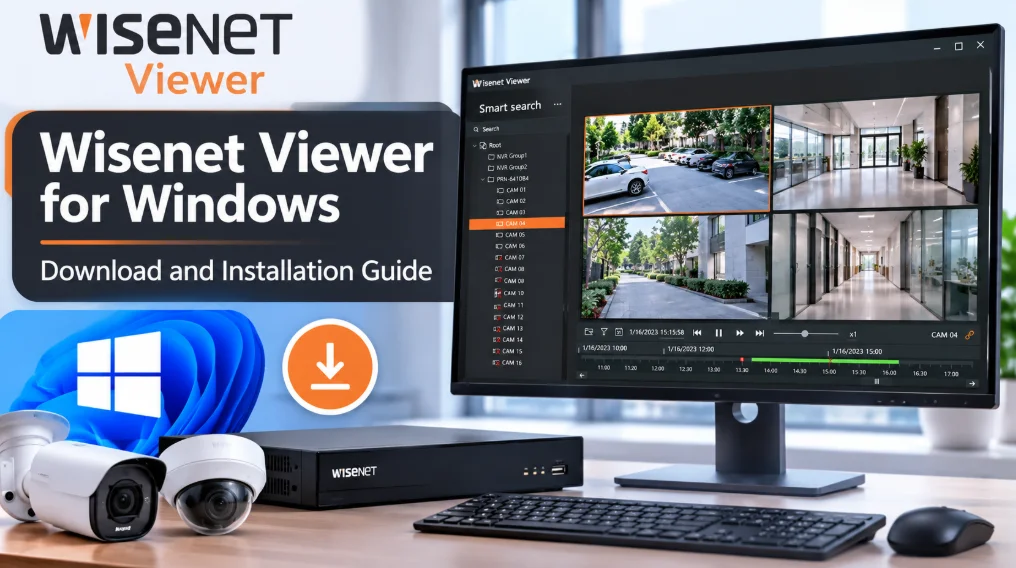
Wisenet Viewer for Windows is video surveillance management software from Hanwha Vision. It lets you monitor supported network devices, organize camera views, search recorded footage, and manage surveillance video from a Windows PC.
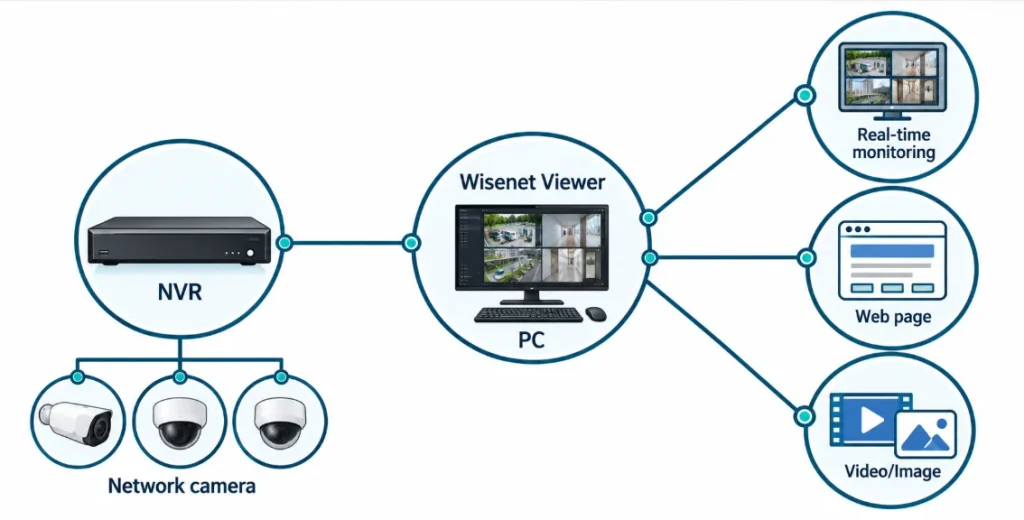
If you use a compatible Wisenet NVR or DVR, you can install Wisenet Viewer to manage your surveillance system from your computer instead of relying only on the recorder’s local interface.
In this guide, you’ll find the official Wisenet Viewer download, system requirements, installation instructions, and basic setup steps.
Wisenet Viewer for Windows Download
You can download Wisenet Viewer for Windows using the official Hanwha Vision software package linked below.
Software details
- Software name: Wisenet Viewer
- Version: 1.05.00
- Platform: Windows 64-bit
- Developer: Hanwha Vision
- Package format: ZIP archive containing the Windows installer
- License: Check the official license terms for your intended use.
Download: Wisenet Viewer for Windows v1.05.00
The download link points to the software package supplied by Hanwha Vision. The package name identifies version 1.05.00; it does not establish that this is the latest available release.
For the current software listing and other platform packages, visit the official Hanwha Vision software page.
You can also like this article Wisenet Wave
What Is Wisenet Viewer?
Wisenet Viewer is an NVR/DVR management application designed for monitoring and reviewing surveillance video on a computer.
Its documented features include:
- Live monitoring through customizable camera layouts.
- Searching and playing recorded video.
- Timeline thumbnails and multiple timeline views.
- AI-assisted searches for supported events, including people, faces, vehicles, and license plates.
- Fisheye video dewarping for supported cameras.
- Event and action rule management.
- Log searching for events, system activity, and audits.
- Remote device connections using supported DDNS or P2P configurations.
- User permission management.
- Multi-monitor layouts and supported media playback.
The features available to you depend on the connected equipment, device compatibility, configuration, and software version.
Note: If you have Hikvision device use Hik Connect for PC
Wisenet Viewer System Requirements
Before installing Wisenet Viewer, check whether your computer meets the requirements in the official v1.05 user manual.
| Component | Minimum requirement | Recommended requirement |
|---|---|---|
| Operating system | Windows 8.1, Windows 10, or Windows 11, 64-bit | Use a supported Windows installation |
| Processor | Intel Core i3 or faster | Intel Core i7-11700, 2.5 GHz or faster |
| RAM | 4 GB or more | 16 GB or more |
| Storage | 200 GB or more | 200 GB or more |
| Graphics | 512 MB or more; OpenGL 2.1 support required | NVIDIA T600; OpenGL 2.1 support required |
| Network | Gigabit network interface recommended | Gigabit network interface recommended |
| Display | 1366 × 768 | Full HD, 4K, and multi-monitor support |
These specifications are taken from the v1.05 manual. They are not a guarantee of performance with every camera configuration. The number of video streams, their resolution, recording playback, and other workloads can affect resource usage.
Important: Windows 11 compatibility is listed in the manual for this version, but the installer may display the supported operating systems during installation. Check that list before proceeding.
How to Install Wisenet Viewer on Windows
Follow these steps to install the downloaded software.
Step 1: Download the installer
Click the Wisenet Viewer download link above and save the ZIP package to your computer.
If you prefer to obtain the package through the manufacturer’s product page, open the official Hanwha Vision software listing and locate Wisenet Viewer.
Step 2: Extract the ZIP file
Open your Downloads folder and locate the downloaded ZIP archive.
- Right-click the ZIP file.
- Select Extract All.
- Choose a destination folder.
- Click Extract.
Open the extracted folder and locate the Windows installer.
Step 3: Run the installer
Double-click the installer file and follow the on-screen instructions.
If Windows displays a security or administrator permission prompt, confirm that the file is the expected installer obtained from the official source before proceeding.
Review the license terms and installation options displayed by the setup program. The exact screens may vary by package and Windows configuration.
Step 4: Complete the installation
Wait for the installation process to finish. If the installer offers an option to launch Wisenet Viewer, you can select it.
Otherwise, open the Windows Start menu and search for Wisenet Viewer.
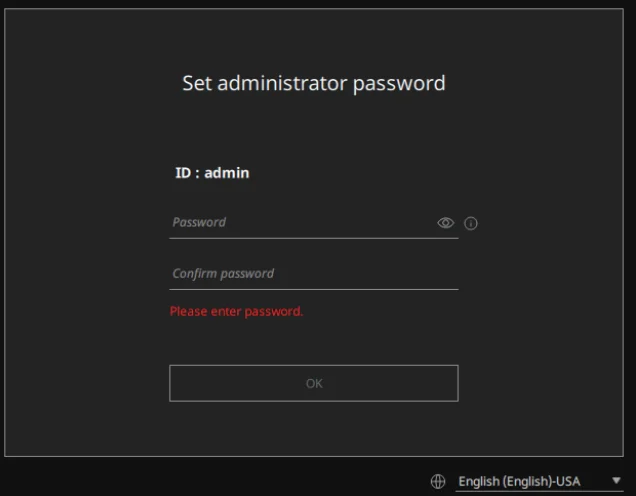
Step 5: Set up the administrator password
When you launch Wisenet Viewer for the first time, follow the initial setup prompts. The user manual describes setting up administrator login information as part of the initial launch.
Choose a strong password and keep it somewhere secure. Do not reuse the password for your camera or recorder accounts.
How to Add a Camera or NVR to Wisenet Viewer
After installation, you can begin configuring your surveillance system.
- Launch Wisenet Viewer and sign in.
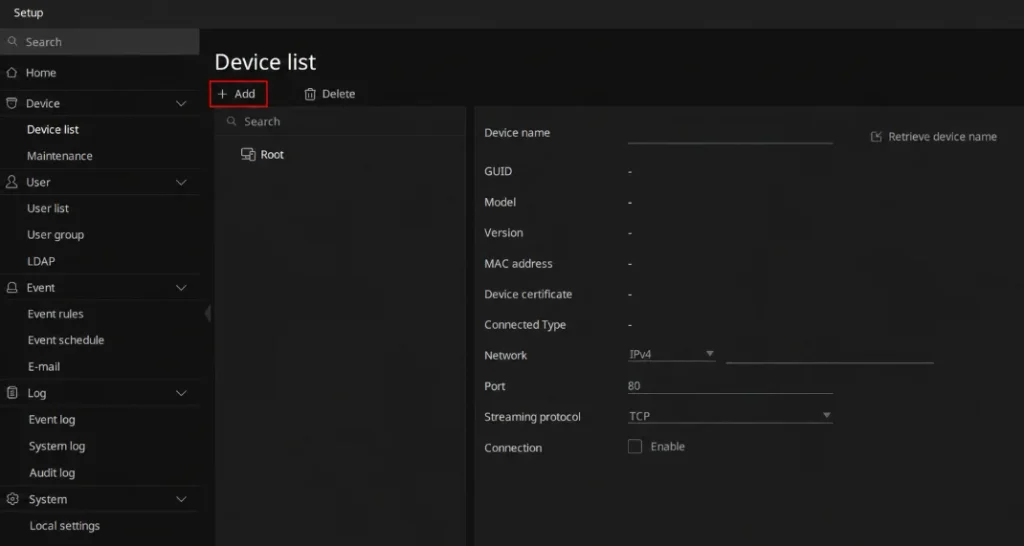
- Open the device management area in the application.
- Select the option to add or register a device.
- Enter the connection details requested by the software.
- Provide the appropriate device credentials.
- Save the configuration and check whether the device connects successfully.
- Add the registered device to a monitoring layout, if required.
The exact menus and connection fields depend on the software version and device type.
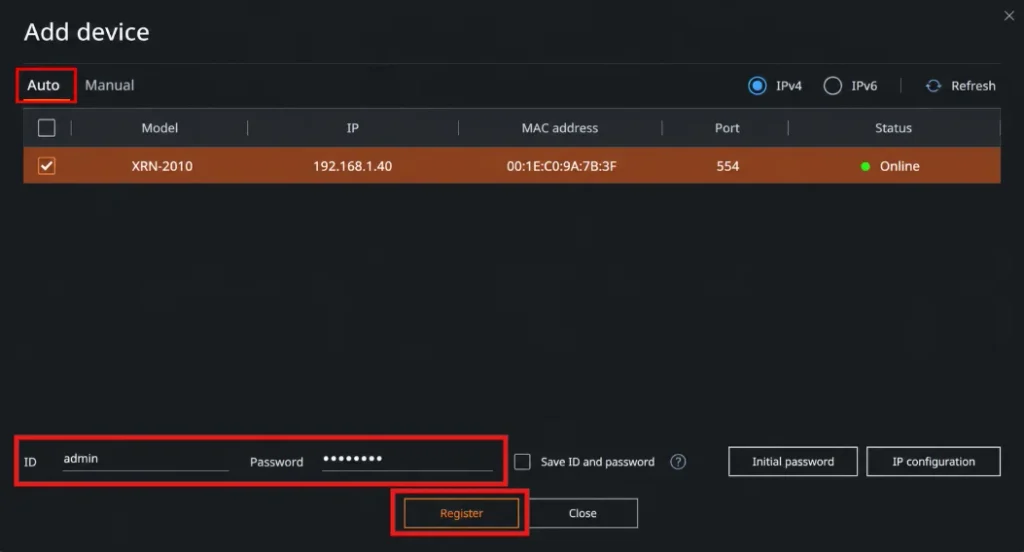
Compatibility note: Do not assume that every third-party IP camera or recorder will work with Wisenet Viewer. Confirm that your specific model is supported before purchasing equipment or planning a deployment. Always use this IP camera finder for Wisenet.
How to View Live Video and Recordings
Once a compatible device has been added, you can arrange the available video streams in a monitoring layout.
Live monitoring
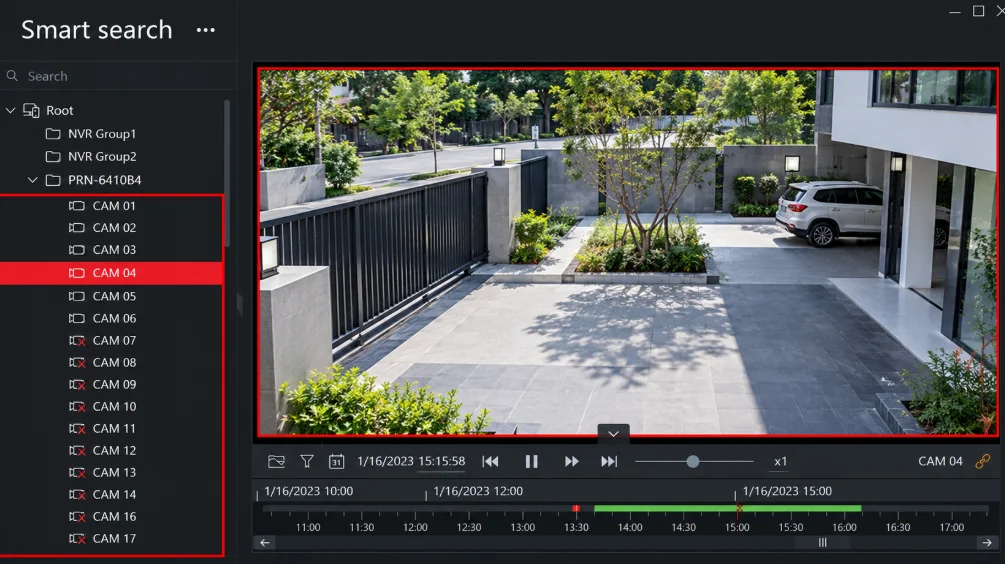
Open the monitoring view and place the available channels into the desired layout. You can use the supported layout options to organize multiple cameras on one screen.
If a channel does not display video, verify the device connection, credentials, network reachability, and compatibility.
Recorded video playback
Wisenet Viewer supports searching and playing recorded footage from compatible devices.
Open the playback or search interface, select the available device and time range, and review the returned footage. Available search functions depend on the device and its recording configuration.
For supported devices and features, the application also documents timeline thumbnails and AI-assisted search.
Common Wisenet Viewer Problems
If Wisenet Viewer does not work as expected, check the following items before changing advanced network settings.
Wisenet Viewer will not install
- Confirm that you extracted the ZIP archive before running the installer.
- Check the supported operating systems shown by the installer.
- Make sure your PC meets the documented hardware requirements.
- Check whether Windows security software has blocked the installation.
- Download the package again from Hanwha Vision if the archive appears incomplete.
Wisenet Viewer cannot connect to an NVR
- Confirm that the recorder is powered on and connected to the network.
- Check the recorder’s IP address or the configured remote connection details.
- Verify the username and password.
- Confirm that the recorder model is compatible with the software.
- Check firewall and network rules if the device is accessed remotely.
For P2P connection issues, see the official Hanwha Vision support article about adding an NVR through P2P. It explains a documented case in which network conditions can prevent a Wisenet Viewer v1.05 connection.
Live video is not displayed
Check whether the device is online and whether its credentials are correct. If remote access is involved, investigate the network connection and firewall configuration.
If only certain channels fail, check those channels and their recording or streaming configuration individually.
Wisenet Viewer runs slowly
Close unnecessary applications and check CPU, memory, and graphics usage. Compare your PC specifications with the recommended requirements in the manual.
Performance can also depend on the number and resolution of video streams being displayed.
You forgot the Wisenet Viewer administrator password
Hanwha Vision provides a Windows-specific support guide for resetting a lost local Wisenet Viewer password.
Read the official password-reset instructions before proceeding.
Important: The documented reset procedure deletes locally stored device registrations and custom channel names. It does not reset the credentials stored on the NVR itself. Back up your configuration when possible and read the support instructions carefully.
Frequently Asked Questions
Is Wisenet Viewer free to download?
Hanwha Vision lists Wisenet Viewer as NVR/DVR management software and provides a downloadable package. Check the manufacturer’s current license terms for any conditions applicable to your use.
Which Windows versions support Wisenet Viewer v1.05?
The v1.05 manual lists Windows 8.1, Windows 10, and Windows 11 in 64-bit versions. Check the installer’s supported operating system list before installing.
Can I use Wisenet Viewer without an NVR?
The software is designed to manage compatible surveillance devices. Whether a camera can be added directly depends on the model and supported connection method. Confirm compatibility in the official documentation before attempting a direct connection.
Can I view my cameras remotely?
The documented feature list includes remote connections using supported DDNS or P2P configurations. Remote viewing also depends on device compatibility, network configuration, and any required firewall or router settings.
Is Wisenet Viewer the same as Wisenet WAVE?
No. Hanwha Vision lists Wisenet Viewer and Wisenet WAVE as separate software products. Check the features, supported hardware, and licensing requirements of each before choosing one.
Where can I find the Wisenet Viewer manual?
You can read the Wisenet Viewer v1.05 user manual supplied for this article.
Final Thoughts
Wisenet Viewer for Windows provides a way to monitor compatible surveillance devices, arrange camera layouts, and review recorded video from a PC.
Before downloading, confirm that your computer meets the requirements and that your camera or recorder is supported. Use the official Hanwha Vision software package, follow the installation prompts, and consult the manufacturer’s documentation if you encounter connection or configuration problems.
Official download: Wisenet Viewer for Windows v1.05.00
