
Superlive Plus for PC is video management software provided by the TVT brand officially. It is a unique kind of CMS for monitoring CCTV cameras. The best part of this software is that you can also connect other brands’ ONVIF cameras.
Here we are going to discuss the SuperLive Plus Windows version, including Windows 7/8/10/11. There are two methods by which you can take a good view of your CCTV cameras.
In this post, you will learn how to download and set up the Superlive Plus for PC Application. After downloading the setup, we will learn how to configure the Superlive App.
Download Superlive Plus for PC (Windows 7/8/10/11) and for Mac
If you want to use Superlive Plus on your computer, you can download the version for Windows 7, 8, 10, and 11 or Mac from the link below. Simply choose the version that matches your system, download the setup file, and install it to start using Superlive Plus on your PC.
Version & Information about Superlive Plus for PC
| Name | SuperLive Plus |
| Windows Version | 2.1.3.21020 |
| Size | 463 MB |
| SuperLive Plus Mac Version | 2.1.1.00831 |
| Size | 115.75 MB |
| Brand | TVT |
| Official Provider | TVT |
System Requirements of Superlive Plus for PC
| Operation System | Windows 7/8/10/11 or Mac |
| RAM | 4 GB |
| CPU | Dual Core or above/AMD Ryzen |
| Free HDD | 400 MB or more |
Important Note for USA & International Users
SuperLive Plus is primarily designed for TVT-based CCTV systems. Some users in the United States may experience Windows security warnings, network restrictions, or limited compatibility depending on ISP and firewall settings.
The download buttons are shared to install and configure the software. Click the button to get the executable files for Windows and Mac PCs.
Choose the Right Version of Superlive Plus For Your Computer
Here we are going to use Windows 7 and Mac, but you can use the same settings for Windows 8, 10, and Windows 11 as well. You can also use another application named Superlivepro. So let’s start with the download and the setup of the Software.
A new app for remote monitoring has been launched for the latest TVT DVRs and NVRs. It is known as ‘NVMS Lite.’ Gradually, its updated versions are also introduced by the TVT Company. Here, we will learn to download and install the NVMS Lite 2.1 CMS App on Windows & Mac OS.
The NVMS Lite 2.1 CMS Software connects all TVT products seamlessly. Additionally, it also supports renowned manufacturers’ products like Hikvison, Dahua, Honeywell, etc.

Key Features & Functions of the SuperLive Plus For PC
Following are the key characteristics of it.
- It connects CCTV Cameras through QR codes, serial numbers, or IP addresses. You can use any mode to add these cameras or recorders.
- SuperLive Plus for PC gives you remote access. You can watch live at your location from any place. There is no time lag.
- The CMS software supports the storage of data in the device or on the cloud server.
- You can watch the playback from your location. You can even take snaps and record the conversations.
- You can operate devices with the help of the CMS App. You can pan, tilt, or zoom them. You can even talk to them and exchange messages. You can also hear them from your remote place.
- It sends you alert signals from threats. The smart sensors detect motion and audio.
WHO SHOULD USE / WHO SHOULD AVOID
Who Should Use SuperLive Plus?
- Users with TVT DVR/NVR systems
- Local CCTV setups without strict firewall rules
- Installers familiar with port forwarding
Who Should Avoid SuperLive Plus?
- Users looking for cloud-only CCTV apps
- Strict corporate or enterprise networks in the USA
- Users are uncomfortable with manual network configuration
Download SuperLive Plus For PC to Monitor on Windows OS
The application file for Superlive Plus is shared here for Windows OS. The application is given in the above download button. Press the button to get the software. The complete installation process is defined below.
First, you have to decompress the executable file and then download it. The complete installation process is demonstrated here step-by-step. It is shared in three parts.
The first part denotes the installation of the app, the second step defines the sign-in process, and the third step is reserved for the device addition.
Windows SmartScreen Warning – Is It Safe?
Some users may see Windows SmartScreen warnings while installing SuperLive Plus. This usually happens because the software is region-specific and not digitally signed according to Microsoft’s latest certification policies.
This does not automatically indicate malware, but users should always download software from trusted sources and scan files before installation.
Install SuperLive Plus For PC, Log in & Connect Device to Monitor on Windows OS
The complete installation and monitoring steps are explained here. They are demonstrated with images and narrations for a better understanding. It is defined in three steps.
Step 1- Install SuperLive Plus For PC on Windows
When we open the executable file, we get the following page. Here, we have to select the language.
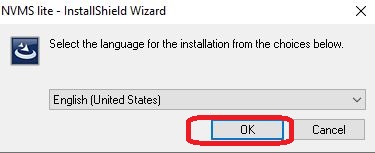
Choose your language of preference and then press the ok button.
This page appears on the screen. It shows that the setup files are prepared to install.
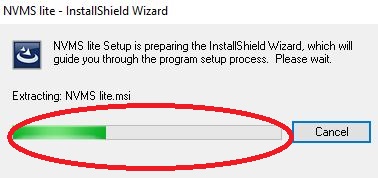
When the setup file becomes ready, we get the next page.
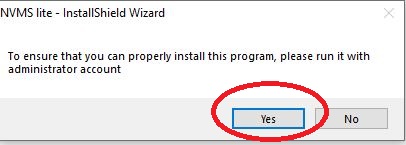
It says that to install it properly, you must use an administrator account. Press the OK button and move to the next window.
The agreement page appears on the screen of SuperLive Plus for PC.
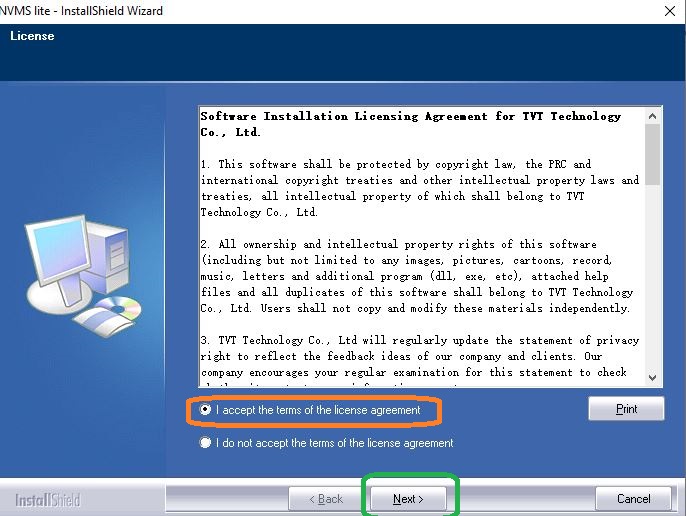
Select the ‘I accept the terms of the license agreement’ option and then press the next button.
The page for giving the path and folder location to the software appears.
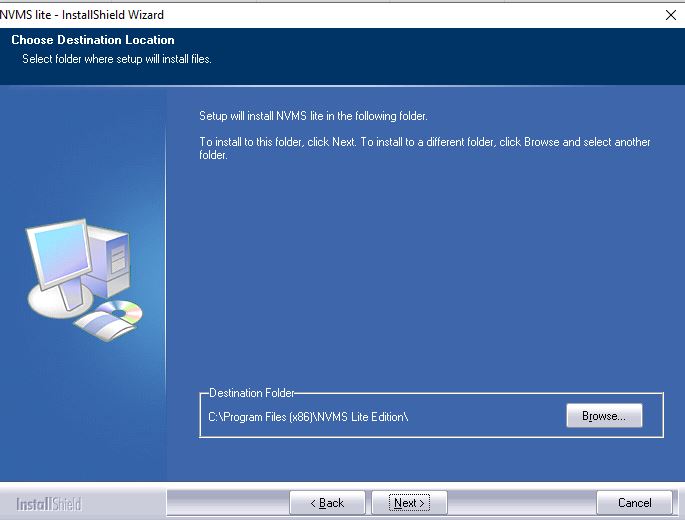
Give the proper path and folder location and then press the next button.
The files will begin to transfer on the PC.
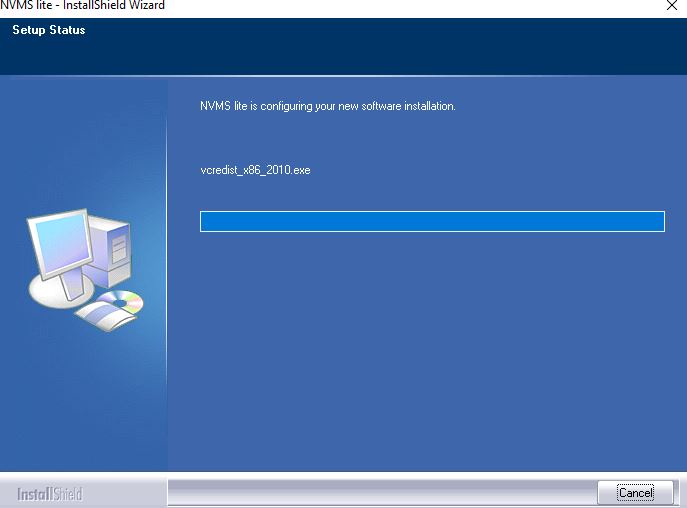
App installation process is going on. When the process is finished, we get a new page informing it.
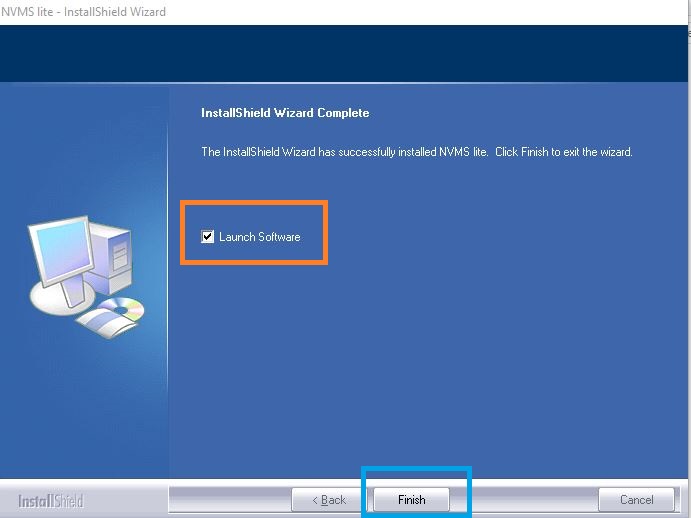
The installation process is finished. Press the ‘Finish’ button for the next step.
The step- 2 is about the login process of SuperLive Plus For PC.
Step 2- Log in to the SuperLive Plus For PC
When we open the installed app, we get the following page. It is the login page.
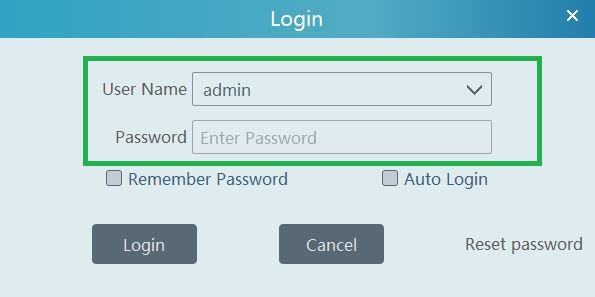
You have to fill in the Username and password of the application. The default username and password are respectively “admin” and “123456“.
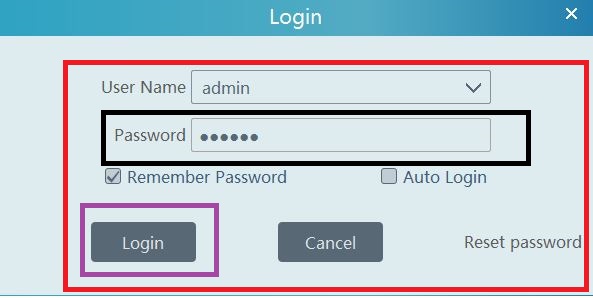
You will log in to the software. This way, step 2 is complete.
Now, we will go to add the devices.
Step 3- Add Devices for Monitoring
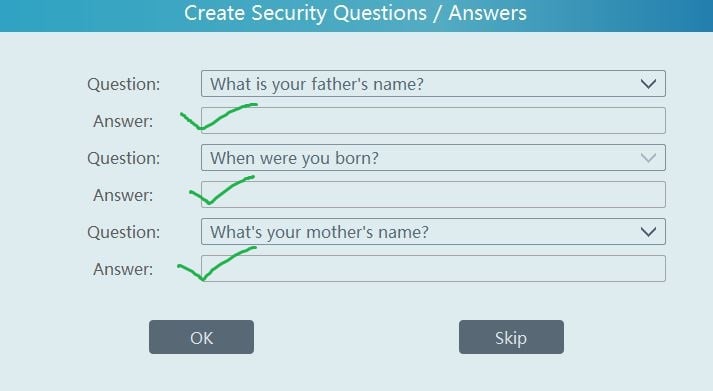
After the sign-in, we have to give these optional answers to recover passwords in case we forget them. It is an option. You can skip the process, too if you want.
After that, the homepage of the SuperLive Plus For PC appears.
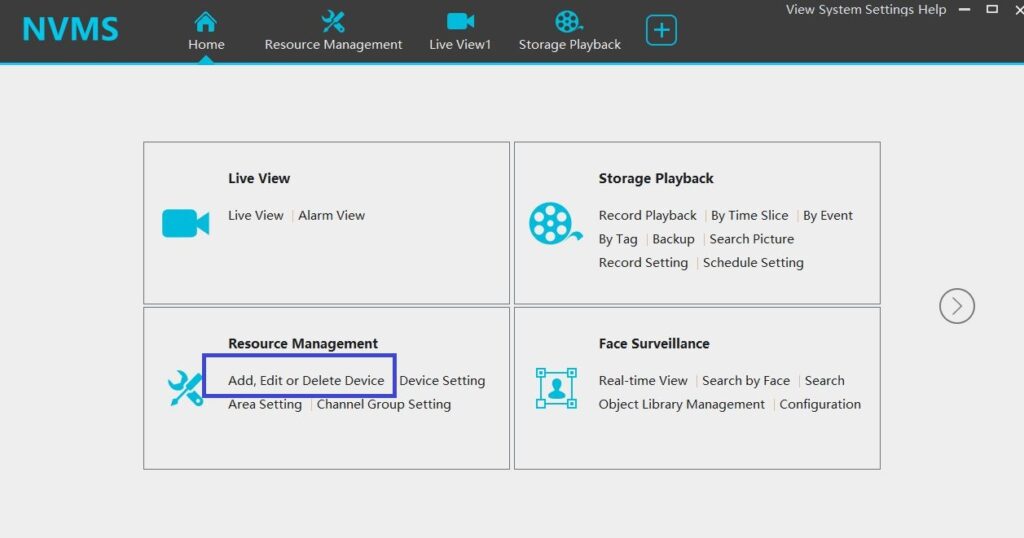
We have to add the device. Press the marked option to connect devices.
This page surfaces. Press the add button now for connecting cameras.
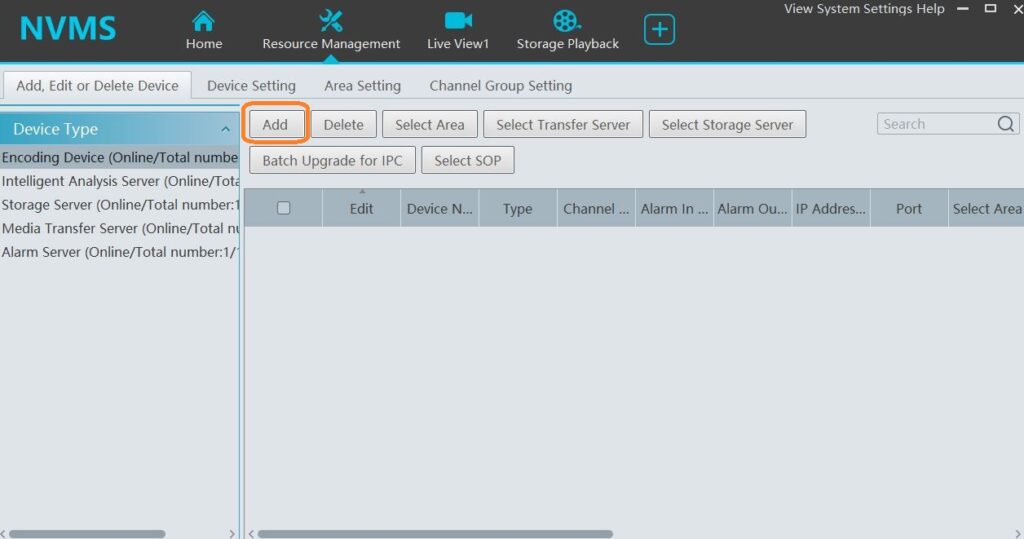
When you press the add button, you get this page. Here, you can add cameras or devices. To add manually click the encircled button.
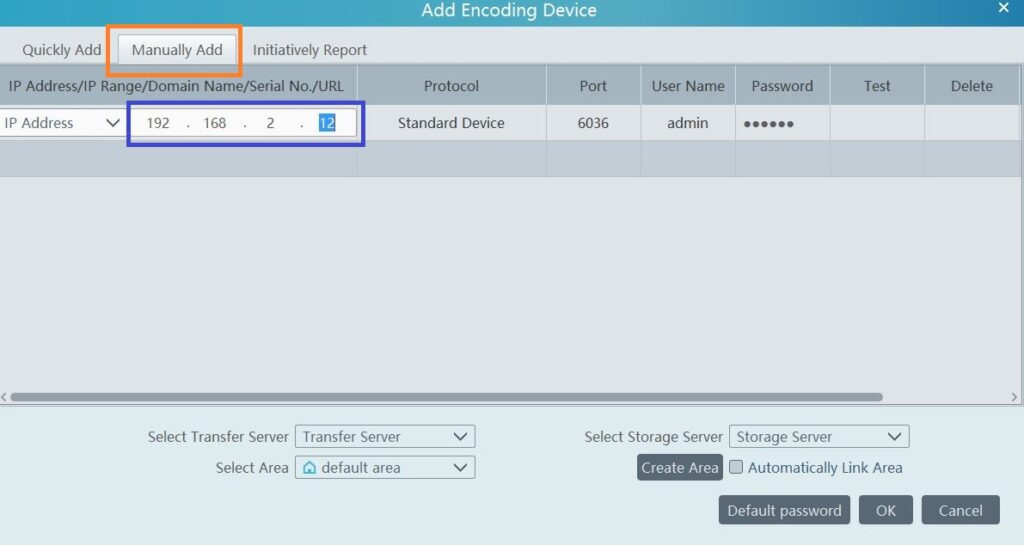
Fill in the IP address (Find IP address of TVT Cameras) and press ok to connect. You can add all the devices similarly.
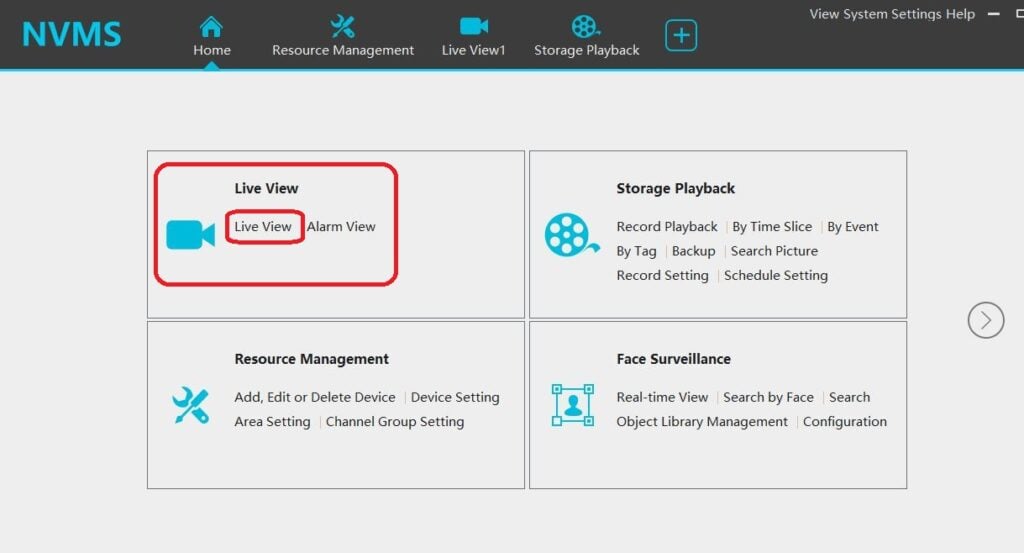
Now move to the home page and select the live view option.
The added device will appear on the screen. This way, you can monitor from remote areas.
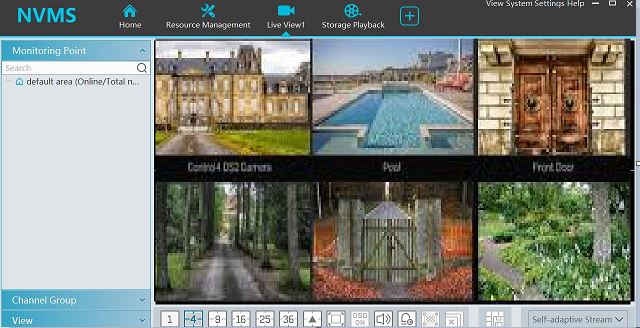
The full demonstration of this app must be helpful for readers and users.
SuperLive Plus vs Other CCTV Software (USA Users)
Many users in the USA compare SuperLive Plus with other popular CCTV software before installing it on a PC.
Quick comparison:
| Software | Best For | Windows Support | USA Use Case |
|---|---|---|---|
| SuperLive Plus | Dahua / OEM DVR-NVR users | Via Android Emulator | Small & mid-size CCTV setups |
| iVMS-4200 | Hikvision devices | Native Windows app | Commercial & enterprise use |
| DMSS | Dahua official app | Emulator based | Home & small business |
| Blue Iris | Mixed camera brands | Native Windows | Advanced users (paid) |
Is SuperLive Plus Legal to Use in the USA?
Yes — SuperLive Plus is legal to use in the USA when used correctly.
Important points:
- It is a camera monitoring application, not surveillance spyware
- Legal when monitoring your own property or devices
- Must follow state and federal privacy laws
- Audio recording laws vary by state (one-party vs two-party consent)
⚠️ Do not use SuperLive Plus to monitor cameras you don’t own or control.
Unauthorized surveillance may violate privacy laws.
SuperLive Plus App using NVMS 1000 (Older Version)
Every CCTV company offers a SuperLive Plus For PC for the Windows setup of its cameras. Superlive Plus also offers its own called NVMS 1000.
By using this, you can get a view of the SuperLive Plus camera on your computer screen. So download the setup for that from the given link.
Step 1.
Download the Setup from the given link below (Old Version).
After downloading the setup, open the folder where it has been downloaded. The file name is “Superlive-Plus-for-PC. Just install this setup on your PC.
Step 2
Now, come to the configuration of the Superlive Plus Application on a Windows PC.
After completing the installation process, you will get an icon on your desktop named “NVMS-1000”. Just double-click on that icon, and it will ask for the registration of the user.
Here, assign a user name and password and register the user. You may leave other options on the registration screen. These username and password are only for this software, not for your DVR/NVR.
Step 3
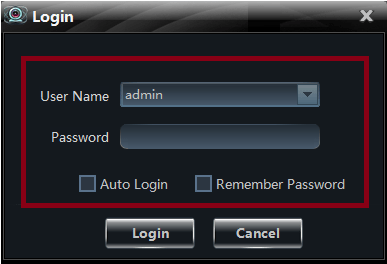
Now a new screen will open asking for the username and password. Insert the username and password that you registered in step 2. A screen will appear in front of you as shown below.
Step 4
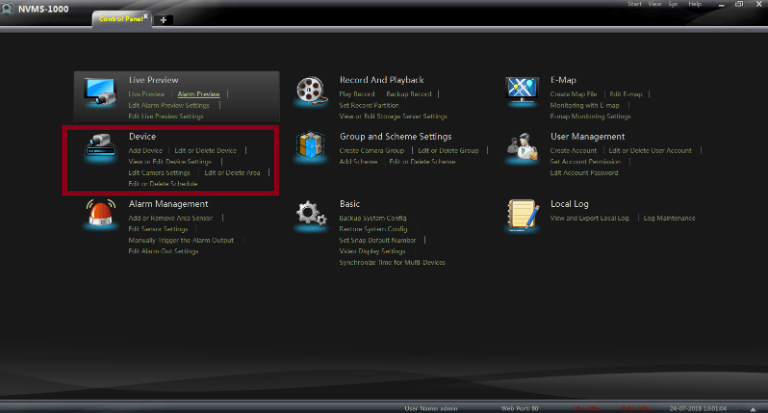
Just click the option “Device” and you will find the next screen as shown below.
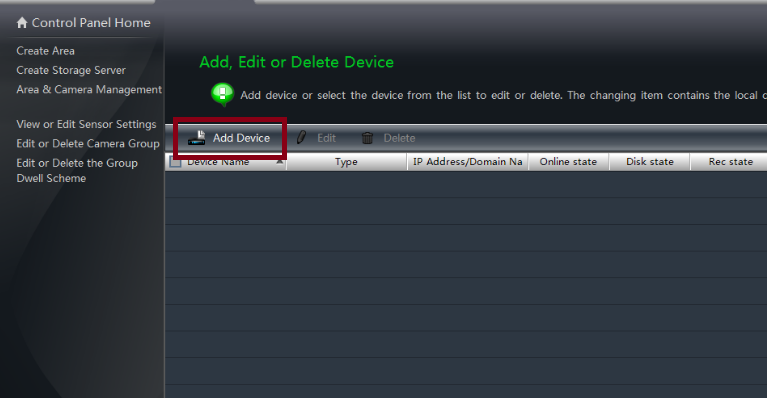
Click on the “Add Device” option and come to the next screen.
Step 5
Click on the “manually add” option from the top of the screen. Here, you have to add a device serial number, IP address or domain as per your mode of DVR/NVR’s registration.
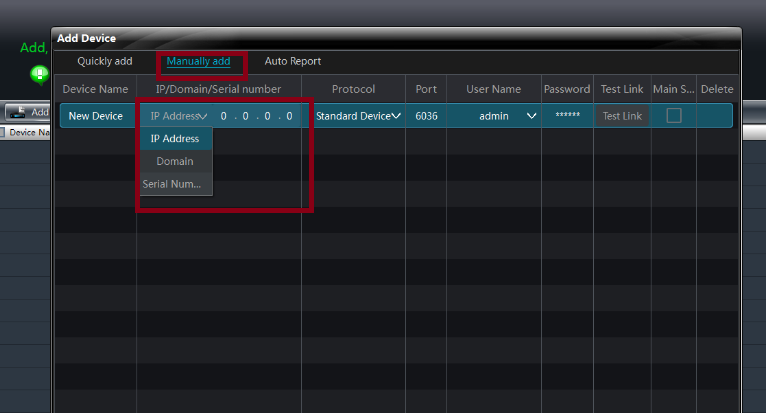
So choose one of them as per your desire. After filling in the information. Just click on the “Test link” button. The test link must pop up “Test connection success” then click “ok” and then “Add” button.
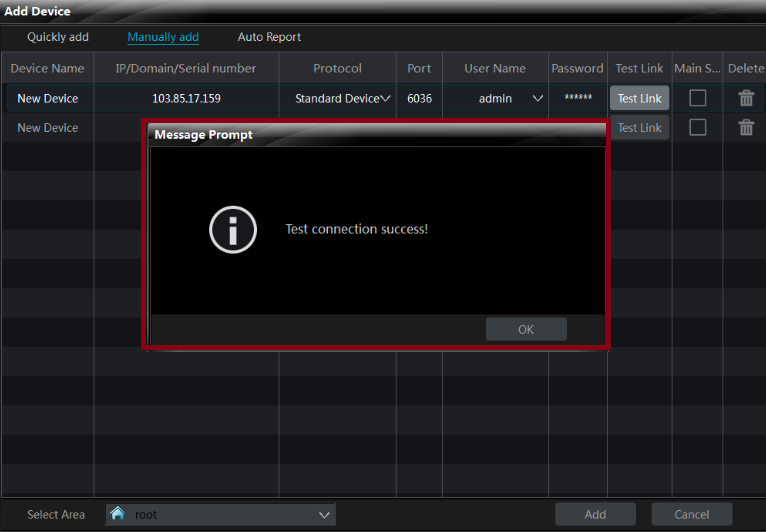
Now the device is registered successfully; you can see all the cameras on your computer screen. To do this, you should go to the “live preview” option.
Conclusion
So this is all about Download SuperLive Plus for PC and installation for Windows and Mac PCs. Using these steps, you can easily configure the SuperLive Pro DVR/NVR/IP camera for your Windows laptop and desktop. If you have any queries or suggestions, please write to us in the comment box below.
Testing Notes
🧪 Testing Notes
✔ Tested on: Windows 10 & 11 or MAC OS
✔ Compatible with: Selected Dahua-based DVR/NVR models and Hikvision Models
✔ Verified for: USA and Asian Users
Frequently Asked Questions
Can I view another brand’s camera on this?
Yes, you can monitor other brands’ cameras on this if it has ONVIF support.
Does TVT brand provide software for pc?
Yes, TVT provide a very good CCTV monitoring software and you can download it from above.
Does Superlive Plus have any PC version?
Yes, you can also download Superlive Plus for your Windows 7/8/10/11 PC and also for Mac.
What is the default password for Superlive Plus software cameras?
There is no default password for this; you can create a password after installation.
Is SuperLive Plus safe for PC?
Yes, when downloaded from official or trusted sources.
Who Should Use SuperLive Plus?
SuperLive Plus is best for:
1. Users already using compatible DVR/NVR systems
2. Home and small business CCTV setups
3. Remote monitoring via mobile + PC
Not ideal if:
1. You want a fully native Windows application
2. You manage large enterprise surveillance networks


i hve done everystep but its not connecting
it means your network is not working. Check NAT is ticked and IP address and gateway is placed properly
Keep getting a coffee cup and blank screen
A coffee cup means you don’t have a camera. A blank screen means you do not have a proper connection. Please check your network setting.
It actually worked! I was taken by surprise, I honestly thought it would never connect to my set of cameras installed around my PV solar park.
Thanks.
I got an QR code to connect on mobile. I scanned on mobile app and everything works there.
When I decoded QR code data I got …. with serial number, so I tried connecting through that – since I don’t have any other connection data (IP, etc).
So far no luck. Mobile and desktop are on same network.
Try a different type of device when you add the camera
You can connect using the same serial number on the pc also.another to get device information using the tvt Ip tool.
i want to connect the dvr to mac pc.But i want to connect it with the serial number of dvr no with i.p. Because when i connect the mac to different network it will not appears. How can i choose the serial number and no the i.p ?
when you add device, IP/ Serial number all option is given. Select Serial Number.
It’s not downloading. Its redirecting to the same page again and again.
I checked now, it is downloading. Thanks for the comment.
Thanks for the detailed guide on downloading Superlive Plus for PC! I’ve been looking for a reliable way to monitor my security cameras, and your steps made it really easy. Appreciate the effort you put into this post!
Great post! I’ve been looking for a way to use Superlive Plus on my PC, and your detailed steps made it so easy to follow. Thanks for sharing the download links for Windows and Mac!
I just downloaded Superlive Plus for my PC, and it works seamlessly on Windows 11! The installation process was super straightforward, and I love the interface. Thanks for the detailed guide! Looking forward to exploring all the features.
Great post! I’ve been looking for a convenient way to use Superlive Plus on my PC, and your guide makes it so easy. Can’t wait to try it on Windows 11. Thanks for sharing!
I’ve been looking for a reliable way to stream live content on my PC, and Superlive Plus sounds perfect! Thanks for the detailed guide on downloading it for Windows and Mac. Can’t wait to try it out!
Great post! I’ve been looking for a way to use Superlive Plus on my PC, and this guide makes it super easy. The download process looks straightforward. Thanks for sharing!
Good post. I’m experiencing a few of these issues as well..