
V380 Pro for PC is the official Windows CMS software used to monitor V380 IP cameras on Windows 11, Windows 10, and Windows 8 computers.
This is a native Windows application, not an Android emulator. It connects directly to your V380 cameras over LAN and the internet, giving you faster live view, stable connection, and full device control.
Mac users cannot install this CMS directly. On macOS, the V380 mobile app can only be used through an Android emulator such as BlueStacks.
This guide explains how to download, install, log in, and connect V380 cameras to the PC software step by step.
Download V380 Pro for PC (Windows CMS)
V380 Pro for PC is the official Windows CMS software used to manage and monitor V380 IP cameras on a computer.
Use the link below to download the original Windows CMS package.
- Software Name: V380 Pro CMS for Windows
- File Name: V380.2.0.5.zip
- Version: 2.0.8
- File Type: Windows CMS (ZIP)
- Supported OS: Windows 11, Windows 10, Windows 8
- Purpose: PC monitoring software for V380 IP cameras
- Installation: Extract the ZIP file and run the setup file to install
This page is the main official guide for V380 Pro for PC software.
The file download page only delivers the setup file, while this article provides the complete Windows installation guide, camera setup, and troubleshooting information.
What Is V380 Pro for PC and How It work on Windows
V380 Pro is the official camera management software used with V380 IP cameras.
The Windows CMS allows users to connect multiple cameras on a single PC, view live video, control PTZ functions, record footage, and manage devices from one dashboard.
Multiple V380 cameras can be added and monitored at the same time, making it suitable for home, office, and shop security setups.
The complete installation, login, and camera setup process is explained in the next section.
Features & Functions of V380 Pro for Windows App
Features & Functions of V380 Pro for Windows CMS
V380 Pro for PC is a full-featured Windows CMS designed to manage V380 IP cameras directly from a computer without using any Android emulator.
Key features of the Windows version include:
- Live camera viewing in HD with low-latency streaming
- Local network (LAN) camera detection for fast device setup
- Remote camera access over the internet
- Pan, Tilt, and Zoom (PTZ) control for supported V380 cameras
- Video recording and playback directly on the PC
- Snapshot capture from live video
- Motion detection alerts and alarm notifications
- Two-way audio support on compatible cameras
- Cloud and local storage support
Because this is a native Windows CMS, it offers better stability, smoother live view, and lower CPU usage compared to mobile emulators.
Download V380 Pro for Mac CMS on a Macintosh PC
V380 Pro on macOS (Important Note)
V380 Pro does not provide any native macOS software. There is no official V380 Pro CMS for Mac computers.
Mac users can only use V380 by running the Android mobile app inside an Android emulator such as BlueStacks or Nox Player. This method is slower and less stable than the Windows CMS.
For best performance, camera stability, and full device control, V380 Pro should be used on a Windows PC with the official Windows CMS software.
How to Install and Set Up V380 Pro on Windows PC
The configuration of the files up to the device addition is a three-step process illustrated here.
Get the link to the app and run it on a PC for installation.
Step 1- Install the V380 Pro for PC App
The download button is given. Get the files, decompress them, and load and install them on a Windows PC.
Then this page will appear on the screen.
It is the first page of the software. We have to select the language of the app.
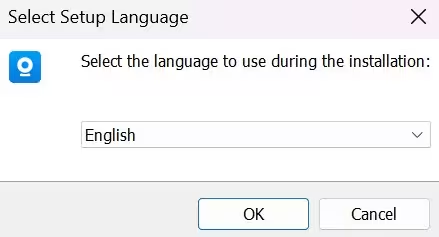
Select it and then press the OK button. The new window will surface.
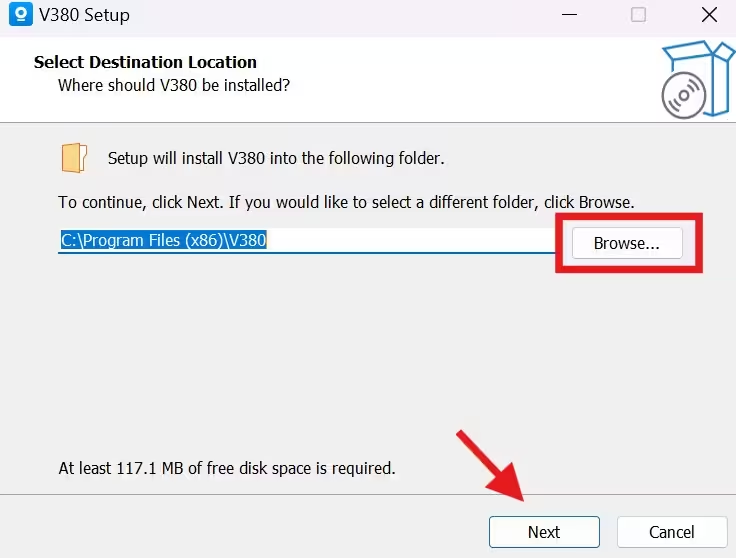
Here, we have to select the destination location of the folder. Choose the folder and its path, then click the next button.
This page shows the additional shortcuts. You can select the desktop shortcuts.
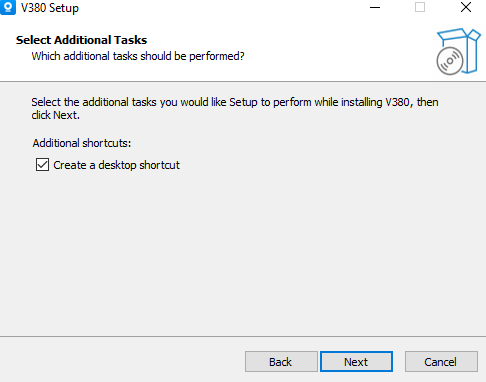
After picking shortcuts, select the next button. The new page is about the information on the installation of files.
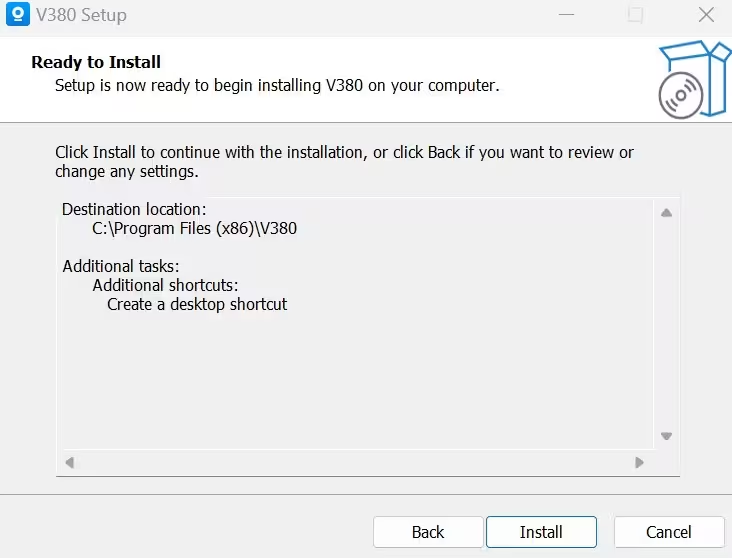
Press the install button to download all the files. When you press it, the following action happens.
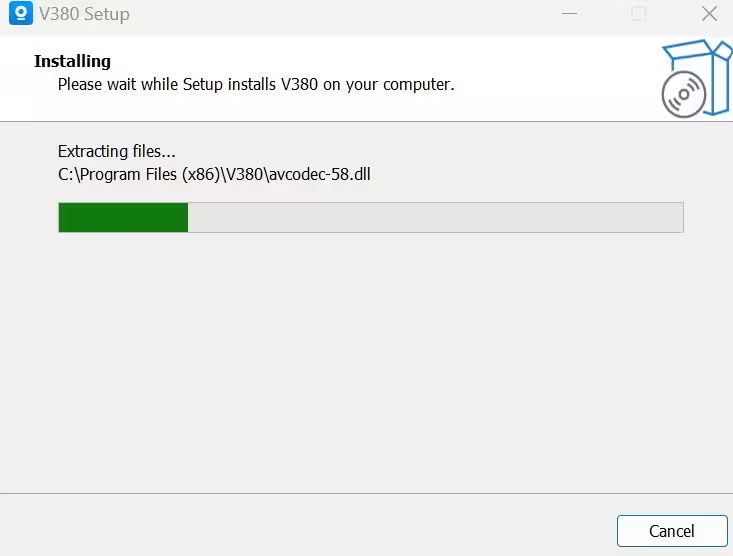
This image reflects the downloading of the files. The app is installed. When the installation is finished, we receive a notification.
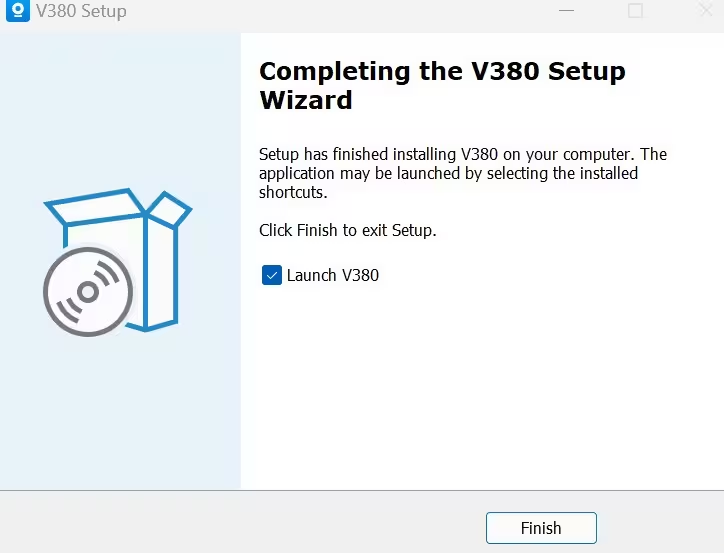
This way step 1 is complete.
Step 2- Log in to the Application File
When we open the installed application, the following page appears.
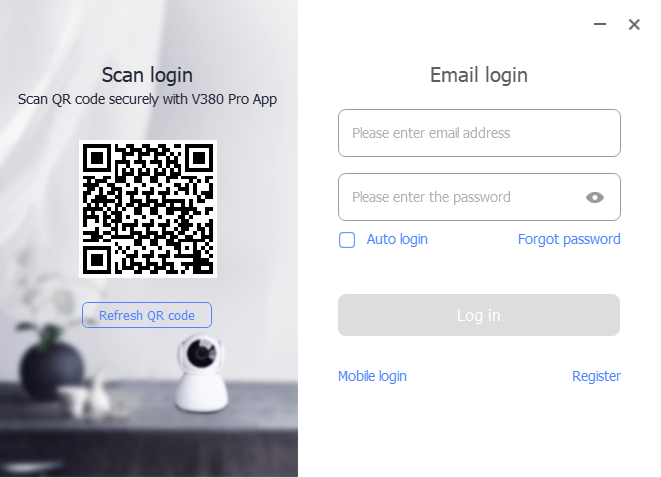
If you are using this V380 Pro for a PC product for the first time, you have to register the ID and the password for logging in to the app.
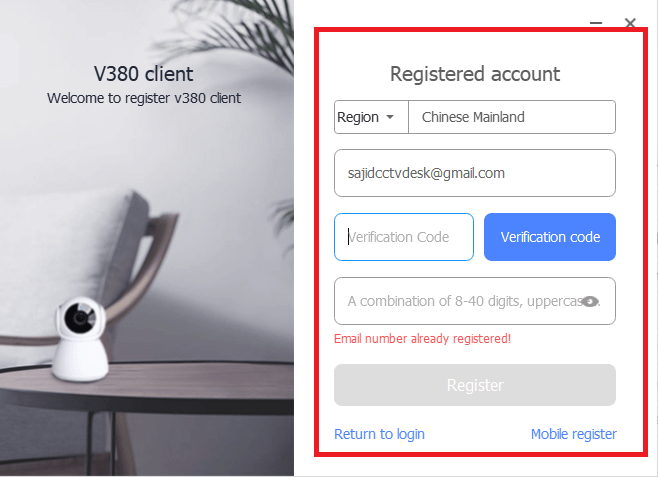
You have to register an email ID. You will get a verification code to verify your email address. Simultaneously, you generate the ID and the password. Then press the register button and log in to the software.
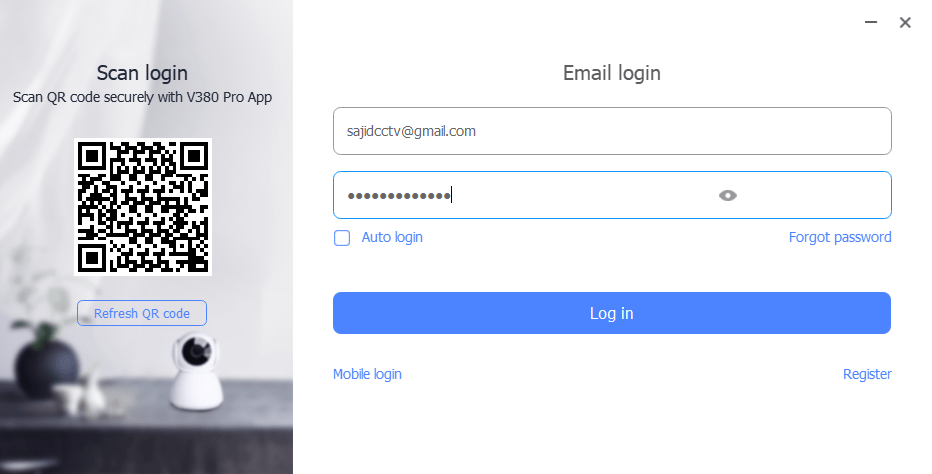
This way you will be able to log in to it. The second step is complete. Now we move to the third and the last step.
Step 3- Device Addition for Monitoring
To add the device, we open the homepage of the software file.
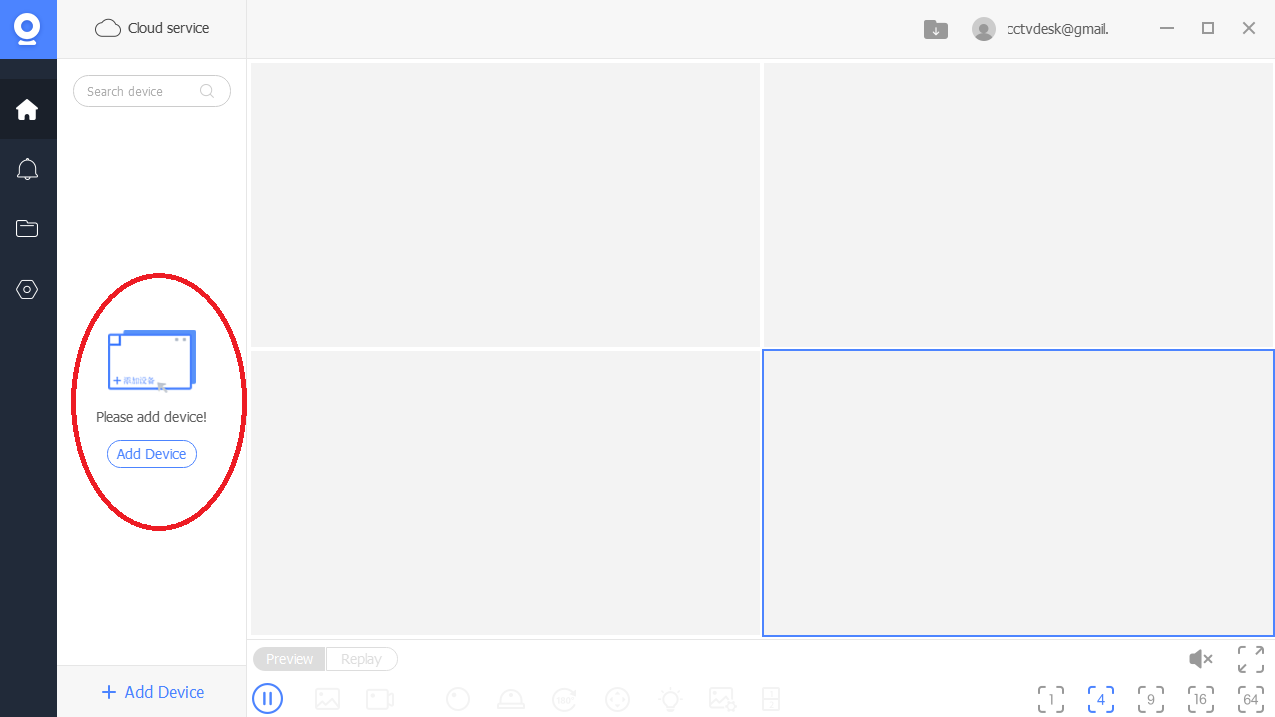
The encircled icon is given for the device addition. Press it to connect devices.
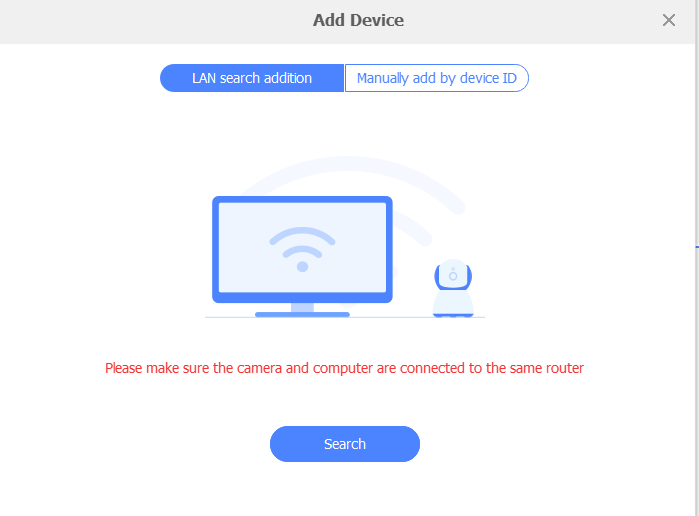
You can add the devices. You can manually add the devices with their IPs. After that, one by one, the cameras will connect and appear on the screen.
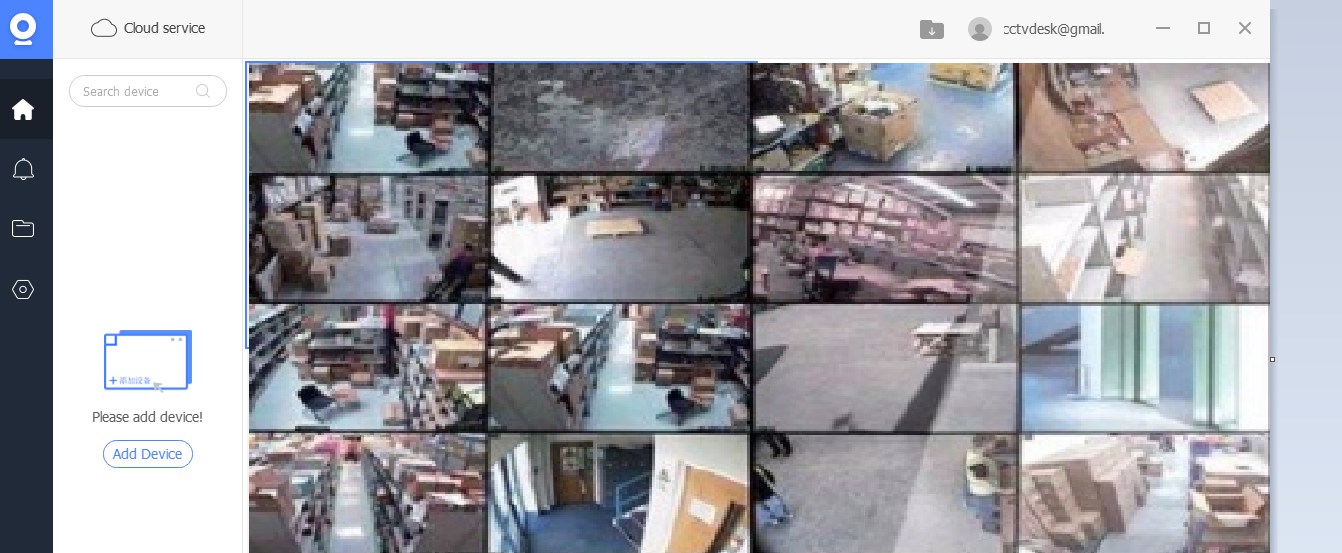
This way, you see that devices are added. You can monitor them on the screen.
Common Problems in V380 Pro on Windows PC
Many users face connection or login issues while using V380 Pro on a computer. Below are the most common problems and their solutions.
V380 Pro login not working
If the app does not accept your email or password, make sure you are using the same account that was created on the V380 mobile app. Reset the password from the mobile app if login fails on PC.
The camera shows offline on PC
If your camera appears offline in V380 Pro for PC, ensure the camera is connected to the same WiFi network and is online in the mobile app. Restart the camera and refresh the device list in the CMS.
V380 camera not detected on LAN
Disable VPN and firewall temporarily and use the LAN search option inside the software to detect cameras automatically.
Live view is not loading
This usually happens due to weak internet or blocked ports. Reboot your router and camera and try again.
No video, but audio works
Check the stream quality setting inside the V380 Pro software and switch between HD and SD mode.
These fixes solve most Windows PC related issues with V380 Pro CMS.
Tested on Windows PC
This V380 Pro Windows CMS was tested on a real Windows 11 and Windows 10 system using V380 IP cameras.
The software was installed, logged in, and cameras were added through LAN and the internet to verify live view, recording, and device control.
This guide is based on actual installation and usage of the V380 Pro CMS on a PC.
Important Note for USA & International Users
V380 Pro for PC is fully compatible with CCTV cameras used in the United States and other international locations.
This Windows CMS works with U.S. network standards, routers, and internet providers such as Comcast, AT&T, Verizon, and Spectrum.
The software has been tested with international IP cameras and internet connections to ensure stable live view, remote access, and alarm notifications for users outside India.
Conclusion
The V380 Pro for PC, V380 Pro for Windows, and V380 Pro for Mac are explained in the post. The download button is shared for V380 Pro for PC Software. The installation, logging, and device connection processes are thoroughly illustrated and narrated.
If you have issues regarding the installation or camera connection for monitoring, please share them with us. Your opinions and suggestions are valuable to us. You can send them in the comment box. We will respond to them.
Thank You.

one of camera is offline always i already reset the device
How many Cam do you have?
2 cameras already connected to my pc but it doesn’t show any videos on pc
https://www.youtube.com/watch?v=XSqHAeMYSzo
please follow.
i make my id on my mobile number but application for laptop not available with country code .application doesn’t show Pakistan code
t is better to register via the mobile app or use an email for registration. You may also consider using a VPN to change your region and access the country code. Additionally, ensure that you are using the latest version of the V380 software on your PC.
buenas noches, deseo usar el sistema v380 pro para pc y se genere la grabacion de mis camaras son 25 en el pc, que caracteristicas de equipo debo usar?
a veces no veo todas las camaras activas, pero si doy doble clic si se ven
y como podria poner en silecio todas las camaras?
Buenas noches. Para usar V380 Pro en PC con 25 cámaras y grabación continua, necesitas una computadora con procesador i7 o Ryzen 7, mínimo 16 GB de RAM, disco SSD para el sistema y HDD grande (1 TB o más) para grabaciones, además de buena tarjeta de red. Si no ves todas las cámaras activas, puede ser por límite de visualización simultánea; al hacer doble clic se activa la transmisión directa. Para silenciar todas las cámaras, entra a cada una en el software y desactiva el audio o baja el volumen desde la configuración general de sonido si el software lo permite.
Thanks for the step-by-step guide! I was able to install V380 Pro on my Windows 10 without any issues. The tips for troubleshooting were especially helpful. Looking forward to more tech tips from you!